To change your JioFiber Wi-Fi password and network name, use the MyJio app or the router’s settings page in a browser. In the app, select your JioFiber connection and open its Wi-Fi settings. On the router page, sign in and open the wireless section. Either way, it takes only a few minutes.
Once you save, every device using the old details disconnects and needs the new password. This guide walks through both methods, how to choose a strong name and password, and how to reconnect phones, TVs and smart devices. App and router menus change with updates, so labels may differ slightly.
- The MyJio app is the simplest way for most people to change Wi-Fi details.
- The router settings page works too, and gives more control over each band.
- Use a long password that has nothing to do with your name, phone or address.
- Plan to reconnect every device, including smart TVs and smart home gadgets.
Before You Change Anything
A little preparation avoids confusion later:
- Decide the new name and password and write them down somewhere safe.
- List devices that will need reconnecting, such as smart TVs, a Set-Top Box on Wi-Fi, security cameras, smart plugs and printers.
- Pick a quiet time, so nobody is in the middle of a video call or class.
- Check your bands. Many JioFiber routers show separate names for the 2.4 GHz and 5 GHz bands. Decide whether to change one or both.
Method 1: Change JioFiber Wi-Fi Password in the MyJio App
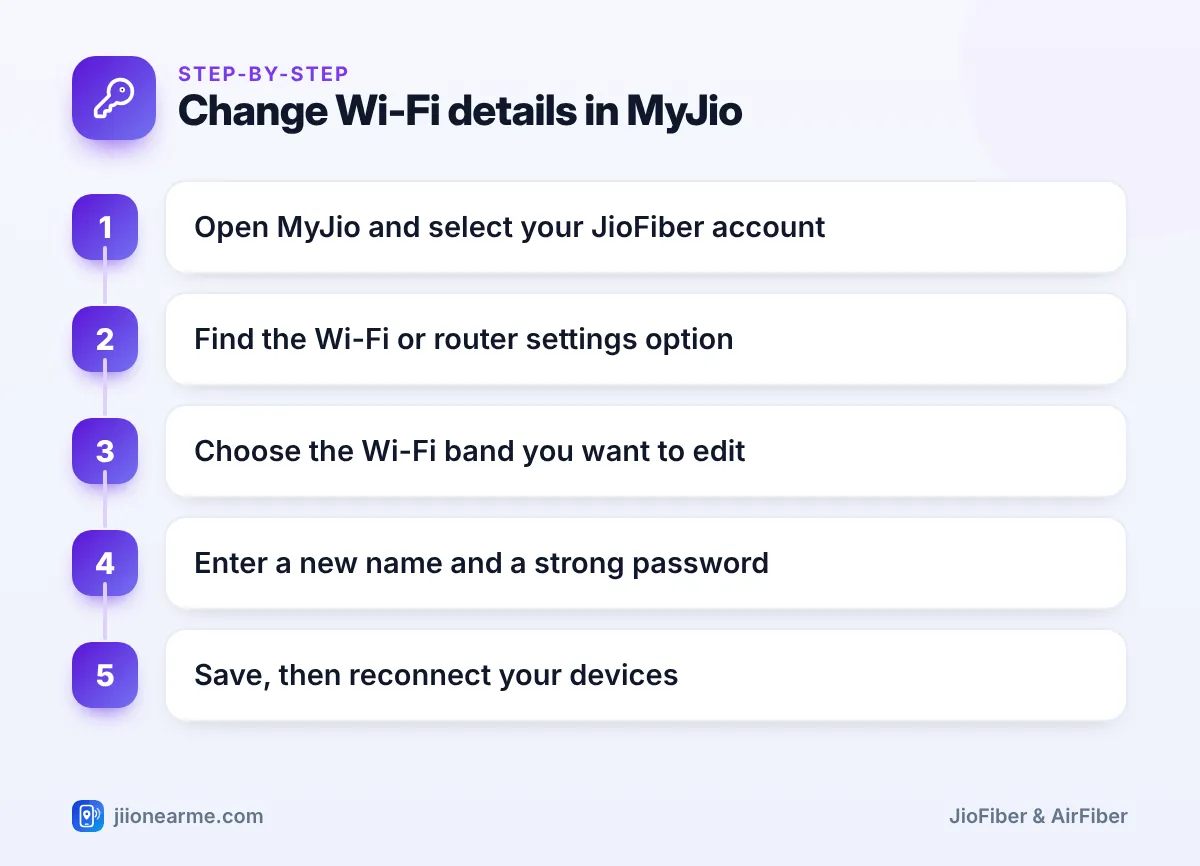
- Open the MyJio app and sign in with your registered number.
- Switch to your JioFiber connection, using the account selector or linked accounts section.
- Look for an option such as Wi-Fi settings, Manage or Settings for your JioFiber connection.
- If both bands are listed, choose the one you want to edit.
- Enter the new Wi-Fi name and the new password.
- Tap Save. If the app asks for an OTP, enter it in the app only. Never share it with anyone.
- Wait a minute or two for the router to apply the change.
The option may sit under a different label in your app version, or may not be available for every router model. Update the app, or use the router page method below. You can also call 199 from a Jio number for help.
Method 2: Use the Router Settings Page
- Connect a device to your JioFiber network. A laptop on an Ethernet cable is best, because Wi-Fi drops when you save.
- Open a browser and type the router’s address, commonly 192.168.29.1, in the address bar.
- Sign in with the admin details printed on the router label or provided by Jio.
- Open the Wireless, Wi-Fi or WLAN section and select the 2.4 GHz or 5 GHz band.
- Change the network name, often labelled SSID.
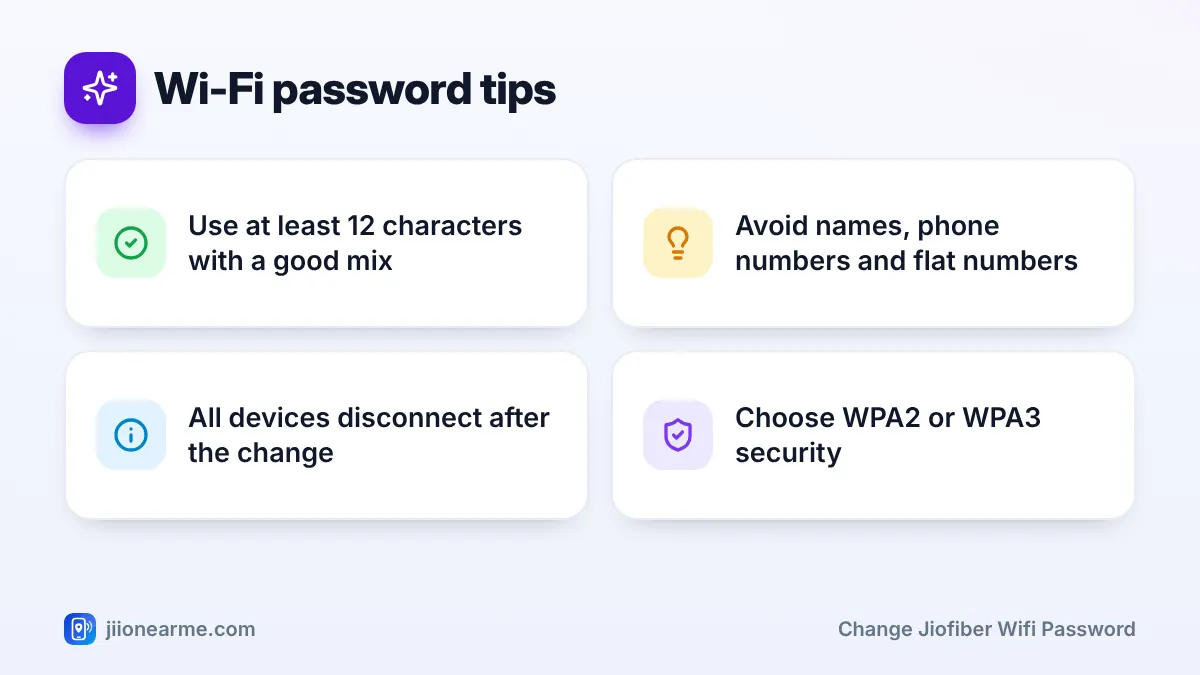
- Set the security mode to WPA2 or WPA2/WPA3, if available. Avoid WEP or open networks.
- Enter the new password, which may be labelled passphrase or key.
- Select Apply or Save, then repeat for the other band if needed.
- Log out of the router page.
Change only the Wi-Fi name, password and security mode. Settings in sections such as WAN, internet connection or voice are set by Jio, and changing them can cut your internet or landline.
How to Choose a Strong Wi-Fi Name and Password
Your Wi-Fi name is visible to everyone nearby, so keep it neutral. Avoid your family name, flat number or phone number. Pick something you will recognise without it pointing to your home.
For the password:
- Use at least 12 characters.
- Mix capital and small letters, numbers and a symbol or two.
- Consider a passphrase made of three or four unrelated words with a number.
- Do not reuse a password from your email, bank or social media.
- Share it only with people who live with you.
| Weak choice | Why it is weak | Better approach |
|---|---|---|
| Your surname plus 123 | Easy to guess | Unrelated words with numbers |
| Your mobile number | Many people know it | A random mix of characters |
| Your flat or house number | Visible to visitors | A passphrase only your family knows |
| Same as your email password | One leak exposes both | A unique Wi-Fi password |
Reconnecting Your Devices After the Change
Phones and laptops
Select the new network name and enter the new password. If you kept the same name, your device may show an error for the old password. Choose Forget for that network, then connect again.
Smart TVs and the Set-Top Box
Open the TV’s network or Wi-Fi settings and reconnect. A Set-Top Box connected with a cable is not affected. If it uses Wi-Fi, reconnect it from its network settings.
Smart home devices and printers
Cameras, smart plugs, speakers and printers usually need to be set up again through their own app or control panel. Some of these devices work only on the 2.4 GHz band, so keep that band switched on.
Fixing Common Problems
- A device cannot see the new network: Older devices may not support 5 GHz. Connect them to the 2.4 GHz network instead.
- The change does not appear: Wait a few minutes, then restart the router once.
- You forgot the new admin or Wi-Fi password: Change it again through MyJio. As a last resort, a factory reset brings back the default details on the label but erases your other settings.
Frequently Asked Questions
How often should I change my JioFiber Wi-Fi password?
Change it whenever you think someone outside your home knows it, such as after guests, workers or former tenants had access. A periodic change is also good practice.
Will changing the password affect my plan or speed?
No. Your plan and speed stay the same. Only the details devices use to join the network change.
Can I see who is connected to my Wi-Fi?
Usually, yes. The router settings page lists connected devices, and the MyJio app may show them depending on your version.
What if I forget my Wi-Fi password?
Many phones can show or share the saved password of the connected network from their Wi-Fi settings. You can also set a new one through the MyJio app.
Is the Wi-Fi password the same as the router admin password?
No. The Wi-Fi password lets devices join your network, while the admin password protects the router’s settings page.
Wrapping Up
Changing your JioFiber Wi-Fi name and password is quick through the MyJio app, and the router page gives you finer control. Choose a strong, private password, change only the settings you need and set aside a few minutes to reconnect every device. Repeat the change whenever you suspect your password has spread beyond your household.
JIo Near me is an independent guide and is not affiliated with Reliance Jio. App menus, plans and policies can change – always confirm current details in the official MyJio app or on jio.com. We will never ask for your OTP, PIN or passwords.
