To set up a new JioFi, insert the Jio SIM and battery, charge the device, switch it on, and connect your phone or laptop using the Wi-Fi name and password printed on its label. The label is usually under the battery, so note the details before you fit the battery.
JioFi is Jio’s portable Wi-Fi hotspot. It takes a Jio SIM and shares that SIM’s 4G data with your devices over Wi-Fi. Models differ slightly in shape, buttons and lights, so keep the user guide from the box handy and follow it where it differs from the steps below.
- The default Wi-Fi name (SSID) and password are usually printed on a label under the battery or on the box.
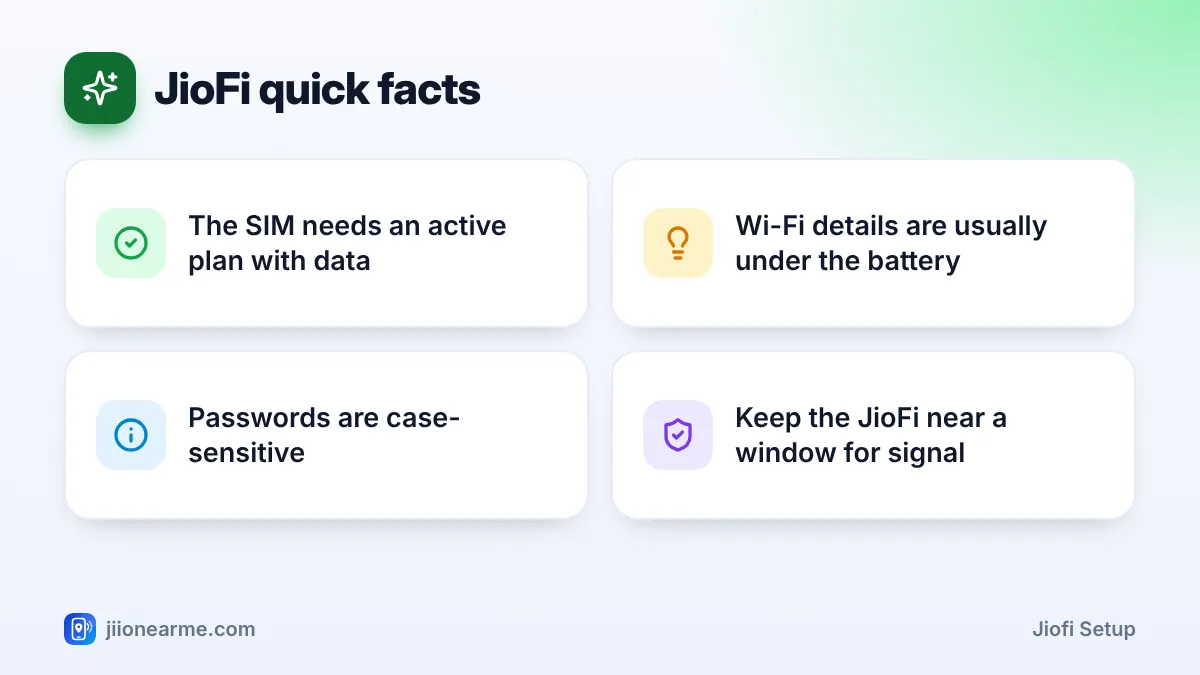
- The Jio SIM inside the JioFi needs an active plan with data before you can browse.
- Charge the device fully before regular use and switch it on with the power button.
- Change the default Wi-Fi password after setup to keep others off your connection.
What You Need Before You Start
Check the box first. It usually contains the JioFi device, a battery, a charging cable and a quick start guide. You also need:
- A Jio SIM. It may come with the JioFi or be bought separately. New SIMs need KYC at a Jio store or authorised retailer.
- An active data plan. The JioFi has no plan of its own. It uses the plan on the SIM’s number. Check current data plans in the MyJio app or on jio.com.
- A phone or laptop with Wi-Fi. This is what you will connect to the JioFi.
- A pen and paper, or your phone’s camera, to note the Wi-Fi details from the label.
JioFi Setup Step by Step
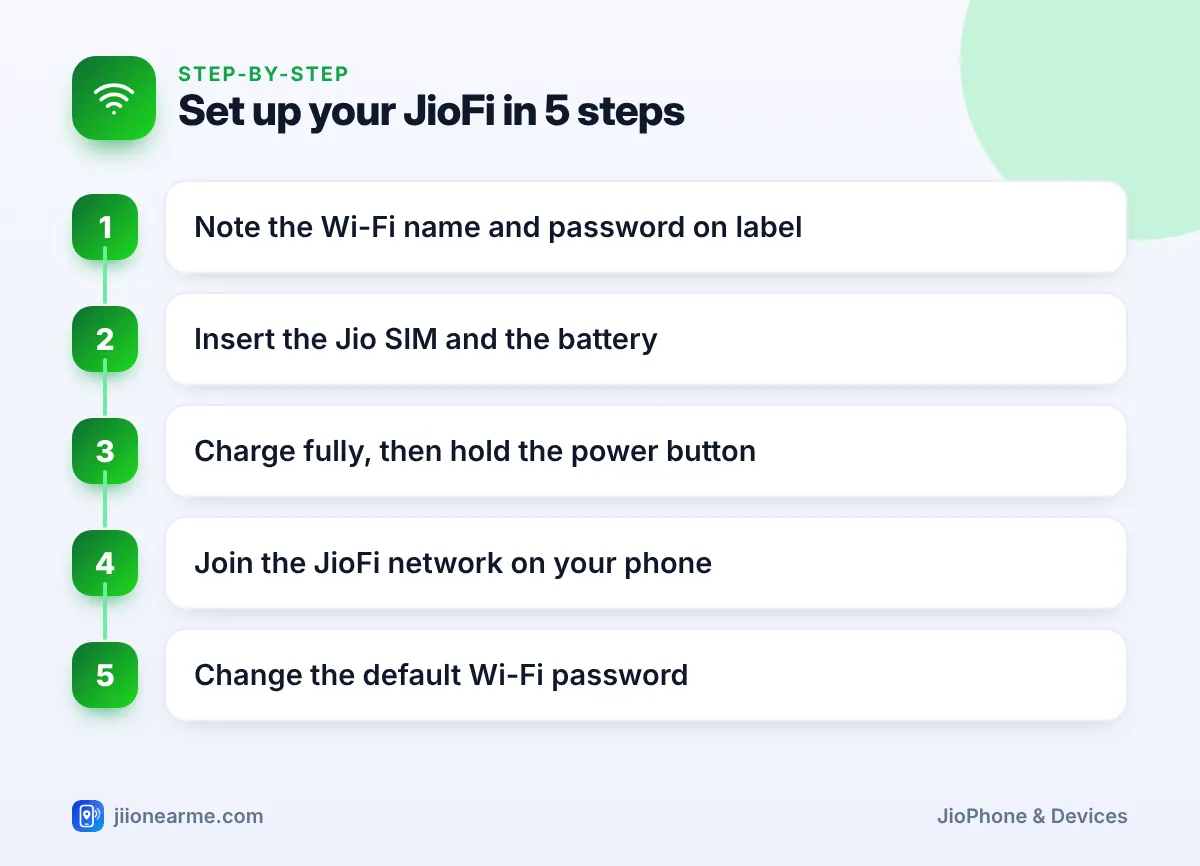
Step 1: Open the back cover and note the Wi-Fi details
Slide or lift off the back cover using the notch on its edge. Look for a label inside the battery compartment. It shows the default Wi-Fi name (often starting with “JioFi”) and the Wi-Fi password, sometimes called the key. Take a photo of it or write it down, because the battery will cover it later.
Step 2: Insert the Jio SIM
- Find the SIM slot inside the compartment. A small diagram shows which way the SIM goes.
- If your SIM is in a large plastic frame, pop out the size that fits the slot.
- Slide the SIM in with the gold contacts facing down, matching the cut corner to the diagram.
Some models also have a microSD slot for file sharing. You do not need a memory card to use the hotspot.
Step 3: Fit the battery and cover
Place the battery so its metal contacts line up with those in the device. Press it down gently and snap the back cover on firmly.
Step 4: Charge the JioFi
Connect the charging cable to a wall adapter and to the JioFi. Charge it fully before regular use. A battery light usually shows charging status.
Step 5: Switch it on
Press and hold the power button for a few seconds until the lights come on. Wait a minute or two while the device finds the Jio network. A signal or network light usually shows when it is connected. Light colours and patterns vary by model, so check your user guide for what each one means.
Connecting a Phone or Laptop to Your JioFi
On a phone
- Open Settings and go to Wi-Fi.
- Turn Wi-Fi on and wait for the list of networks.
- Select the JioFi network name from the label.
- Type the password exactly as printed and tap Connect.
On a laptop
- Click the Wi-Fi icon on the taskbar or in the menu bar.
- Choose the JioFi network name.
- Enter the password and select Connect.
Once connected, open a website to check the internet. Some models can also share internet with a laptop through the USB cable. Check your user guide if you need this.
Default passwords mix capital letters, small letters and numbers, and similar characters like the letter O and the number 0 are easy to confuse. If the password fails, check each character against the label photo.
Changing the Default Wi-Fi Password
Anyone who sees the label can join a JioFi that still uses the default password. Changing it is a good habit.
- Connect your phone or laptop to the JioFi’s Wi-Fi.
- Open a browser and go to the admin address in your user guide. On many models, this is jiofi.local.html.
- Sign in with the admin details from the user guide or label.
- Look for the Wi-Fi or network settings and find the password or security key field.
- Enter a new, strong password and save.
- Reconnect your devices using the new password.
Some versions of the MyJio app also let you manage a linked JioFi. Change the admin login too, if your model allows it, and keep both passwords somewhere safe.
Never share your Wi-Fi password with strangers, and never share OTPs from Jio with anyone who calls claiming to help with setup. Jio staff will not ask for your OTP. Report suspicious calls through Chakshu on the Sanchar Saathi portal.
Fixing Common First-Day Problems
The JioFi network does not appear
Make sure the JioFi is switched on and charged. Move your phone closer and turn its Wi-Fi off and on. Restart the JioFi if needed.
Connected, but no internet
The SIM may not be active yet, or the plan may not include data. New SIMs can take some time to activate after KYC. Check the plan in MyJio, then restart the JioFi.
Weak or slow internet
Mobile signal is often stronger near a window or higher up. Avoid keeping the JioFi in a closed drawer, a metal cupboard or a pocket.
The battery drains quickly
Many connected devices and heavy use drain the battery faster. Charge it regularly, and avoid leaving it in direct sun or a hot vehicle.
If problems continue, call Jio customer care on 199 from a Jio number for queries, or 1800-889-9999.
Frequently Asked Questions
Where can I find my JioFi Wi-Fi password?
The default password is usually on a label under the battery, and sometimes on the box. If you changed it and forgot it, check the admin page or reset the device as described in your user guide.
Can I use a SIM from another network in my JioFi?
JioFi devices are designed to work with Jio SIMs. For another network’s SIM, you would need a different hotspot device.
How many devices can connect to a JioFi?
It depends on the model. Check your user guide for the limit, and remember that more devices share the same speed and data.
Can I use the JioFi while it is charging?
Most models can stay on while charging. Keep the device in a cool, open place so it does not overheat.
Does JioFi work with 5G?
Most JioFi models are 4G hotspots. Check the box or your model’s page on jio.com for the network it supports.
Summary
A JioFi setup is quick once you know where the details are. Note the Wi-Fi name and password from the label, insert the SIM and battery, charge the device and switch it on. Connect your devices, change the default password, and keep the SIM recharged with a data plan so the hotspot is ready whenever you need it.
JIo Near me is an independent guide and is not affiliated with Reliance Jio. App menus, plans and policies can change – always confirm current details in the official MyJio app or on jio.com. We will never ask for your OTP, PIN or passwords.