Sharing your Jio mobile data from an Android phone takes under a minute. Open Settings, go to the hotspot menu, set a network name and password, and switch the hotspot on. Your laptop, tablet or another phone can then join it like any Wi-Fi network.
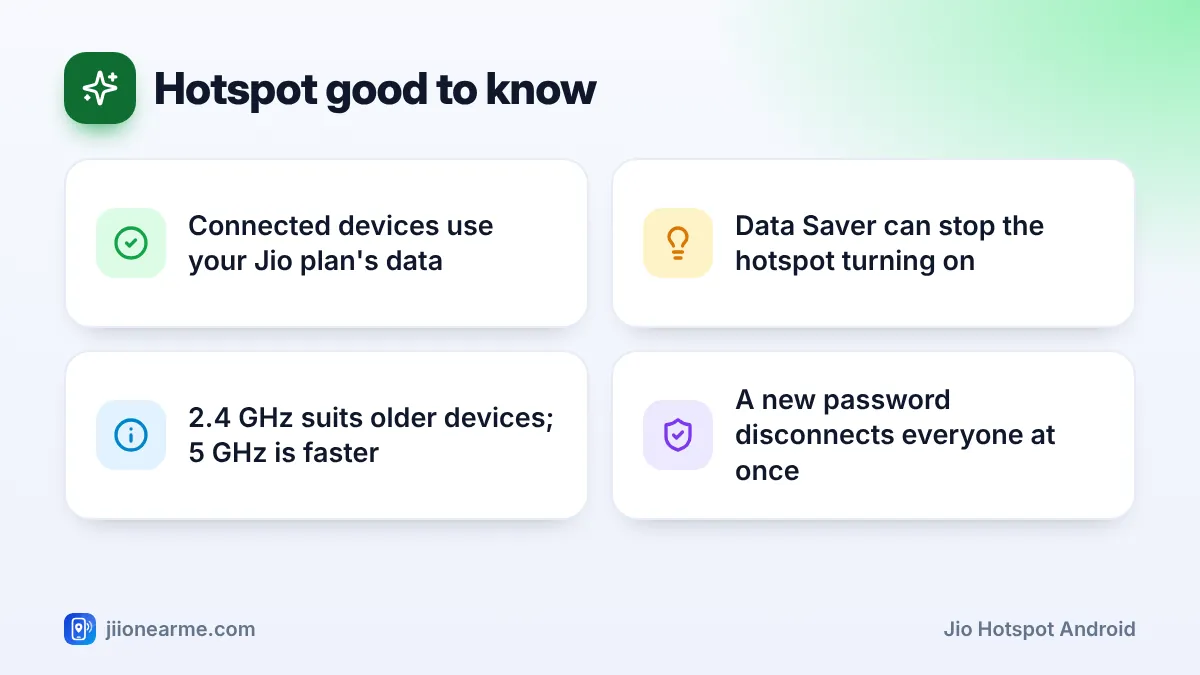
The exact menu depends on your phone brand and Android version. This guide shows the common paths for stock Android phones such as Pixel and Motorola, Samsung Galaxy phones, and Xiaomi, Redmi or POCO phones. It also covers the settings that matter most for safety. Whatever connects to your hotspot uses your Jio plan’s data, so keep an eye on your balance.
- The hotspot is usually under Settings > Network & internet > Hotspot & tethering, or Connections on Samsung.
- Use WPA2 or WPA2/WPA3 security with a long password, and never leave the hotspot open.
- Pick 2.4 GHz for older devices and 5 GHz for faster speed at short range.
- Control access with device limits, allowed lists or a quick password change.
- Connected devices use your daily Jio data, so check your balance in MyJio.
Before You Turn On the Hotspot
A few quick checks save a lot of confusion later:
- Mobile data must work. Turn off Wi-Fi on your phone and open a website. If it doesn’t load, fix your Jio data first.
- Data Saver must be off. On Android, the hotspot can’t be switched on while Data Saver is active.
- Check your remaining data in the MyJio app. A laptop can use much more data than a phone, mainly through updates, backups and video.
- Read your plan terms. Some plans have fair usage terms that apply to hotspot use. You can check them in MyJio or on jio.com.
How to Turn On Jio Hotspot on Android
Stock Android (Pixel, Motorola and similar)
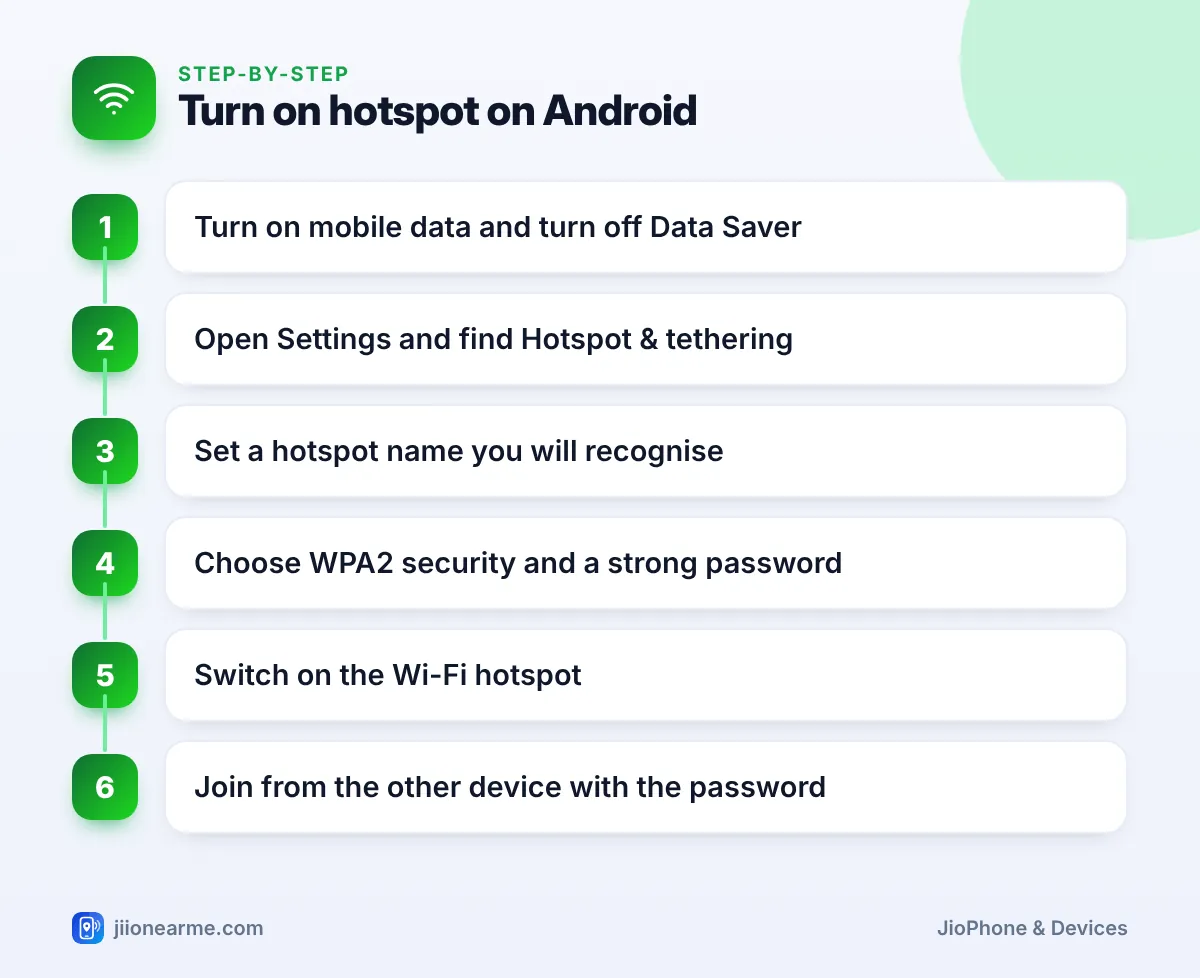
- Open Settings > Network & internet.
- Tap Hotspot & tethering > Wi-Fi hotspot.
- Check the Hotspot name and Hotspot password (see the next section).
- Turn on Use Wi-Fi hotspot.
Samsung Galaxy
- Open Settings > Connections.
- Tap Mobile Hotspot and Tethering.
- Tap the words Mobile Hotspot to open its settings, then turn on the switch.
Xiaomi, Redmi and POCO
- Open Settings and look for Portable hotspot, either on the main list or under Connection & sharing.
- Tap Set up portable hotspot to set the name and password.
- Turn on Portable hotspot.
You can also swipe down from the top of the screen and tap the Hotspot tile in Quick Settings. If the tile is missing, tap the edit (pencil) icon and drag it into place.
Set a Safe Hotspot Name and Password
The first time, Android usually creates a random name and password. Change them to something you recognise but others can’t guess.
- In the hotspot settings, tap Hotspot name or Network name and type a simple name. Avoid your phone number, full name or address.
- Tap Security and choose WPA2-Personal, or WPA2/WPA3-Personal if your phone offers it.
- Tap Hotspot password and enter at least eight characters. Mix letters, numbers and a symbol.
- Tap Save or OK.
If security is set to None or Open, anyone nearby can join and use your Jio data. Always keep a password, and change it if you shared it with someone who no longer needs it.
Choose the right band
Under AP band or Band, you will often see 2.4 GHz and 5 GHz. The 5 GHz band is faster at short distances, but older laptops, smart TVs and some gadgets can’t see it. The 2.4 GHz band reaches further and works with almost everything. If a device can’t find your hotspot, switch to 2.4 GHz or turn on an option like Extend compatibility.
Connect a Laptop or Another Phone
- On the other device, open its Wi-Fi settings.
- Select your hotspot name from the list.
- Type the password exactly, including capital letters.
- Wait for Connected, then open a website to check.
Many Android phones also show a QR code in the hotspot settings. Another phone can scan it with its camera and join without typing the password.
On a Windows laptop, set your hotspot as a metered connection in its Wi-Fi properties. Windows then holds back many large background downloads, so your daily Jio data lasts longer.
Limit Who Can Connect to Your Hotspot
Android offers a few ways to control access. Labels and locations vary by brand, and not every phone has every option.
| Option | Where to look | What it does |
|---|---|---|
| Connected devices | Main hotspot screen | Shows who is using your hotspot now |
| Maximum connections | Advanced or More settings | Caps how many devices can join |
| Allowed devices only | Advanced settings on some phones, such as Samsung | Lets only approved devices join |
| Remove or block | Tap a connected device | Disconnects a device you don’t know |
| Hidden network | Advanced settings on some phones | Hides the name from Wi-Fi lists |
| New password | Hotspot password | Forces everyone to rejoin with the new one |
Changing the password is the quickest way to remove everyone at once. Only people you give the new password to can reconnect.
Save Data and Battery While Sharing
- Turn on auto turn-off. Most phones offer an option to switch off the hotspot when no device is connected for a while.
- Pause big downloads on the laptop, such as system updates and cloud backups.
- Keep the phone where the signal is strong, such as near a window, and don’t cover it while it charges.
- Watch your usage in MyJio. When the daily high-speed data runs out, speed drops for every connected device.
- Switch the hotspot off when you finish instead of leaving it on all day.
If your phone is on Jio True 5G, the hotspot shares that 5G connection. Fair usage terms may cover hotspot use on 5G data, so read your plan details before relying on it for heavy work.
Frequently Asked Questions
Can I use hotspot on a Jio prepaid plan?
Hotspot is a phone feature, and shared data counts against your plan like normal use. Some plans have fair usage terms, so check your plan details in MyJio or on jio.com.
Why is my hotspot switch greyed out?
Turn off Data Saver and battery saver, and make sure mobile data is on. If it still won’t turn on, restart the phone and try again.
How many devices can join my Android hotspot?
It depends on the phone. Many allow several devices at once, and some let you set a lower limit in advanced settings. More devices means each one gets a smaller share of the speed.
Can I see how much data the hotspot used?
Many Android phones show hotspot or tethering usage under Settings > Network & internet > Data usage or a similar menu. The MyJio app shows the total Jio data used on your number.
Is it safe to do online banking on a laptop connected to my hotspot?
Yes, as long as your hotspot uses WPA2 or WPA3 security with a strong password that only trusted people know. Avoid joining unknown hotspots for banking.
Summary
To share Jio data from Android, check that mobile data works and Data Saver is off, then open the hotspot menu and switch it on. Set a recognisable name, WPA2 security and a strong password, and choose 2.4 GHz if older devices can’t connect. Use device limits or a new password to control access, and switch the hotspot off when you are done.
JIo Near me is an independent guide and is not affiliated with Reliance Jio. App menus, plans and policies can change – always confirm current details in the official MyJio app or on jio.com. We will never ask for your OTP, PIN or passwords.