YouTube works on the JioPhone through a light version of the app made for keypad phones. You open it from the app menu, search using the number keys, and control videos with the navigation key and centre key. Choosing a lower video quality and watching on Wi-Fi when you can keeps your daily data in check.
The steps below are for the JioPhone and JioPhone 2, which run KaiOS. The app is simpler than YouTube on a smartphone, and its menu labels can change after updates. If YouTube is not on your phone, look for it in JioStore, because availability can vary by model and software version.
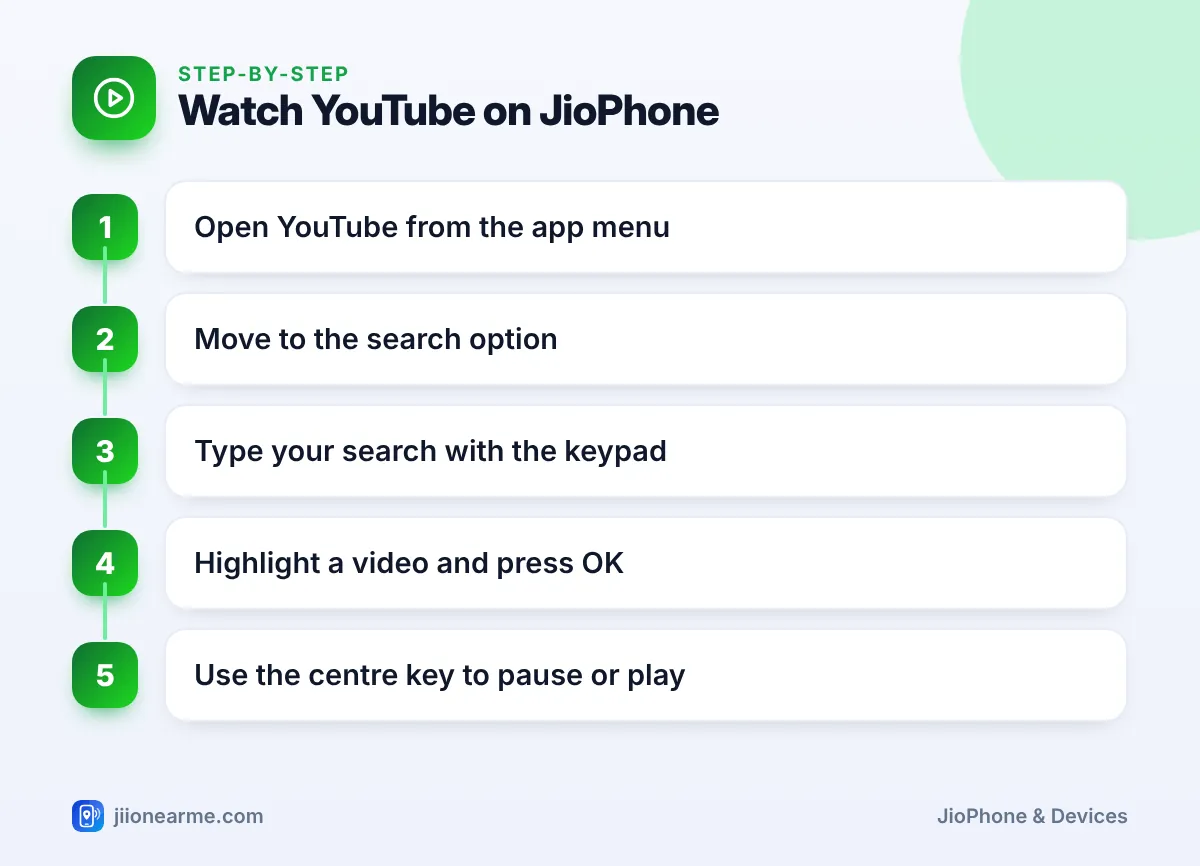
- Open YouTube from the app menu, or install it from JioStore if it is missing.
- Search by typing a few short words with the keypad, then pick a suggestion to save time.
- The centre key pauses and plays, while the navigation key moves around the screen.
- Lower quality, Wi-Fi and closing the app after use all reduce data use.
Opening YouTube on Your JioPhone
- From the home screen, press the centre key to open the app menu.
- Use the navigation key to find the YouTube icon, a red box with a white play button.
- Press the centre key to open it.
The first launch can take a few seconds, and you need mobile data or Wi-Fi for it to load. You can watch videos without signing in to a Google account.
If you cannot find YouTube in the app menu, open JioStore, look for YouTube on the main page or through search, and install it. If it is still missing, check for a software update in Settings, since newer software can bring app support.
On many versions you can highlight an app in the app menu, press the Options soft key and choose Move to place it where you want. Keeping YouTube near the top saves a few key presses every time.
How to Search for Videos with the Keypad
Searching is where most beginners get stuck, but it is simple once you know the pattern.
- On the YouTube home screen, move up to the search option (a magnifying glass), or open the menu with a soft key and select Search.
- Press the centre key to start typing.
- Type your words with the number keys. Press a key repeatedly to cycle through its letters, and press 0 for a space.
- Pick a suggestion from the list, or press the centre key or the Search soft key to see results.
- Move up or down through the results and press the centre key on the video you want.
Tips for quicker searching
- Keep searches short, two or three words is usually enough, such as “rangoli designs” or “cricket highlights”.
- Suggestions appear as you type, so selecting one saves many key presses.
- On most versions, the # key switches between small letters, capital letters and numbers.
- If you have added Hindi as a typing language, you can search in Hindi as well.
Controlling Playback with the JioPhone Keys
Once a video starts, these controls work on most versions of the app:
| What you want | Key to press |
|---|---|
| Pause or play | Centre key |
| Skip forward or back | Right or left on the navigation key |
| Change volume | Side volume keys, or up and down on the navigation key on some models |
| Open video options | The soft key labelled Options or a menu icon |
| Leave the video | The Back option shown on screen |
If a key does not do what you expect, glance at the labels at the bottom corners of the screen. They show the current job of each soft key, and they change depending on what you are doing.
Reading video details
Below or after a video, you can usually scroll down to see its title, the channel name and related videos. Press the centre key on any related video to play it next.
Settings That Use Less Data on YouTube on JioPhone
Video is the biggest data user on any phone. A few habits make a real difference:
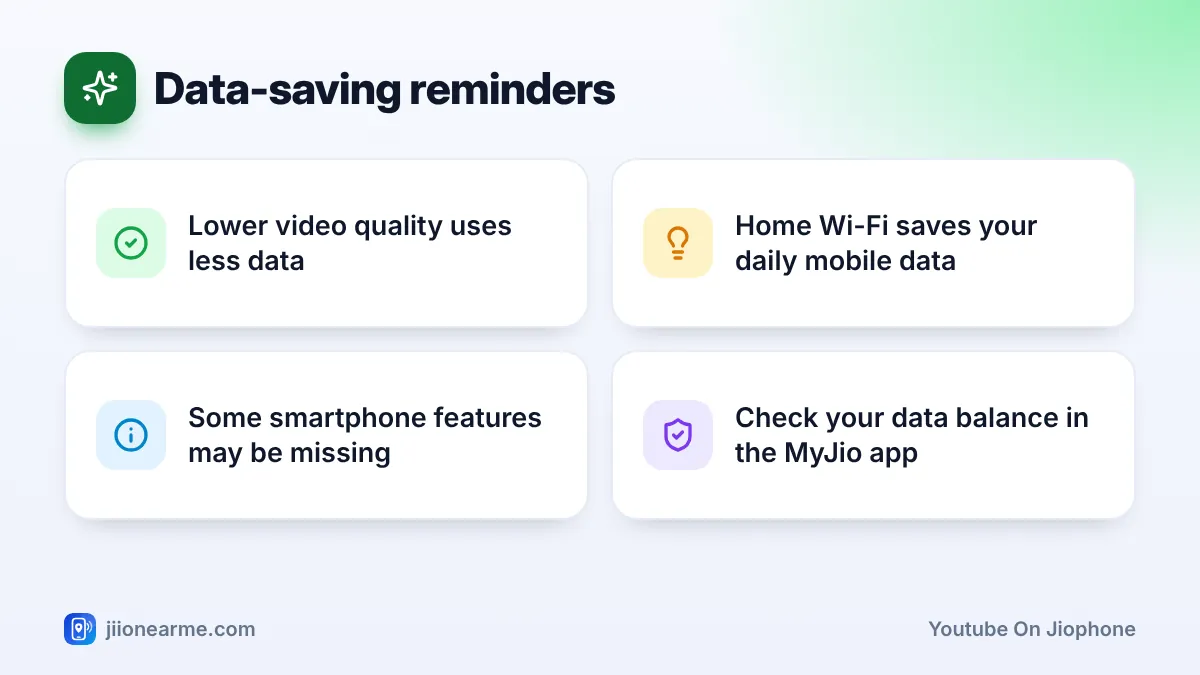
- Choose a lower quality. During playback, open the options menu and look for Quality. If your version offers it, pick the lowest setting that still looks clear on the small screen, such as 144p or 240p.
- Watch on Wi-Fi at home. Connect your JioPhone to home Wi-Fi so videos don’t count against your daily mobile data.
- Don’t leave videos running. If you stop watching, close the video instead of letting the next one start.
- Close the app when done. Return to the home screen when you are finished so the app is not loading anything else.
- Track your data. Check your daily balance in the MyJio app before a long viewing session.
Daily data on most Jio plans resets at a fixed time each day. When your high-speed data runs out, videos may play slowly or not at all. Check the current data add-on options in the MyJio app or on jio.com if you often run short.
Fixing Common YouTube Problems on JioPhone
- Video keeps buffering: your signal may be weak. Move near a window, switch to Wi-Fi, or choose a lower quality.
- App will not open or freezes: go back to the home screen, restart the phone and try again. If that does not help, remove YouTube and install it again from JioStore.
- No sound: check the volume keys and make sure the phone is not on silent. If you use earphones, plug them in firmly or remove them to test the speaker.
- Videos stopped working after your plan ended: recharge, or connect to Wi-Fi.
- Screen goes dark during videos: the screen timeout may be short. Change it under Display in the Personalization tab of Settings.
Frequently Asked Questions
Can I download YouTube videos on a JioPhone?
The keypad version of YouTube generally does not offer offline downloads. Avoid third-party download websites or files, because they can be unsafe and go against YouTube’s terms.
Do I need a Google account to watch YouTube on JioPhone?
No, you can search and watch videos without signing in. Some features, such as saving videos to a list, may need an account if your version supports them.
Why do videos look low quality on my JioPhone?
The app often plays at a lower resolution to suit the small screen and save data. On Wi-Fi, you can try a higher quality from the video options if your version offers it.
Does YouTube work on JioPhone without internet?
No. YouTube streams videos over the internet, so you need mobile data on an active plan or a Wi-Fi connection.
Is it safe for children to use YouTube on JioPhone?
Not every video suits children, so stay nearby when kids watch. Choose videos together and check what plays next.
Conclusion
YouTube on JioPhone is easy to use once you learn three things: how to search with the keypad, how the centre key controls playback, and how to keep data use low. Start with short searches, use Wi-Fi at home and pick a lower quality when you are on mobile data.
JIo Near me is an independent guide and is not affiliated with Reliance Jio. App menus, plans and policies can change – always confirm current details in the official MyJio app or on jio.com. We will never ask for your OTP, PIN or passwords.