Your daily Jio data usually runs out early because a few apps are using far more than you think, often in the background. Your phone already tracks this. Its data usage screen shows exactly which apps used the most, so you can fix the real culprits instead of guessing.
This guide shows you where to find that screen on Android and iPhone, then covers the usual suspects: auto-updates, cloud backups, autoplay videos and hotspot use. Small changes to each can make your daily data last much longer.
- Check your phone’s data usage screen to see which apps use the most Jio data.
- Set app updates and photo or chat backups to Wi-Fi only.
- Lower video quality and turn off autoplay in social and video apps.
- Devices on your hotspot, especially laptops, can use data very quickly.
- Watch your balance in the MyJio app and set a data warning on your phone.
How to Find the Apps Using Your Jio Data
Start here. The numbers will tell you where to focus.
On Android
- Open Settings and go to Network & internet (or Connections on Samsung phones).
- Tap SIMs and choose your Jio SIM, or tap Data usage.
- Open App data usage or Mobile data usage.
- Set the period to today or the current cycle, and look at the apps at the top of the list.
- Tap a heavy app to see how much it used in the foreground and in the background.
Menu names differ between brands and Android versions, so search for “data usage” in the Settings search bar if you can’t find it.
On iPhone
Go to Settings > Mobile Data and scroll down. Each app shows how much mobile data it has used since the statistics were last reset. To start a clean count, scroll to the bottom and tap Reset Statistics, then check again after a day.
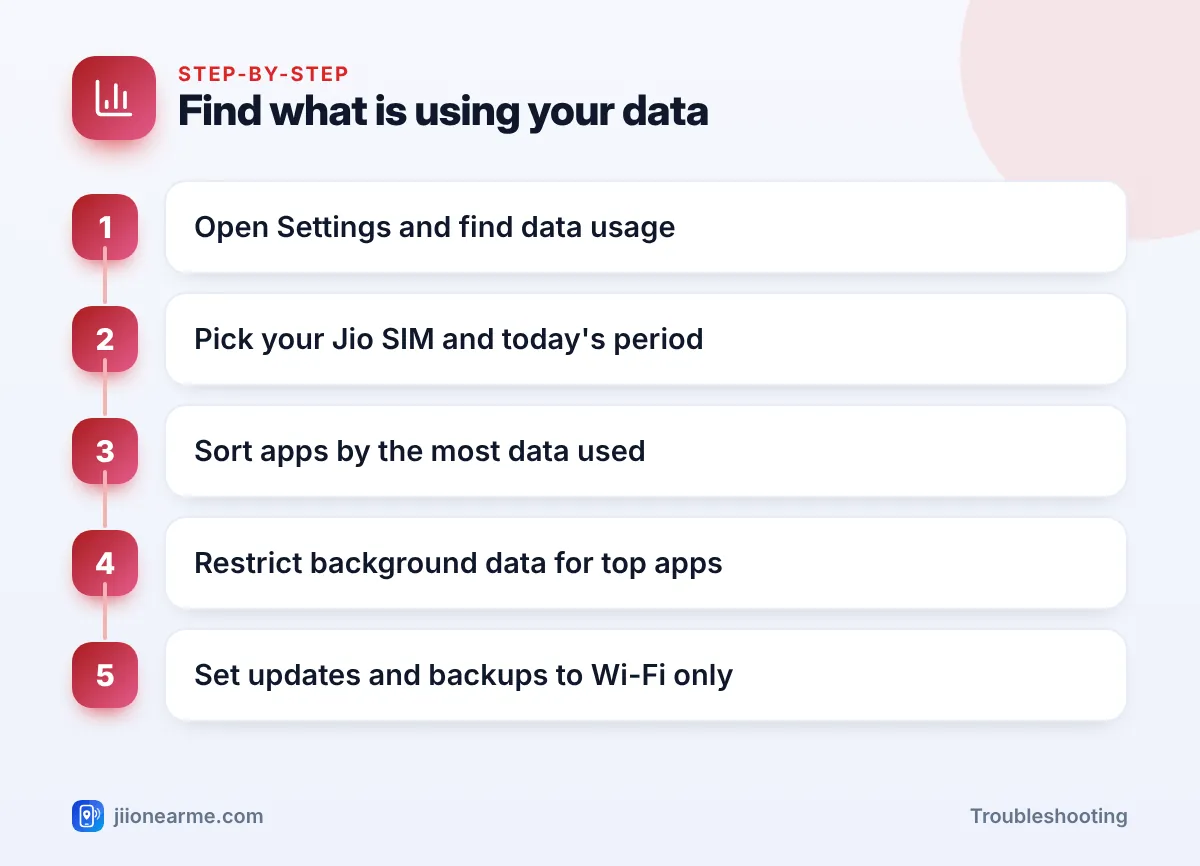
If an app shows high background data but you rarely open it, turn off its background data. On Android, tap the app in the data usage list and switch off Background data. On iPhone, turn off Background App Refresh for that app under Settings > General.
App Updates and Downloads on Mobile Data
App updates can be large, and a phone with many apps may download several a day. If updates run on mobile data, they can eat a big share of your daily quota.
- Play Store: tap your profile picture, open Settings > Network preferences > Auto-update apps, and choose Over Wi-Fi only.
- App Store: go to Settings > App Store and turn off Automatic Downloads under Mobile Data.
- System updates: most phones download these on Wi-Fi by default, but check the software update settings to be sure.
Photo, Video and Chat Backups
Cloud backups are useful, but uploading photos and videos on mobile data uses a lot of it.
- Google Photos: open the app’s settings, go to Backup, and turn off backup over mobile data, or limit it.
- iCloud Photos: go to Settings > Photos > Mobile Data and turn it off.
- WhatsApp: under Settings > Chats > Chat backup, make sure backup over mobile data is off.
Also check WhatsApp’s media auto-download. Under Settings > Storage and data, set When using mobile data to download photos only, or nothing. Videos in busy groups are a common, hidden drain.
Autoplay Videos and Streaming Quality
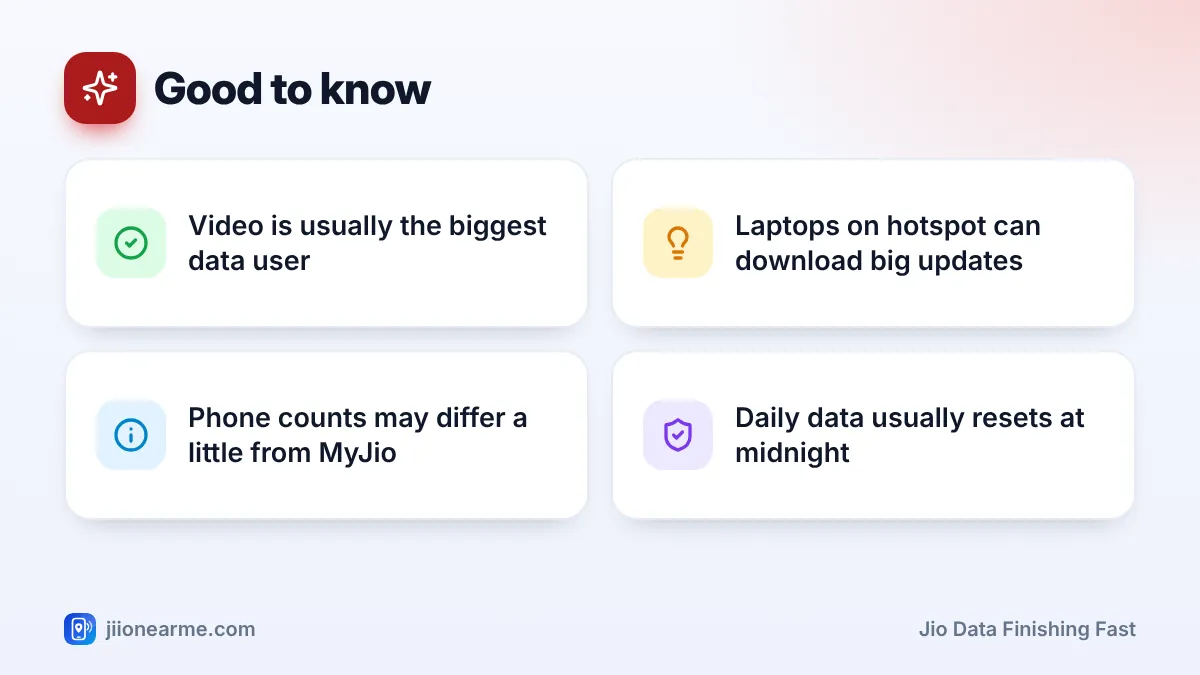
Video is usually the biggest data user on any phone. Short videos that play by themselves in a feed add up fast, even if you scroll past them.
- YouTube: in settings, look for Video quality preferences and choose Data saver for mobile networks.
- Instagram and Facebook: open the settings, find the data or media section, and turn on the option to use less mobile data. Set autoplay to Wi-Fi only where available.
- Streaming apps like JioHotstar: lower the streaming quality on mobile data in the app’s settings, or download episodes on Wi-Fi to watch later.
Playing a video in high quality on a big phone screen uses much more data than playing it in a lower quality. For most phone viewing, a medium setting looks fine and lasts far longer.
Hotspot Use Adds Up Quickly
When you share your Jio data through a hotspot, every connected device uses your quota. Laptops are the main concern. Windows and macOS may download large updates, and cloud sync apps upload files in the background.
To keep this under control:
- On a Windows laptop, open the Wi-Fi network’s properties and turn on Metered connection. This reduces background downloads.
- Pause cloud sync apps while on the hotspot.
- Set a hotspot password so nobody else joins.
- Turn the hotspot off as soon as you’re done.
Other Reasons Jio Data Finishing Fast Happens
A few settings quietly switch you to mobile data when you think you’re on Wi-Fi:
| Setting | What it does | What to do |
|---|---|---|
| Wi-Fi Assist (iPhone) | Uses mobile data when Wi-Fi is weak | Turn off under Settings > Mobile Data |
| Switch to mobile data automatically (Android) | Leaves poor Wi-Fi for mobile data | Turn off in Wi-Fi preferences if needed |
| Data Saver (Android) | Limits background data | Turn on to save data |
| Low Data Mode (iPhone) | Pauses background tasks | Turn on under Mobile Data Options |
It also helps to set a data warning. On Android, look for Data warning & limit in your SIM’s data usage settings and set a warning a little below your daily quota. Then check your remaining balance in the MyJio app during the day.
If you still run short after all these changes, your usage may simply have grown. Watching more videos or using the hotspot for work every day needs more data. Compare current plans and data add-ons in the MyJio app or on jio.com to find one that suits how you actually use your phone.
Frequently Asked Questions
Why is my Jio data finishing fast even when I'm not using the phone?
Background activity, such as app updates, photo backups and syncing, keeps running while the screen is off. Check your phone’s data usage screen for apps with high background data and restrict them.
Why does my phone show different usage from MyJio?
Your phone counts data on the device, while MyJio shows Jio’s own record. Timing and how each counts can differ slightly. For your actual balance, trust the MyJio app.
Does Jio daily data carry forward if I don't use it?
On most daily data plans, unused daily data does not carry forward. Check your plan details in the MyJio app to be sure.
Does turning on Data Saver slow down my internet?
It doesn’t lower your network speed, but it limits background data and can make some apps load images or videos in lower quality.
Can an unknown app be using my Jio data?
Yes. If the data usage list shows an app you don’t recognise, or one using data you can’t explain, uninstall it. Install apps only from the Play Store or App Store to lower the risk of harmful apps.
Final Thoughts
When Jio data finishes too fast, start with your phone’s data usage screen rather than guessing. Fix the top two or three apps, move updates and backups to Wi-Fi, tame autoplay, and keep an eye on hotspot users. These few changes usually make the biggest difference to how long your daily data lasts.
JIo Near me is an independent guide and is not affiliated with Reliance Jio. App menus, plans and policies can change – always confirm current details in the official MyJio app or on jio.com. We will never ask for your OTP, PIN or passwords.