Most JioHotstar titles let you pick a different audio track or switch subtitles right from the video player. Start playing the title, tap the screen, open the audio and subtitles option and choose what you want. The change applies within a second or two.
There is also a separate setting for the languages you prefer to watch in. It does not change any audio track. Instead, it shapes what JioHotstar recommends on your home screen. This guide covers both, on the phone app, the website and smart TVs, along with what to do when a language you expect is missing.
- Change audio and subtitles from the player while the title is playing
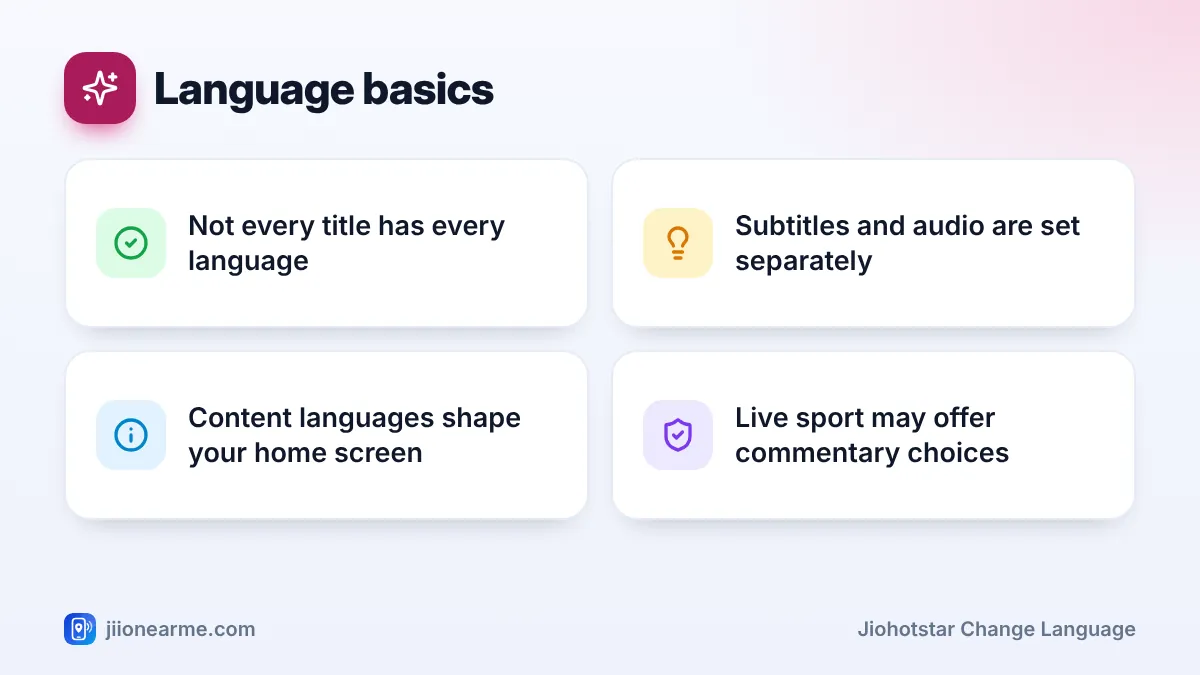
- Audio language and subtitle language are separate choices, so you can mix them
- Preferred content languages, set under My Space, decide what the home screen recommends
- Available languages depend on the title, so some shows have only one audio track
Three Different Language Settings in JioHotstar
People often mix these up, so it helps to know which one you need.
- Audio language: the spoken language of the movie or show, for example Hindi, English, Tamil or Telugu. Many popular titles offer several dubbed tracks.
- Subtitles: on-screen text, which you can turn on or off and sometimes choose in more than one language.
- Content languages: your preferred languages for discovery. JioHotstar uses them to fill your home screen with suitable titles.
Audio and subtitles are chosen in the player for the title you are watching. Content languages are set once in the app settings and affect your whole profile.
Language preferences can be saved per profile. If you share the account with family members, make sure you are on your own profile before changing anything, so you do not alter someone else’s setup.
JioHotstar Change Language Steps on Your Phone
These steps work in the Android and iPhone apps.
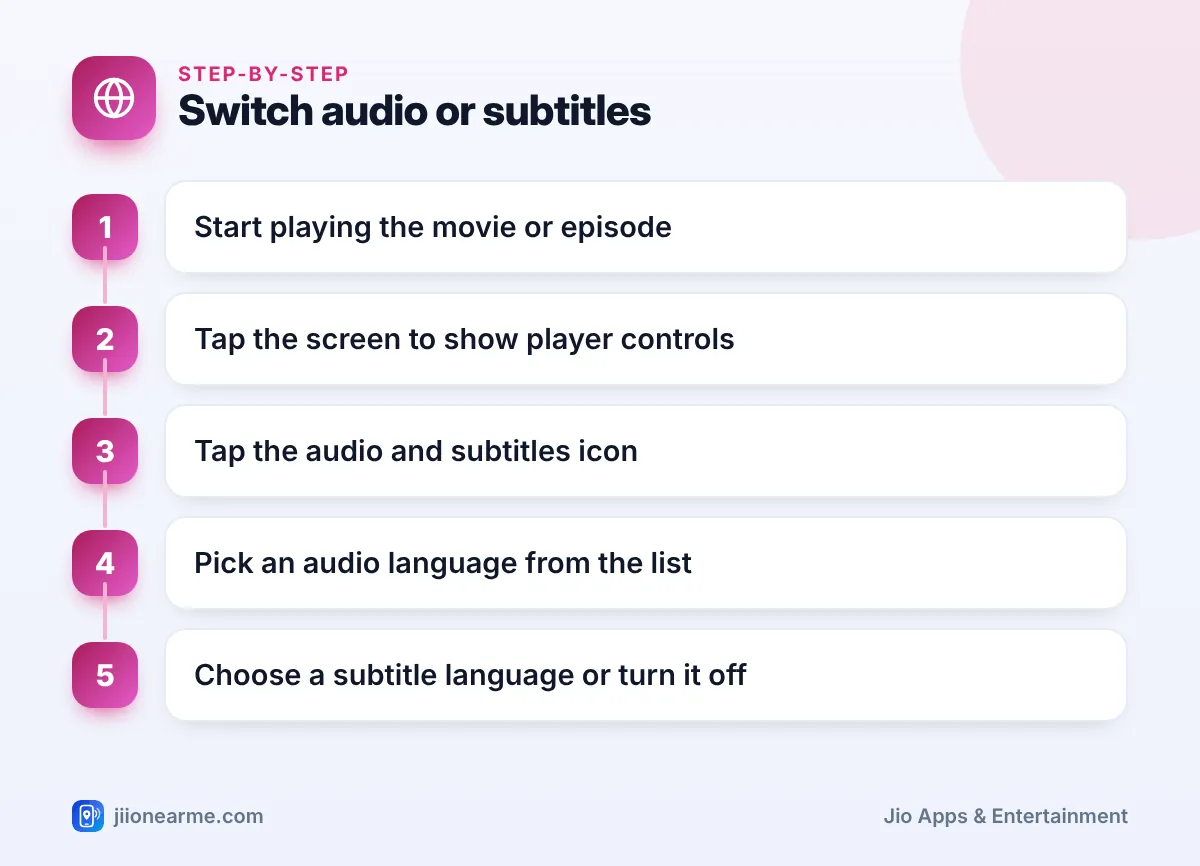
- Open the JioHotstar app and start playing a movie or episode.
- Tap once on the video to bring up the player controls.
- Tap the audio and subtitles icon. It often looks like a speech bubble or shows the current language name.
- Under Audio, select the language you want to hear.
- Under Subtitles, choose a subtitle language, or select Off to hide them.
- Tap outside the menu or close it. Playback continues in the new language.
Some versions remember your choice for the rest of the series, while others may ask again for each new title. If an episode switches back, repeat the steps.
The icon and menu names change with app updates and can differ between phones, the website and TV apps. Look for anything mentioning language, audio or subtitles near the player controls.
Turning subtitles on or off quickly
You can turn on subtitles without changing the audio. Many viewers keep the original audio and add subtitles in English or Hindi for clarity. To remove them, open the same menu and choose Off.
Changing Audio and Subtitles on the Website
On a laptop or computer, the steps are similar.
- Play the title on the JioHotstar website.
- Move your mouse over the video to show the controls.
- Click the audio and subtitles icon, usually near the bottom right of the player.
- Pick the audio track and subtitle option you want.
If the controls disappear before you click, move the mouse again or pause the video first.
Changing Audio and Subtitles on a Smart TV
TV apps on smart TVs and JioFiber or Jio AirFiber set-top boxes use the remote instead of touch.
- While the video plays, press OK or the down button on the remote to show the controls.
- Move to the audio and subtitles icon or the language option and press OK.
- Use the arrow keys to select an audio track and a subtitle setting.
- Press Back to return to the video.
On some TVs, the option appears only after you pause playback. If you still cannot find it, check that the JioHotstar TV app is updated from your TV’s app store.
Commentary language for live sport
For live cricket and other big events, commentary in different languages is often offered as separate options. You may see them on the match page before you press Play, or inside the player as audio or feed choices. The languages offered depend on the event.
Setting Your Preferred Content Languages
When you first open JioHotstar, the app may ask which languages you like to watch. You can change those choices later.
- Go to My Space.
- Tap the settings or gear icon.
- Look for an option such as Content language or Language preferences.
- Select the languages you enjoy and deselect the ones you do not.
- Save, then return to the home screen.
Your home screen and recommendations gradually update to match. This setting does not change the audio of any title. It only changes what JioHotstar suggests.
| What you want to change | Where to change it | What it affects |
|---|---|---|
| Spoken language of a title | Player audio and subtitles menu | That title |
| Subtitles on or off | Player audio and subtitles menu | That title |
| Recommended languages | My Space, then settings | Home screen for your profile |
| Cricket commentary language | Match page or player | That live event |
Watching late at night or in a shared room? Keep the volume low and turn on subtitles. You follow every line without disturbing anyone around you.
Why a Language or Subtitle Might Be Missing
If the language you want does not appear in the menu, one of these is usually the reason.
- The title was not dubbed. Many movies and shows come with only their original language, and dubbed tracks are added only for some.
- Subtitles are not available. Not every title has subtitles, and some have them in one language only.
- Different episodes, different options. In some series, older episodes may have fewer languages than newer ones.
- Live content limits. Live channels and events may offer fewer audio or subtitle choices than movies.
- An outdated app. Older versions sometimes fail to show all tracks. Update the app and try again.
If a title’s page lists a language but the player does not show it, close the app, reopen it and try again. If it still fails, report the issue through the help section in the JioHotstar app.
Frequently Asked Questions
How do I change the language of a movie on JioHotstar?
Start playing the movie, tap the screen and open the audio and subtitles icon. Choose the audio language you want from the list. If only one language appears, the movie has no other dubbed tracks.
Can I have Hindi audio with English subtitles?
Yes, if both are available for that title. Audio and subtitles are separate choices, so you can combine any available audio track with any available subtitle language.
Why did my show switch back to another language?
Some app versions do not remember your choice for every episode or title. Select the language again, and keep the app updated so it handles your preference better.
Does changing content languages change the audio?
No. Content languages only affect the recommendations on your home screen. To change the spoken language, use the audio option in the player.
Can I change the commentary language during a live match?
Often, yes. Look for commentary or feed options on the match page or inside the player. The languages on offer depend on the event and the broadcast.
Final Thoughts
For most titles, a JioHotstar language change is just a few taps in the player. Use the audio and subtitles menu for the show you are watching, and set your content languages under My Space so the home screen suggests titles you will enjoy. If a language is missing, it is usually because the title does not have it, not because of your settings.
JIo Near me is an independent guide and is not affiliated with Reliance Jio. App menus, plans and policies can change – always confirm current details in the official MyJio app or on jio.com. We will never ask for your OTP, PIN or passwords.
