Do your WhatsApp messages arrive only when you pick up your phone? In almost every case, Jio’s network isn’t dropping you. Your phone is limiting background data to save battery once the screen turns off, and a few settings changes fix it.
This guide explains why it happens and which settings to change on Android and iPhone. The aim is simple: keep battery life reasonable while making sure messages and app calls from important apps still come through when the phone is locked.
- Screen-off disconnections usually come from battery saving, not from the Jio network.
- Set your messaging and calling apps to Unrestricted battery use.
- Allow background data for those apps, and add them to Data Saver’s exceptions.
- Some brands have extra settings that cut mobile data when the phone is locked.
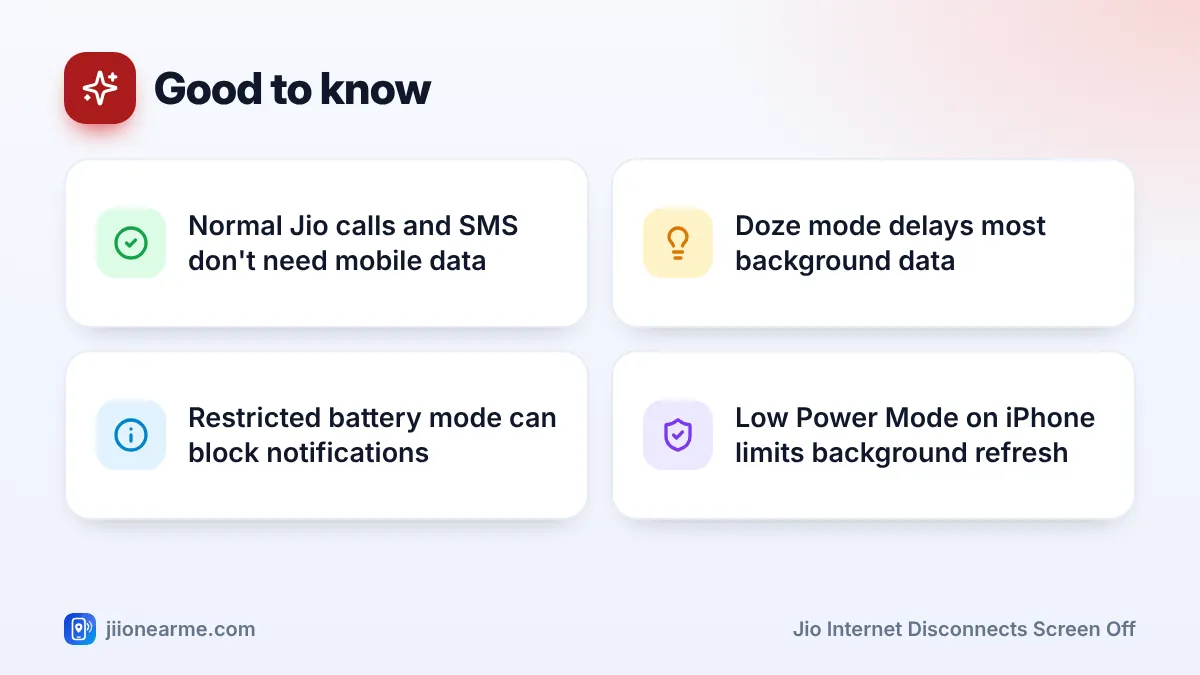
- Normal Jio voice calls and SMS work even when mobile data is restricted.
Why Jio Internet Disconnects When the Screen Is Off
Modern phones work hard to save battery. When the screen is off and the phone sits still, Android enters a deep idle state called Doze. During Doze, most apps get network access only in short windows, so their messages arrive late.
On top of that, battery saver modes and brand-specific power managers can stop apps in the background completely. Some phones even switch mobile data off a few minutes after the screen locks.
Here’s the important distinction:
- Normal Jio voice calls and SMS use the network directly and don’t depend on mobile data. They should still reach you.
- Internet-based messages and calls, such as WhatsApp, Telegram, email or video call apps, need background data. These are the ones affected.
If data also drops while the screen is on, the cause is different. Check your signal, plan validity and network mode instead.
Adjust Battery Saver Mode
Battery saver is the most common reason. When it’s on, many phones restrict background activity for nearly every app.
- Swipe down to open quick settings and check if Battery saver or Power saving is on.
- Turn it off to test. If messages now arrive on time, battery saver was the cause.
- If you want to keep it on, open Settings > Battery > Battery saver and look for an option to exclude certain apps or to turn it on only at low battery.
Ultra or extreme power saving modes usually limit you to a few basic apps, so expect delays while they’re on.
Set Key Apps to Unrestricted Battery Use
Android lets you control battery use for each app. If a messaging app is set to Restricted, it may get no network access at all in the background.
- Open Settings > Apps and select the app, for example WhatsApp.
- Tap Battery or App battery usage.
- Choose Unrestricted.
- Repeat for your email, work chat or calling apps.
Do this only for apps you truly need in real time. Setting every app to Unrestricted will drain your battery faster.
Check Adaptive Battery too
Many Android phones have an Adaptive Battery feature, usually under Settings > Battery (sometimes inside Adaptive preferences). It learns which apps you use less and limits them more. An app you rarely open, such as a work chat used only on weekdays, can end up heavily restricted. Setting that app to Unrestricted usually overrides this, but you can also turn Adaptive Battery off for a day to test whether it’s involved.
Allow Background Data and Data Saver Exceptions
Even with battery settings sorted, an app can still be blocked from using mobile data in the background.
- In the same app info page, open Mobile data & Wi-Fi or Data usage.
- Turn on Background data.
- If Data Saver is on, also turn on Unrestricted data for that app, or find the list under Settings > Network & internet > Data Saver.
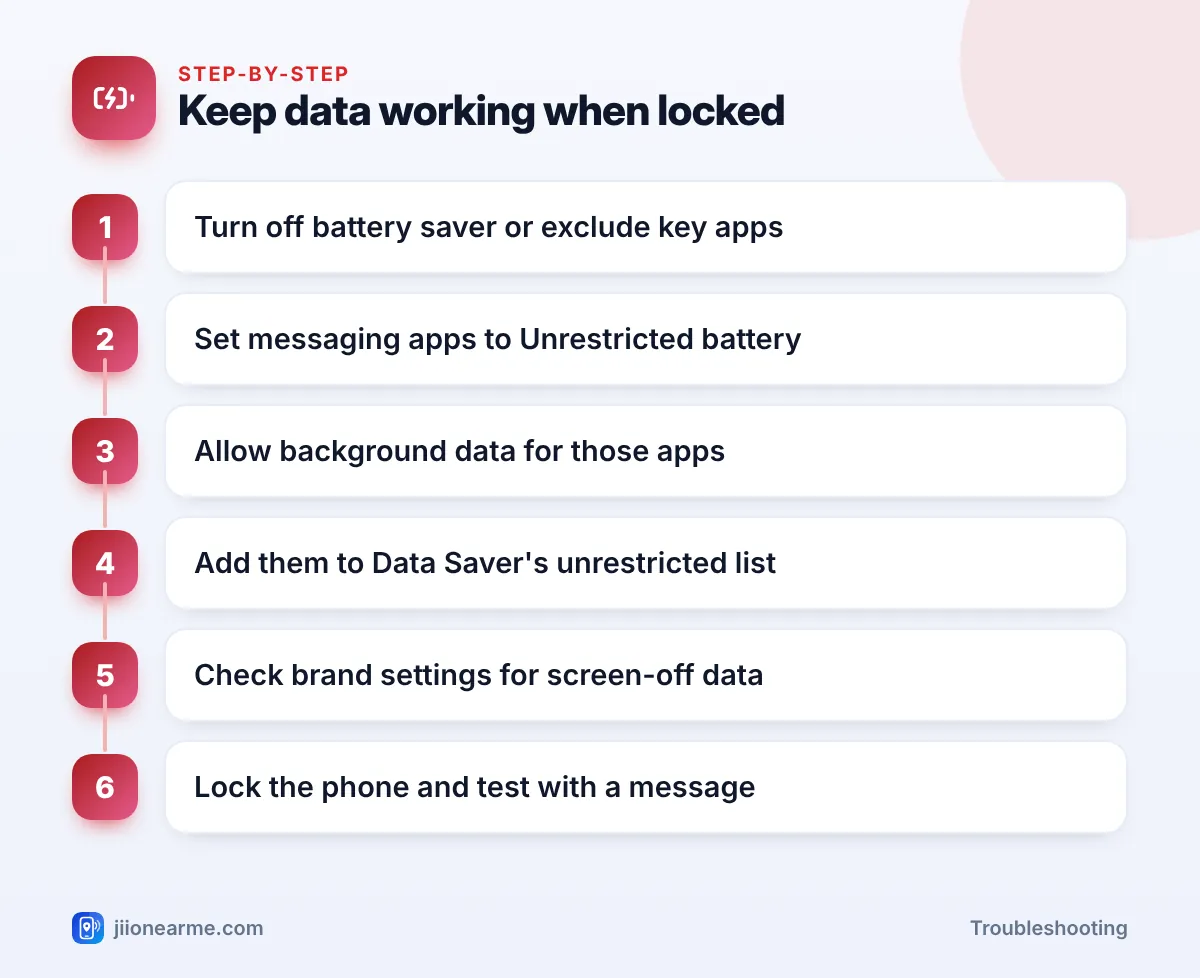
After changing these settings, open the app once and then lock your phone. Some phones apply new permissions only after the app has been opened again.
Brand-Specific Settings to Check
Many brands add their own power management on top of Android. Menu names change with each software version, so use the Settings search bar for words like “battery”, “background” or “sleeping”.
- Samsung: under Battery settings, open Background usage limits. Remove your messaging apps from Sleeping apps and Deep sleeping apps, and add them to Never sleeping apps.
- Xiaomi, Redmi and Poco: in the app’s info page, set Battery saver to No restrictions and allow Autostart. Also check battery settings for an option that turns off mobile data when the device is locked.
- Oppo, OnePlus, Vivo and similar brands: look in battery or app management settings for options to allow background activity, auto-launch or high background power use for the app.
A phone software update can sometimes reset these app settings. If messages start arriving late again after an update, recheck the battery and background data options.
On iPhone: Low Power Mode and Background App Refresh
iPhones don’t switch mobile data off when the screen locks, and push notifications normally arrive on time. Delays usually come from these settings:
- Low Power Mode: it reduces background activity. Turn it off under Settings > Battery to test.
- Background App Refresh: go to Settings > General > Background App Refresh. Make sure it’s set to Wi-Fi & Mobile Data, and that your messaging apps are switched on.
- Low Data Mode: under Settings > Mobile Data > Mobile Data Options, check it isn’t selected.
- Notifications: under Settings > Notifications, confirm the app is allowed to send notifications and that a Focus mode isn’t silencing it.
How to Test That the Fix Worked
- Make sure mobile data is on and Wi-Fi is off.
- Lock your phone and leave it for 10 to 15 minutes.
- Ask someone to send you a message on the app you fixed.
- Check whether the notification arrives on time.
If messages still arrive late, check signal strength where you keep the phone, such as a bedroom or basement. If the problem continues, call 199 from your Jio number for queries or 198 to log a complaint.
Frequently Asked Questions
Does Jio cut mobile data when my phone is locked?
No. Jio doesn’t switch off your data based on your screen. The phone’s own battery and background settings are almost always responsible.
Will I miss normal phone calls if background data is limited?
No. Normal Jio voice calls and SMS work through the network directly, even when mobile data is off or restricted.
Will setting apps to Unrestricted drain my battery?
It can use a little more battery, especially for busy apps. Limit it to the few apps where you need instant messages or calls.
Why do WhatsApp calls fail when my phone is locked?
WhatsApp calls need background data. Set WhatsApp to Unrestricted battery use, allow background data and check brand-specific sleep lists.
Should I turn off battery optimisation for every app?
No. That would drain your battery quickly. Remove restrictions only for the handful of apps where late messages or missed app calls cause you real trouble.
Final Thoughts
When Jio internet seems to disconnect with the screen off, look at your phone’s battery settings first. Exclude important apps from battery restrictions, allow background data, and check any brand-specific sleep lists. A quick test with a locked phone tells you whether the fix worked, and your battery stays protected for everything else.
JIo Near me is an independent guide and is not affiliated with Reliance Jio. App menus, plans and policies can change – always confirm current details in the official MyJio app or on jio.com. We will never ask for your OTP, PIN or passwords.