Tap the Watchlist button on any title page and JioHotstar saves it for you to watch later. Your saved titles then appear in the watchlist section under My Space. Shows and movies you have started but not finished show up separately in the Continue Watching row on the home screen.
Both features are tied to your profile, so they follow you from your phone to your TV or laptop. This guide explains how to add titles, where to find them, how to clean up items you have finished and what to do if your progress does not match across devices.
- Add titles with the Watchlist or + button on the title page, then find them under My Space
- Continue Watching fills in by itself when you start a title and stop partway
- Both rows belong to your profile and sync across devices signed in to the same account
- Remove finished or unwanted items so the rows stay useful
Watchlist vs Continue Watching: What Is the Difference?
These two rows look similar, but they do different jobs.
| Feature | How titles get there | Best used for |
|---|---|---|
| Watchlist | You add them yourself | Saving titles you plan to watch later |
| Continue Watching | Added automatically when you stop partway | Resuming a movie or the next episode |
Think of the watchlist as your personal to-watch list. Continue Watching is more like a bookmark that the app places for you. A title can be in both at once, for example a series you saved and have now started.
How to Add Titles to Your JioHotstar Watchlist
The steps are the same on Android phones and iPhones.
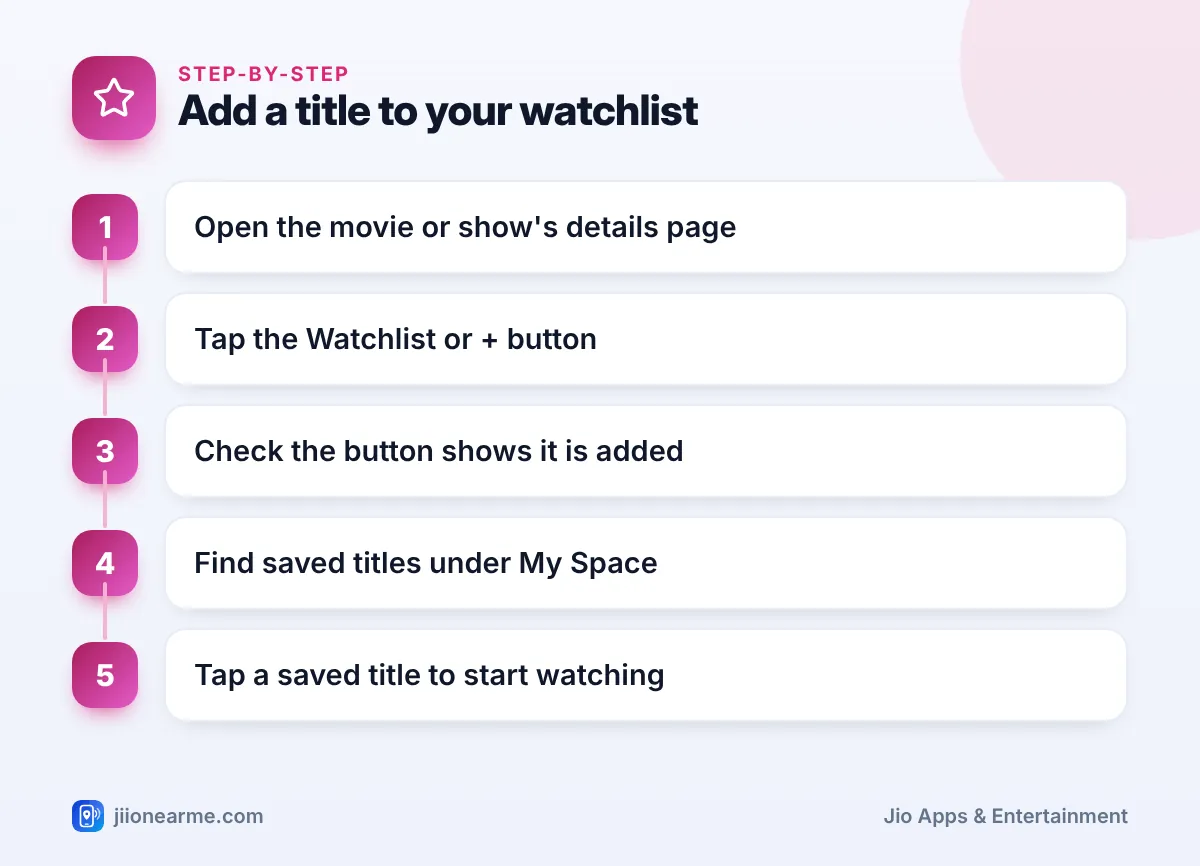
- Open the JioHotstar app and make sure you are on your own profile.
- Find a movie or show through search or the home screen.
- Tap the title to open its details page.
- Tap the Watchlist button, often shown with a + sign.
- Check that the button changes, usually to a tick or a label saying it is added.
- Go to My Space to see the title in your watchlist.
- Tap any saved title there to open it and start watching.
For a series, you add the whole show, not single episodes. When you open it later, you can pick any season or episode from its page.
Adding titles on the TV app and website
On a smart TV or set-top box, open the title page with the remote, move to the Watchlist or + button and press OK. On the website, click the same button on the title page. Your watchlist is shared across all three because it belongs to your profile.
The button may read Watchlist, Add to Watchlist or show only a + icon, depending on your app version and device. The location is usually next to the Play button on the title page.
Finding and Cleaning Up Your Watchlist
Your saved titles live in My Space, usually as a row or tab called Watchlist. On some versions you can scroll sideways through the row or tap See all to view the full list.
To remove a title you no longer want:
- Open the title’s details page.
- Tap the Watchlist button again. It changes back to the + sign.
- Return to My Space to confirm it has gone.
Some app versions also let you remove items directly from the watchlist screen through a long press, an edit option or a three-dot menu. A tidy watchlist is easier to use, so clear out titles you have finished or lost interest in every few weeks.
Using Continue Watching to Resume Shows
When you stop a movie or episode partway, JioHotstar remembers the exact point. The title appears in the Continue Watching row on the home screen, often with a small progress bar.
- Open the home screen and scroll to Continue Watching.
- Tap the title you want to resume.
- Playback starts from where you left off. For a series, it may move to the next episode if you finished the last one.
If you prefer to restart, open the title page and look for an option such as Watch from beginning or Restart, where it is offered.
Hand the phone to a family member only after switching to their profile. Otherwise their viewing lands in your Continue Watching row and your series progress can jump ahead.
Removing items from Continue Watching
Titles usually drop off the row on their own when you finish them. To clear something you started but do not plan to finish, long-press the title or tap its three-dot menu and look for Remove. Not every app version or device offers this. If yours does not, the title will move down the row as you watch other things.
How Progress Follows Your Profile Across Devices
Your watchlist and Continue Watching row are saved to your account, under each profile. That means:
- Start an episode on your phone during your commute and resume it on the TV at home.
- Save a movie on the website and find it in the phone app later.
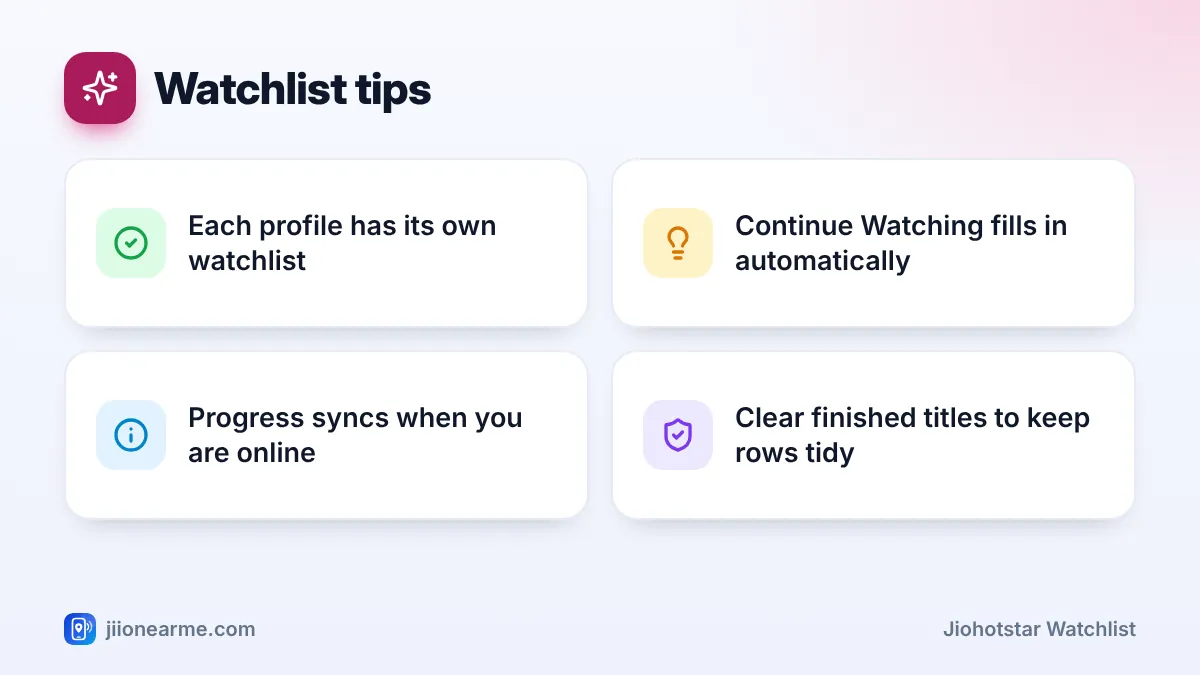
- Each family member’s profile keeps its own lists, so nobody’s progress gets mixed up.
For syncing to work, both devices must be signed in with the same mobile number, you must pick the same profile, and both need an internet connection. If you watch a downloaded title offline, its progress updates once the app goes online again.
If the TV does not show the point you reached on your phone, wait a moment and reopen the app. Check that both devices use the same number and profile, and update the app on both. A quick log out and log in usually fixes stubborn sync issues.
Frequently Asked Questions
Where is my JioHotstar watchlist?
Open My Space in the app. Your saved titles appear in the watchlist section there. On TV, look for the same section in the menu or profile area.
Why did a title disappear from my watchlist?
It may have been removed from JioHotstar because its streaming rights ended, or someone using your profile removed it. Search for the title to check whether it is still available.
Can each family member have a separate watchlist?
Yes. Every profile on the account has its own watchlist and Continue Watching row, so make sure each person uses their own profile.
Why is a finished show still in Continue Watching?
If you stopped during the end credits, the app may still treat it as unfinished. Play the last few seconds or remove it from the row if your app offers that option.
Does the watchlist work without internet?
Viewing and updating the watchlist needs internet. For offline viewing, download the titles you want, and they appear in your Downloads section instead.
Wrapping Up
The JioHotstar watchlist and Continue Watching row save you from hunting for titles again and again. Add shows with the Watchlist button, resume from the home screen and clear out what you have finished. Keep everyone on their own profile, and your progress will follow you neatly across phone, web and TV.
JIo Near me is an independent guide and is not affiliated with Reliance Jio. App menus, plans and policies can change – always confirm current details in the official MyJio app or on jio.com. We will never ask for your OTP, PIN or passwords.
