Connecting your JioPhone to home Wi-Fi lets you watch videos, update apps and use WhatsApp without touching your daily mobile data. Open Settings, go to the Network & Connectivity tab, turn on Wi-Fi, pick your network and type its password with the keypad. Once connected, the phone remembers the network and joins it automatically next time.
This guide is for keypad JioPhone models that run KaiOS, such as the JioPhone and JioPhone 2. It works with JioFiber, Jio AirFiber or any other home router. Menu names can differ slightly by software version, so choose the closest match if a label looks different on your screen.
- Wi-Fi settings are in the Network & Connectivity tab of Settings.
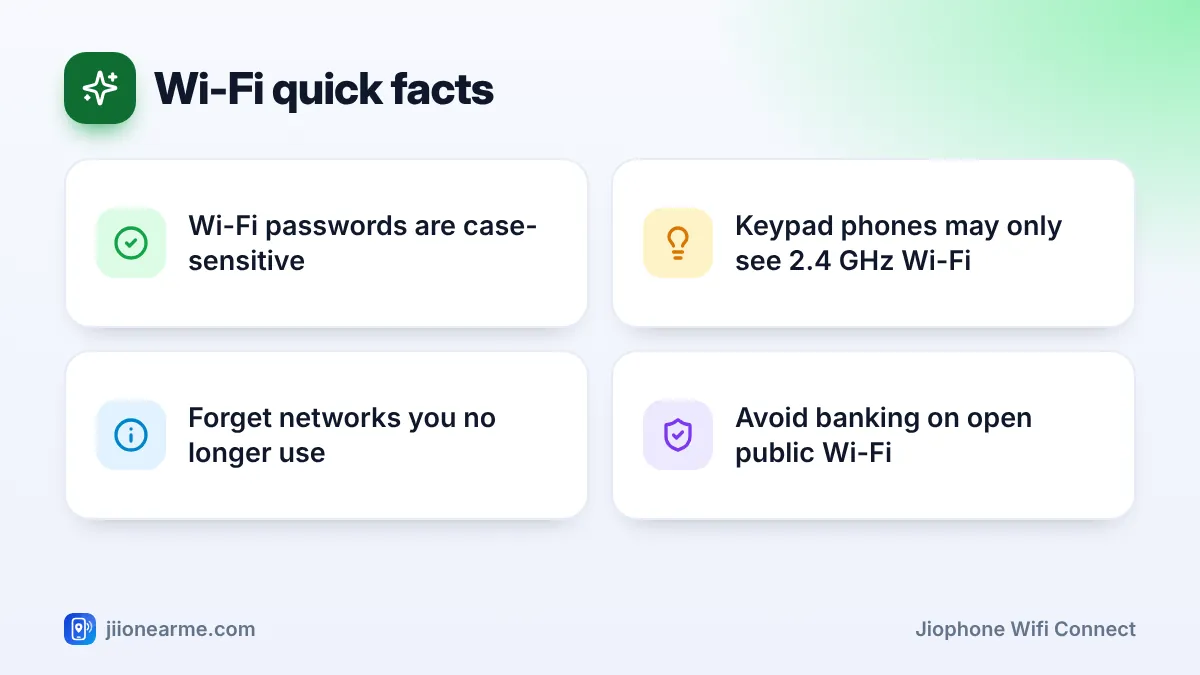
- Type the password carefully, since capital and small letters count as different characters.
- If your network does not appear, the router’s 2.4 GHz network name is the one to look for.
- Forget old or changed networks so the phone does not keep trying to join them.
What You Need Before Connecting
Keep two details ready before you start:
- The Wi-Fi name (network name or SSID). This is the name your router broadcasts, such as “Sharma_Home”.
- The Wi-Fi password. Both are often printed on a sticker on the router. If someone changed them, ask that person or check the router’s settings.
JioFiber users can usually view or change the Wi-Fi name and password from the MyJio app, under the options for their JioFiber connection. Stay within a reasonable distance of the router during setup, because a weak signal can make the first connection fail.
JioPhone WiFi Connect: Step-by-Step
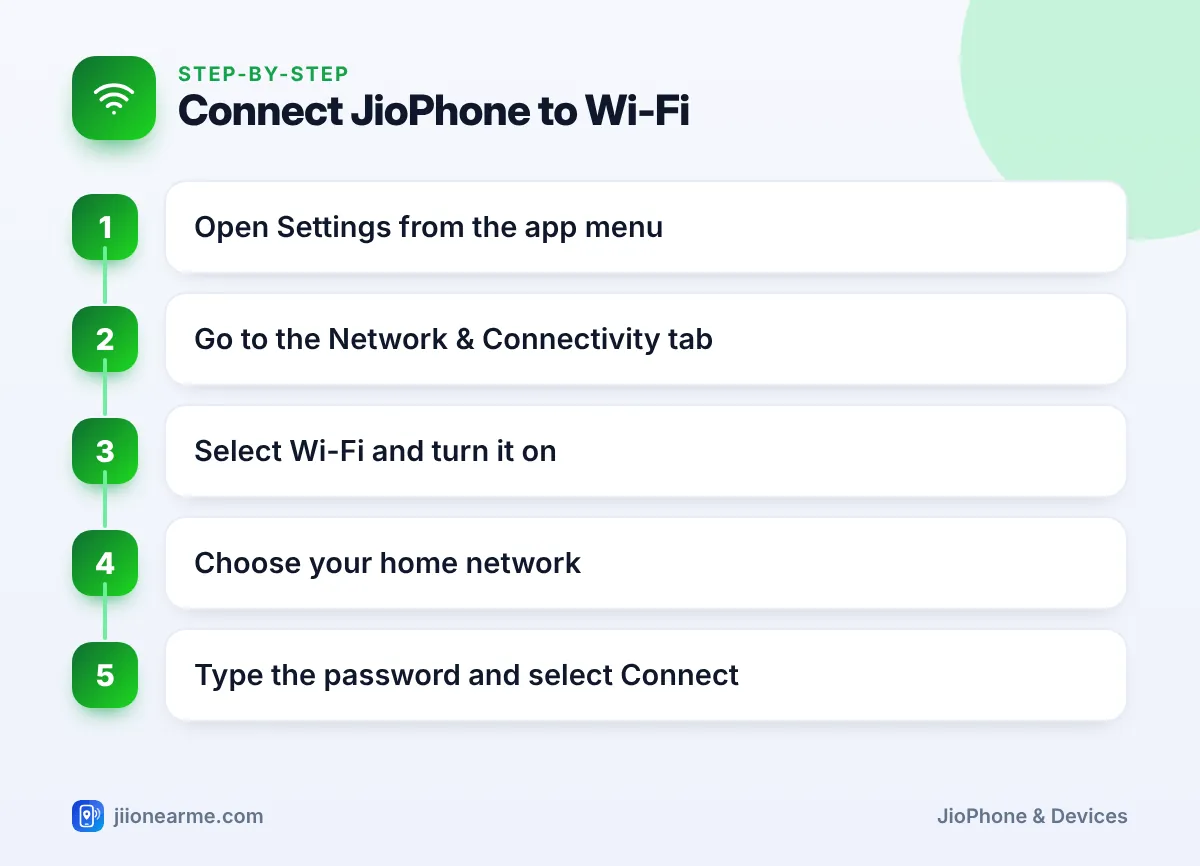
- Press the centre key on the home screen to open the app menu.
- Open Settings. It usually opens on the Network & Connectivity tab.
- Select Wi-Fi and switch it On.
- Wait a few seconds for the list of available networks to appear. Select Available networks if the list does not show automatically.
- Highlight your home network and press the centre key.
- Type the Wi-Fi password using the keypad.
- Select Connect using the soft key shown on screen.
When the connection works, the network shows as Connected and a Wi-Fi symbol appears at the top of the screen. Open the browser or YouTube to check that the internet is working.
Typing a Wi-Fi Password with the Keypad
Wi-Fi passwords often mix capital letters, small letters, numbers and symbols. On a keypad, this needs a little care.
| What you need | How to type it on most versions |
|---|---|
| Letters | Press a number key repeatedly to reach the letter |
| Capital or small letters | Press # to switch between modes such as Abc, abc and ABC |
| Numbers | Switch to 123 mode with #, or hold the number key on many versions |
| Symbols like @ or _ | Press the * key to open the symbol list |
| Delete a mistake | Use the clear or delete option shown on screen |
Watch the small mode indicator at the top of the screen while typing, so you always know whether you are typing letters or numbers.
If your version offers a Show password option on the password screen, turn it on. Seeing each character makes it much easier to catch a wrong capital letter or a missing symbol before you press Connect.
Forgetting Old or Unused Wi-Fi Networks
Your JioPhone remembers every network it has joined. Forgetting a network is useful when:
- The router’s password has changed and the phone keeps failing to connect.
- You replaced your old router with a new one.
- You joined a network once, like a relative’s Wi-Fi, and don’t need it any more.
To forget a network:
- Open Settings and go to Wi-Fi in the Network & Connectivity tab.
- Find the saved network. On some versions, saved networks appear in a separate list called Saved networks or Known networks.
- Highlight it and select Forget (use the Options soft key if you don’t see it directly).
- Confirm. To rejoin later, select the network again and enter the new password.
Fixing Common Wi-Fi Problems on JioPhone
Your network does not appear in the list
Many keypad phones work only with the 2.4 GHz Wi-Fi band. Dual-band routers, including many JioFiber routers, can show two network names, one often ending in “5G”. Choose the name without “5G”. Also move closer to the router and switch Wi-Fi off and on again on the phone.
Wrong password or authentication error
Retype the password slowly, checking capital letters and symbols. If it still fails, forget the network and join it again from the start.
Connected, but no internet
Check whether other devices at home can use the internet. If none can, restart the router by switching it off for a minute. If the problem continues on JioFiber or Jio AirFiber, raise a complaint through the MyJio app or call 198 from your Jio number.
Keeps disconnecting
Walls and distance weaken Wi-Fi. Use the phone nearer to the router, and restart both the phone and the router if the drops continue.
Wi-Fi handles the internet on your JioPhone, but normal calls and SMS continue to use the Jio mobile network. Keep your SIM active with a valid plan for those.
Using Wi-Fi Safely
Home Wi-Fi with a strong password is safe for everyday use. Public Wi-Fi at stations, cafes or shops is different, because others on the same network may be able to see unprotected traffic. On open public networks, avoid logging in to banking apps or typing passwords. Turn off Wi-Fi when you leave home, so the phone does not join unknown networks and the battery lasts longer.
Never try to access someone else’s Wi-Fi without permission. If a message or website offers free Wi-Fi in exchange for your OTP or personal details, ignore it. Report fraud attempts on the Sanchar Saathi portal using its Chakshu feature.
Frequently Asked Questions
Does my JioPhone use mobile data when connected to Wi-Fi?
When Wi-Fi is connected and working, the phone uses it for internet instead of mobile data. If Wi-Fi drops, the phone may switch back to mobile data if it is turned on.
Why can't I see my JioFiber network on my JioPhone?
Your phone may support only the 2.4 GHz band. Look for the network name that does not end in “5G”, and move closer to the router.
How do I update the Wi-Fi password saved on my phone?
Forget the network in Wi-Fi settings, then select it again and type the new password.
Will Wi-Fi work if my Jio mobile plan has expired?
Internet over home Wi-Fi comes through your router’s connection, not your mobile plan. However, calls and SMS need an active Jio plan, and some services may ask for one as well.
Summary
To get your JioPhone on home Wi-Fi, open Settings, turn on Wi-Fi in the Network & Connectivity tab, choose your network and type the password carefully. Use the 2.4 GHz network name if you have two, and forget networks you no longer use. Once set up, your phone joins home Wi-Fi by itself and saves your daily mobile data.
JIo Near me is an independent guide and is not affiliated with Reliance Jio. App menus, plans and policies can change – always confirm current details in the official MyJio app or on jio.com. We will never ask for your OTP, PIN or passwords.