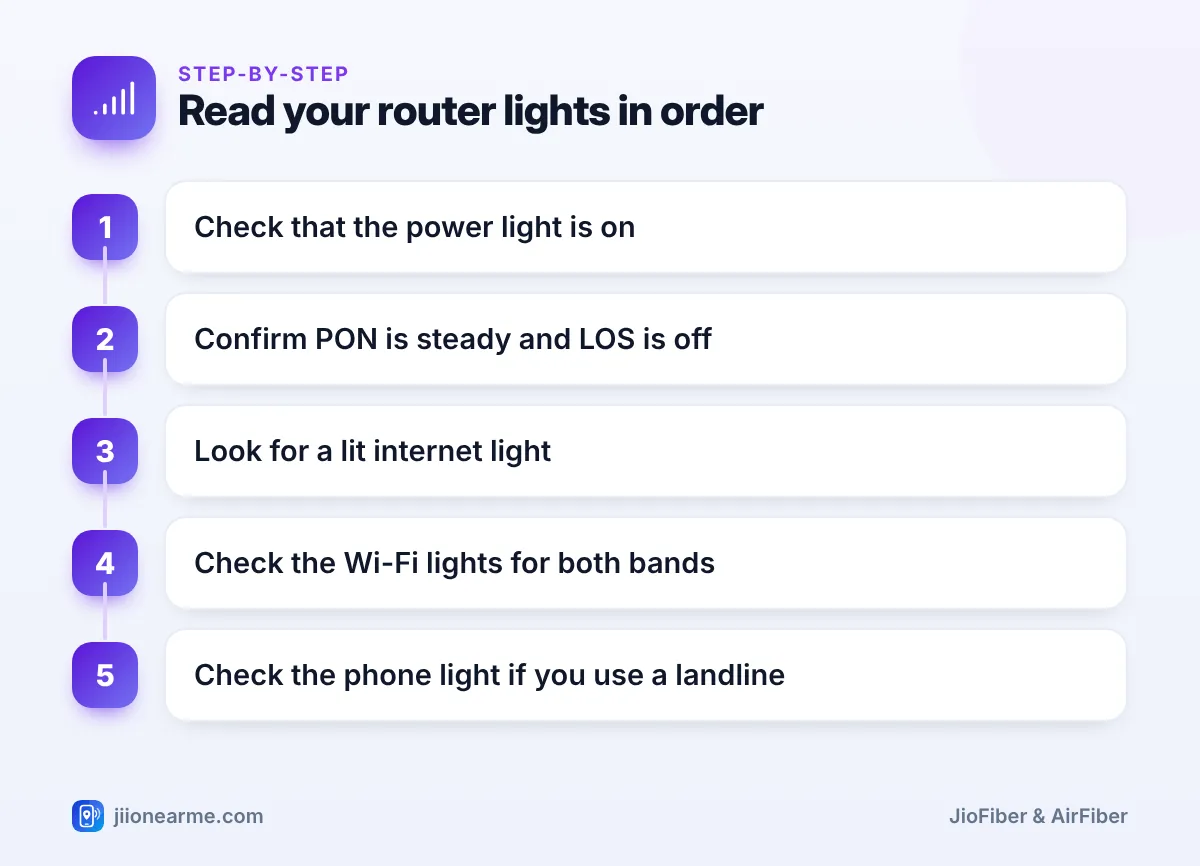
The lights on your JioFiber router are a quick health report. In a normal state, the power light is on, the PON light is steady, the LOS light is off, the internet light is on, and the Wi-Fi lights are on for the bands in use. Anything different points you to where a problem might be.
Jio has used several router models over the years, so the labels, icons and colours on yours may not match exactly. This guide explains what each common JioFiber router light means, what is normal and what needs attention. If a light on your model is unclear, check its label or user guide.
- Normal: power on, PON steady, LOS off, internet on, Wi-Fi on.
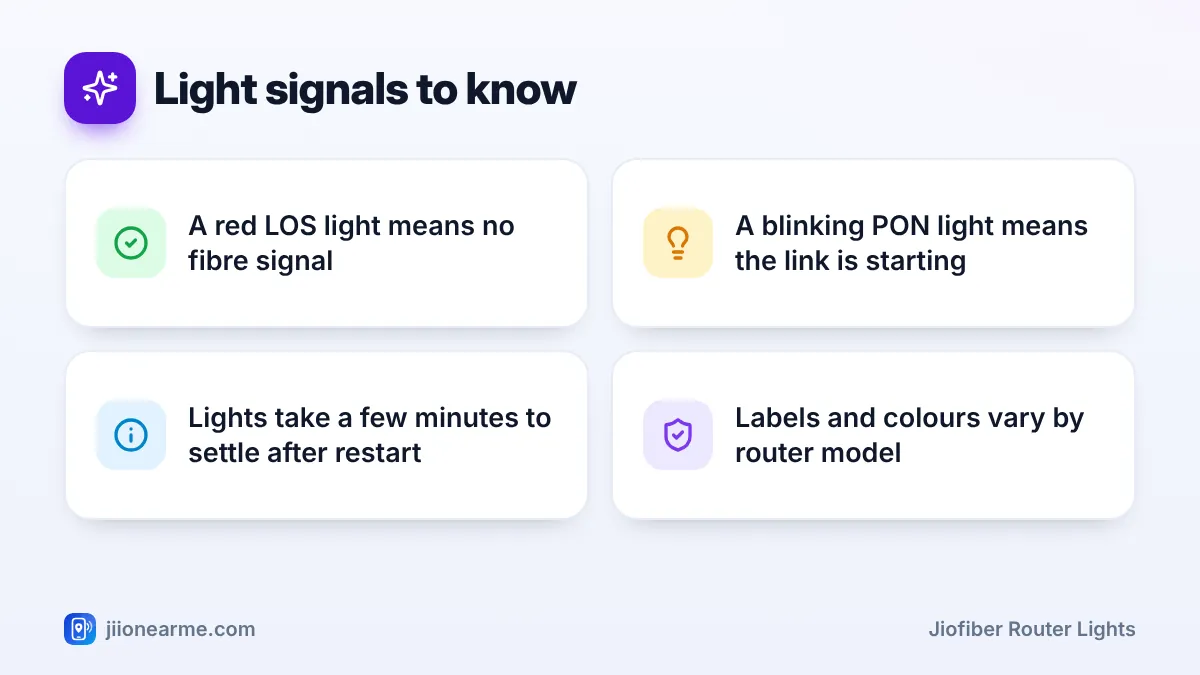
- A red or blinking LOS light means the fibre signal is not reaching the router.
- PON steady but internet off usually points to a connection or account issue.
- Wait a few minutes after a restart before judging the lights.
What a Normal Router Looks Like
Use this table as a quick reference. Take a photo of your own router when everything works, so you have a model-specific reference for later.
| Light | Normal | Needs attention |
|---|---|---|
| Power | Steady on | Off, or a warning colour that stays |
| PON | Steady on | Blinking for a long time, or off |
| LOS | Off | Red, steady or blinking |
| Internet | On | Off, or a warning colour |
| Wi-Fi 2.4 GHz and 5 GHz | On, may blink with activity | Off when you expect Wi-Fi |
| LAN | On or blinking when a cable device is connected | Off with a working device plugged in |
| Phone | On if your plan includes a landline | Off when your landline should work |
JioFiber Router Lights Explained One by One
Power
This shows the router is receiving electricity. If it is off, check the adapter, the wall socket and the power button, if your model has one. On some models, a different colour during start-up is normal for a short time.
PON
PON stands for passive optical network. This light shows whether your router has registered with Jio’s fibre network. Steady means the fibre link is up. Blinking means the router is still trying to register, which is normal for a few minutes after switching on.
LOS
LOS means loss of signal. It should normally be off. When it glows red, steady or blinking, the router is not receiving enough light through the fibre cable. Common causes are a sharply bent or damaged cable, a loose connector or a fault outside your home.
Internet
This shows whether your router has an active internet session. If PON is steady but the internet light is off, the fibre link is fine, but the internet connection has not come up. This can happen with an expired prepaid plan, an unpaid postpaid bill or a network-side issue.
Wi-Fi 2.4 GHz and 5 GHz
These lights show that each Wi-Fi band is switched on. Blinking usually means data is moving. If a Wi-Fi light is off, the band may have been turned off in settings or with a Wi-Fi button on the router.
LAN or Ethernet
Each LAN light turns on when a device, such as a laptop or Set-Top Box, is connected with a cable. Blinking shows activity. If it stays off with a device plugged in, try another cable or port.
Phone
On plans with voice service, this light shows that the landline is registered and ready. If it is off, your landline may not work until it registers again.
WPS and USB
Some models have these lights. WPS blinks while you pair a device using the WPS button. The USB light shows that a supported device is plugged in.
Some routers use green or white for normal and red for problems. Others use a single colour and show problems by blinking or switching off. Learn your model’s normal pattern when everything works.
Common Light Patterns and What to Do
- All lights off: Check the adapter, plug and wall socket. Try a different socket that you know works.
- LOS red: Look along the fibre cable for sharp bends or pinching, and check the connector is fully in. Restart once. If it stays red, raise a service request.
- PON blinking, LOS off: Wait a few minutes. If it continues, restart the router. If it still blinks, contact Jio.
- PON steady, internet off: Check your plan or bill status in the MyJio app. Then restart. If the problem continues, contact customer care.
- All lights normal, one device offline: The issue is likely the device. Turn its Wi-Fi off and on, or forget the network and reconnect.
- Wi-Fi light off: Check whether Wi-Fi was turned off with a button or in the router settings.
A factory reset erases your Wi-Fi name, password and other settings, but it cannot restore a lost fibre signal. For a red LOS light, check the cable and contact Jio instead.
When to Contact Jio Support
Reach out to Jio if:
- LOS stays red after you check the cable and restart once
- PON keeps blinking for a long time
- The internet light stays off even though your plan is active
- The phone light stays off on a plan with landline service
Raise a service request in the MyJio app, or call 198 for complaints or 199 for queries from a Jio number. The toll-free number 1800-889-9999 also works. Tell them exactly which lights are on, off or blinking, and share your photo of the normal state if asked.
Frequently Asked Questions
Should the LOS light ever be on?
No. In normal use the LOS light stays off. If it turns red or blinks, the router is not getting the fibre signal.
Why does the internet light blink sometimes?
On many models, blinking simply shows data moving. It is a concern only if you cannot browse.
All my lights look normal, but the internet is slow. What should I check?
Test speed on a device near the router, ideally with a cable. If that is fine, the slowdown is likely Wi-Fi range, interference or the device itself.
Why is the phone light off on my router?
Your plan may not include voice service, or the landline may not have registered. Restart once, and contact Jio if your plan includes a landline.
Do Jio AirFiber units have the same lights?
No. AirFiber uses different indoor and outdoor units with their own indicators, so check the guide for that equipment.
Final Thoughts
Reading your JioFiber router lights takes just a few seconds once you know the normal pattern. Check them in order: power, PON and LOS, internet, then Wi-Fi and phone. This tells you whether the problem is in your home, on the fibre line or on the network side, and it helps you explain the issue clearly when you contact Jio.
JIo Near me is an independent guide and is not affiliated with Reliance Jio. App menus, plans and policies can change – always confirm current details in the official MyJio app or on jio.com. We will never ask for your OTP, PIN or passwords.
