Two tools built into the JioPhone Next can turn almost any screen of text into speech, or into another language. With Read Aloud, Google Assistant reads the page to you and highlights the words as it goes. With Translate, the same page appears in a language you understand better, and you can have it read out in that language too.
Both features run through Google Assistant, which is part of Pragati OS, the phone’s Android-based software. You open Assistant on the screen you want, then say “Read this” or “Translate this”, or tap the matching button. Both need an internet connection, and button labels can vary slightly with software and app versions.
- Open Google Assistant on any text-heavy screen, then say “Read this” or tap Read.
- Say “Translate this” or tap Translate to see the page in another language.
- A small player lets you pause, skip and change the reading speed.
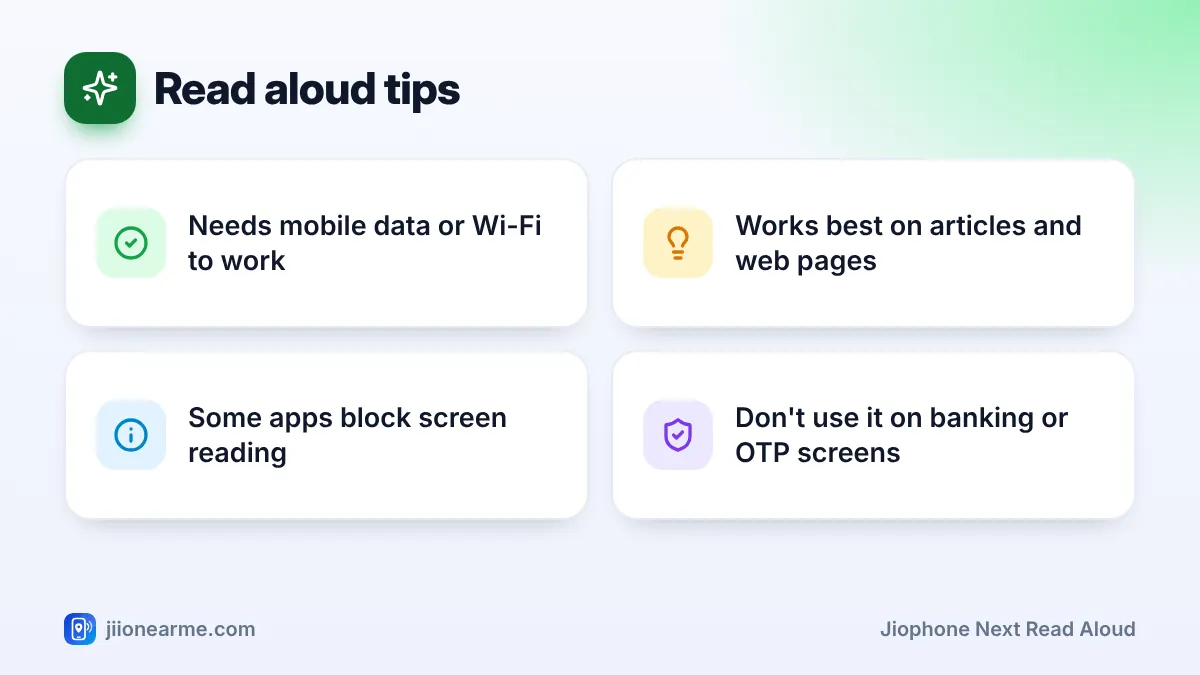
- Both need the internet, and they shouldn’t be used on banking or OTP screens.
What Read Aloud and Translate Do
Read Aloud looks at the text on your screen and speaks it in a natural-sounding voice. It suits news articles, long WhatsApp forwards you want to check, recipes and pages in Chrome. Words are highlighted as they’re read, so you can follow along.
Translate takes the same on-screen text and shows it in another language. It’s handy when a notice, form or article is in English and you’re more comfortable in Hindi, Tamil, Marathi or another Indian language, or the other way round.
These tools help many kinds of people: parents with weak eyesight, children practising reading, workers who read one language better than another, and anyone who prefers listening while cooking or travelling.
Before You Start: Quick Checks
- Internet: turn on mobile data or connect to Wi-Fi. Assistant processes the screen online.
- Google account: make sure you’re signed in on the phone.
- Assistant ready: press and hold the Home button once. If Assistant asks for permissions or a language, complete those screens.
- Screen access: if Assistant later says it can’t see the screen, open its settings and check that the option letting it use what’s on your screen (often called Use screen context) is turned on.
How to Use JioPhone Next Read Aloud Step by Step
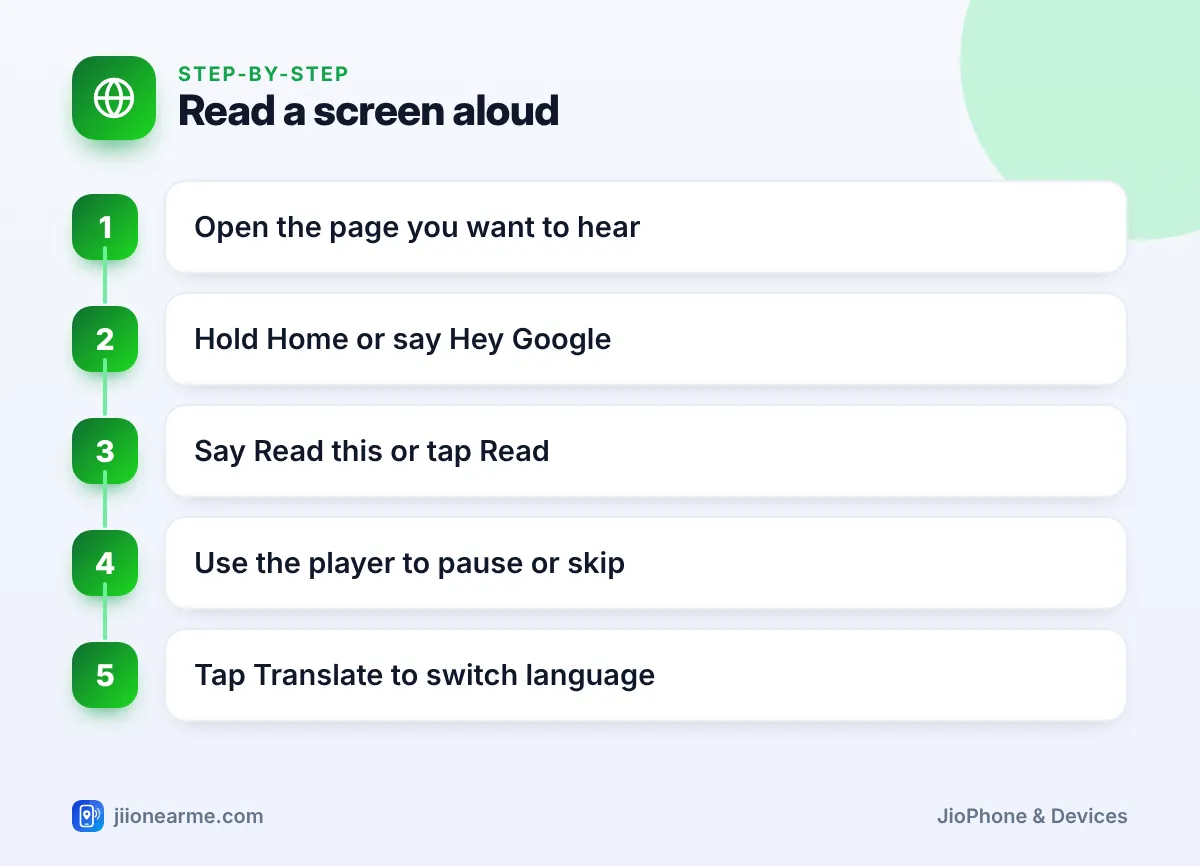
- Open the page you want to hear, such as a news article in Chrome.
- Press and hold the Home button at the bottom of the screen. If your phone supports it and you’ve set up voice access, you can say “Hey Google” instead.
- When Assistant appears, say “Read this”, or tap the Read button if it’s shown.
- A small player appears and reading begins. Words are highlighted as they’re spoken.
- Use the player buttons to pause, skip ahead or go back.
- To change the pace, look for the speed option in the player and choose slower or faster.
Reading continues while the screen stays on. To stop, tap pause or close the player.
For a long article, start the reading, set a comfortable speed and lower the screen brightness. You’ll save battery while you listen.
How to Translate the Text on Your Screen
- Open the page or text you want to understand.
- Press and hold Home to open Google Assistant.
- Say “Translate this”, or tap Translate if the button appears.
- Pick the language you want from the list, if Assistant asks.
- Read the translated version on screen, or start Read Aloud to hear it in that language.
You can also try naming the language in your command, such as “Translate this to Hindi”. Machine translation is usually good enough to get the meaning, but it can get names, technical words and local phrases wrong. For legal, medical or banking documents, ask someone you trust to check the original.
Useful commands to remember
| Say this | What happens |
|---|---|
| “Read this” | Reads the on-screen text aloud |
| “Translate this” | Shows the screen in another language |
| “Translate this to Tamil” | Translates straight into the named language |
| “Stop” or tap pause | Stops the reading |
If a command doesn’t work on your version, use the buttons Assistant shows instead.
Where These Features Work Best, and Where They Don’t
Read Aloud and Translate work best on screens with plenty of plain text, such as news websites, blog posts and long messages. They’re less reliable on:
- Text inside photos or images, such as a picture of a notice.
- Apps that block screen capture for security, which includes many banking and payment apps.
- Screens with very little text, or text spread across buttons and menus.
For printed text, such as a medicine label or a school circular, try pointing the camera at it with Google Lens if it’s available on your phone. Lens can translate the text it sees through the camera.
When you use these tools, the screen’s content is sent to Google to be processed. Don’t use Read Aloud or Translate on screens showing OTPs, bank details, passwords or private documents.
Fixing Common Problems
- Assistant says it can’t read the screen: check your internet, make sure the screen context option is on in Assistant settings, and try again on a web page in Chrome.
- No Read or Translate button: update the Google app from the Play Store (Manage apps & device), and check for a system update in Settings.
- Wrong language or voice: change Assistant’s language in its settings. If you can’t find them, type “Assistant” into the Settings search bar.
- Reading stops suddenly: the screen may have locked. Choose a longer screen timeout under Settings > Display.
Google updates Assistant often, and its buttons and menus may look different after an update. The basic idea stays the same: open Assistant on the screen you want, then ask it to read or translate.
Frequently Asked Questions
Does JioPhone Next read aloud work without internet?
No. Read Aloud and Translate need mobile data or Wi-Fi because Google processes the screen online. On a slow connection, reading may take a few seconds to start.
Which languages can I translate into?
You can choose from many languages, including English, Hindi and several other Indian languages. The list shown in the Translate option on your phone is the most accurate guide.
Can it read WhatsApp messages aloud?
It can often read longer messages on an open chat screen. Results vary, so try it on your phone, and avoid using it on chats that contain private details.
Can I slow down the reading voice?
Yes. Open the speed option in the Read Aloud player and choose a slower pace. This helps when you’re following along or learning new words.
Why is the Translate button missing?
The feature may need an app or system update, or the screen may not have enough readable text. Update the Google app from the Play Store and try again on a news article.
Final Thoughts
Read Aloud and Translate make the JioPhone Next easier for anyone who prefers listening or reads one language better than another. Open Assistant on the screen, ask it to read or translate, and adjust the speed until it feels right. Just keep it away from screens with OTPs or bank details.
JIo Near me is an independent guide and is not affiliated with Reliance Jio. App menus, plans and policies can change – always confirm current details in the official MyJio app or on jio.com. We will never ask for your OTP, PIN or passwords.