Restart first, reset last. A restart simply turns your JioFiber router off and on again. It clears temporary glitches and keeps every setting you have made. A factory reset returns the router to the state it left the factory in, erasing your Wi-Fi name, password and other custom settings.
Most everyday problems, such as slow Wi-Fi or a device that will not connect, are fixed by a restart. A reset is a last resort for specific situations. This guide explains what each one does, when to use it, how to do it safely and what to expect afterwards.
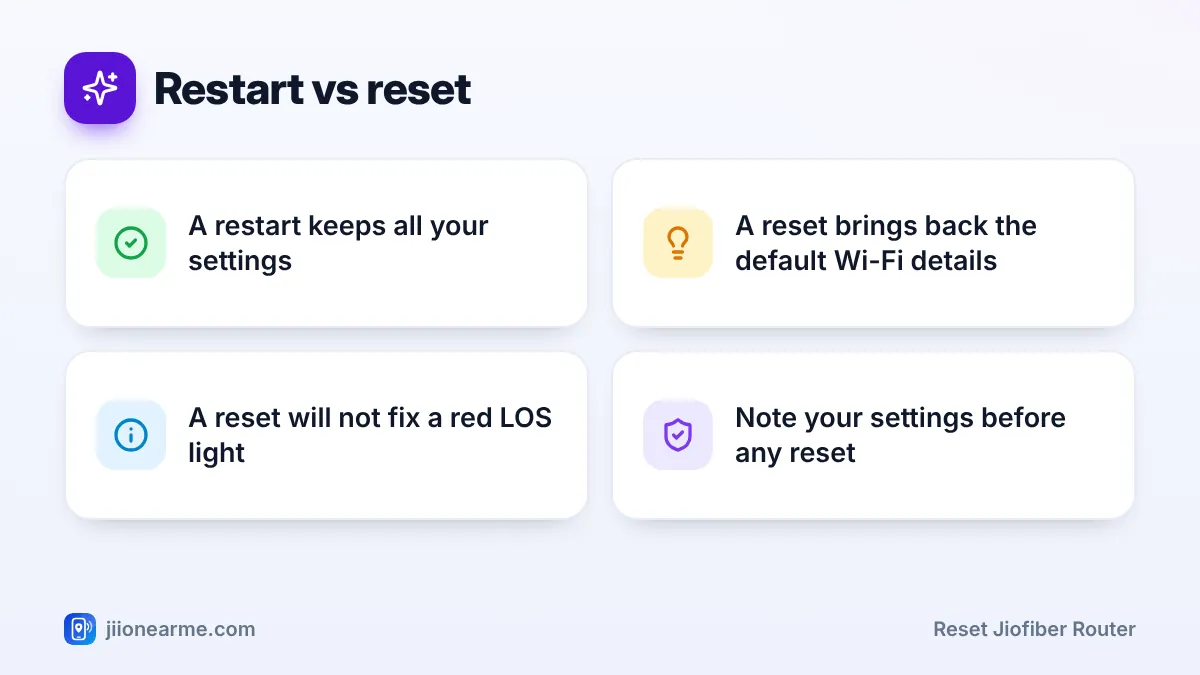
- A restart is quick, safe and keeps all your settings. Always try it first.
- A factory reset erases custom Wi-Fi names, passwords and other settings.
- A reset cannot fix fibre faults, area outages or an expired plan.
- Note down your settings, or take screenshots, before any reset.
Restart vs Factory Reset: The Key Differences
| Point | Restart | Factory reset |
|---|---|---|
| What it does | Turns the router off and on | Restores factory settings |
| Your settings | All kept | Custom settings erased |
| Wi-Fi name and password | Unchanged | Back to the defaults on the label |
| Admin password | Unchanged | Back to the default |
| Time taken | A few minutes | Several minutes, plus time to set up again |
| Risk | Very low | Devices disconnect; some services may need Jio’s help |
| When to use | First step for most problems | Last resort, or when Jio support asks |
When a Restart Helps
A restart clears the router’s temporary memory and reconnects it to Jio’s network. Try it when:
- Websites load slowly or videos keep buffering
- Wi-Fi shows as connected, but there is no internet
- A device cannot join the Wi-Fi network
- The connection acts strangely after a power fluctuation
- The router has been running for a long time and feels sluggish
How to restart your JioFiber router
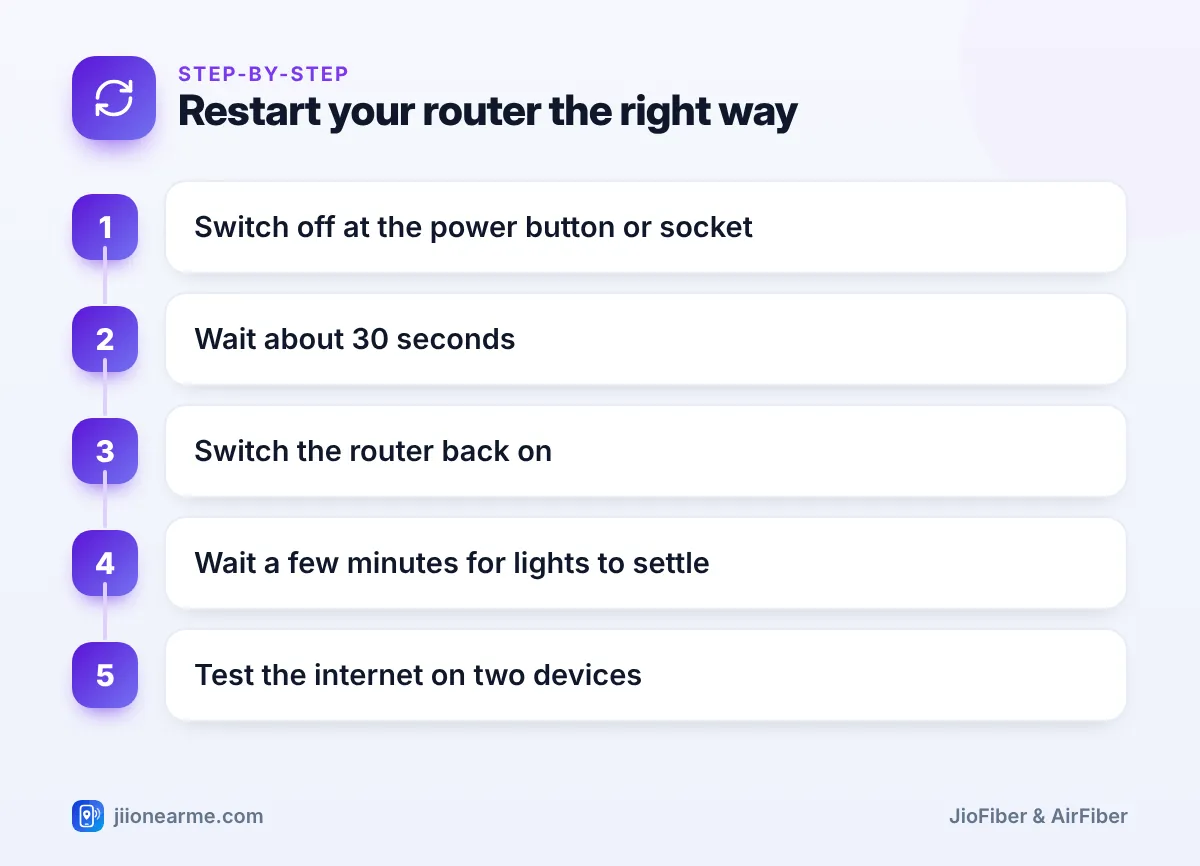
- Switch the router off using its power button, if it has one, or at the wall socket.
- Wait about 30 seconds.
- Switch it back on.
- Wait a few minutes until the power, PON and internet lights are steady.
- Test the internet on two different devices.
You can also restart from the router’s admin page. Look for a Reboot or Restart option, often under Administration or Maintenance.
If a restart does not solve the problem
Before you think about a reset, use the router lights to narrow down the cause:
- LOS light red: The fibre signal is not reaching the router. Check the cable for sharp bends or pinching, and contact Jio if it stays red.
- PON steady, internet light off: Open the MyJio app and check that your plan is active or your bill is paid.
- All lights normal, one device offline: The issue is probably the device. Forget the Wi-Fi network on it and connect again.
- All lights normal, every device slow: Test near the router, ideally with a cable, to see whether the problem is Wi-Fi range or the connection itself.
If none of these explains it, raise a service request in the MyJio app before trying anything drastic.
If you find yourself restarting often, look at the basics. Make sure the router has space around it to stay cool, the adapter is firmly plugged in and the socket is not loose.
What a Factory Reset Erases
A factory reset wipes everything you or a technician changed on the router itself, including:
- Custom Wi-Fi names and passwords for both bands
- A changed admin password
- Guest network settings, parental controls and device filters
- Port forwarding, address reservations and any custom DNS
- Other personal settings you made on the admin page
Your Jio account, plan and landline number are managed by Jio, so a reset does not cancel them. In many cases, the router reconnects to Jio’s network automatically after a reset. Sometimes, though, the internet or landline may need Jio’s help to come back.
A factory reset cannot fix a red LOS light, a cable fault, an area outage, an expired prepaid plan or an unpaid bill. In those cases, it only adds the extra work of setting up your Wi-Fi again.
How to Reset JioFiber Router Settings Safely
When a reset makes sense
- You forgot the admin password and cannot log in to change settings.
- A setting was changed wrongly and you cannot work out how to undo it.
- Problems continue after restarts, and Jio support asks you to reset.
Steps for a factory reset
- Take screenshots of your current Wi-Fi and other settings, if you can still log in.
- Keep the router switched on.
- Find the small Reset pinhole, usually on the back.
- Press and hold it with a pin or straightened paper clip for the time given in your model’s guide, often about 10 seconds.
- Release it and wait several minutes while the lights go off and come back on. Do not switch off the power during this time.
- Connect using the default Wi-Fi name and password printed on the router label.
- Log in to the admin page, or use the MyJio app, to set a new Wi-Fi name and strong password.
- If the internet or landline does not return, contact Jio on 198 or 199 from a Jio number, or the toll-free number 1800-889-9999.
Mistakes to Avoid
- Pressing reset when you meant to restart. The reset pinhole is not an on/off switch.
- Cutting power during a reset or update. This can leave the router in a bad state.
- Resetting again and again. If one reset did not help, the issue is probably elsewhere.
- Resetting for problems on Jio’s side. Check the lights first. A red LOS light needs a cable check, not a reset.
- Forgetting your smart devices. After a reset changes the Wi-Fi details, cameras, plugs and TVs must be connected again.
Frequently Asked Questions
Will restarting the router delete my settings?
No. A restart keeps everything, including your Wi-Fi name, password and admin settings.
How often should I restart my JioFiber router?
Only when you notice a problem. There is no need for a daily restart if everything is working well.
Will a factory reset change my Wi-Fi password?
Yes. The Wi-Fi name and password go back to the defaults printed on the router label, and every device must reconnect.
Does a factory reset affect my JioFiber plan?
No. Your plan and account are managed by Jio, not stored on the router, so a reset does not change them.
My router keeps restarting by itself. What should I do?
Check the adapter, the socket and whether the router is overheating. If it continues, raise a service request in the MyJio app or call customer care.
Conclusion
When your JioFiber connection misbehaves, a restart is the safe first step. It takes a few minutes and changes nothing. Keep a factory reset for when you are locked out, a setting has gone wrong or Jio support asks for it. Before any reset, save your settings and remember that it cannot fix a fibre or network fault.
JIo Near me is an independent guide and is not affiliated with Reliance Jio. App menus, plans and policies can change – always confirm current details in the official MyJio app or on jio.com. We will never ask for your OTP, PIN or passwords.
