
You can change your Jio AirFiber Wi-Fi name and password from the MyJio app in a few minutes. Select your AirFiber account, open the Wi-Fi settings, pick the network band, type a new name and password, and save. Every wireless device then disconnects and needs the new password to join again.
This guide explains where AirFiber Wi-Fi settings are managed, how to handle the two Wi-Fi bands, what makes a good password and how to fix devices that refuse to reconnect. MyJio menu labels change between app versions, so look for similar wording if your screen looks a little different.
- AirFiber Wi-Fi comes from the indoor unit, and you can manage it through the MyJio app.
- If you see two networks, update the name and password for both bands.
- Switch your phone to mobile data before saving, because the Wi-Fi will drop.
- After the change, forget the old network on each device and reconnect.
Where Jio AirFiber Wi-Fi Settings Are Managed
A Jio AirFiber setup has two parts. The outdoor unit receives the 5G signal, and the indoor unit turns it into Wi-Fi for your home. The Wi-Fi name and password belong to the indoor unit, so that is the device you are changing.
You usually have two ways to reach these settings:
| Option | Best for | What you need |
|---|---|---|
| MyJio app | Most users, quick changes | The number registered with your AirFiber connection |
| Browser admin page | Users comfortable with router menus | The admin address and login printed on the unit’s label or documents |
For most people, MyJio is the easier and safer choice. The browser page shows more technical options, and changing the wrong one can cause problems.
The Wi-Fi password lets devices join your network. The admin password lets someone change the unit’s settings. They are not the same, and both should be kept private.
How to Change AirFiber Wi-Fi Password and Name in MyJio
Follow these steps on your phone:
- Turn on mobile data, or be ready to reconnect. Your Wi-Fi will drop for a moment when you save.
- Open the MyJio app and sign in with the number linked to your AirFiber connection.
- If you have more than one Jio account, use the account switcher near the top of the screen to select your AirFiber account.
- Look for an option such as Wi-Fi settings, Manage Wi-Fi or a router or device card. The exact label can differ by app version.
- Select the network you want to edit. You may see a 2.4 GHz and a 5 GHz network, or one combined network.
- Change the network name (also called the SSID) if you want a new one.
- Enter the new password and check it carefully before saving.
- Tap Save or Apply. The indoor unit may take a minute to apply the change.
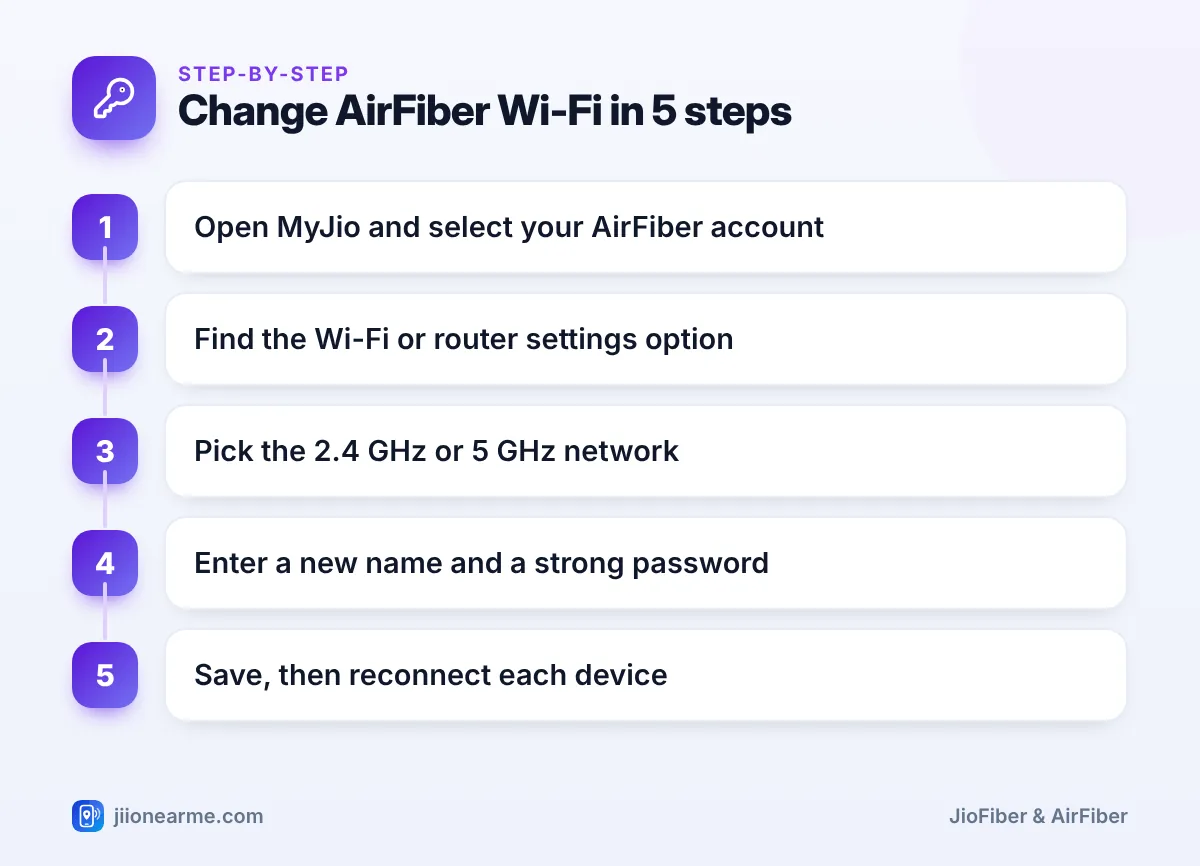
Once the change is saved, connect your phone to the network using the new details to confirm it works.
Updating each Wi-Fi band
Many AirFiber setups show two networks, one on 2.4 GHz and one on 5 GHz. Each can have its own name and password. If you change the password on only one band, the old password still works on the other. That defeats the purpose if you are changing it to cut off someone who should no longer have access.
Use the same new password on both bands to keep things simple. A clear naming pattern helps too, such as “HomeNet” for 2.4 GHz and “HomeNet-5G” for 5 GHz. Here, “5G” means the 5 GHz Wi-Fi band, not 5G mobile service.
If your unit shows a single combined network name, one change covers both bands.
Choosing a Strong Wi-Fi Name and Password
A good name and password protect your connection without making life difficult for your family.
- Name: Avoid your full name, flat number or phone number. A neutral name shares less information with neighbours.
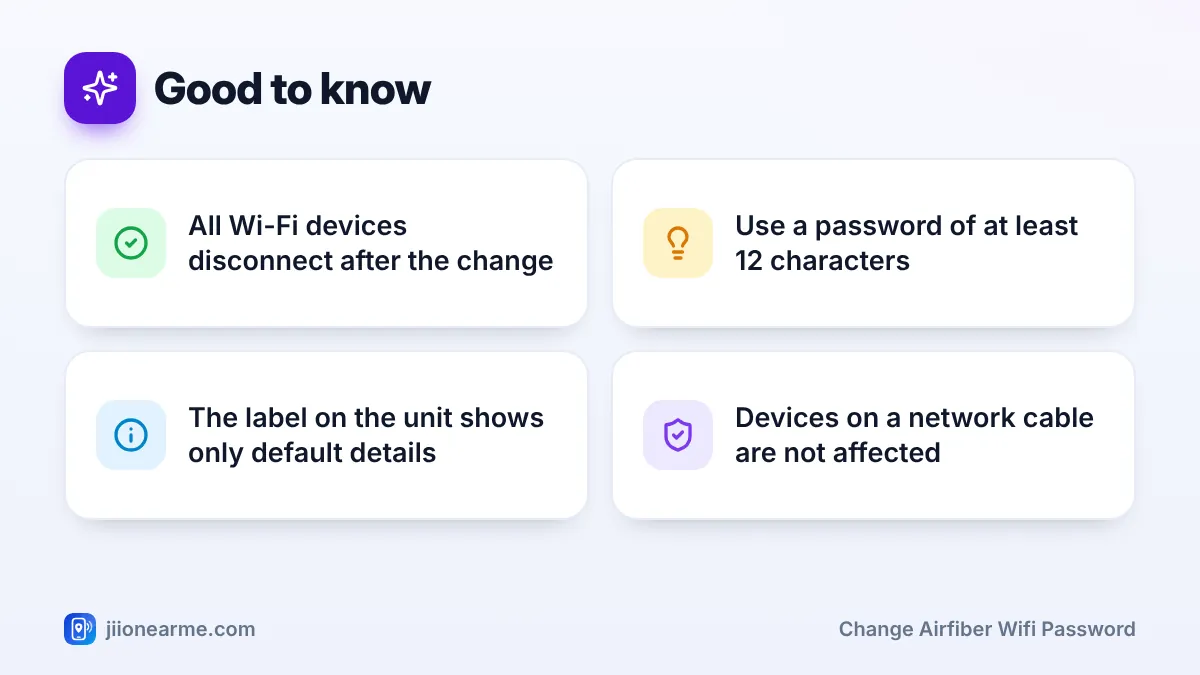
- Length: Use at least 12 characters. Wi-Fi passwords can be from 8 to 63 characters, and longer is harder to guess.
- Mix: Combine two or three unrelated words with a few numbers. This is easier to type on a TV remote than random symbols.
- Unique: Never reuse your email, banking or UPI passwords.
- Simple symbols: Some older smart TVs and gadgets struggle with unusual characters. If a device will not connect, a password of letters and numbers usually solves it.
Write the new password in a notes app or on a card kept at home, not on a sticker on the unit. Visitors and service staff can easily read a sticker.
What to Do If Devices Drop Off After the Change
When you change the password, every wireless device loses its connection. This is normal. Each device still remembers the old details and needs the new ones.
Reconnecting common devices
- Android phones: Open Settings, then Wi-Fi or Connections, tap your network, choose Forget, then reconnect with the new password.
- iPhone: Go to Settings > Wi-Fi, tap the info icon (i) next to your network, choose Forget This Network and join again.
- Laptops: Remove the saved network from the Wi-Fi list and reconnect.
- Smart TVs: Open the network settings in the TV menu, select your network and enter the new password.
- Set-Top Box: If it connects over Wi-Fi, update it from its network settings. If it uses a cable, it is not affected.
- Smart plugs, bulbs and cameras: These usually need to be added again through their own app. Many work only on the 2.4 GHz network.
If a device still will not connect
- Restart the device, then try again.
- Check that you typed the password exactly. Wi-Fi passwords are case-sensitive.
- Confirm the device supports the band you chose. Older devices may not see a 5 GHz network at all.
- If you changed the network name, make sure you are selecting the new name, not an old saved one.
- Switch the indoor unit off at the socket, wait about 30 seconds and switch it on again.
If you forget the new password, do not reset the indoor unit on your own. A reset can wipe your settings and cause a longer outage. Set a new password from MyJio instead, or call Jio on 199 from a Jio number or 1800-889-9999 toll-free.
Frequently Asked Questions
Can I change the AirFiber Wi-Fi password without the MyJio app?
Usually, yes. You can open the indoor unit’s admin page in a browser using the address and login shown on its label or documents. MyJio is simpler for most people, though.
Will changing the Wi-Fi password affect my AirFiber plan?
No. Your plan, validity and connection stay the same. Only devices that join over Wi-Fi need the new password.
How often should I change my AirFiber Wi-Fi password?
There is no fixed rule if your password is strong. Change it when someone who should not have access knows it, after sharing it widely or if you notice unknown devices on your network.
Why does my AirFiber show two Wi-Fi networks?
The indoor unit broadcasts on two bands. The 2.4 GHz network reaches farther, while the 5 GHz network is faster closer to the unit. You can use both.
What if MyJio does not show a Wi-Fi settings option?
Update the MyJio app, sign in with the registered number and make sure your AirFiber account is selected. If the option still does not appear, contact Jio customer care on 199.
Wrapping Up
To change your AirFiber Wi-Fi password, open MyJio, select your AirFiber account, edit each band and save. Keep your phone on mobile data while you do it, update both networks and then reconnect your devices one by one. A long, private password is the simplest way to keep your home connection yours.
JIo Near me is an independent guide and is not affiliated with Reliance Jio. App menus, plans and policies can change – always confirm current details in the official MyJio app or on jio.com. We will never ask for your OTP, PIN or passwords.
