JioTV lets you change the picture quality of any channel from the player itself. While a channel is playing, tap the screen, tap the gear or three-dot icon and choose a level such as Low, Medium, High or Auto. A lower level uses less mobile data, while a higher level looks sharper but uses more.
This matters most on daily data plans, where one long cricket match or film can eat a large part of the day’s allowance. Below you will find the exact steps, what each level means, which one suits your screen and what to do if the option is missing. Labels can differ slightly between app versions.
- Change quality from the player: tap the video, then the gear or three-dot icon, then Quality
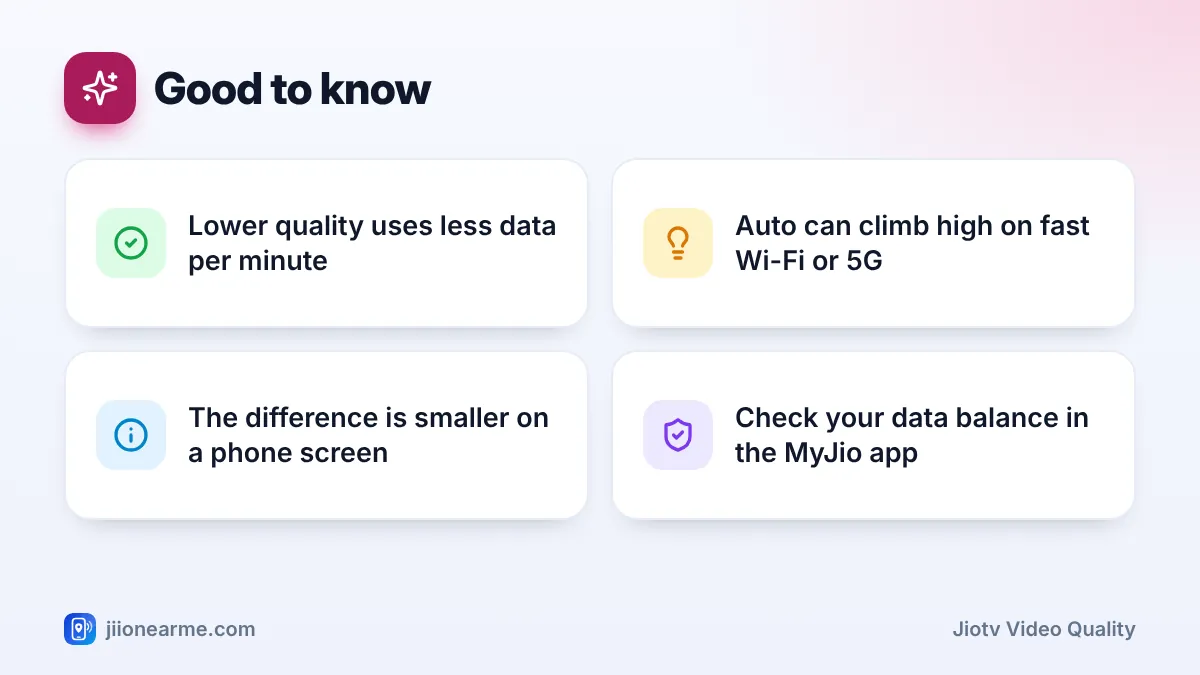
- Low or Medium quality stretches your daily data the most on a phone
- Auto adjusts to your connection, so it can use a lot of data on fast 5G or Wi-Fi
- Save High quality for Wi-Fi, JioFiber or Jio AirFiber and for bigger screens
How Video Quality Affects Your Data
Live TV streams continuously. Every minute you watch, the app downloads video, and the sharper the picture, the more data each minute needs. That is why the same hour of news can use very different amounts of data depending on the quality you choose.
On many Jio prepaid plans, you get a fixed amount of high-speed data each day. Once you use it up, speed drops for the rest of the day, and channels may start buffering. Choosing a sensible quality keeps enough data for other things, such as WhatsApp calls, maps and UPI payments.
You do not need exact figures to manage this well. Just remember the order: Low uses the least, then Medium, then High. Auto sits anywhere in between, depending on how fast your connection is.
How to Change JioTV Video Quality While Watching
These steps work on Android phones and iPhones.
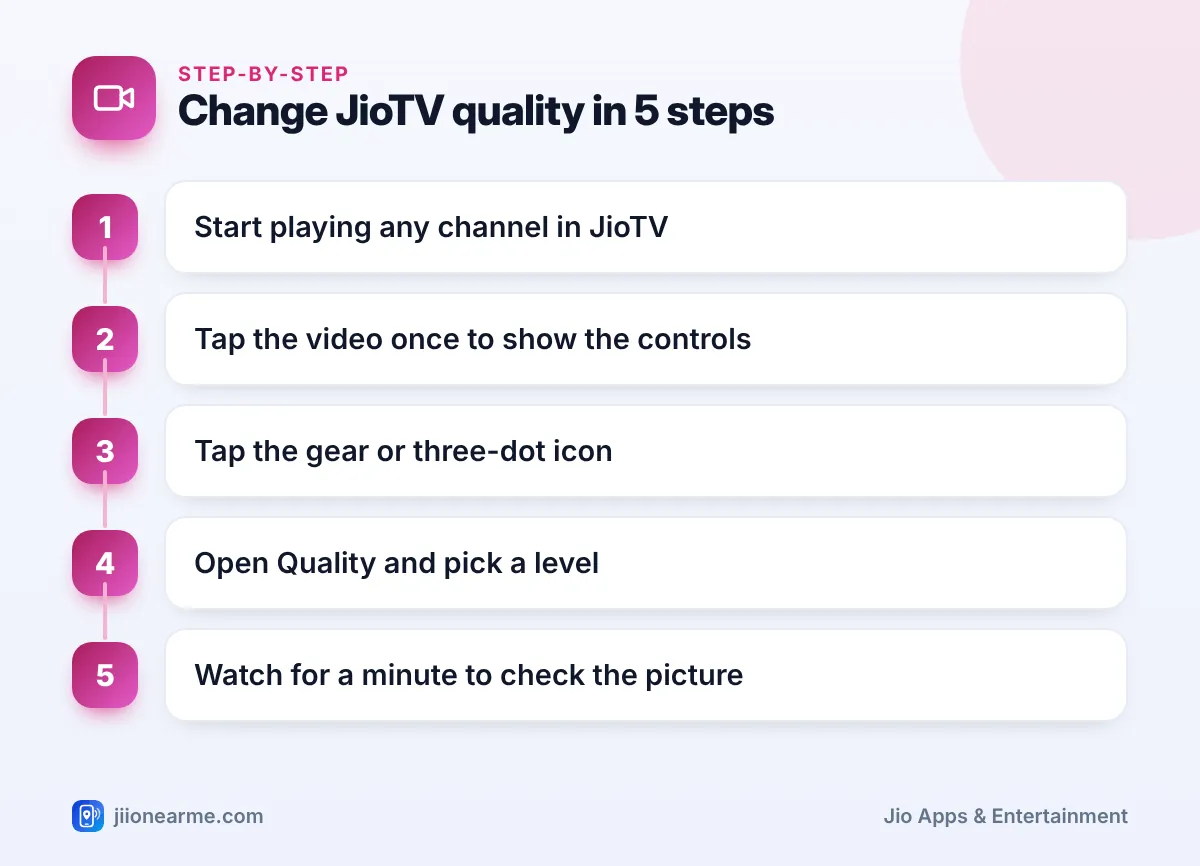
- Open the JioTV app and start playing a channel.
- Tap the video once so the player controls appear.
- Tap the gear (settings) icon or the three-dot (⋮) icon, usually in a top or bottom corner of the player.
- Choose Quality, Video Quality or a similar option.
- Pick the level you want, such as Low, Medium, High or Auto.
- Close the menu and watch for a minute. The picture may take a few seconds to adjust.
On some versions the quality options are shown only in full-screen mode. If you do not see the gear icon, turn your phone sideways or tap the full-screen button and look again.
Is there a default quality setting?
Some app versions also offer a quality or streaming option in the app’s main Settings, reached from the menu (☰) or your profile icon. If yours has it, set a default there so every channel starts at that level. If not, the app may keep the last level you chose in the player. Check after switching channels to be sure.
Auto watches your connection speed and picks the quality for you. That avoids buffering, but on a fast Jio True 5G or Wi-Fi connection it will often choose a high level. If saving data is your goal, pick a fixed lower level instead of Auto.
Which JioTV Video Quality Should You Choose?
There is no single right answer. It depends on your screen, your connection and how much data you have left today.
| Option | Picture | Data use | Best for |
|---|---|---|---|
| Low | Softer, small text may blur | Lowest | News, talk shows, low data left |
| Medium | Clear on most phones | Moderate | Everyday viewing on mobile data |
| High | Sharpest | Highest | Wi-Fi, films and sports on bigger screens |
| Auto | Changes with your speed | Varies, can be high | Unstable connections, unlimited Wi-Fi |
A simple rule many people follow is Medium on mobile data and High on Wi-Fi. Drop to Low when your daily data is nearly used up or when you mostly listen, such as with devotional or news channels.
Small Screens vs Large Screens
On a phone held at arm’s length, the gap between Medium and High is often hard to spot. Your eyes simply cannot see the extra detail on a small display. That makes Medium a good-value choice for most phone viewing.
On a tablet or a large phone in landscape mode, the difference becomes clearer. Fine details, such as scores on a sports screen or small text on a news ticker, look sharper at High.
If you want proper big-screen viewing at home, JioTV+ on a JioFiber or Jio AirFiber connection is built for the TV and uses your home broadband instead of mobile data.
Watching a long match on mobile data? Start at Low or Medium. If you still have plenty of data in the evening, you can switch up to High for the last overs or the final minutes.
More Ways to Stretch Your Daily Data on JioTV
Quality is the biggest lever, but a few habits help too:
- Use Wi-Fi when you can. At home, connect to JioFiber, Jio AirFiber or any trusted Wi-Fi before opening JioTV.
- Do not leave a channel playing. A stream running in a small window or in the background keeps using data. Close the player when you stop watching.
- Check your balance. Open the MyJio app to see how much data is left today and set data alerts if your version offers them.
- Know your plan. If your plan includes Jio True 5G data, check in MyJio how 5G usage is counted for your plan before relying on it.
- Avoid unofficial apps. Modified JioTV apps can waste data with ads and may carry malware. Use only the official app from the Play Store or App Store.
Once your high-speed data for the day is used, speeds drop and live TV may keep buffering even at Low quality. Check data add-on options in the MyJio app or on jio.com, or wait for your data to reset.
When the Quality Option Is Missing or the Picture Stays Blurry
- No gear or quality option. Update JioTV, then open a channel in full-screen mode. Some channels may offer fewer levels than others.
- Picture stays blurry on High. Your connection may be too slow for that level, so the stream drops down to keep playing. Move closer to your Wi-Fi router or check your network signal.
- Constant buffering. Pick a lower level, toggle Airplane mode on and off, and close other apps that are downloading in the background.
- Nothing plays at all. Confirm your plan is active in MyJio. If channels still do not play, call 199 from your Jio number.
Frequently Asked Questions
Does JioTV remember the quality I choose?
It depends on the app version. Some versions keep your last choice or offer a default in Settings, while others reset to Auto. Check the player after switching channels.
Is Auto quality bad for data?
Not always, but it is not designed to save data. Auto aims for the smoothest picture your connection allows, so on fast networks it often picks a high level. Choose a fixed level when data matters.
Why is Low quality still buffering?
Your connection may be very weak, or your daily high-speed data may be used up. Check your balance in MyJio, try another spot with better signal or switch to Wi-Fi.
Does lower quality also reduce sound quality?
Usually the change you notice is in the picture. Speech and music stay clear enough for most viewing at lower levels, which makes Low a sensible choice for news and devotional channels.
Will changing quality affect catch-up shows too?
Yes. Catch-up programmes stream the same way as live channels, so the quality you choose in the player affects their data use as well.
Summary
Changing JioTV video quality takes a few taps and makes a real difference to how far your daily data goes. Use Medium on mobile data, Low when your balance is running low and High on Wi-Fi or a bigger screen. Avoid leaving Auto on if saving data is the goal, and keep an eye on your balance in MyJio so a long match never catches you by surprise.
JIo Near me is an independent guide and is not affiliated with Reliance Jio. App menus, plans and policies can change – always confirm current details in the official MyJio app or on jio.com. We will never ask for your OTP, PIN or passwords.
