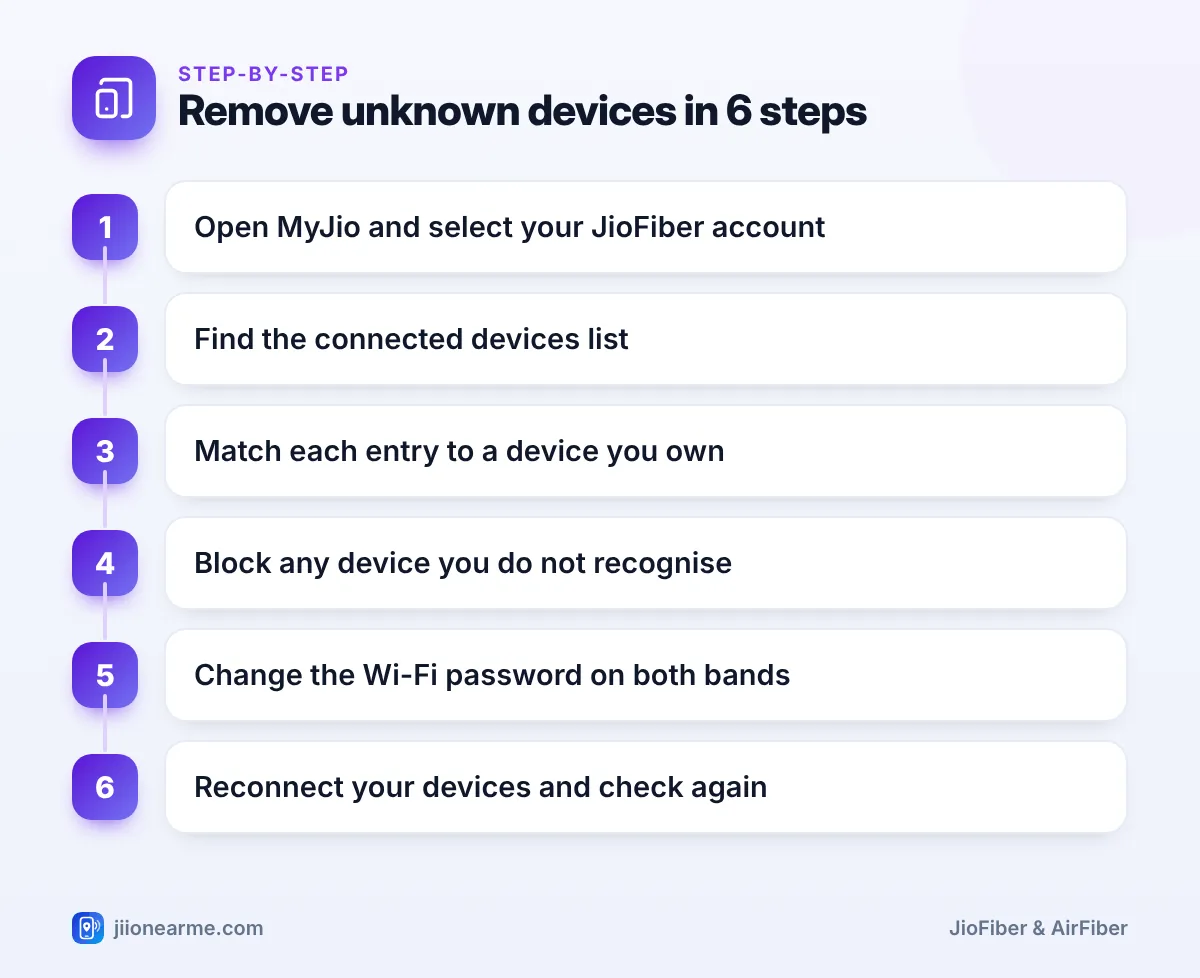
Open the MyJio app, select your JioFiber account and look for the connected devices list in the Wi-Fi or router settings. It shows every phone, laptop, TV and gadget currently using your network. You can also see the same list on the router’s admin page in a browser.
If you spot something you do not recognise, you have two options: block that device, where your router or app offers it, or change your Wi-Fi password so every device has to rejoin. This guide covers how to read the list, identify unfamiliar entries and remove them for good.
- The connected devices list is in MyJio’s JioFiber Wi-Fi settings or on the router’s admin page.
- Count and match your own devices before deciding anything is unknown.
- Blocking works for a single device, but changing the password removes everyone.
- Use a long Wi-Fi password and check the list every few weeks.
Why You Should Check JioFiber Connected Devices
An unknown device on your Wi-Fi is more than a nuisance. It can use your plan’s data, slow down your streaming and calls, and in some cases see shared folders or devices on your home network.
It usually happens for ordinary reasons. You may have shared the password with a neighbour, a previous tenant, a worker or a guest who passed it on. A weak or default password can also be guessed. Checking the list now and then helps you catch this early.
Signs worth checking for:
- Your Wi-Fi feels slow even when nobody at home is using it.
- Data usage in MyJio looks higher than your household’s normal pattern.
- The router’s Wi-Fi lights blink with activity when all your devices are off.
How to See the JioFiber Connected Devices List
In the MyJio app
- Open MyJio and sign in with the number linked to your JioFiber connection.
- Switch to your JioFiber account if you have more than one Jio account.
- Open the Wi-Fi, router or device settings section.
- Look for an option such as Connected Devices or Manage Devices.
Labels and layout can differ by app version. If you cannot find the list, update the app and check again.
On the router’s admin page
Connect to your Wi-Fi, open a browser and type the router’s admin address. It is printed on the router label, and on many JioFiber routers it is 192.168.29.1. Log in with the admin username and password, which are not the same as your Wi-Fi password. Then look for a page called Connected Devices, Client List, Device List or something similar.
The router page often shows more detail, such as each device’s IP address, MAC address and whether it is on 2.4 GHz, 5 GHz or a cable.
How to Identify Devices You Do Not Recognise
Before you block anything, make a list of every device in your home that uses Wi-Fi. Include the easy-to-forget ones, like smart plugs, the Set-Top Box, a Wi-Fi printer, a smart speaker or a security camera.
Then match the entries. Device names are not always clear, so this table helps:
| What you see | What it might be |
|---|---|
| A phone model or a name like “Galaxy” or “iPhone” | A family member’s phone |
| A long code with no name | A smart plug, bulb, camera or older gadget |
| A TV brand or “Android TV” | Your smart TV or streaming stick |
| A laptop or “DESKTOP” name | A home computer |
| A name you have never seen | Possibly an outside device |
Private MAC addresses on phones
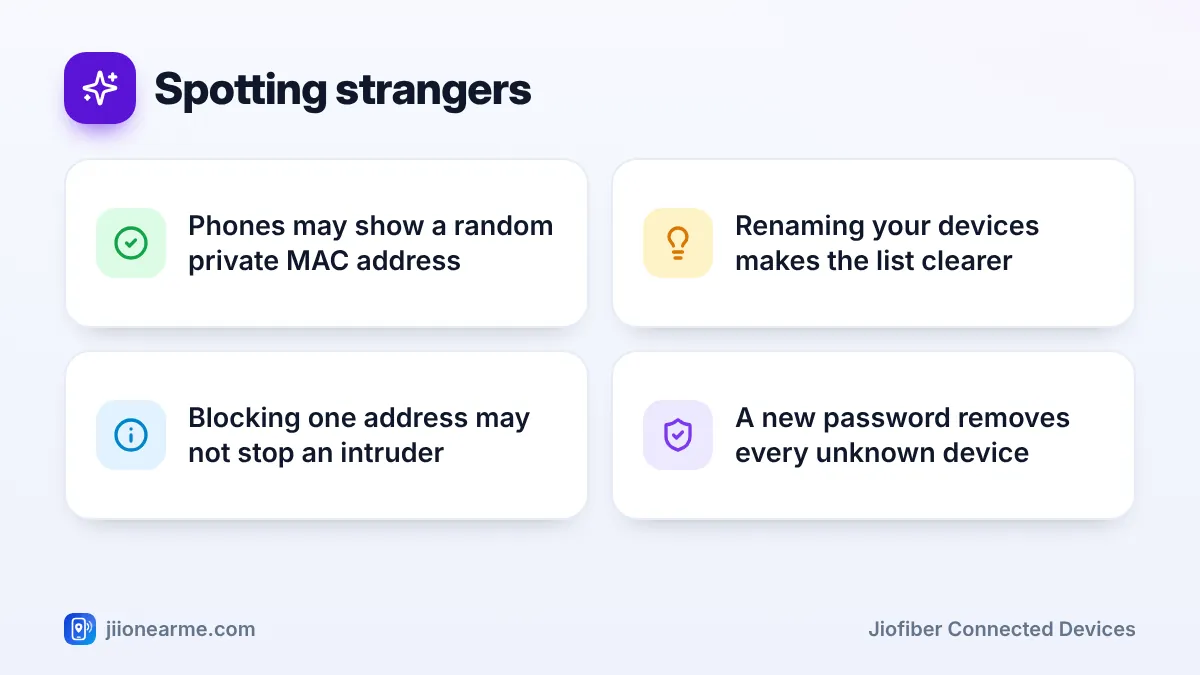
Modern Android phones and iPhones often use a private, randomised MAC address for each Wi-Fi network. The address in the list may not match the one shown in the phone’s main settings, and it can change after the phone forgets and rejoins your Wi-Fi. Check the Wi-Fi details screen on each phone for the address it uses on your network.
Rename your own devices where the app or router allows it, for example “Dad’s phone” or “Living room TV”. Next time you check, anything without a familiar name stands out at once.
A simple test also works. Switch off Wi-Fi on your own devices one by one and watch which entries disappear from the list.
How to Block Unknown Devices on JioFiber
Option 1: Block the device
If MyJio or your router shows a Block option next to a device, tap the device and choose it. The router stops that device from using your network. On the router’s admin page, the same feature may appear as MAC filter, Access control or Block list.
Blocking has limits. It usually works by MAC address, and some devices can change theirs. Someone who knows your password may simply rejoin with a new address.
Option 2: Change the Wi-Fi password
This is the most reliable fix. A new password disconnects every device, and only people you give it to can join again.
- Open the Wi-Fi settings for your JioFiber account in MyJio, or on the router’s admin page.
- Set a new password of at least 12 characters for the 2.4 GHz network.
- Do the same for the 5 GHz network, if it has its own settings.
- Save the changes.
- Reconnect your own devices one by one with the new password.
- Check the connected devices list again after a day.
If your Wi-Fi name, admin password or other settings changed without your knowledge, contact Jio customer care on 198 to report it or 199 for help. Never share your router login or any OTP with someone who calls you claiming to fix the problem.
Keep Unknown Devices Out for Good
A few habits keep your network private:
- Use a long, unique Wi-Fi password and share it only with your household.
- Use a guest network for visitors, if your router supports one.
- Change the default admin password, so nobody else can change your settings.
- Turn off WPS on the router’s admin page if you do not use it.
- Check the connected devices list every few weeks.
Frequently Asked Questions
Can someone use my JioFiber without the password?
Not normally, if your network uses WPA2 or WPA3 security with a strong password. Most unknown devices got the password from someone, or guessed a weak one.
Will the blocked device know it was blocked?
It simply fails to connect or loses internet. The router does not send the person a message.
Why does a family phone show up as an unknown device?
Phones often use private MAC addresses and may show a code instead of a name. Check the Wi-Fi details on each phone to match its address.
Does changing the Wi-Fi password disconnect smart devices?
Yes. Smart plugs, cameras and similar gadgets need to be added again through their own apps with the new password.
How do I unblock a device I blocked by mistake?
Open the same connected devices or block list in MyJio or on the router’s admin page, select the device and choose the unblock or remove option.
Wrapping Up
Checking your JioFiber connected devices takes a minute in MyJio or on the router’s admin page. Match each entry to a device you own, block anything suspicious and, if in doubt, change the Wi-Fi password on both bands. A strong password and a monthly check keep outsiders off your network.
JIo Near me is an independent guide and is not affiliated with Reliance Jio. App menus, plans and policies can change – always confirm current details in the official MyJio app or on jio.com. We will never ask for your OTP, PIN or passwords.
