There are two ways to get your JioBook online. You can insert an active Jio SIM and use the built-in 4G, or you can join a Wi-Fi network at home, college or work. Wi-Fi is best for heavy use, while 4G keeps you connected where there is no Wi-Fi.
Many JioBook owners use both. This guide explains how to set up each one, how to choose between them, and how to keep your mobile data from running out too early. Menu names in JioOS can vary slightly by software version, so pick the closest match if a label looks different.
- The JioBook has a SIM slot for built-in 4G, which works with an active Jio SIM and plan.
- Wi-Fi works with any home router, including JioFiber and Jio AirFiber, and saves your mobile data.
- When both are available, the JioBook usually uses Wi-Fi first.
- Set a data warning and save big downloads for Wi-Fi to make your 4G data last.
Two Ways Your JioBook Gets Online
Here is a quick comparison of your options:
| Option | What you need | Best for |
|---|---|---|
| Built-in 4G | An active Jio SIM in the JioBook | Travel, college, places without Wi-Fi |
| Wi-Fi | A home, office or college network | Classes, streaming, updates and big downloads |
| Phone hotspot | A smartphone sharing its data | Short sessions when nothing else is available |
The built-in 4G is the JioBook’s special feature. You do not need to carry a separate hotspot or keep your phone’s hotspot on, which also saves your phone’s battery.
How to Use JioBook 4G Internet with a Jio SIM
Step 1: Get the SIM ready
You need a Jio SIM with an active plan that includes data. It can be a separate SIM just for the JioBook. Check the current plans for that number in the MyJio app or on jio.com.
Some JioBook models also offer a data-sharing option that links the laptop’s SIM with your existing Jio mobile number, so you do not need a separate plan. If your model offers it, you will see the option during first-time setup or in the SIM or mobile network settings. Follow the on-screen steps, as requirements can change.
Step 2: Insert the SIM
- Shut down the JioBook fully.
- Find the SIM slot, usually on the side of the laptop. Your user guide shows its exact position.
- Insert the SIM as shown in the guide, or use the tray if your model has one.
- Switch the JioBook back on.
Step 3: Turn on mobile data
- Open the quick settings panel or click the network icon.
- Look for Mobile data or an LTE or 4G toggle and turn it on.
- Wait a few seconds for the signal bars and a 4G icon to appear.
- Open a website to check the connection.
Internet settings are usually configured automatically for a Jio SIM. If the internet does not start, restart the JioBook once before trying anything else.
How to Connect Your JioBook to Wi-Fi
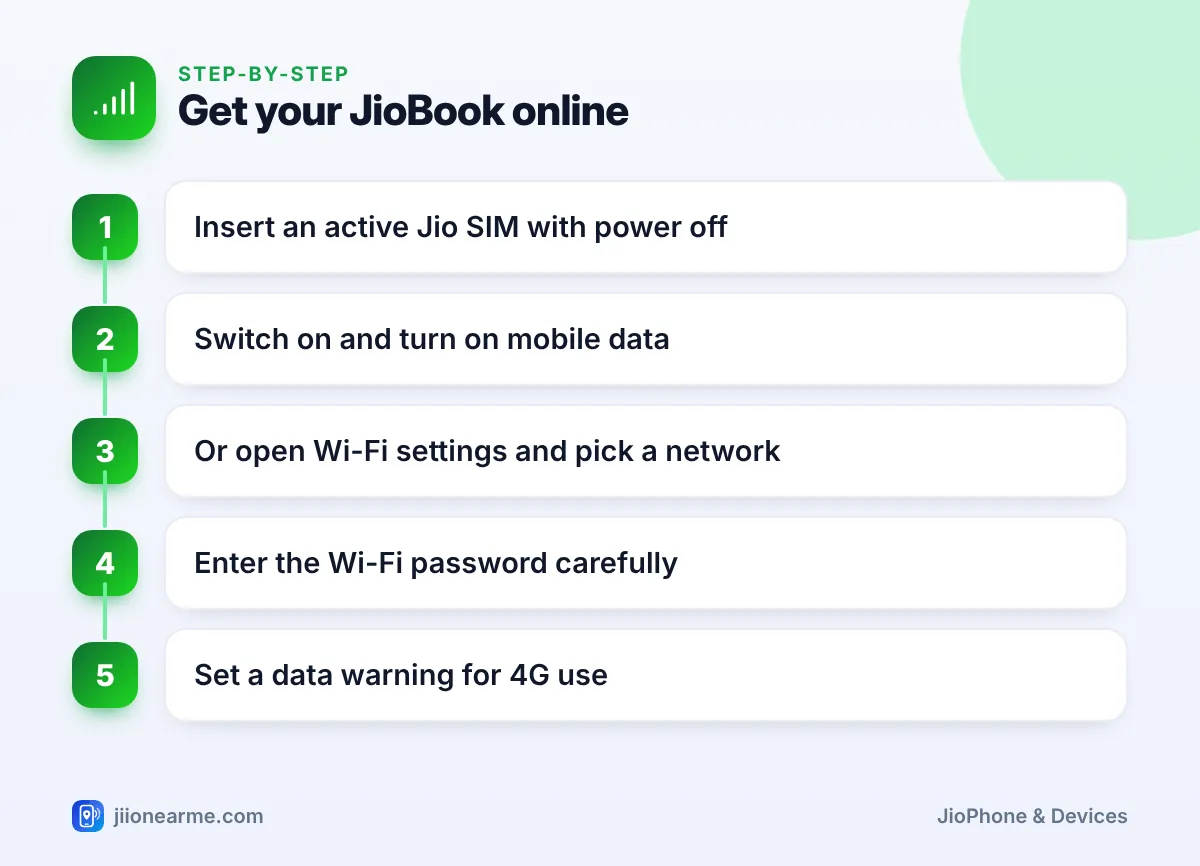
- Click the Wi-Fi or network icon, or open Settings and go to Network or Wi-Fi.
- Turn Wi-Fi on if it is off.
- Select your network from the list.
- Type the password carefully. Capital and small letters count as different characters.
- Click Connect.
The JioBook remembers networks you join, so it reconnects automatically next time. If your router shows two network names, one for 2.4 GHz and one for 5 GHz, the 5 GHz one is often faster near the router, while 2.4 GHz reaches further.
If you change your Wi-Fi password or stop visiting a place, open the Wi-Fi settings, select the saved network and choose Forget. This stops the JioBook from trying to join old networks.
Choosing Between 4G and Wi-Fi to Manage Data
Mobile data plans come with limits, so a little planning helps your data last.
- Use Wi-Fi for heavy work. Software updates, app installs, long video classes and streaming use a lot of data. Do them on Wi-Fi when you can.
- Turn off mobile data at home. If Wi-Fi is available, switch off mobile data to avoid silent use if Wi-Fi drops.
- Set a data warning. Open Settings, go to the network or data usage section, and set a warning or limit for mobile data, if your version offers it.
- Lower video quality on 4G. Most video apps let you choose a lower quality, which uses much less data.
- Check your balance. Track the SIM’s remaining data in the MyJio app.
The JioBook’s SIM is mainly for internet. For calls and messages, keep using your phone. Check the SIM’s plan details in MyJio so you know exactly what it includes.
Fixing Common Connection Problems
The SIM is not detected
Shut down the JioBook, take out the SIM, check that it sits the right way and insert it again. Make sure the SIM is a Jio SIM and is active.
4G signal but no internet
Check that the plan is active and has data left in MyJio. Turn mobile data off and on, then restart the laptop. If it still fails, contact Jio support on 199 from a Jio number or 1800-889-9999.
Wi-Fi network not showing
Move closer to the router and turn Wi-Fi off and on. Restart the router if other devices also cannot see it.
Connected to Wi-Fi but pages do not load
Check whether other devices on the same Wi-Fi can browse. If none can, the problem is with the router or broadband line, not the JioBook.
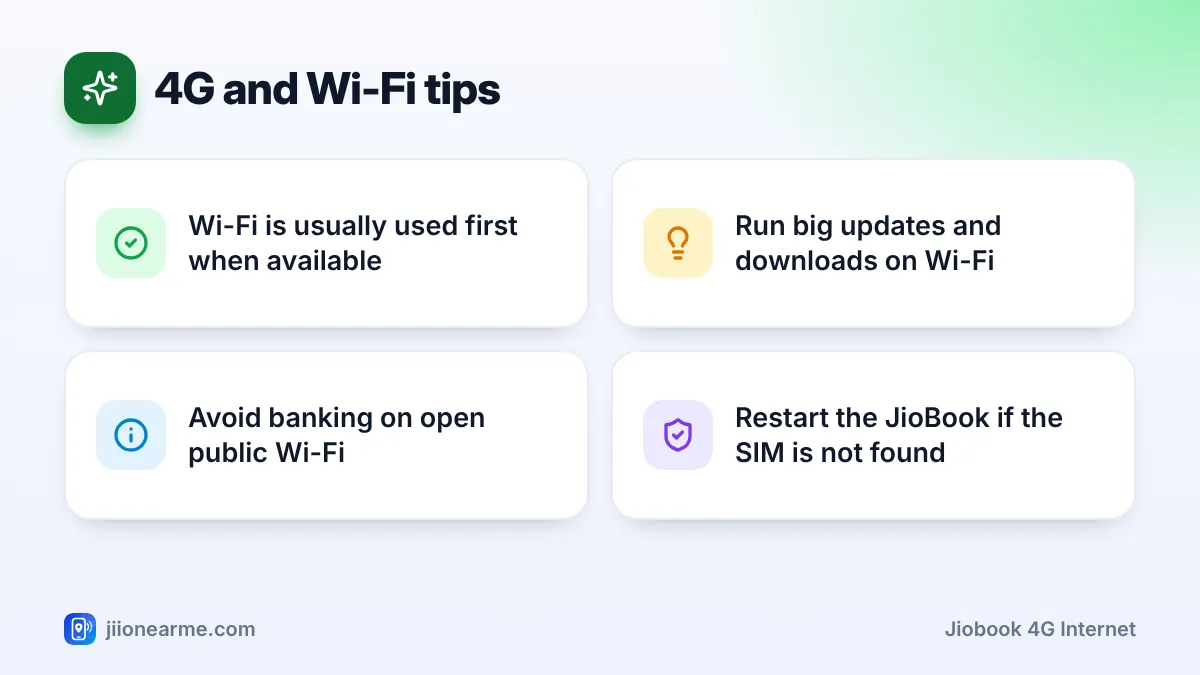
Open Wi-Fi at stations, cafes or malls is convenient but not private. Avoid banking, payments and typing passwords on such networks. Use your JioBook’s 4G for sensitive tasks when you are out.
Frequently Asked Questions
Can I use a SIM from another network in my JioBook?
The JioBook is designed for use with Jio SIMs. Use a Jio SIM for the built-in 4G, and connect through Wi-Fi if you rely on another network’s connection.
Does JioBook support 5G?
The JioBook’s built-in mobile connection is 4G. You can still enjoy faster speeds by connecting it to Jio AirFiber, JioFiber or a 5G phone’s hotspot over Wi-Fi.
Which does the JioBook use when both Wi-Fi and 4G are on?
It usually prefers Wi-Fi when a saved network is in range. If Wi-Fi drops, it can switch to mobile data if mobile data is turned on.
Can I use my JioBook as a hotspot for my phone?
Check the network or hotspot settings on your model. If the option is not there, your software version may not support it.
Final Thoughts
Your JioBook is most useful when you set up both connections. Keep Wi-Fi for home and heavy tasks, and the built-in 4G for travel and places without Wi-Fi. Watch your data usage in MyJio, keep big downloads for Wi-Fi, and you will stay online without surprises.
JIo Near me is an independent guide and is not affiliated with Reliance Jio. App menus, plans and policies can change – always confirm current details in the official MyJio app or on jio.com. We will never ask for your OTP, PIN or passwords.