A new JioFiber router works the moment the technician leaves, but a few settings deserve a check in the first week. Change the default admin password, make sure Wi-Fi encryption is WPA2 or WPA3, set a long Wi-Fi password and keep the router’s admin page private. These four steps block most common risks to a home network.
This checklist walks through each setting in plain words, explains why it matters and where to look. Router models and menus differ, so menu names are given as examples. If a setting is not available on your router, skip it and move to the next.
- The admin password protects your router’s settings, so change it from the default.
- Use WPA2 or WPA2/WPA3 encryption and a Wi-Fi password of 12 or more characters.
- Turn off WPS and remote management unless you have a clear need for them.
- Check connected devices regularly and never share router logins with callers.
Why Router Security Matters After Installation
Your router is the front door of your home network. Every phone, laptop, TV, camera and smart plug passes through it. If someone gets onto your Wi-Fi, they can use your plan, slow your connection and possibly see devices on your network. If they get into the admin settings, they can change your Wi-Fi password, lock you out or redirect your traffic.
Most problems come from simple gaps: a default admin password, a short Wi-Fi password shared too widely or features left on that you never use. Closing these gaps takes about twenty minutes.
How to Reach Your Router Settings
Some Wi-Fi settings, such as the network name and password, are available in the MyJio app under your JioFiber account. For admin-level settings, use the router’s admin page:
- Connect a phone or laptop to your JioFiber Wi-Fi.
- Open a browser and enter the admin address printed on the router label. On many JioFiber routers it is 192.168.29.1.
- Log in with the admin username and password from the label or your installation details.
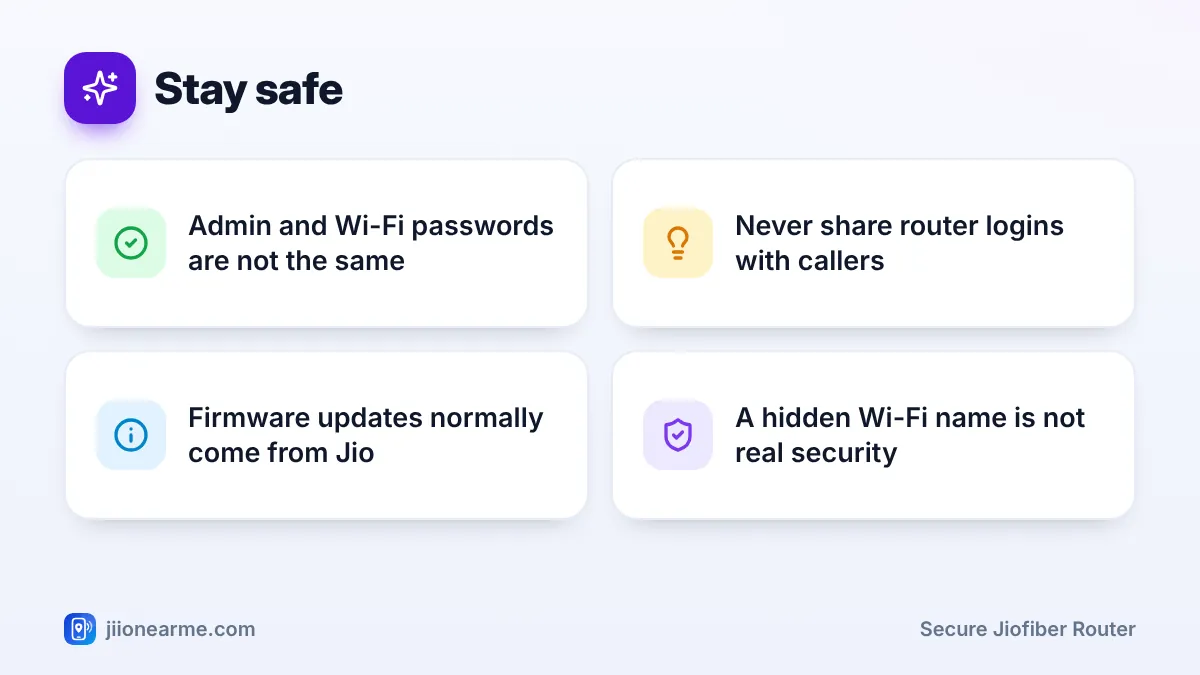
The Wi-Fi password lets devices join your network. The admin login lets someone change the router’s settings. Keep both private, and never use the same password for both.
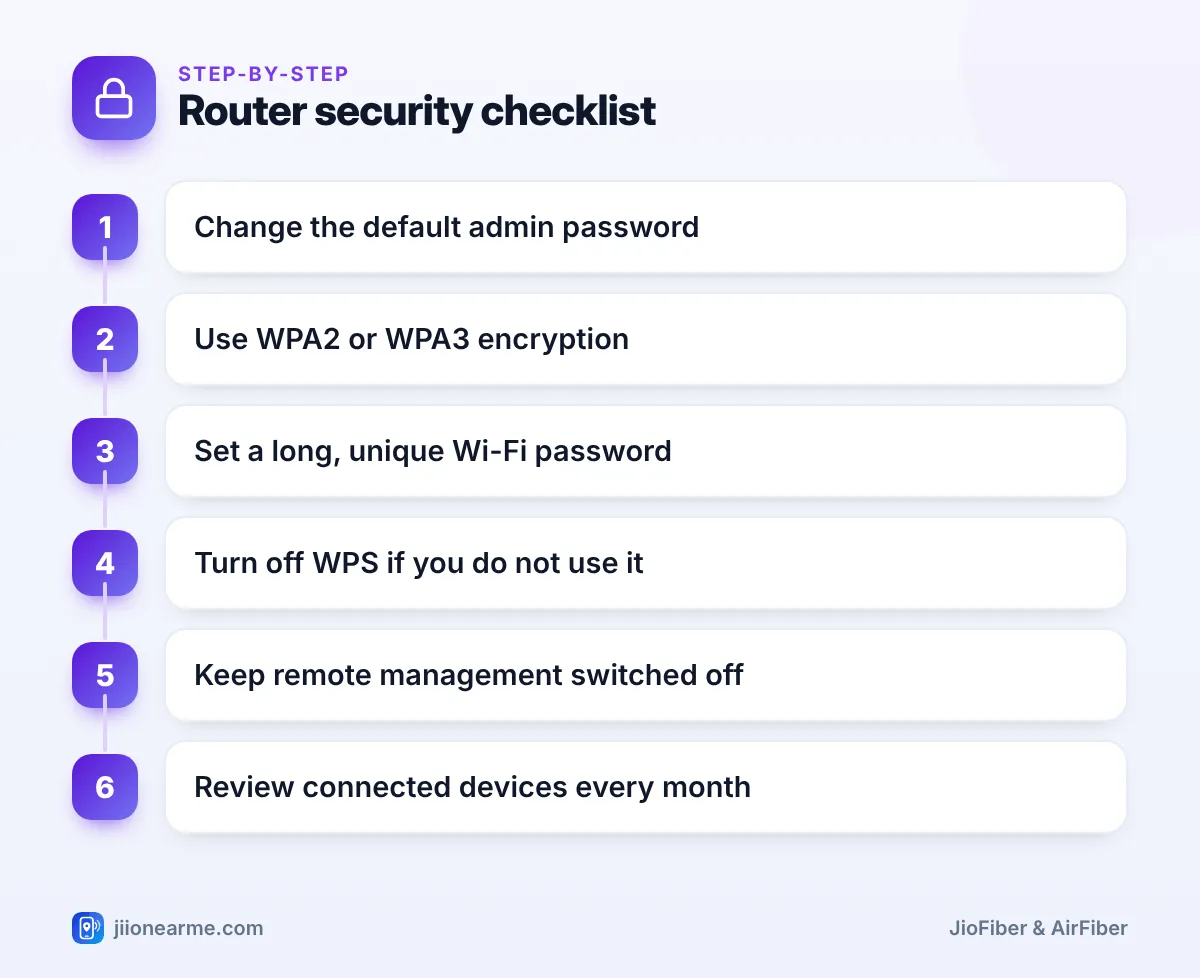
The Secure JioFiber Router Checklist
Work through these settings in order. Note down any value before you change it, so you can return to it if something stops working.
1. Change the default admin password
Look for a section such as Administration, Management or User Settings. Choose a long password you do not use anywhere else, save it and store it safely. A default login can sometimes be guessed, so changing it is the most important step.
2. Check the Wi-Fi encryption
Open the Wireless or WLAN security settings for each band. Choose WPA2-PSK (AES) or a mixed WPA2/WPA3 mode if available. Avoid Open, WEP and old WPA/TKIP options, which are weak or offer no protection.
3. Set a long, unique Wi-Fi password
Use at least 12 characters, such as three unrelated words with a few numbers. Avoid your name, phone number or flat number. Apply it to both the 2.4 GHz and 5 GHz networks.
4. Turn off WPS if you do not use it
WPS lets devices join by pressing a button or entering a short PIN. The PIN method has known weaknesses. If you connect devices by typing the password, switch WPS off.
5. Keep remote management off
Some routers allow their admin page to be opened from the internet. Look for Remote Management, Remote Access or WAN Access and keep it disabled unless you have a specific need.
6. Leave port forwarding and DMZ alone
Port forwarding, DMZ and similar options open parts of your network to the internet. Most homes never need them. If you did not set them up, leave them empty or off.
7. Review connected devices
Check the device list in MyJio or on the admin page. Match each entry to a device you own, and change the Wi-Fi password if you find anything unfamiliar.
8. Log out when you finish
Always log out of the admin page, especially on a shared computer.
Take a photo or screenshot of each settings page before and after your changes. If anything stops working, you can compare and restore the original values quickly.
Quick Reference: Recommended Settings
| Setting | Recommended choice | Typical menu |
|---|---|---|
| Admin password | Changed from default, long and unique | Administration or Management |
| Wi-Fi security | WPA2 (AES) or WPA2/WPA3 | Wireless or WLAN |
| Wi-Fi password | 12+ characters, both bands | Wireless or WLAN, or MyJio |
| WPS | Off, unless you use it | Wireless or WLAN |
| Remote management | Off | Administration or Security |
| Port forwarding and DMZ | Not set | Security, Firewall or NAT |
Firmware updates for JioFiber routers are normally handled by Jio. Do not install router files downloaded from other websites or sent to you by anyone.
Habits That Keep Your Router Secure
Settings are only half the job. A few habits keep your network safe over time:
- Share the Wi-Fi password only with your household, and use a guest network for visitors if your router supports one.
- Change the Wi-Fi password when someone who knew it, such as a tenant or worker, no longer needs it.
- Keep the router somewhere visitors cannot easily read the label.
- Treat calls or messages asking for your router login or an OTP as a scam.
Jio does not need your router admin password or OTP over a phone call. If someone asks, end the call and contact Jio on 199 from a Jio number. Report fraud attempts through Chakshu on sancharsaathi.gov.in.
Frequently Asked Questions
What happens if I forget my router admin password?
You may need to reset the router, which can wipe your settings and affect your connection. Contact Jio customer care on 199 for guidance before trying a reset.
Should I hide my JioFiber Wi-Fi name?
Hiding the name does not add real security, because the network can still be detected with common tools. It can also make connecting new devices harder. A strong password and encryption matter far more.
Is WPA3 better than WPA2?
WPA3 is newer and offers stronger protection, but some older devices cannot connect to WPA3-only networks. A mixed WPA2/WPA3 mode, if offered, balances security and compatibility.
Do I need to update the JioFiber router firmware myself?
Usually not. Updates for JioFiber routers are normally managed by Jio. Never install firmware files from unofficial sources.
How often should I review these settings?
A quick check every few months is enough for most homes. Also check after any technician visit, router replacement or unexplained Wi-Fi change.
Final Thoughts
To secure your JioFiber router, change the default admin password, use WPA2 or WPA3 with a long Wi-Fi password, and switch off WPS and remote management. Review connected devices regularly and treat any request for your router login as a warning sign. Twenty minutes now protects your home network for months.
JIo Near me is an independent guide and is not affiliated with Reliance Jio. App menus, plans and policies can change – always confirm current details in the official MyJio app or on jio.com. We will never ask for your OTP, PIN or passwords.
