Your JioAICloud files are not locked inside your phone. On a laptop or desktop, open a web browser, go to the official JioAICloud website, enter your Jio number and type the OTP sent to your phone. Your backed-up photos, videos and documents then appear in the browser, ready to view, download or add to.
This is handy for printing documents, copying photos to a computer or uploading files from a pen drive. This guide covers the sign-in, downloading, uploading and staying safe on shared computers. The website’s layout changes from time to time, so labels may differ a little from what you see.
- Sign in on the JioAICloud website with your Jio number and an OTP sent to your phone
- Select photos or documents and use the Download option to save them to the computer
- Use the Upload button or drag and drop to add files from your laptop
- Always sign out and close the browser on office, college or cyber café computers
What You Need for JioAICloud Web Login
- A computer with a modern browser. Chrome, Edge, Firefox or Safari all work. Keep the browser updated.
- Your Jio number. This is the same number you use in the JioAICloud app.
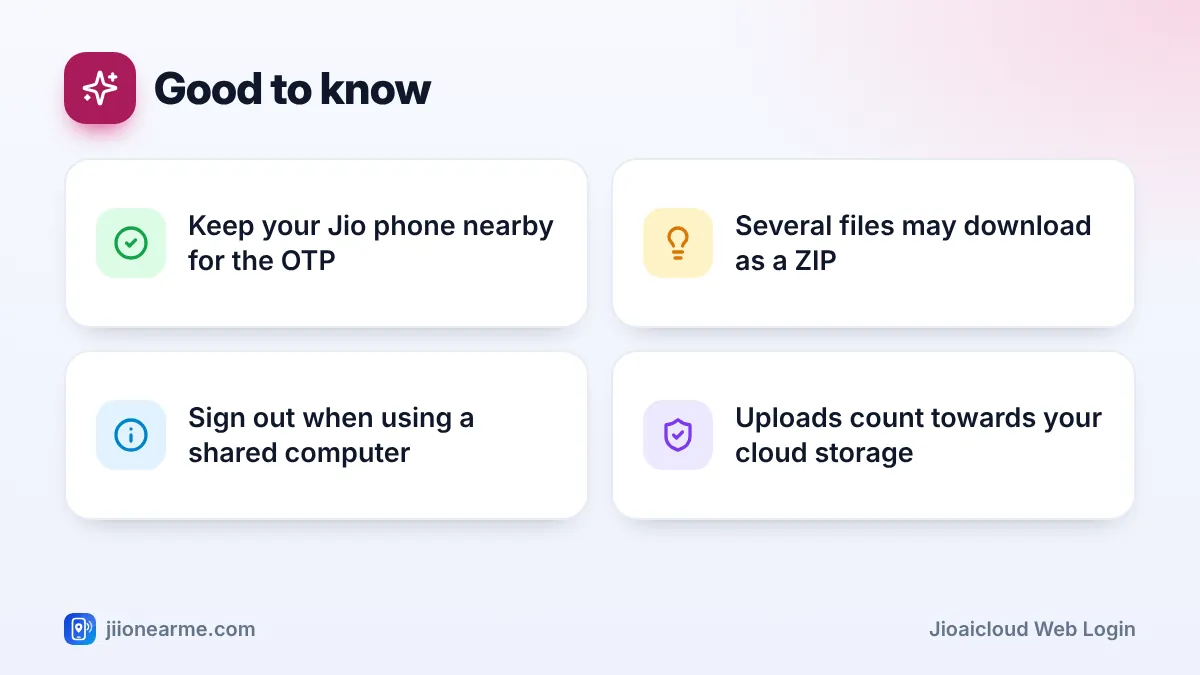
- The phone with your Jio SIM. The OTP is sent to that number, so keep the phone nearby.
- An internet connection. Home broadband such as JioFiber or Jio AirFiber is ideal for large downloads. A phone hotspot also works but uses mobile data.
Type the address yourself rather than clicking ads or random search results. Look-alike sites can try to steal your OTP. At the time of writing, the official address is jioaicloud.com. If you are unsure, start from jio.com and follow Jio’s own links.
How to Complete Your JioAICloud Web Login
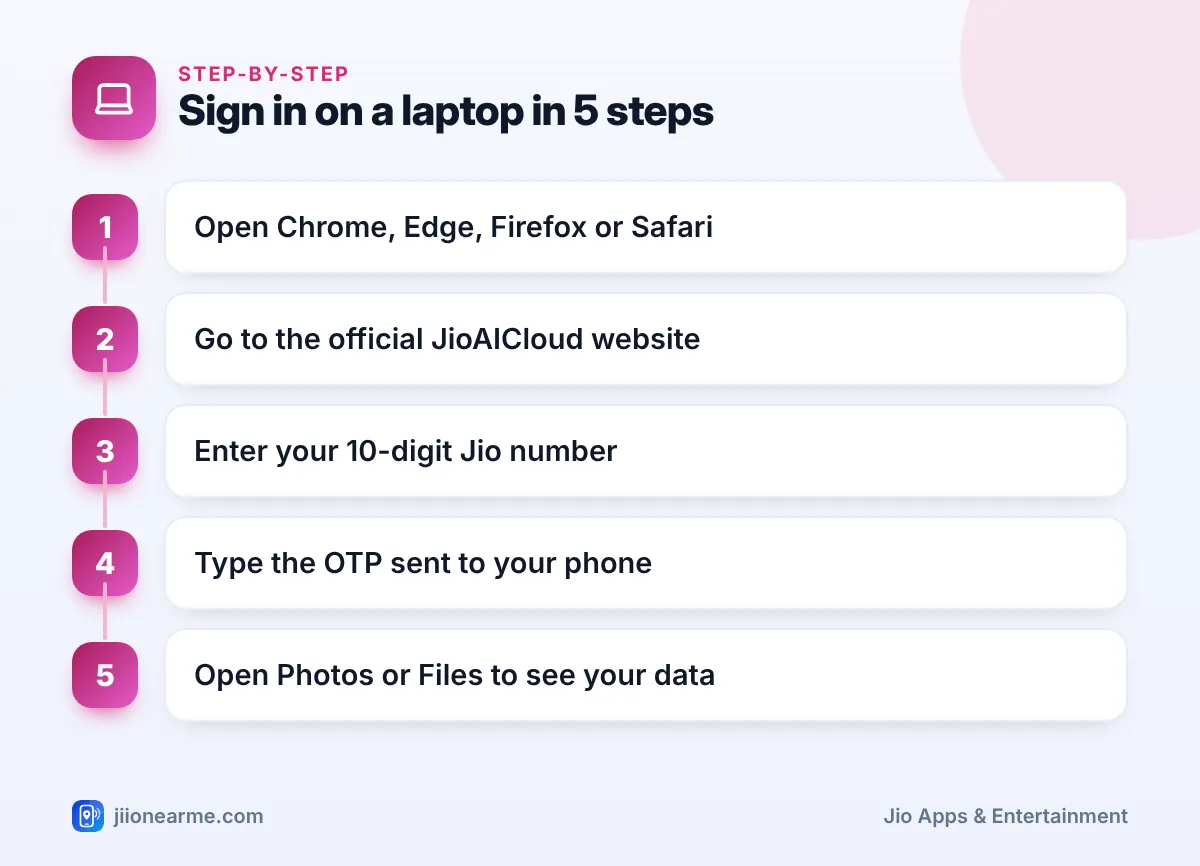
- Open your browser and go to the official JioAICloud website.
- Click Sign in or Login, if the page does not show the sign-in box straight away.
- Enter your 10-digit Jio number without +91 or a zero.
- Click the button to get an OTP.
- Check the SMS on your Jio phone and type the OTP on the website.
- Click Submit, Verify or Login. Your files open in the browser.
If the browser asks whether to remember you or keep you signed in, say yes only on your own personal computer. On any shared computer, decline.
If the OTP does not arrive
Check the number you typed, make sure your Jio phone has signal and wait a minute before asking for a new code. If you request more than one OTP, use the latest one, because older codes stop working.
Viewing and Downloading Your Photos and Documents
After signing in, you will usually see sections such as Photos, Videos, Documents or Files in a side menu or across the top.
To view a file, click it. Photos open in a larger preview, videos play in the browser and many documents, such as PDFs, open for reading.
To download files:
- Hover over a file and tick the checkbox, or click to select it. Select more files if needed.
- Click the Download icon, usually an arrow pointing down, or open the three-dot (⋮) menu and choose Download.
- The browser saves the file to your Downloads folder unless you have chosen another location.
Downloading many files at once
When you select several files or a whole folder, the website may bundle them into a single ZIP file. On Windows, right-click the ZIP and choose Extract All. On a Mac, double-click it. For very large sets, such as a year of videos, download in smaller batches so one network drop does not cancel everything.
Before a big download, check free space on your computer’s drive. Phone videos are large, and a nearly full laptop drive is a common reason downloads fail half-way.
Uploading Files From Your Laptop
The web version also works in the other direction. This is useful for scanned documents, photos from a camera or files from a pen drive.
- Open the section or folder where you want the files to go.
- Click Upload, often shown as a plus (+) sign or an upward arrow.
- Choose files from your computer and click Open.
- Alternatively, drag files from a folder on your computer and drop them onto the browser window, if your version supports it.
- Keep the tab open until the upload finishes. Closing it early may stop the upload.
Uploaded files count towards your JioAICloud storage. Check the storage bar in your profile or settings before uploading a lot, and see MyJio for current storage options.
Browser vs Desktop App vs Phone
You can reach your files in three ways. Each suits a different job.
| Way to access | Best for | Things to know |
|---|---|---|
| Web browser | Quick access on any computer | Nothing to install; sign out on shared PCs |
| Desktop app | Regular use on your own laptop | Install once from an official source |
| Phone app | Automatic photo and contact backup | Main place to set up backup |
Automatic backup of photos and contacts is set up in the phone app. The web version is mainly for viewing, downloading, uploading and sharing.
Staying Safe on Shared or Office Computers
Cyber cafés, office desks and college labs are used by many people. Protect your account with these habits:
- Use a private or incognito window, so the browser does not save your session.
- Do not let the browser save your number or login.
- Click Sign out or Logout from the profile menu when you finish.
- Close every browser window afterwards.
- Delete any files you downloaded to that computer, and empty its Recycle Bin or Trash.
Never share the OTP with anyone standing nearby or calling you, even if they say they are helping. If you think someone has misused your account, report it on the national cybercrime helpline 1930 and call Jio on 198 from your Jio number.
Frequently Asked Questions
Can I log in to JioAICloud on a laptop without my phone?
You need access to the SMS sent to your Jio number, so the phone with your Jio SIM must be nearby. The laptop itself does not need a SIM.
Why does my download come as a ZIP file?
When you download several files or a folder together, the website often combines them into one ZIP file. Extract it on your computer to see the individual files.
Can I upload a whole folder from my computer?
Some browsers and versions allow folder uploads, while others accept only individual files. If folder upload is not offered, select all files inside the folder and upload them together.
Is it safe to use JioAICloud on public computers?
It is safe enough if you use a private window, never save your login, sign out and delete downloaded files. For sensitive documents, use your own computer whenever possible.
Do I need to install anything on the laptop?
No. The web version runs in a normal browser. A desktop app is also available if you prefer one for regular use.
Summary
JioAICloud web login gives you your photos and documents on any computer with just your Jio number and an OTP. Use the official website, download in sensible batches, upload files with the Upload button or by dragging them in, and keep an eye on your storage. On any shared computer, sign out, close the browser and clear your downloads before you leave.
JIo Near me is an independent guide and is not affiliated with Reliance Jio. App menus, plans and policies can change – always confirm current details in the official MyJio app or on jio.com. We will never ask for your OTP, PIN or passwords.
