To turn on Jio Wi-Fi Calling on an iPhone, open Settings > Phone > Wi-Fi Calling and switch on Wi-Fi Calling on This iPhone. Confirm the pop-up, and within a minute or two your iPhone can make and receive normal Jio calls over Wi-Fi. On newer iOS versions, the Phone settings may sit under Settings > Apps > Phone.
That covers single SIM iPhones. If you use two lines, such as a physical SIM and a Jio eSIM, you need to turn the feature on for the Jio line specifically. This guide walks through the settings, the confirmation prompt, the label that proves it is working and the dual SIM setup.
- The switch is under Settings > Phone > Wi-Fi Calling, or Settings > Apps > Phone on newer iOS.
- You can also reach it from the Mobile Service or Mobile Data screen by tapping your Jio line.
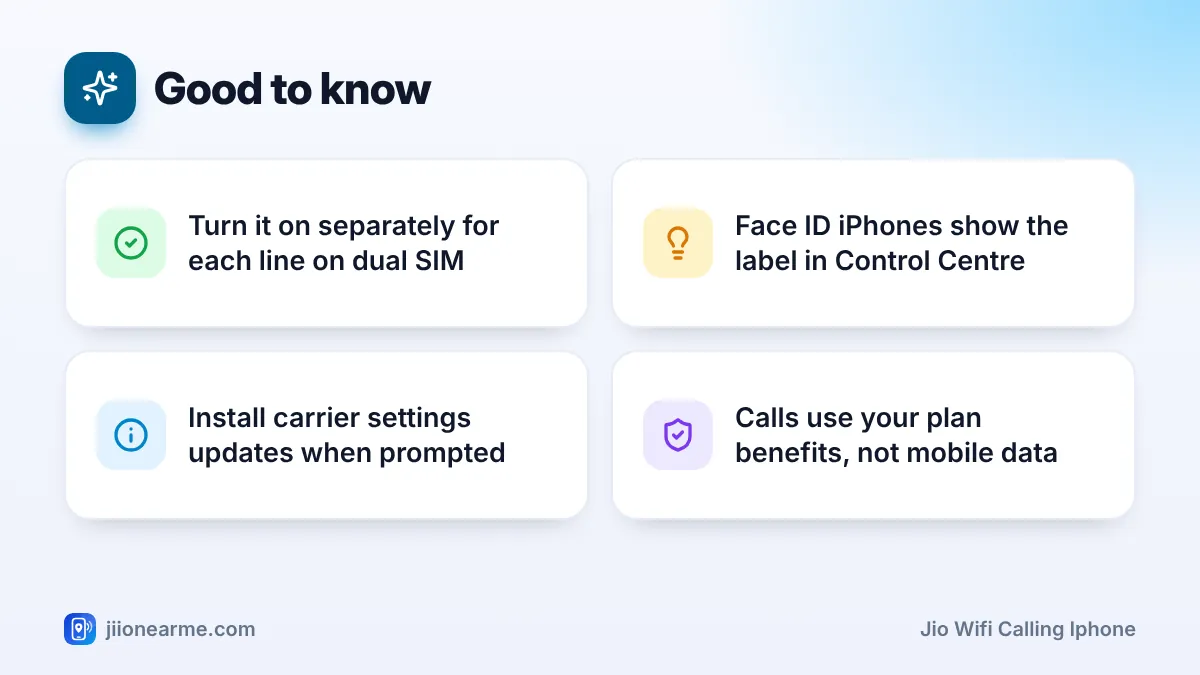
- When it is active, “Jio Wi-Fi” appears next to the network name in the status bar or Control Centre.
- On dual SIM iPhones, Wi-Fi Calling is a per-line setting, so turn it on for the Jio line.
Before You Start: Quick Checks
Spend two minutes on these checks. They solve most cases where the Wi-Fi Calling switch is missing or greyed out.
- Update iOS. Go to Settings > General > Software Update and install any update over Wi-Fi.
- Install carrier settings. Go to Settings > General > About and wait a few seconds. If a carrier settings update is available, a pop-up appears. Tap Update.
- Active Jio line. Your Jio SIM or Jio eSIM must be active with a current plan.
- Working Wi-Fi. Connect to a Wi-Fi network with internet access. JioFiber, Jio AirFiber and other broadband connections all work.
Recent iPhone models support Wi-Fi Calling with Jio. If you use a very old model, check the supported devices list on jio.com before you troubleshoot further.
How to Turn On Jio Wi-Fi Calling on iPhone
Follow these steps on a single SIM iPhone. Menu labels can differ slightly between iOS versions.
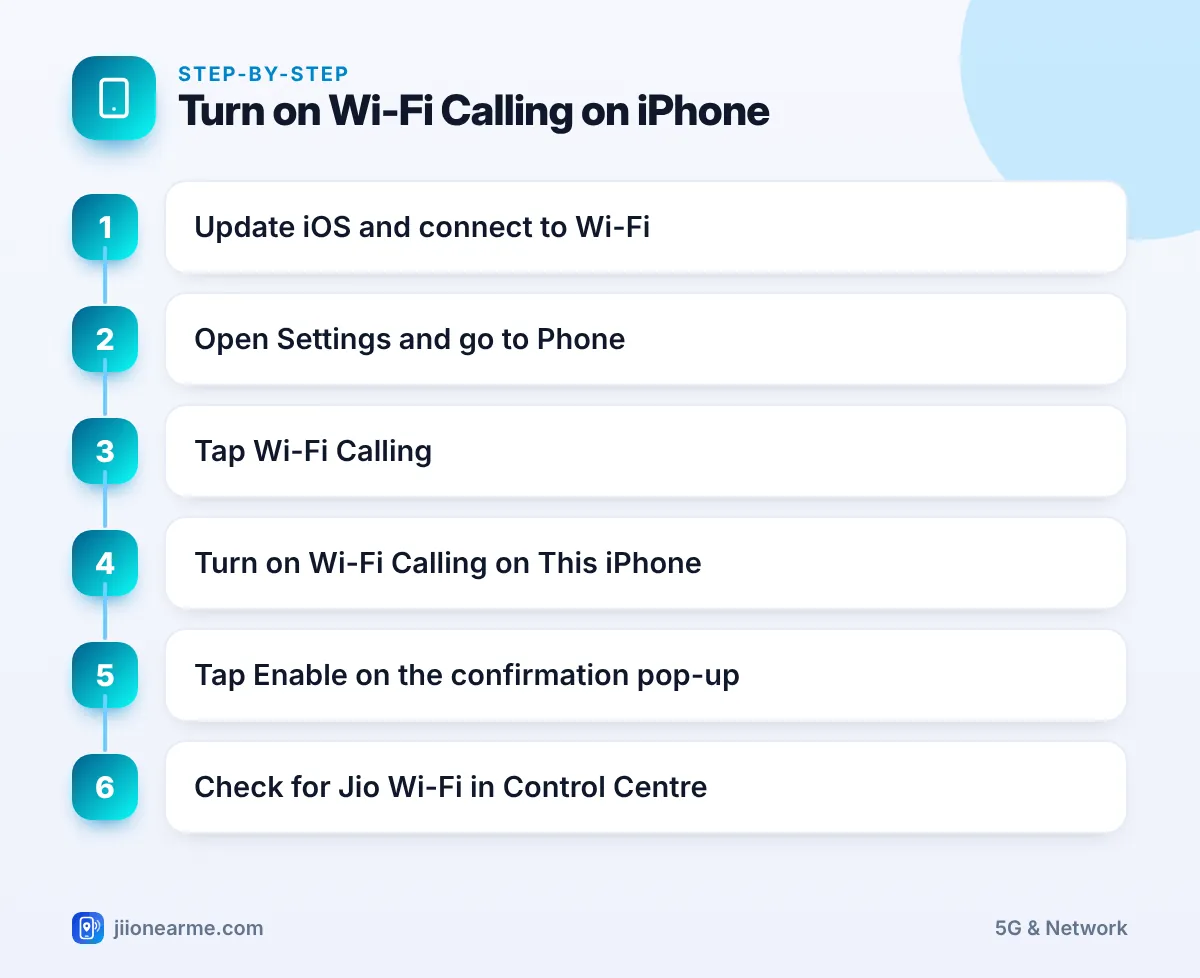
- Open Settings.
- Tap Phone. On recent iOS versions, you may need to tap Apps first and then Phone.
- Tap Wi-Fi Calling.
- Switch on Wi-Fi Calling on This iPhone.
- A confirmation pop-up appears. Read the message, then tap Enable.
- Go back to the home screen and wait a minute or two while the iPhone registers with Jio.
Another Way to Reach the Same Setting
You can also open Settings > Mobile Service (called Mobile Data on older iOS versions), tap your Jio line and then tap Wi-Fi Calling. Both paths control the same switch, so use whichever is easier to find.
Swipe down on the main Settings screen to reveal the search bar, then type “Wi-Fi Calling”. This is the quickest route if Apple has moved the menu in your iOS version.
What the Confirmation Prompt Means
When you switch on Wi-Fi Calling, iOS shows a short pop-up asking you to confirm. It explains how Wi-Fi Calling works and how information such as your location may be used, for example to support emergency calls.
Tapping Enable is required. If you tap Cancel, the switch turns off again and nothing changes. The prompt usually appears only the first time, or after you reset network settings.
How to Check That Wi-Fi Calling Is Working
Once the feature is active, your iPhone adds “Wi-Fi” after the Jio network name. Where you see it depends on your iPhone model.
| iPhone type | Where to look | What you should see |
|---|---|---|
| Face ID models (no Home button) | Swipe down from the top-right corner to open Control Centre and check the top-left | Jio Wi-Fi |
| Home button models (such as iPhone SE) | Status bar at the top-left of the screen | Jio Wi-Fi |
If you see only “Jio” with signal bars, the iPhone is still using the mobile network for calls. Give it a few minutes, then toggle Wi-Fi off and on.
You can also test it in a low-signal room. Make a call while the “Jio Wi-Fi” label is showing. If the call connects clearly where it used to fail, Wi-Fi Calling is doing its job.
Using Jio Wi-Fi Calling on a Dual SIM iPhone
Many iPhones support two lines, using a physical SIM and an eSIM, or two eSIMs. Wi-Fi Calling is set separately for each line.
- Open Settings > Mobile Service (or Mobile Data).
- Under the list of SIMs, tap your Jio line. It may be labelled Primary, Secondary or a custom name such as “Jio”.
- Tap Wi-Fi Calling and switch on Wi-Fi Calling on This iPhone.
- Tap Enable on the pop-up.
- Repeat for your other line only if that operator also supports Wi-Fi Calling.
A couple of dual SIM points help in daily use:
- Label check: In Control Centre, you may see both network names. “Jio Wi-Fi” should appear next to the Jio line once it is active.
- Calls during calls: Apple notes that when Wi-Fi Calling is on for a line, you may be able to receive calls on it while you are on a call on the other line. This depends on carrier support and settings such as Allow Mobile Data Switching.
When the mobile network is available, iPhones generally use it for emergency calls even with Wi-Fi Calling on. In places with no mobile signal at all, do not rely only on Wi-Fi for emergencies. Know where the nearest point with mobile coverage is.
Jio Wi-Fi Calling Switch Missing or Not Working on iPhone
If the switch is missing, greyed out or stuck on “Updating”, try these steps in order:
- Install updates. Check for both an iOS update and a carrier settings update, as described above.
- Restart the iPhone. Turn it off fully, wait 30 seconds and turn it back on.
- Toggle the feature. Turn Wi-Fi Calling off, wait a minute, then turn it on again.
- Try another Wi-Fi network. Some office, hotel and public networks block Wi-Fi Calling.
- Pause any VPN. A VPN app can sometimes interfere, so turn it off and test again.
- Reset network settings. Go to Settings > General > Transfer or Reset iPhone > Reset > Reset Network Settings. This erases saved Wi-Fi passwords, so keep them handy.
Still stuck? Call Jio customer care on 199 from your Jio number for queries or 198 for complaints. They can check whether Wi-Fi Calling is active for your number.
Frequently Asked Questions
Does Wi-Fi Calling on iPhone use my Jio data?
No. Calls go over your Wi-Fi connection, so they do not use your mobile data pack. They count under your plan’s normal calling benefits.
Why can't I see "Jio Wi-Fi" in my status bar?
On Face ID iPhones, the status bar has no room for the network name. Open Control Centre and check the top-left corner instead.
Do I need to turn Wi-Fi Calling on again after an iOS update?
Usually not. The setting normally stays on after updates. A network settings reset, however, can turn it off, so check it afterwards.
Does Wi-Fi Calling drain the iPhone battery?
Not noticeably for most people. In weak-signal areas it can even help, because the iPhone spends less effort searching for a mobile signal during calls.
Does the person I call need Wi-Fi Calling too?
No. They receive a normal call from your Jio number and do not need any special setting.
Final Thoughts
Turning on Jio Wi-Fi Calling on an iPhone comes down to one switch under Phone settings, followed by a single confirmation tap. After that, look for “Jio Wi-Fi” in the status bar or Control Centre to confirm it is live. On a dual SIM iPhone, make sure the switch is on for the Jio line, and keep iOS and carrier settings updated so the feature keeps working.
JIo Near me is an independent guide and is not affiliated with Reliance Jio. App menus, plans and policies can change – always confirm current details in the official MyJio app or on jio.com. We will never ask for your OTP, PIN or passwords.
