You can change your JioFi Wi-Fi name and password from the device’s built-in admin page. Connect to the JioFi, open its admin address in a browser, sign in, go to the Wi-Fi settings and save a new network name and password. The whole job takes a few minutes and does not need any extra app.
Replacing the details printed on the sticker is a smart move. A personal network name helps you spot your hotspot in a crowded list, and a fresh, strong password stops neighbours and strangers from using your data. This guide covers each step, the settings to choose and the mistakes to avoid.
- Wi-Fi name and password changes happen on the JioFi admin page, opened in any browser.
- You must be connected to the JioFi’s own Wi-Fi for the admin page to load.
- Pick a password of 12 or more characters and keep the security mode on WPA2 or better.
- Change the admin password too, so others cannot see or alter your settings.
What You Need Before You Start
Keep these ready so the process goes smoothly:
- A phone or laptop connected to your JioFi. A laptop is easier for typing, but a phone works fine.
- The current Wi-Fi password. If you never changed it, it is printed on a sticker, usually under the battery cover or on the box.
- The admin login details. On many JioFi models, the default user name and password are both administrator. Your manual or label will confirm this for your model.
- Some battery charge. Keep the JioFi charged or plugged in so it does not switch off midway.
The admin page address is usually printed in the manual. On many models it is jiofi.local.html or 192.168.1.1. A few models use a different number, so check the leaflet if neither works.
JioFi models and firmware versions use slightly different menu names. If you see WLAN, Wireless or Wi-Fi Configuration instead of Wi-Fi, it is the same section.
How to Change JioFi Password and Wi-Fi Name
Follow these steps on the device connected to your JioFi:
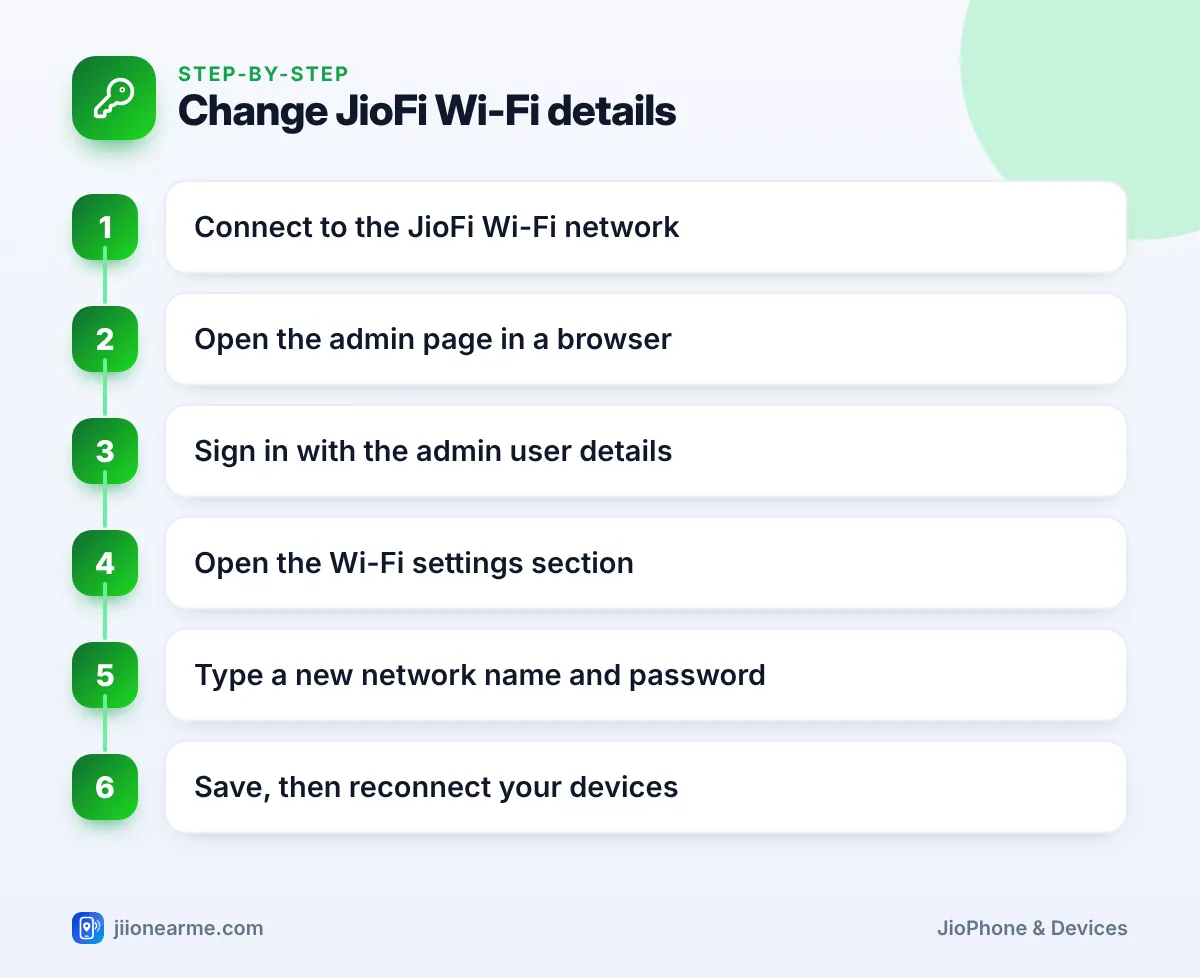
- Join the JioFi network. Open Wi-Fi settings on your phone or laptop and connect to the JioFi’s current network.
- Open a browser. Type the admin address, such as jiofi.local.html or 192.168.1.1, in the address bar, not in the search box.
- Sign in. Tap Login, often at the top right, and enter the admin user name and password.
- Open the Wi-Fi settings. Look for Settings, then Wi-Fi. On some models it sits under a Network or Advanced tab.
- Change the network name. Type your new name in the SSID or Network Name field.
- Check the security mode. Choose WPA2-PSK, WPA2 Personal or the strongest option offered. Never pick Open or None.
- Enter the new password. Type it in the field called Password, Passphrase or Key.
- Save the changes. Tap Save or Apply and wait for the Wi-Fi to restart. This can take up to a minute.
- Reconnect. Your device will drop off. Connect again using the new name and password.
If the admin page does not open
- Make sure you are on the JioFi’s Wi-Fi, not on home Wi-Fi or mobile data.
- Type the address with http:// in front, or try the number address instead of the name.
- Switch off any VPN app, then try another browser.
- Restart the JioFi and try again.
Choosing a Good Wi-Fi Name and Password
Your Wi-Fi name is visible to everyone nearby, so keep personal details out of it. Your password is the real lock, so make it hard to guess.
| Setting | Weak choice | Better choice |
|---|---|---|
| Wi-Fi name | Your full name, flat number or mobile number | A neutral nickname you will recognise |
| Wi-Fi password | 12345678, your birthday or your mobile number | 12 or more characters mixing words, numbers and symbols |
| Security mode | Open or WEP | WPA2-PSK, WPA2 Personal or WPA3 if offered |
| Admin password | Left as the default | A different password that only you know |
A simple way to build a strong password is to join three unrelated words and add a number and a symbol. Do not reuse the password from your email, bank or social media accounts.
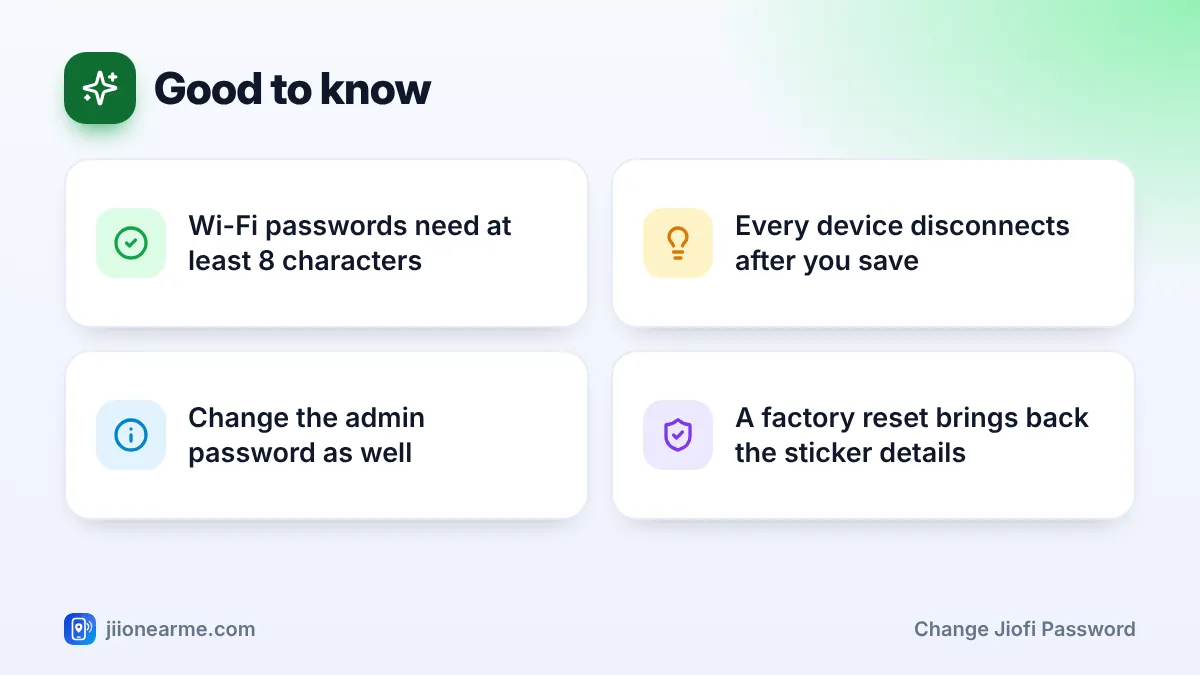
Wi-Fi passwords must be at least 8 characters long. Some older devices struggle with unusual symbols, so if one gadget refuses to connect, stick to common symbols such as @, # or _.
Write the new Wi-Fi and admin passwords in a notebook you keep at home, not on the JioFi itself. If the device is lost, a written password on its back helps the wrong person.
Change the Admin Password Too
The Wi-Fi password decides who can join your hotspot. The admin password decides who can change its settings. If you leave the admin password at its default, anyone connected to your JioFi can open the admin page, read your Wi-Fi password and even lock you out.
To change it:
- Sign in to the admin page as before.
- Look for User Management, Account or Admin Password under Settings.
- Enter the current admin password, then type and confirm a new one.
- Save, then sign in again with the new details to confirm they work.
Use a password that is different from your Wi-Fi password. Anyone you share the Wi-Fi password with should not automatically get control of the device.
If you forget both the Wi-Fi and admin passwords, the only way back in is a factory reset. That erases all your settings and restores the details printed on the sticker.
Reconnecting Your Devices After the Change
Saving a new name or password disconnects every device at once, so avoid doing it while someone is on a call or in an online class.
- Phones and tablets. Open Wi-Fi settings and pick the new network name. If you kept the old name, tap the network, choose Forget, and then join it again with the new password.
- Laptops. Remove the old saved network if the laptop keeps trying the old password.
- Smart TVs and streaming boxes. Go to their network settings and join the new network.
- Sharing with family. Many Android phones can show a QR code for a saved network under its Wi-Fi details. Others can scan it to join without typing.
If a device still will not connect, check capital and small letters in the password. Restarting that device often clears a stuck connection.
Common Mistakes to Avoid
- Typing the address into a search engine. The admin page loads only from the address bar.
- Choosing Open security. It removes the password completely, so anyone nearby can use your data.
- Relying on a hidden network name. Hiding the name makes connecting harder for you but does little against a determined person. A strong password matters more.
- Sharing the password too widely. Change it after guests leave or if your data drains faster than usual.
Frequently Asked Questions
Can I change my JioFi password from the MyJio app?
Some MyJio versions have offered settings for linked JioFi devices, but this varies by app version and model. The browser admin page works on all JioFi models, so it is the most reliable method.
What is the default JioFi admin password?
On many models, the default user name and password are both administrator. Check the manual or label for your model, and change it after your first sign-in.
Will changing the Wi-Fi password affect my data plan?
No. Your plan, data balance and validity belong to the Jio SIM inside the device. Changing the Wi-Fi name or password only changes how devices connect to the hotspot.
I forgot my new JioFi Wi-Fi password. What can I do?
If any device is still connected, open the admin page from it and view or change the password. If nothing is connected, a factory reset restores the sticker password, but you will lose your custom settings.
How often should I change my JioFi password?
There is no fixed rule. Change it whenever you suspect someone else is using your data or after sharing it with guests.
Final Thoughts
Changing your JioFi Wi-Fi name and password is one of the simplest ways to protect your data. Connect to the device, open the admin page, update the Wi-Fi section and save.
Take one more minute to change the admin password as well, and note both passwords somewhere safe at home. If something goes wrong later, Jio support on 199 from a Jio number can guide you further.
JIo Near me is an independent guide and is not affiliated with Reliance Jio. App menus, plans and policies can change – always confirm current details in the official MyJio app or on jio.com. We will never ask for your OTP, PIN or passwords.