You control MyJio alerts in two places: your phone’s notification settings, which decide whether and how alerts appear, and the app’s own preferences, if your version has them. A sensible setup keeps plan expiry, data and payment alerts on, and quietens offers and promotions.
This guide walks through the steps on Android and iPhone, explains which alerts are worth keeping and shows how to cut the clutter without missing anything important.
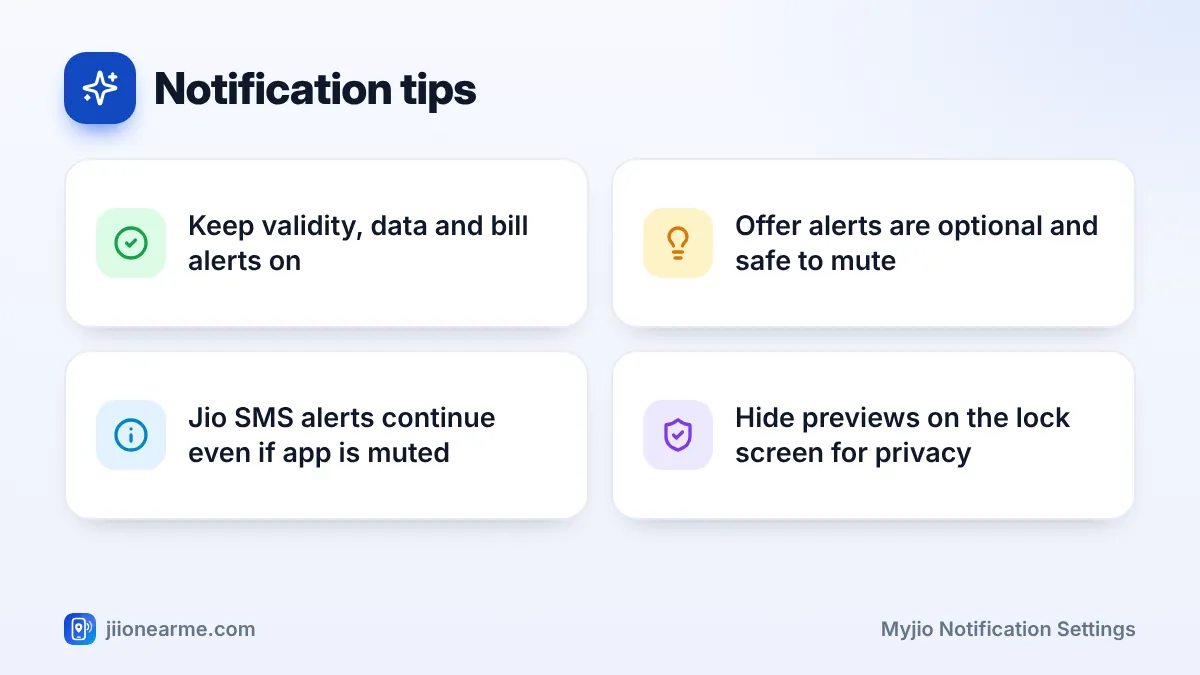
- Your phone’s settings are the main control for MyJio notifications on both Android and iPhone.
- Keep alerts for plan validity, data use, bills and payments switched on.
- Offer and promotional alerts are optional; turn them off if they distract you.
- Muting app alerts does not stop the SMS messages Jio sends to your number.
Which MyJio Alerts Are Worth Keeping
Before you change anything, decide what you actually need. Most people benefit from the account alerts and can live without the rest.
| Alert type | Keep it on? | Why |
|---|---|---|
| Plan validity and expiry reminders | Yes | Helps you recharge before service stops |
| Data usage alerts | Yes | Warns you before daily data runs out |
| Bill due reminders | Yes, for postpaid, JioFiber and AirFiber | Helps you avoid late payment |
| Payment and recharge confirmations | Yes | Confirms money reached the right account |
| Service request updates | Yes | Tells you when a complaint moves forward |
| Offers and promotions | Your choice | Useful to some, distracting to others |
The exact names of these alerts can differ by app version, and not every version separates them. The steps below show how to fine-tune what your phone allows.
How to Change MyJio Notification Settings on Android
Android menu names vary a little between brands such as Samsung, Xiaomi, Vivo and Motorola, but the path is similar.
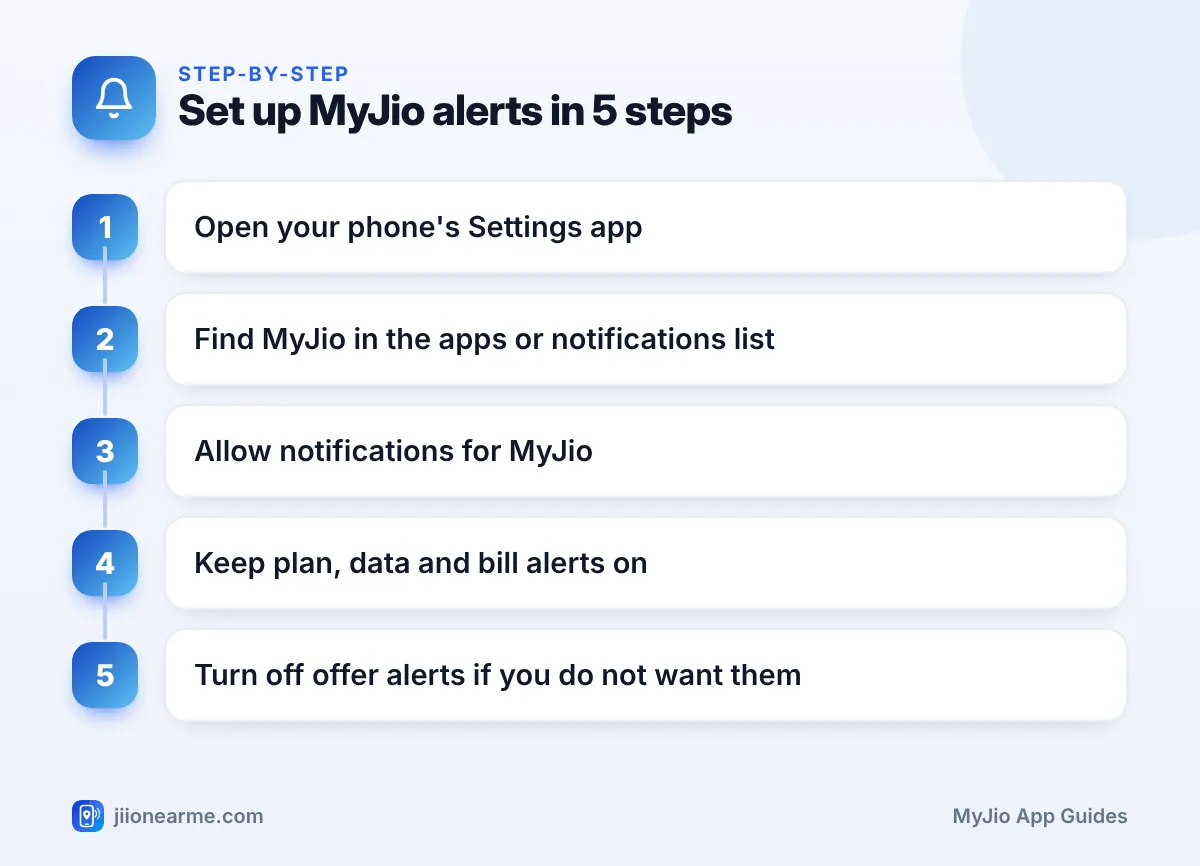
- Open the Settings app on your phone.
- Tap Apps or Apps & notifications, then See all apps if needed.
- Find and tap MyJio.
- Tap Notifications.
- Make sure Allow notifications or All MyJio notifications is switched on.
- If you see a list of categories below, turn off only the ones you do not want, such as offers. Leave account and payment categories on.
- Tap any category to change its sound, vibration, pop-up style or lock screen behaviour.
A Quicker Way on Android
When a MyJio notification appears, press and hold it. Android shows options for that type of alert. Tap the settings or gear icon to manage that category, rather than tapping Turn off notifications, which may switch off everything from the app.
If You Tapped “Don’t Allow” Earlier
On Android 13 and newer, apps ask for permission to send notifications the first time you open them. If you said no at that time, MyJio cannot send any alerts. Follow the steps above and switch notifications back on.
How to Change MyJio Notification Settings on iPhone
On iPhone, all MyJio alert options sit in one screen.
- Open Settings.
- Tap Notifications, then scroll to MyJio. On newer iOS versions you can also reach it through Settings > Apps > MyJio > Notifications.
- Turn on Allow Notifications.
- Choose where alerts appear: Lock Screen, Notification Centre and Banners.
- Pick a banner style. Temporary banners disappear on their own, while Persistent banners stay until you swipe them away.
- Turn Sounds and Badges on or off to suit you.
- Under Show Previews, choose When Unlocked if you prefer privacy.
iPhone does not split MyJio alerts into categories in this screen, so you either allow them or you do not. Use the app’s own preferences, if available, to decide which types you receive.
Check Scheduled Summary and Focus
If Scheduled Summary is on and MyJio is included, its alerts are held back and delivered in a bundle later. For time-sensitive reminders such as plan expiry, keep MyJio out of the summary. Similarly, a Focus mode can silence MyJio unless you add it to the allowed apps.
Phone makers and app updates rename menu items from time to time. If a label in this guide does not match your screen exactly, look for the closest option with a similar meaning, or use the search bar at the top of your phone’s Settings app and type “MyJio”.
Notification Preferences Inside the MyJio App
Some versions of MyJio include their own notification or communication preferences. To check, open the menu (☰) or your profile and look for Settings. If you see a notifications option there, you can choose which types of alerts to receive.
Many versions also have a bell icon near the top of the home screen. It works like an inbox and shows recent notifications, even ones you swiped away. If your version has no in-app preference screen, your phone’s settings remain the main control.
App Alerts vs SMS Alerts From Jio
Jio sends many important updates by SMS as well, such as recharge confirmations, usage alerts and validity reminders. These come to your messaging app, not through MyJio. Switching off MyJio notifications does not stop them.
If promotional calls and SMS in general bother you, set your Do Not Disturb preferences through the TRAI DND app or by calling or sending an SMS to 1909. Service and transaction messages related to your own account usually continue to arrive.
Alerts on the lock screen can show your balance, bill details or even OTPs from SMS. On both Android and iPhone, you can set notification content to stay hidden until the phone is unlocked. This is worth doing if others can see your phone.
Frequently Asked Questions
Will turning off MyJio notifications stop plan expiry SMS?
No. SMS alerts come from Jio’s network to your messaging app and are separate from app notifications. You will still get them even if MyJio is muted.
Why can't I see notification categories for MyJio on Android?
Categories only appear if the app version you have defines them. If you see a single switch, it controls all MyJio alerts together, so check the app’s own settings for finer control.
Do MyJio notifications use much data?
No. Notifications use a very small amount of data. Opening the app afterwards uses a little more, but still far less than browsing or video.
How can I see a MyJio alert I swiped away?
Open MyJio and tap the bell icon if your version has one. On many Android phones, you can also turn on Notification history in the notification settings to see recent alerts from all apps.
Can I silence MyJio alerts only at night?
Yes. Use Do Not Disturb on Android or a Focus mode on iPhone with a schedule. Alerts still arrive quietly and wait for you in the morning.
Summary
The best MyJio setup is simple: allow notifications, keep account alerts on and turn off the promotions you do not need. Check your phone’s settings first, then the app’s own preferences if your version offers them.
Remember that Jio’s SMS alerts keep coming regardless, so you still get the essentials even if you mute the app completely.
JIo Near me is an independent guide and is not affiliated with Reliance Jio. App menus, plans and policies can change – always confirm current details in the official MyJio app or on jio.com. We will never ask for your OTP, PIN or passwords.
