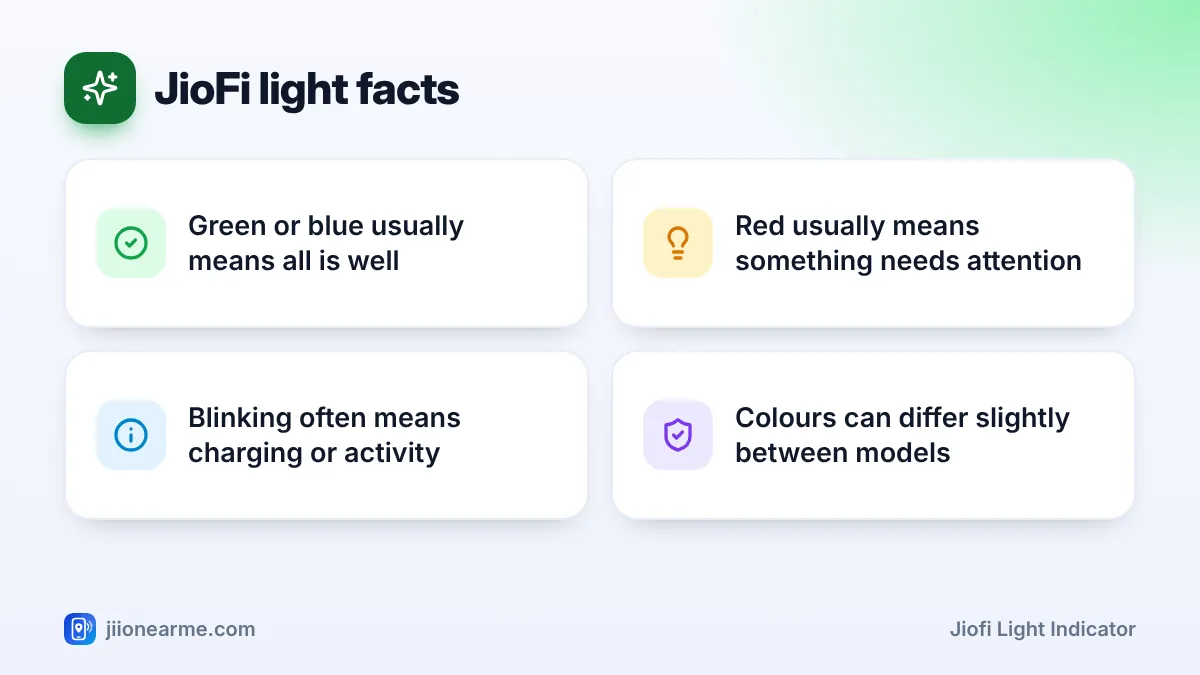
Your JioFi uses small LED lights to report three things: its battery, its connection to Jio’s mobile network and its Wi-Fi. On most models, a green or blue light means things are fine, amber or orange is a caution, and red means something needs your attention. A blinking light usually points to activity, such as charging or data moving.
Exact colours and patterns differ slightly between JioFi models and software versions. Treat this guide as a general decoder, and confirm the finer details in the quick-start leaflet that came in your box. Below, you will learn what each light usually means and what, if anything, you should do about it.
- Most JioFi models have three lights: battery, signal (network) and Wi-Fi.
- Steady green or blue is normal, amber is a warning and red needs action.
- A red signal light points to no network, a SIM problem or a weak area.
- Normal lights with no internet usually mean a plan or data balance issue.
Where the Lights Are and What Each One Tracks
Look at the front or top of your JioFi. You will usually see three small lights, each with a tiny icon printed next to it:
- Battery light with a battery icon. It shows charge level and charging status.
- Signal light with bars, an antenna or a “4G” mark. It shows whether the device is connected to Jio’s mobile network.
- Wi-Fi light with the familiar fan-shaped Wi-Fi symbol. It shows whether the hotspot is broadcasting a Wi-Fi network for your devices.
Some models add an extra indicator or a small status screen. Whatever the design, each light can be steady, blinking or off, and the pattern matters as much as the colour.
JioFi Light Indicator Colours at a Glance
The table below shows the patterns you will see on most JioFi models. If your leaflet says something different, follow the leaflet.
| Light | What you see | What it usually means | What to do |
|---|---|---|---|
| Battery | Steady green | Good charge | Nothing |
| Battery | Amber or orange | Charge is getting low | Plan to charge soon |
| Battery | Red, steady or blinking | Low or very low battery | Charge now |
| Battery | Blinking while plugged in | Charging in progress | Leave it plugged in |
| Signal | Steady blue or green | Connected to Jio’s network | Nothing |
| Signal | Blinking | Searching for network or data activity | Wait a minute |
| Signal | Red | No network or SIM not detected | Check SIM, location and plan |
| Wi-Fi | Steady blue | Wi-Fi is on and ready | Connect your devices |
| Wi-Fi | Blinking blue | Data moving or WPS pairing | Usually normal |
| Wi-Fi | Off | Wi-Fi asleep or switched off | Wake or restart the device |
Battery Light: Charge Level and Charging Status
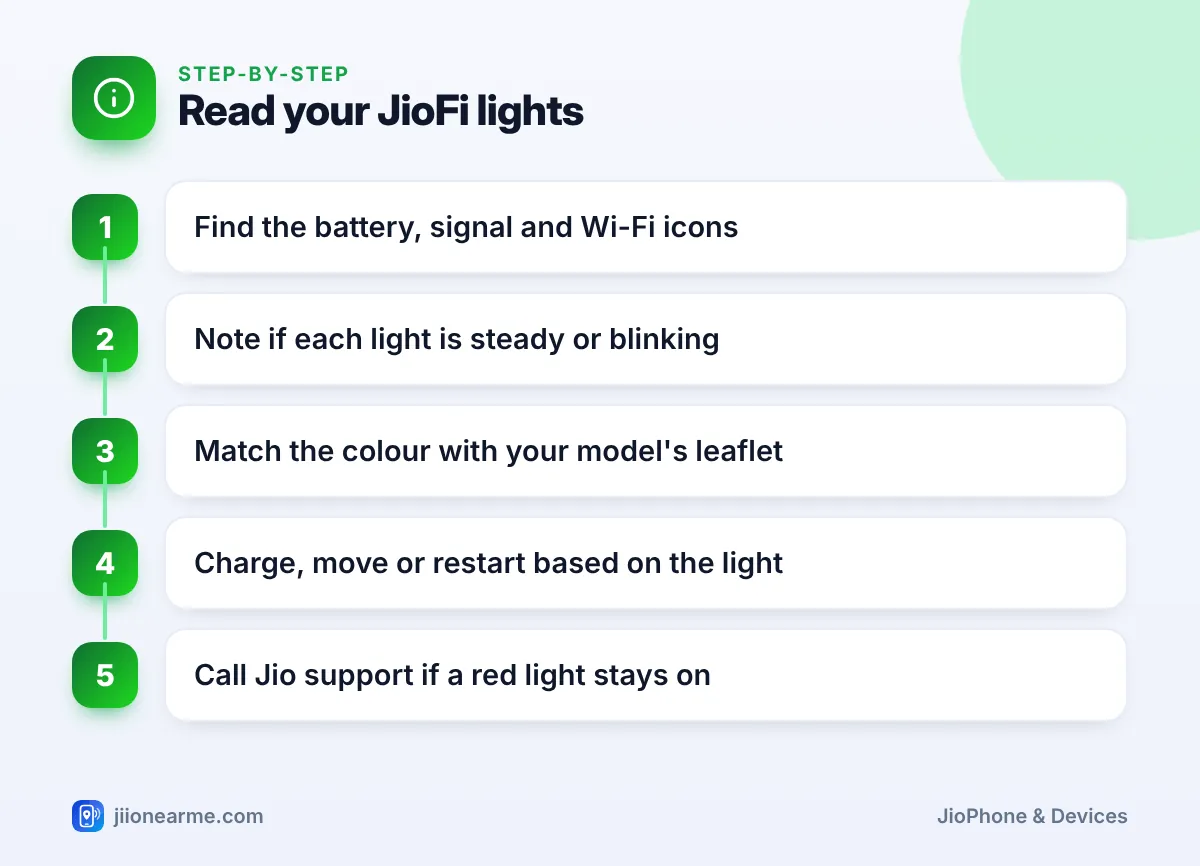
The battery light is the one you will check most often. Green means you have plenty of charge. Amber is a heads-up that you should charge within the next while, especially before heading out. Red means the battery is low and the device may switch off soon.
When you plug in the charger, the battery light usually blinks or changes colour to show charging. On many models it turns steady green once the battery is full.
If the battery light does not respond when you plug in:
- Check that the cable is firmly connected at both ends.
- Try a different wall socket and a known good charger.
- Open the back cover (if your model has one) and make sure the battery sits properly.
- Leave a fully drained device on charge for 15 to 30 minutes. A deeply drained battery can take a while before the light shows.
If the JioFi gets very hot while charging, or the back cover bulges, unplug it and stop using it. A swollen battery needs service. Contact Jio support or visit a Jio Store.
Signal Light: Mobile Network Status
The signal light tells you whether the JioFi can reach Jio’s mobile network. A steady blue or green light means it is connected. A blinking light often means it is still searching, which is normal for a minute or so after switching on.
A red signal light needs a closer look. Common causes include:
- Weak coverage. You may be in a basement, a lift, a building with thick walls or an area with poor coverage.
- SIM problem. The SIM may be loose, dirty or inserted the wrong way.
- Network issue. There may be a temporary outage in your area.
Try these fixes in order:
- Move the JioFi near a window or to a higher floor.
- Switch the device off, remove and reinsert the SIM, then switch it on again.
- Wait a few minutes and check whether the light turns blue or green.
- If it stays red, contact Jio support on 199 from a Jio number or 1800-889-9999.
Place the JioFi in different rooms and watch the signal light for a minute in each. Keep it where the light stays steady. A spot near a window often works better than a corner or a cupboard.
Wi-Fi Light: Is Your Hotspot Broadcasting?
A steady blue Wi-Fi light means the JioFi is sharing its Wi-Fi network. Your phone, laptop or TV should see the network name in its Wi-Fi list. A blinking Wi-Fi light usually means data is moving, so you will see it flicker while you browse or stream.
The Wi-Fi light can also blink after you press the WPS button, if your model has one. WPS lets a compatible device join without typing the password for a short time. If you did not press WPS, a blinking light during use is simply activity.
If the Wi-Fi light is off:
- Many models switch Wi-Fi off after a while with no connected devices to save battery. Press the power button briefly to wake it, if your model supports this.
- If that does not work, switch the device off and on again.
- Check that the battery is not completely drained.
Light Patterns That Need Action
Some combinations tell a clearer story than single lights:
- All lights off. The battery is likely empty. Charge for at least 15 minutes, then press and hold the power button.
- Battery and Wi-Fi normal, signal red. Devices connect to Wi-Fi but get no internet, because the JioFi itself cannot reach the network. Follow the signal-light steps above.
- All lights normal, but no internet. The plan on the SIM may have expired or the data may be used up. Check the number’s plan in the MyJio app or on jio.com.
- Lights blinking together after a reset or update. The device may be restarting. Do not switch it off. Wait a few minutes.
- Battery stays red even after hours of charging. The battery, cable or charger may be faulty. Try another charger, then contact support.
Different JioFi models use slightly different colours. The quick-start guide in the box, or the help pages on jio.com, will have the exact meaning for your model.
Frequently Asked Questions
Why is my JioFi signal light red?
A red signal light usually means the device cannot reach Jio’s network. Move it near a window, reinsert the SIM with the device switched off and restart it. If the light stays red, contact Jio support.
What does a blinking battery light on JioFi mean?
If the charger is connected, blinking usually means the battery is charging. If the charger is not connected and the light blinks red, the battery is very low and needs charging right away.
Why is my JioFi Wi-Fi light off?
The Wi-Fi may have gone to sleep after a period with no connected devices, or the battery may be empty. Press the power button briefly or restart the device to bring the Wi-Fi back.
All the lights look normal, but there is no internet. Why?
The JioFi may be connected to the network while the plan or data on its SIM has run out. Check the SIM’s plan in the MyJio app and recharge if needed.
Do all JioFi models use the same light colours?
No. The basic idea is similar, but colours and blinking patterns can differ by model. Always check the leaflet that came with your device for the exact meaning.
Summary
Your JioFi’s lights are a quick health check. Green or blue is normal, amber is a warning and red asks you to act, whether that means charging the battery or moving to a better spot.
When the lights look fine but the internet does not work, check the plan on the SIM. When a red light refuses to go away after a restart, contact Jio support on 198 or 199 from a Jio number.
JIo Near me is an independent guide and is not affiliated with Reliance Jio. App menus, plans and policies can change – always confirm current details in the official MyJio app or on jio.com. We will never ask for your OTP, PIN or passwords.