
If someone has sent you a JioMeet invite, joining is usually one tap. Tap the meeting link, let it open in the JioMeet app or your browser, type your name and tap Join. If you only have a meeting ID and password, open JioMeet, choose Join a Meeting, enter the ID and then the password when asked.
You can join from an Android phone, an iPhone, a laptop or a desktop computer. You do not need a Jio SIM, and in many cases you can join as a guest without creating an account. This guide covers each method and how to check your camera and microphone before you enter.
- Tap the invite link to open the meeting directly in the app or a browser
- With a meeting ID, open JioMeet, tap Join a Meeting and type the ID and password
- Check the preview screen to test your camera, mic and display name before joining
- If the host uses a waiting room, wait until they admit you
What You Need to Join
Before the meeting time, keep these ready:
- The invite details. This is usually a link, and sometimes also a meeting ID and password. Save the message so you can find it quickly.
- A device with a camera and mic. Most phones and laptops have both built in.
- The JioMeet app or a browser. The app works well on phones. On a laptop, you can use the desktop app or a browser such as Chrome or Edge.
- Earphones, if possible. They make your voice clearer and stop echo.
- A stable connection. Wi-Fi or a good mobile signal helps avoid freezing.
How to Join a JioMeet Meeting From an Invite Link
This is the simplest method and works on phones and computers.
- Open the message, email or calendar entry that has the invite.
- Tap or click the meeting link.
- On a phone, choose to open it in the JioMeet app if asked. If the app is not installed, you may be sent to the Play Store or App Store, or offered a browser option.
- On a computer, the link opens in your browser. Choose the desktop app or continue in the browser.
- Type your name if asked, so the host knows who you are.
- Allow camera and microphone access when prompted.
- Check the preview, then tap Join.
Many invite links already contain the password, so you may not need to type it.
Joining With a Meeting ID and Password
Use this method if the link does not work or someone reads out the meeting details on a call.
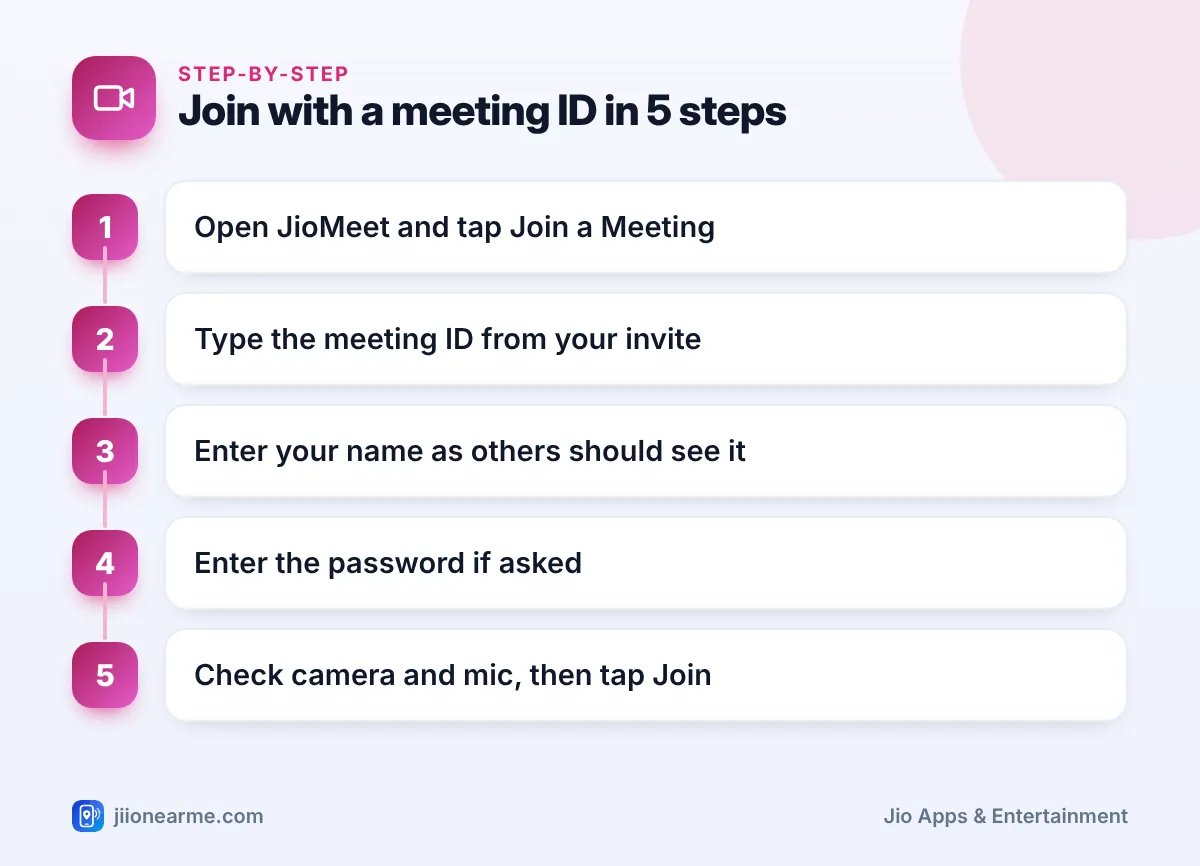
- Open the JioMeet app or the JioMeet website.
- Tap Join a Meeting or Join.
- Type the meeting ID exactly as shown in your invite.
- Enter your name.
- Enter the password when the app asks.
- Choose your audio and video settings on the preview screen.
- Tap Join.
Copy the meeting ID and password into your phone’s notes before the meeting. If the link fails at the last minute, you will not have to scroll through a long chat to find them.
Joining on a Laptop or in a Browser
On a laptop, you have two choices. The desktop app gives a steady experience if you join meetings often. The browser option is quick when you join only now and then.
When joining in a browser:
- Use an updated browser such as Chrome or Edge.
- When the browser shows a pop-up asking to use your camera and microphone, click Allow.
- If you clicked Block by mistake, click the camera or lock icon next to the web address and change the permission to Allow, then reload the page.
- Close other tabs or apps that use the camera, such as another video call.
Check Your Camera and Mic Before You Enter
Most JioMeet versions show a preview screen before you join. Use it well.
- Camera: check that your face is visible and well lit. Sit facing a window or a light, not with it behind you.
- Microphone: decide whether to join muted. In classes and large meetings, joining muted is polite.
- Name: make sure it shows your real name or the name the host expects, such as “Riya – Class 7B”.
- Speaker: if you use earphones, connect them before joining so the app picks them up.
After joining, the mic and camera icons are in the toolbar at the bottom or top of the screen. Tap them to turn each one on or off.
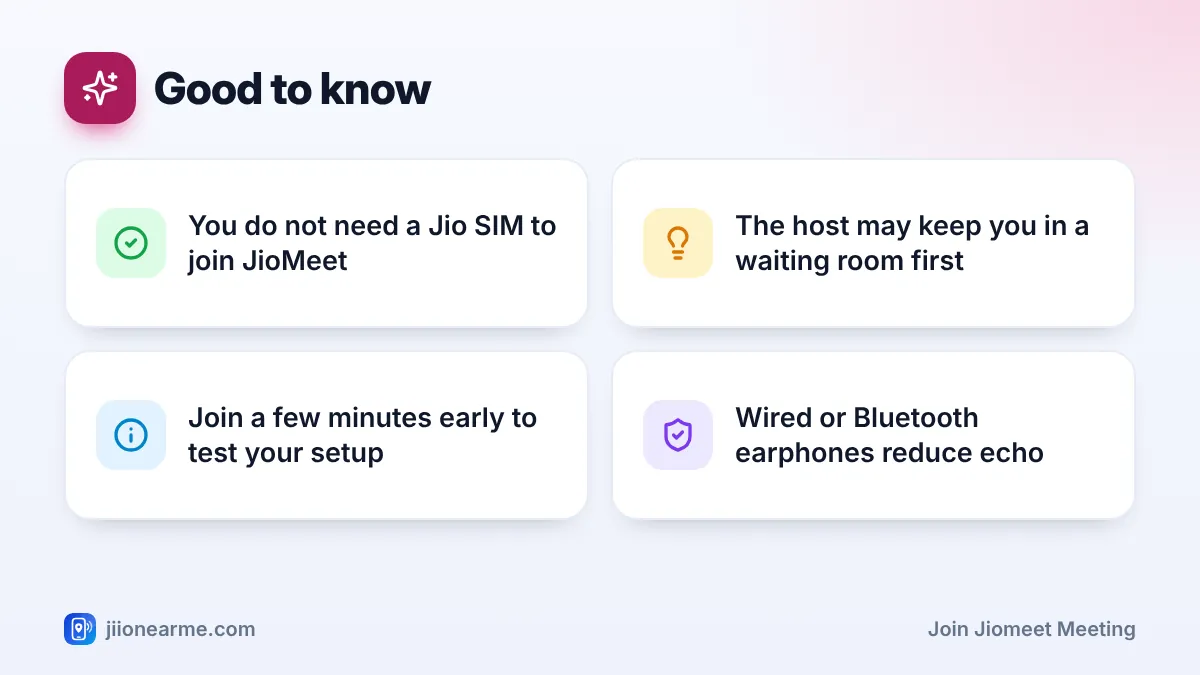
If the host has turned on a waiting room, you will see a message saying the host will let you in soon. Stay on that screen. Leaving and rejoining again and again only pushes you to the back of the queue.
Fixing Common Joining Problems
| Problem | Likely reason | What to try |
|---|---|---|
| “Invalid meeting ID” | A digit is wrong or missing | Copy the ID again from the invite |
| Wrong password message | Typo or old password | Ask the host to resend the details |
| Meeting has not started | The host is not in yet | Wait, or check the meeting time |
| Others cannot hear you | Mic muted or permission off | Unmute, then check app permissions |
| Video keeps freezing | Weak connection | Turn off your video or move closer to Wi-Fi |
If the link opens the app store every time even though JioMeet is installed, update the app and try again. You can also use the meeting ID method instead.
Join meetings only from invites sent by people you know. Never share an OTP, bank details or Aadhaar number during a call, even if someone claims to be from a bank or a company. If you are targeted by fraud, call 1930 or report it at cybercrime.gov.in.
Frequently Asked Questions
Do I need a JioMeet account to join a meeting?
Not always. Many meetings let you join as a guest by typing your name. Some hosts require participants to sign in, and the app will tell you if that applies.
Can I join JioMeet without installing the app?
On a laptop or computer, you can usually join in a browser. On phones, the app gives the most reliable experience, so installing it is a good idea if you join often.
Do I need a Jio SIM to join JioMeet?
No. JioMeet works on any mobile network and on Wi-Fi. You only need an internet connection and the meeting details.
How much data does a JioMeet call use?
Video calls use a fair amount of data, and longer calls use more. Turning off your own video and joining on Wi-Fi help if your daily data is limited.
Why can I see others but they cannot see me?
Your camera is probably off in the meeting, or JioMeet does not have camera permission. Tap the camera icon in the toolbar and check the app permissions in your phone settings.
Conclusion
Joining a JioMeet call is easy once you know the two routes: tap the invite link, or enter the meeting ID and password in the app. Join a few minutes early, test your camera and mic on the preview screen and keep the invite details handy. If something goes wrong, the quick fixes above solve most problems in a minute or two.
JIo Near me is an independent guide and is not affiliated with Reliance Jio. App menus, plans and policies can change – always confirm current details in the official MyJio app or on jio.com. We will never ask for your OTP, PIN or passwords.
