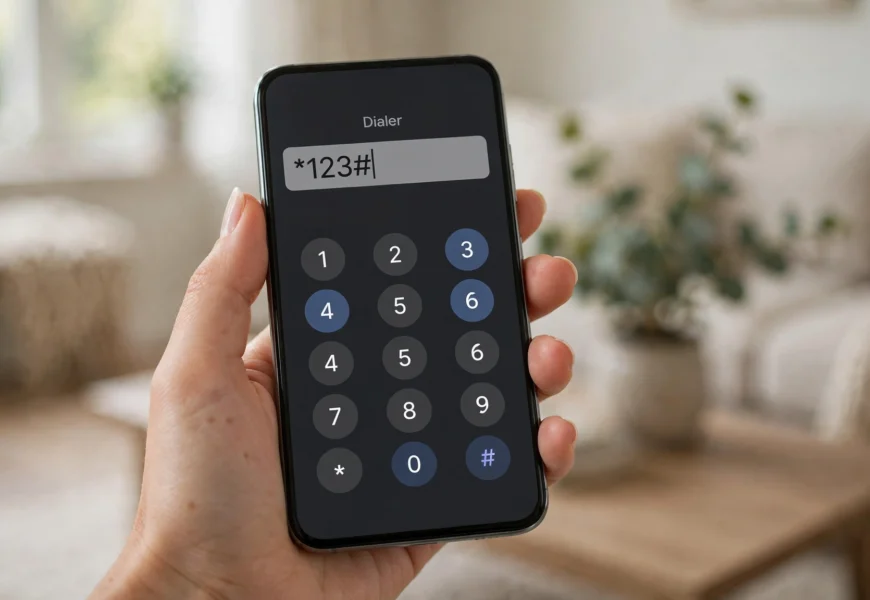
To check your own Lebara number, dial *#100# and press call — your number will appear on screen within seconds, completely free. This is Lebara’s official on-screen number-check code. If that doesn’t work for any reason, you can also find your number printed on your original SIM card packaging, in your phone’s SIM settings, or by logging in to the MyLebara app.
Introduction
Whether you’ve just got a new Lebara SIM or simply can’t recall the number on an older line, checking it takes seconds. This guide covers the official dial code plus every backup method, so you’re never stuck without your own number. If you’re setting up a brand-new SIM, our guide on how to activate a Lebara SIM card is a useful first stop before you need to check anything.
Method 1: Dial *#100# (Official & Fastest)
- Open your phone’s dialer app.
- Enter *#100# and press the call/send button.
- Your Lebara number will appear on-screen within seconds.
This is the method listed directly on Lebara’s official UK support page, and it works free of charge on any Lebara SIM.
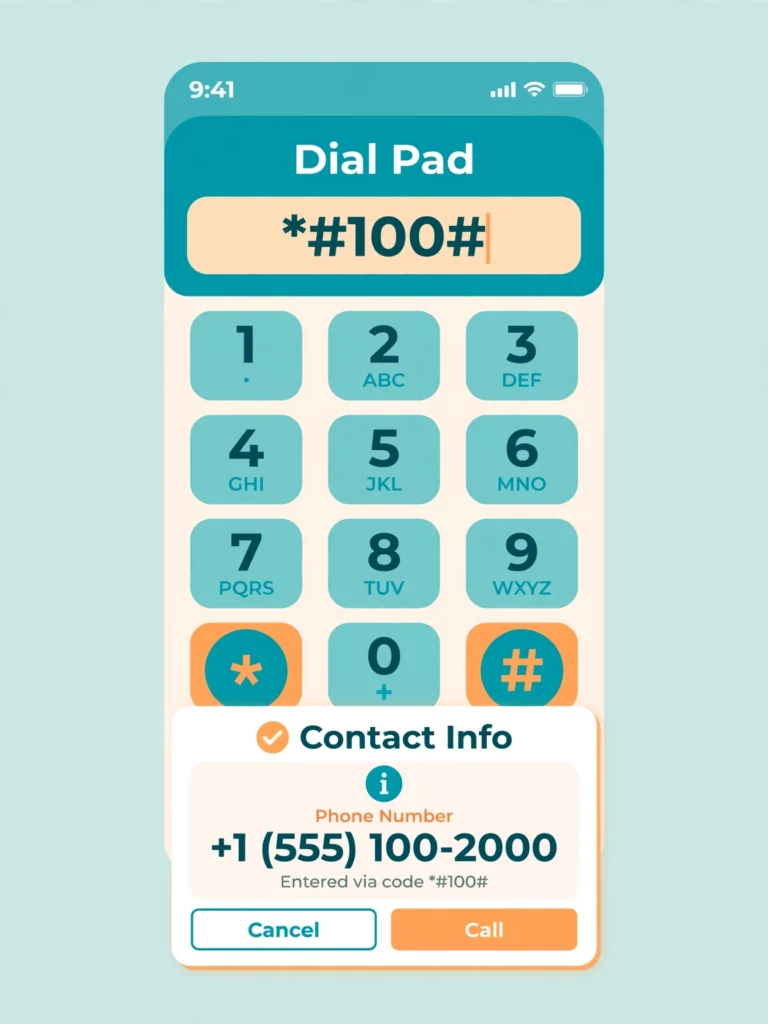
Dial *#100# and press call to see your Lebara number instantly.
Method 2: Check Your SIM Card Packaging
Your Lebara number is usually printed on the back of the plastic card your SIM was punched out of. If you kept the packaging, this is often the quickest visual check, and the same card also has your ICCID and PUK codes printed on it.
Method 3: Check Your Phone’s Settings
- Android: Go to Settings > About Phone (or About Device) > Status/SIM Status, where your number may be listed.
- iPhone: Go to Settings > Phone > My Number.
Note that not every device or network displays the number this way — some show “Unknown” if the number hasn’t been manually stored in settings.
Method 4: Check the MyLebara App
Log in to the MyLebara app with your mobile number and password — once you’re logged in, your registered number is typically shown on the account dashboard. This is also the same app you’d use to check your Lebara data balance or top up your SIM.
Troubleshooting: What If *#100# Doesn’t Work
| Problem | Suggested Fix |
|---|---|
| Code returns an error | Confirm you have signal and are dialing from a Lebara SIM, not another network’s SIM |
| No response after a few seconds | Restart your phone and try again |
| SIM is brand new and just activated | Wait a few minutes for full network registration before retrying |
| Still not working | Check your SIM packaging, phone settings, or log in to the MyLebara app instead |
Frequently Asked Questions
What is the code to check my Lebara number?
Dial *#100# and press call — this is Lebara’s official method, and your number appears on screen within seconds.
Is checking my Lebara number with *#100# free?
Yes, it’s completely free and doesn’t use any of your call, text, or data allowance.
Where else can I find my Lebara number if the code doesn’t work?
Check your original SIM card packaging, your phone’s settings under SIM/phone status, or log in to the MyLebara app.
Does *#100# work on both Android and iPhone?
Yes, it works the same way regardless of device, as long as your Lebara SIM has signal.
How do I find my number if I’ve lost my SIM packaging?
The MyLebara app is your best backup — logging in shows your registered number directly on the account dashboard.
Conclusion
Checking your Lebara number takes seconds with the official *#100# dial code — and if that ever fails, your SIM packaging, phone settings, or the MyLebara app all provide reliable backups. For more Lebara account help, see our guides on topping up your Lebara SIM and other mobile guides in the Jio Sim category on jiionearme.com.
For official support, visit Lebara UK’s help page on finding your number, the MyLebara app on Google Play, and general phone-settings guidance from Apple Support or Android Help.
Last verified: July 2026. Lebara’s number-check code may be updated periodically — always confirm details on Lebara’s official website.
