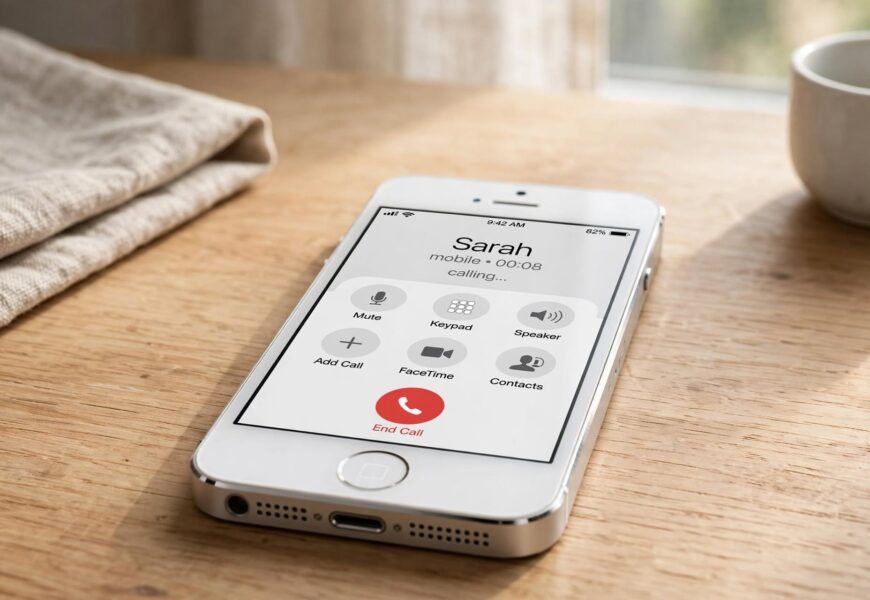
Quick answer: You can’t make or receive regular calls on Jio’s network using an iPhone 5s, because Apple never enabled VoLTE support on that model — and Jio is a VoLTE-only network with no traditional 2G/3G voice fallback. The workaround is to install the JioCall app (formerly Jio4GVoice), which lets your iPhone 5s make and receive calls over your Jio SIM using data (VoIP) instead of a native network call.
If you’ve inserted a Jio SIM into an iPhone 5s and calls simply aren’t going through — even though data works fine — this is almost always the reason. Here’s why it happens and exactly how to fix it.
Why iPhone 5s Can’t Make Native Jio Calls
Jio operates entirely on VoLTE (Voice over LTE) technology. Unlike most other networks in India at the time Jio launched, it never built out a 2G or 3G circuit-switched voice network — so if a phone can’t make VoLTE calls, it effectively can’t make regular calls on Jio at all, even though it can usually still use Jio’s 4G data.
The iPhone 5s is the sticking point here. According to discussions confirmed directly by Apple, VoLTE calling requires an iPhone 6 or later — the iPhone 5s does not support it, and no software update has ever added that support. Interestingly, as some tech outlets have pointed out, the iPhone 5s actually has the underlying Qualcomm chipset hardware capable of VoLTE, but Apple never enabled or certified it in iOS for that model.
The practical result, as reported by Deccan Chronicle when Jio first launched, is that Jio’s VoLTE-exclusive network effectively locks out calling on the iPhone 5S and other non-VoLTE devices — unless you use Jio’s dedicated calling app instead of the phone’s native dialer.
The Fix: Use the JioCall (Jio4GVoice) App
Jio built exactly this workaround for phones that can’t do native VoLTE. The app was originally called Jio4GVoice and has since been updated and rebranded as JioCall, but the core function is the same: it makes and receives calls over VoIP, using your data connection instead of relying on the phone’s built-in cellular calling stack.
Here’s how to set it up on an iPhone 5s:
Step 1: Confirm Your Jio SIM and Data Are Active
Before installing anything, make sure your Jio SIM is properly activated and that mobile data is turned on. Go to Settings > Mobile Data and confirm data is enabled, since JioCall relies entirely on a data connection (mobile data or Wi-Fi) to place calls.
Step 2: Download JioCall From the App Store
Search for “JioCall” in the App Store and install it. If you still see “Jio4GVoice” instead in search results, that’s the older version of the same app — install whichever one is currently listed for your region, as Jio has been phasing out the old app in favor of JioCall.
Step 3: Log In With Your Jio Number
Open the app and sign in using your Jio mobile number. You’ll receive an OTP via SMS to verify your number — this links the app directly to your Jio SIM so calls and texts route correctly.
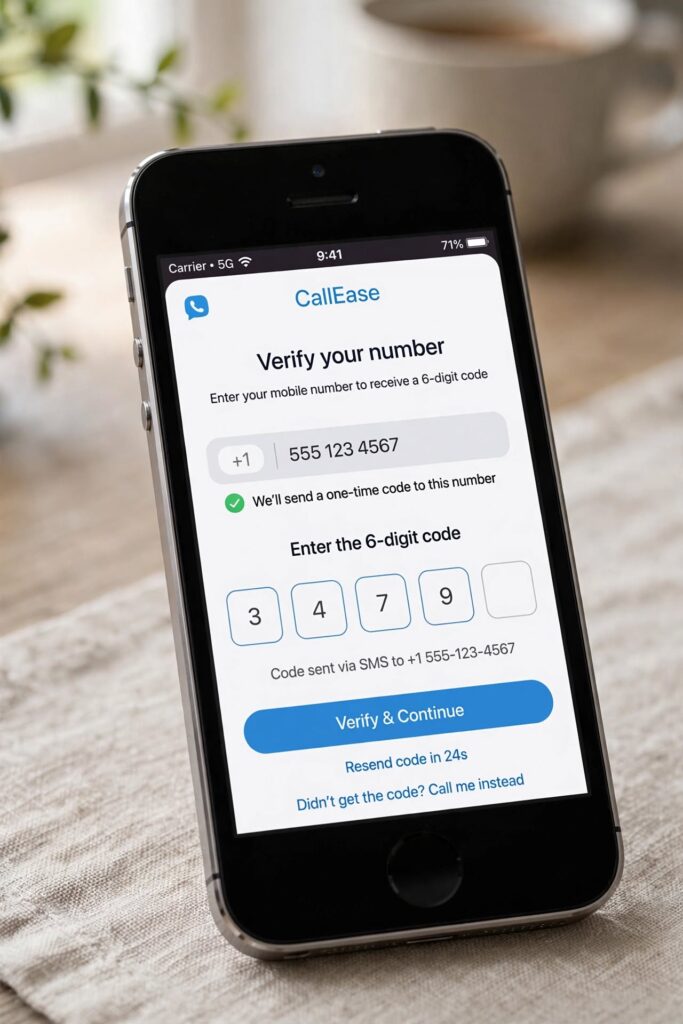
Signing in with your Jio number links the app directly to your SIM for calls and SMS.
Step 4: Grant Contacts and Microphone Permissions
When prompted, allow the app to access your Contacts and Microphone. Without microphone access, you’ll be able to open the app but won’t be able to make or receive actual voice calls.
Step 5: Make and Receive Calls Through the App
From here, use the JioCall app’s own dial pad to make calls, and keep the app running in the background (or enable notifications) so incoming calls can ring through. Unlike a native call, incoming JioCall calls will show as an in-app notification rather than the standard iPhone call screen, so it’s worth keeping the app updated and notifications enabled at all times.
What to Expect After Setting It Up
- Outgoing and incoming calls to any mobile or landline number in India will work through the app, using your Jio number as the caller ID.
- SMS can also be sent and received through JioCall, in addition to calls.
- Call quality depends on your data connection — a stable 4G or Wi-Fi connection will generally give clearer calls than a weak or spotty signal.
- Video calling is also supported through the same app if both parties have it installed.
Limitations Worth Knowing
- The app needs to be running (or running in the background with notifications enabled) to receive calls — it doesn’t work at the true system level the way a native call does.
- Emergency calls (like dialing 112) may not route through the app the same way they would through a normal cellular call, so it’s worth keeping this in mind, especially if the iPhone 5s is a backup or a device given to a family member.
- Because the iPhone 5s is several generations behind on iOS updates, some newer versions of the JioCall app may eventually stop supporting it — if that happens, moving to a VoLTE-capable device (iPhone 6 or later) becomes the only long-term fix.
When It’s Time to Consider Upgrading
If you’re relying on the iPhone 5s as a daily driver rather than a backup phone, it’s worth knowing this workaround has a shelf life. Apple’s official position is that VoLTE requires an iPhone 6 or later, and as older iPhones fall further behind on iOS and app support, VoIP-based apps like JioCall may not be supported indefinitely. For anyone using Jio as their primary network, an iPhone 6 or newer will get native VoLTE calling with no app or workaround required.
If you’re also trying to sort out Jio customer support numbers while setting this up, our guide on calling Jio customer care from the Jio4GVoice / JioCall app explains the correct numbers to use — since 121 (a common number people try out of habit) doesn’t work on Jio at all.
Key Takeaways
- iPhone 5s does not support native VoLTE, and Jio has no 2G/3G voice fallback — so regular calls won’t go through by default.
- The fix is installing the JioCall app (formerly Jio4GVoice), signing in with your Jio number, and using its in-app dialer for calls and SMS.
- Call quality depends on your data connection, and the app needs to stay active to receive incoming calls.
- If the iPhone 5s is your primary phone, upgrading to an iPhone 6 or later removes the need for this workaround entirely.
Sources referenced:
