If your JioFiber Wi-Fi slows down every evening while the router’s lights look normal, a crowded Wi-Fi channel could be the reason. In apartment blocks, dozens of routers share the same airwaves. Moving your network to a less crowded channel can make it steadier, and it takes only a few minutes in the router settings.
This guide explains what channel interference is, how to find a quieter channel for each band and where to change it on your JioFiber router. Router menus differ by model, so treat the menu names below as a guide rather than exact labels.
- Neighbouring networks on the same or overlapping channels slow each other down.
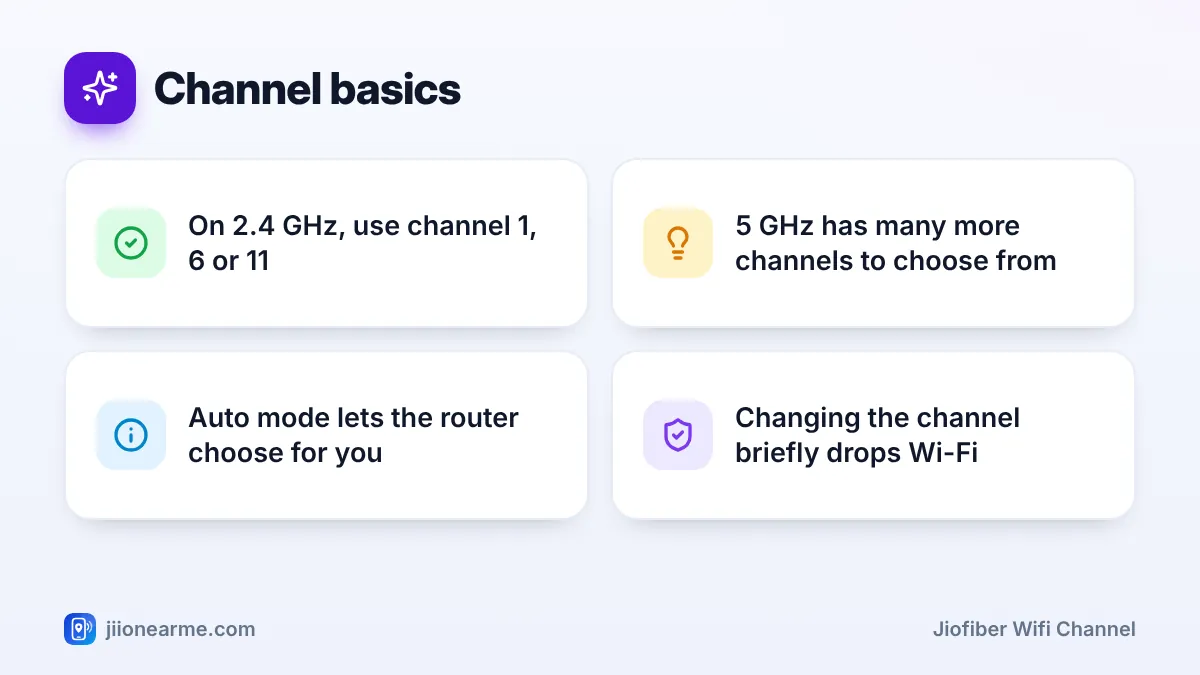
- On 2.4 GHz, choose channel 1, 6 or 11, whichever is least crowded.
- 5 GHz has more channels and less overlap, so it is usually less congested.
- The channel setting is usually on the router’s admin page, under the Wi-Fi or wireless section.
What a Wi-Fi Channel Is and Why Neighbours Matter
Each Wi-Fi band is split into smaller lanes called channels. Your router uses one channel per band at a time. When nearby routers use the same or overlapping channels, they take turns to transmit, and everyone’s Wi-Fi slows down.
The 2.4 GHz band
In India, routers can use channels 1 to 13 on 2.4 GHz. These channels overlap heavily, so a router on channel 3 interferes with networks on several channels on either side of it. Only channels 1, 6 and 11 do not overlap when the standard 20 MHz width is used. That is why they are the usual recommendation.
The 5 GHz band
The 5 GHz band has many more channels and less overlap. Its signal also weakens through walls, so your neighbours’ 5 GHz networks reach your flat less strongly. Interference is still possible, but it is less common.
Signs that a crowded channel is the problem
- Speed is good late at night or early morning but poor in the evening.
- Wi-Fi speed is low, but a laptop on an Ethernet cable gets normal speed.
- Your phone’s Wi-Fi list shows many neighbouring networks.
- Video calls stutter even close to the router.
How to Find a Less Crowded JioFiber Wi-Fi Channel
You need a way to see which channels your neighbours use. A Wi-Fi analyser app on an Android phone is the easiest option. Several free apps on the Play Store show nearby networks, their channels and their signal strength. iPhones limit this kind of scanning, so use an Android phone or a laptop tool instead.
Stand near your router and in the rooms where you use Wi-Fi most, then note what you see. Strong neighbouring networks matter more than weak ones. A channel with two strong networks can be worse than one with five faint ones.
| Band | Channels to consider | What to keep in mind |
|---|---|---|
| 2.4 GHz | 1, 6 or 11 | Pick the one with the fewest strong neighbours |
| 5 GHz, lower group | Roughly 36 to 48 | Supported by almost all 5 GHz devices |
| 5 GHz, upper group | Roughly 149 to 165 | Often quieter, if your router lists them |
| 5 GHz, middle group | Roughly 52 to 144 | Some older devices cannot see these, and the router may switch away from them on its own |
The exact channels your router offers depend on its model and local rules. Choose only from the list your router shows.
Scan at the time of day when your Wi-Fi feels slowest, usually evenings. That is when neighbours are most active and the real congestion shows up.
How to Change the Channel in Your JioFiber Router Settings
The channel option is usually on the router’s admin page, which you open in a web browser. Some MyJio app versions also show advanced Wi-Fi options for JioFiber, so check there first if you prefer the app.
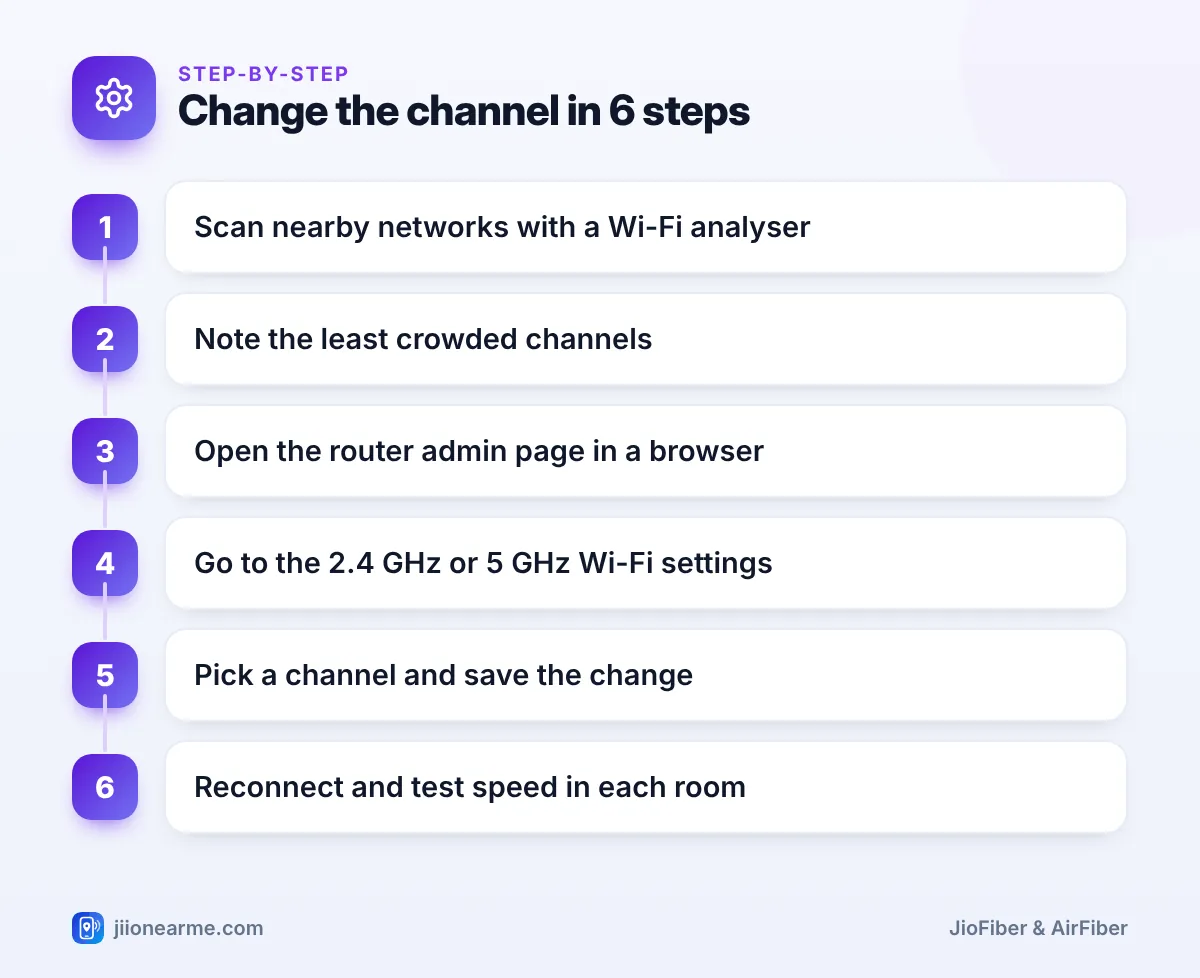
- Connect your phone or laptop to the JioFiber Wi-Fi, or plug a laptop into the router with a cable.
- Open a browser and type the router’s admin address. It is printed on the router label or in its documents, and on many JioFiber routers it is 192.168.29.1.
- Log in with the admin username and password. This is different from your Wi-Fi password. If you have never changed it, check the router label or your installation details.
- Find the Wi-Fi settings. Look for a section called Network, Wireless or WLAN, then open the settings for 2.4 GHz or 5 GHz.
- Change Channel from Auto to the channel you chose.
- On 2.4 GHz, keep the channel width at 20 MHz if that option is shown. Wider settings overlap more neighbours in crowded buildings.
- Tap Save or Apply. The Wi-Fi restarts, and devices disconnect for a few seconds.
- Reconnect and run a speed test in the rooms you use most.
Your Wi-Fi name and password do not change, so devices reconnect on their own after the restart.
Before editing anything, note the original values or take a screenshot. Leave security, network and advanced settings you are unsure about untouched. Never share your router admin password with callers claiming to be from support.
Test the Result and Know When to Go Back to Auto
Give the new channel a fair trial. Run speed tests at the same times of day for two or three days and compare them with your earlier results. Stability matters as much as speed, so also notice whether video calls and streaming feel smoother.
If nothing improves, set the channel back to Auto. Many routers choose a reasonable channel when they start up, and a manual setting can become crowded later if neighbours change theirs. Check again every few months, especially if new families move in nearby.
Remember that the channel is only one cause of slow Wi-Fi. Distance from the router, thick walls, an older device or a busy plan can all play a part. If speed is also slow on a laptop connected by Ethernet cable, the issue is not your Wi-Fi channel. Restart the router once, and if the problem continues, contact Jio on 198 to report it or 199 for help.
Frequently Asked Questions
Which is the best Wi-Fi channel for JioFiber?
There is no single best channel for every home. On 2.4 GHz, use channel 1, 6 or 11, whichever has the fewest strong networks around you. On 5 GHz, a lower or upper channel your router lists is a safe start.
Should I leave the channel on Auto?
Auto is a good default for most homes. Switch to a manual channel only if Auto keeps landing on a crowded channel and your Wi-Fi is noticeably slow.
Will changing the channel disconnect my devices?
Only for a few seconds while the Wi-Fi restarts. Your network name and password stay the same, so devices usually reconnect automatically.
Can I change the JioFiber Wi-Fi channel in the MyJio app?
Some app versions show advanced Wi-Fi options for JioFiber, but this varies. If you cannot find a channel option in MyJio, use the router’s admin page in a browser.
Why can some devices not see my 5 GHz network after the change?
Older devices may not support middle 5 GHz channels. Switch to a lower channel, roughly 36 to 48, and check again.
Summary
Changing your JioFiber Wi-Fi channel is a quick fix for flats surrounded by neighbouring networks. Scan with a Wi-Fi analyser, choose channel 1, 6 or 11 on 2.4 GHz and a less crowded channel on 5 GHz, then change it on the router’s admin page. Test for a few days, and return to Auto if it makes no difference.
JIo Near me is an independent guide and is not affiliated with Reliance Jio. App menus, plans and policies can change – always confirm current details in the official MyJio app or on jio.com. We will never ask for your OTP, PIN or passwords.
