Most smart plugs, smart bulbs and budget Wi-Fi cameras can connect only to a 2.4 GHz network. To add one to JioFiber, connect your phone to the 2.4 GHz Wi-Fi first, then run the setup in the device maker’s app using that network’s name and password. If your router shows only one combined network name, you may need to separate the bands briefly.
Setup failures are common and usually have simple causes, like the phone sitting on the 5 GHz band or a weak signal where the device is plugged in. This guide covers how to get each device onto the right band and how to keep it online for good.
- Check the box or manual to confirm your device supports only 2.4 GHz.
- Your phone must be on the same 2.4 GHz network during setup.
- If the router uses one combined name, rename the 5 GHz band temporarily.
- Good signal and a stable Wi-Fi name and password keep devices connected.
Why Smart Devices Need 2.4 GHz Wi-Fi
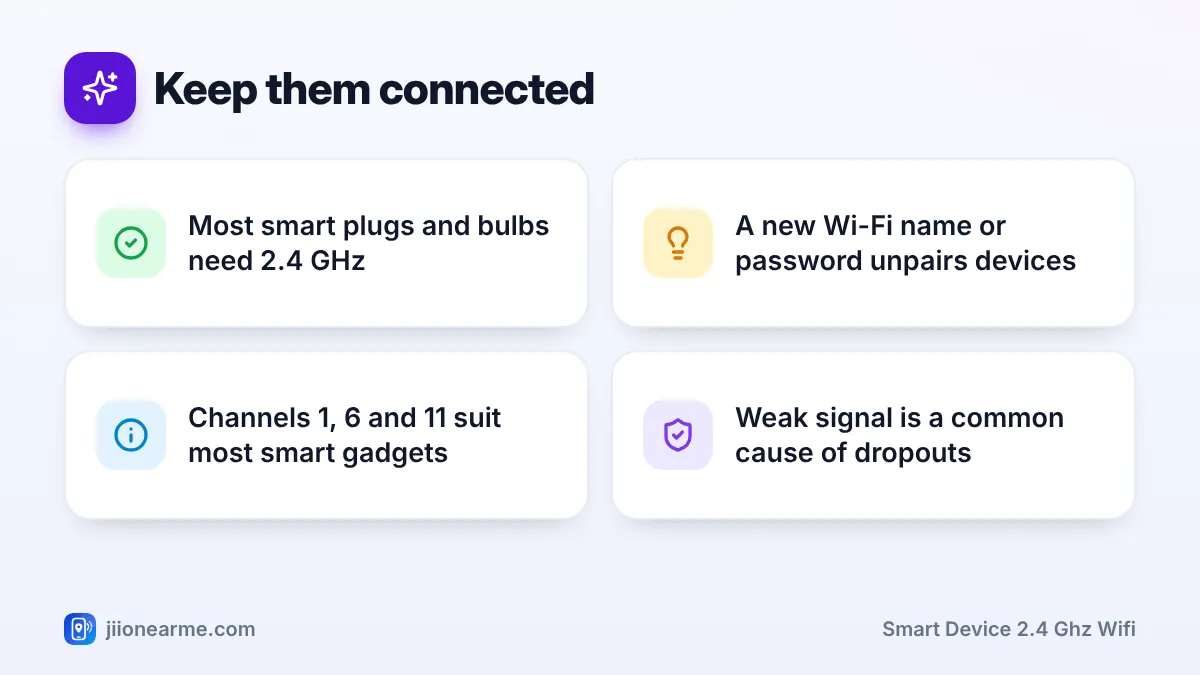
Smart plugs, bulbs, doorbells and many cameras use small, low-power Wi-Fi chips. Most of these chips work only on the 2.4 GHz band. That band also reaches farther through walls, which suits gadgets placed in corners, on balconies or near the main door.
These devices send very little data, so they do not need the extra speed of 5 GHz. A camera streaming video needs more, but range and stability still matter more than top speed.
Look for wording like “2.4 GHz only” or “does not support 5 GHz” on the box, the product page or the manual. Some newer cameras support both bands, but assume 2.4 GHz unless the device clearly says otherwise.
Check How Your JioFiber Router Shows Its Networks
Before you start, open the Wi-Fi list on your phone and see what your router broadcasts.
- Two names: One network is 2.4 GHz and the other, often with “5G” in its name, is 5 GHz. Setup is easy because you can pick the 2.4 GHz network directly.
- One combined name: The router moves devices between bands automatically. Your phone may be on 5 GHz while the smart device can only see 2.4 GHz, and the setup app may fail or show an error.
Separating the bands for setup
If you have a combined name, open the Wi-Fi settings for your JioFiber account in the MyJio app, or the router’s admin page in a browser. Look for an option to give each band its own name, or to switch off band steering or smart connect. Labels differ by router model and app version.
The safest method is to leave the 2.4 GHz name and password unchanged and give only the 5 GHz band a new name. Your smart device learns the 2.4 GHz details, which never change, so it stays connected even if you later merge the names again.
Do the setup while standing near both the router and the smart device. A strong signal during pairing avoids many timeout errors. You can move the device to its final spot afterwards and check it still connects.
How to Connect a Smart Device to 2.4 GHz Wi-Fi on JioFiber
Follow these steps for most smart plugs, bulbs and cameras:
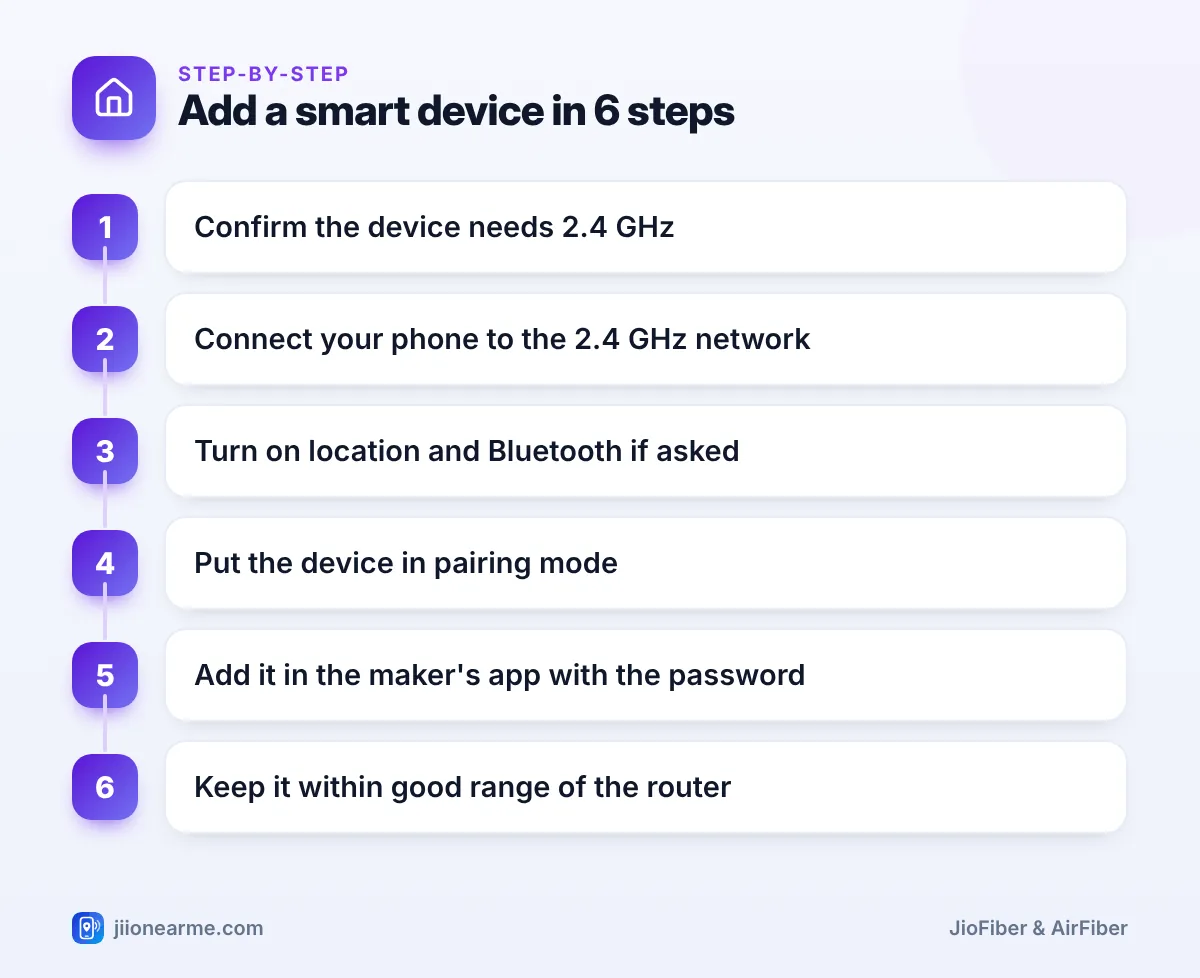
- Install the device maker’s official app from the Play Store or App Store and sign in.
- On your phone, connect to the JioFiber 2.4 GHz network. If needed, forget the 5 GHz network for now so your phone does not switch back.
- Turn on location and Bluetooth if the app asks. Many setup apps use them to find new devices nearby.
- If setup keeps failing, turn off mobile data for a few minutes so your phone stays on Wi-Fi.
- Plug in or power on the smart device and put it in pairing mode. This is often a blinking light, started by holding a button for a few seconds. Check the manual.
- In the app, choose Add device or a similar option and select your device type.
- Select your 2.4 GHz network and type the Wi-Fi password exactly. It is case-sensitive.
- Wait for the app to confirm the device is online, then give it a clear name, such as “Bedroom fan plug”.
Once it works, you can reconnect your phone to the 5 GHz network. The smart device stays on 2.4 GHz, and you can still control it from the app.
Common setup errors and fixes
| Problem | Likely cause | What to try |
|---|---|---|
| App says the network is not supported | Phone is on 5 GHz | Connect your phone to the 2.4 GHz network |
| Device not found | Not in pairing mode, or Bluetooth or location off | Reset pairing mode and allow permissions |
| Wrong password error | A typing mistake | Retype carefully, checking capital letters |
| Setup times out | Weak signal | Move the device and phone closer to the router |
| Connects, then goes offline | Weak signal at the final spot | Move the router or device, or improve coverage |
Keeping Smart Plugs and Cameras Connected
Getting a device online is half the job. These habits keep it there:
- Check signal at the final spot. A camera at the gate or on the terrace may sit at the edge of your Wi-Fi range. If it drops often, move the router to a more central spot or add a mesh system or extender.
- Use a standard 2.4 GHz channel. Channels 1, 6 and 11 avoid overlap, and some devices cannot use channels 12 or 13. If your router lets you set the channel manually, pick one of these.
- Keep the Wi-Fi name and password stable. Changing either one disconnects every smart device, and each must then be added again through its app.
- Keep the security mode compatible. WPA2, or a mixed WPA2/WPA3 mode, works with most gadgets. Some older devices cannot join a WPA3-only network.
- Update the device firmware. Install updates offered in the maker’s app. They often fix connection bugs.
Change any default password on a Wi-Fi camera, turn on two-step login in its app if offered and buy from brands that provide regular updates. Never share live view access or app login details with strangers.
Frequently Asked Questions
Does my phone need to stay on 2.4 GHz after setup?
No. Your phone only needs to be on the 2.4 GHz network while adding the device. Afterwards, you can use any band, or even mobile data, to control it through the maker’s app.
Will my smart devices stop working if I change the Wi-Fi password?
Yes. Each device saves the old password and will go offline. You will need to add it again in its app with the new details, so plan password changes carefully.
Why does my camera keep going offline at night?
The usual causes are a weak signal at the camera’s spot and more Wi-Fi activity in your building in the evening. Check the signal strength, try a less crowded 2.4 GHz channel and make sure the camera’s power supply is stable.
Should I put smart devices on a separate guest network?
It is optional. A guest network can keep gadgets apart from your phones and laptops, but some features, like local control or casting, may stop working on it.
Can I control my smart plugs when I am away from home?
Yes, in most cases. As long as the device is online at home, the maker’s app lets you control it over mobile data from anywhere.
Final Thoughts
Connecting a smart device to 2.4 GHz Wi-Fi on JioFiber is mostly about putting your phone on the right band during setup. Separate the bands if your router combines them, pair the device close to the router and keep your Wi-Fi name and password stable afterwards. Good coverage does the rest.
JIo Near me is an independent guide and is not affiliated with Reliance Jio. App menus, plans and policies can change – always confirm current details in the official MyJio app or on jio.com. We will never ask for your OTP, PIN or passwords.
