Apps on the JioPhone Next come from the Google Play Store, the same store used on other Android phones. You search for an app, tap Install and open it when the download finishes. Removing an app is just as quick: press and hold its icon and choose Uninstall, or remove it from Settings.
Because the JioPhone Next has modest memory and storage, it pays to be a little choosy. This guide shows how to check space before you download, install apps safely, keep them updated and get rid of the ones you don’t use. Labels can differ slightly by software version, so pick the nearest match if a word on your screen looks different.
- Sign in with a Google account to use the Play Store on JioPhone Next.
- Check free storage before installing, and prefer lighter Go or Lite versions where they exist.
- Uninstall apps by long-pressing the icon, from Settings, or from the Play Store.
- Some pre-installed apps can only be disabled, and you should never install apps from unknown links.
Before You Install: Check Storage and Your Google Account
Make sure you’re signed in
The Play Store needs a Google account. If you skipped it during setup, open the Play Store and it will ask you to sign in. You can also add an account under Settings > Accounts.
See how much space you have
- Open Settings.
- Tap Storage.
- Look at the used and free space, and the breakdown by apps, images, videos and other files.
If space is running low, delete old videos and WhatsApp media first, or move photos and music to a microSD card. A nearly full phone slows down and may refuse to install or update apps.
Use Wi-Fi for big downloads
Large apps and games can use a good chunk of your daily data. Connect to Wi-Fi when you can. In the Play Store’s settings, you can also choose to download apps over Wi-Fi only.
How to Install Apps From the JioPhone Next Play Store
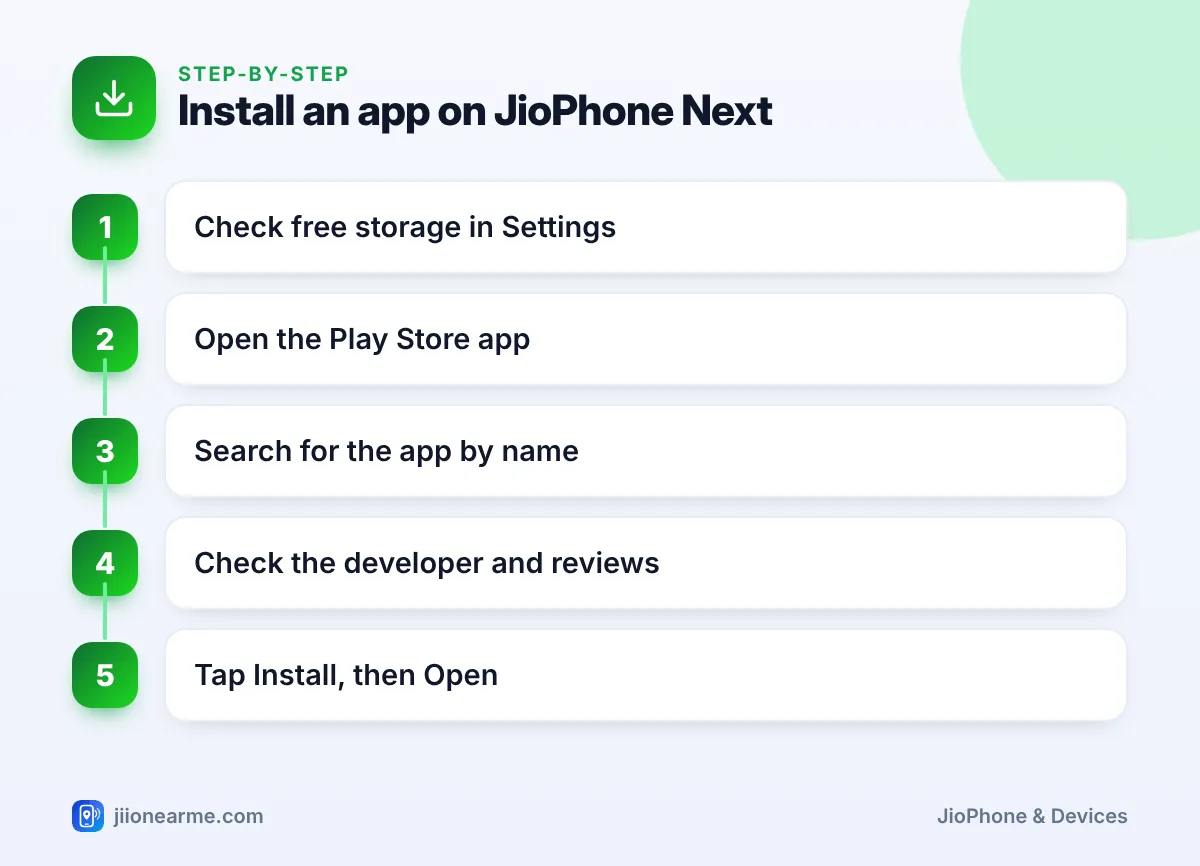
- Tap the Play Store icon on the home screen or in the app drawer. Swipe up from the bottom of the home screen to open the drawer.
- Tap the search bar at the top and type the app’s name.
- Tap the right result. Check the developer name under the app title, for example “WhatsApp LLC” for WhatsApp.
- Look at the rating, the number of downloads and a few recent reviews.
- Tap Install and wait for the progress bar to finish.
- Tap Open, or find the new icon in the app drawer.
Allowing permissions
When an app opens for the first time, it may ask to use your camera, microphone, contacts or location. Allow only what makes sense. A torch app has no reason to read your contacts. You can change permissions later under Settings > Apps: tap the app, then Permissions.
Choose apps that suit the phone
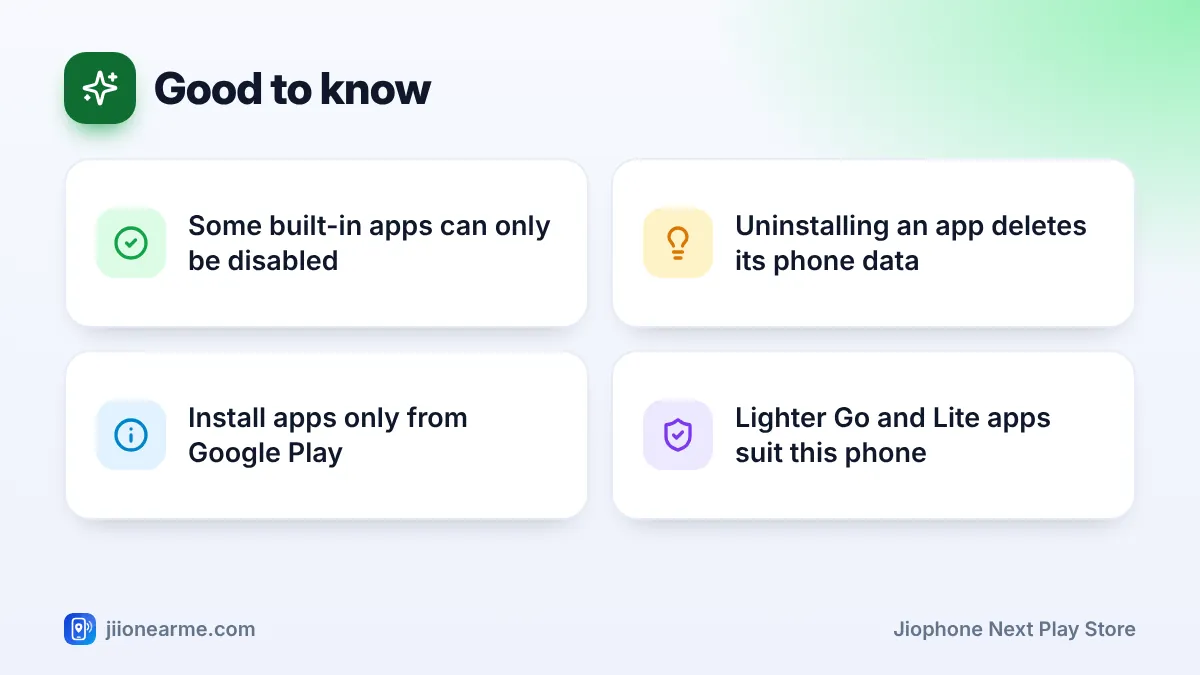
The JioPhone Next runs Pragati OS, a light, Android Go-based system designed for phones with less memory. Lighter apps run more smoothly on it. Look for Go versions of Google apps, such as Google Go, Gallery Go and Files by Google, and Lite versions of other apps where they’re offered.
If the Play Store says an app isn’t compatible with your device, the developer hasn’t made it available for this phone. Don’t look for workarounds.
Never install apps from links received on WhatsApp, SMS or websites. These APK files can steal OTPs, read your messages and empty bank accounts. If a caller asks you to install an app to “fix” your SIM, KYC or bank account, hang up. Report fraud calls through Chakshu on the Sanchar Saathi portal.
Keeping Your Apps Updated
Updates fix bugs and security problems. To update your apps:
- Open the Play Store.
- Tap your profile picture in the top-right corner.
- Tap Manage apps & device.
- Tap Update all, or open See details to update apps one at a time.
You can turn on automatic updates in the Play Store’s Settings, usually inside Network preferences. Choosing Wi-Fi only saves your mobile data.
How to Uninstall Apps You Don’t Need
Method 1: From the home screen or app drawer
- Press and hold the app icon.
- Tap Uninstall from the menu, or drag the icon to Uninstall at the top of the screen.
- Confirm with OK.
If you only see Remove, that option deletes the shortcut from the home screen. The app itself stays on the phone.
Method 2: From Settings
- Open Settings > Apps (on some versions, Apps & notifications).
- Tap See all apps if needed, then tap the app.
- Tap Uninstall and confirm.
Method 3: Remove several apps at once from the Play Store
- In the Play Store, tap your profile picture, then Manage apps & device.
- Open the Manage tab.
- Tick the apps you want to remove, tap the bin icon and confirm.
In the Manage tab, sort the list by size and look for large apps you haven’t opened in weeks. Removing those first frees space fastest.
Disabling Pre-Installed Apps
Some Google and Jio apps come built into the phone and can’t be uninstalled. If you don’t use one, you can often disable it:
- Open Settings > Apps and tap the app.
- Tap Disable and confirm.
A disabled app stops running, disappears from the app drawer and stops getting updates. To bring it back, return to the same screen and tap Enable. Leave core apps such as Phone, Messages, Settings and Google Play services alone, because disabling them can break basic features.
| Option | What it does | Can you undo it? |
|---|---|---|
| Remove (home screen) | Removes only the shortcut | Yes, drag the icon back from the app drawer |
| Uninstall | Deletes the app and its data on the phone | Reinstall from the Play Store |
| Disable | Turns off a built-in app | Yes, tap Enable |
| Clear storage | Resets the app’s saved data | No, the saved data is lost |
Frequently Asked Questions
Why can't I find some apps in the Play Store on JioPhone Next?
Some apps aren’t offered for this phone, often because they need more memory or newer hardware. Search for a lighter version, or a different app that does the same job.
Can I install apps on the memory card?
Usually not. On phones like this, apps install on internal storage. Use the microSD card for photos, videos and music, which frees internal space for apps.
Will uninstalling an app delete my data?
It deletes the data stored on the phone for that app. Data saved online, such as your Gmail inbox or a backed-up WhatsApp chat, stays in your account.
How do I reinstall an app I removed?
Search for it in the Play Store and tap Install. Apps you bought before are linked to your Google account, so you won’t pay for them again.
Is it safe to disable pre-installed Jio apps?
Disabling apps you don’t use, such as an entertainment app, is generally fine and can be undone. Avoid disabling system apps you don’t recognise, and keep MyJio if you use it to manage your plan.
Summary
Installing and removing apps on the JioPhone Next works like any Android phone, with the Play Store at the centre. Check storage first, pick lighter apps, update regularly and clear out what you don’t use. Stay away from APK links, and the phone will stay quicker and safer.
JIo Near me is an independent guide and is not affiliated with Reliance Jio. App menus, plans and policies can change – always confirm current details in the official MyJio app or on jio.com. We will never ask for your OTP, PIN or passwords.