You can open the JioFiber router admin page from any phone or laptop connected to your JioFiber network. Type the router’s local address, commonly 192.168.29.1, into the browser’s address bar. Then sign in with the admin details printed on the router or provided by Jio.
From there, you can see connected devices and change Wi-Fi, LAN and security settings. This guide covers the JioFiber router login step by step, how to find the right address if the usual one does not open, what the main menus do and how to keep access secure. Router models and software differ, so menu names may vary.
- Connect to your JioFiber Wi-Fi or a LAN cable first; the page will not open over mobile data.
- The address is commonly 192.168.29.1, but check your device’s gateway if it fails.
- Use the admin login details on the router label or from Jio, and keep them private.
- Note your current settings before changing anything.
Before You Start
Keep these ready before you try to log in:
- A connected device. Your phone or laptop must be on your JioFiber Wi-Fi or plugged into the router with an Ethernet cable.
- Admin login details. Look for a label on the back or bottom of the router. If no admin details are printed, or they do not work, contact Jio support.
- VPN switched off. A VPN app can stop the local page from opening.
- A laptop, if possible. Settings pages are easier to read on a bigger screen, though a phone works too.
The admin password is different from your Wi-Fi password. The Wi-Fi password lets devices join your network. The admin password lets you change the router’s settings.
JioFiber Router Login: Step-by-Step
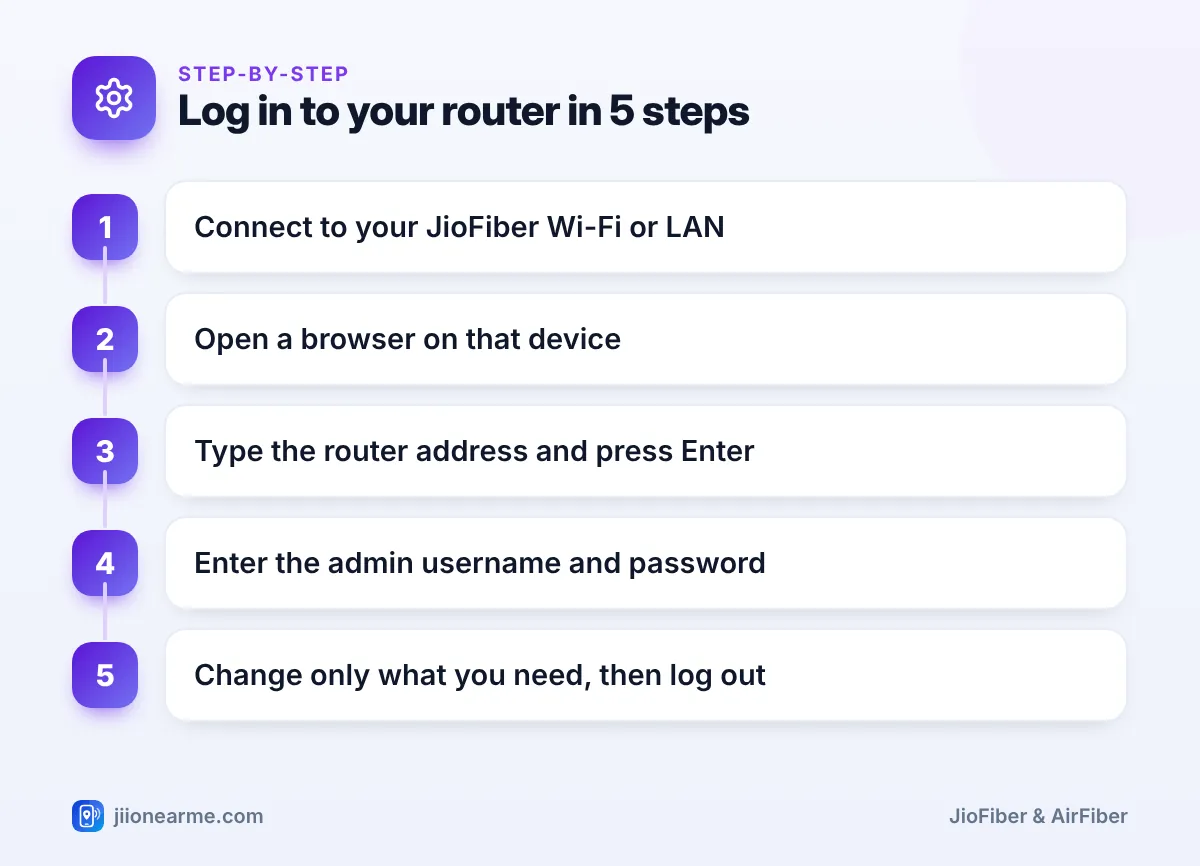
- Connect your device to your JioFiber Wi-Fi or a LAN port.
- Open a browser such as Chrome, Edge, Safari or Firefox.
- Type 192.168.29.1 in the address bar, not the search box, and press Enter. Some models use https:// at the start.
- When the sign-in page appears, enter the admin username and password.
- You will see a status or overview page showing the connection and connected devices.
- Make only the changes you need, select Save or Apply, and then log out.
Your browser may say the connection is not private. Router pages often use a local certificate that browsers do not recognise. If you typed the router’s address yourself on your home network, you can usually continue through the browser’s Advanced option. Never enter router details on a page you reached through a link in a message.
If 192.168.29.1 does not open
Your router may use a different address. Find it in your device’s network details, where it is called the gateway or router:
- Android: Open Settings, go to Wi-Fi, tap your connected network and look for Gateway or Router. It may be under an advanced section, and some phones do not show it at all.
- iPhone: Open Settings > Wi-Fi, tap the info (i) icon next to your network and check Router.
- Windows: Open Command Prompt, type
ipconfigand look for Default Gateway. - Mac: Open System Settings > Network > Wi-Fi > Details and check Router under TCP/IP.
Type that address in your browser instead.
Main Menus on the Admin Page
Names differ by model, but most JioFiber router pages have sections similar to these.
| Menu (common names) | What you can do there | Safe for beginners? |
|---|---|---|
| Status or Overview | See connection status and connected devices | Yes, view only |
| Wireless, Wi-Fi or WLAN | Change Wi-Fi name, password and security mode | Yes, with care |
| Network or LAN | See the router’s address and device address range | Only if you know why |
| Security | Firewall, device filters and, on some models, parental controls | With care |
| Administration or Maintenance | Change admin password, restart, reset | Restart yes, reset only as a last resort |
The Wi-Fi section is the one most people need. There you can rename the network, set a strong password and choose a security mode such as WPA2 or WPA3.
Do not change settings in sections such as WAN, internet connection or voice. Jio sets these for your connection, and wrong values can cut off your internet or landline.
How to Keep Your Router Login Secure
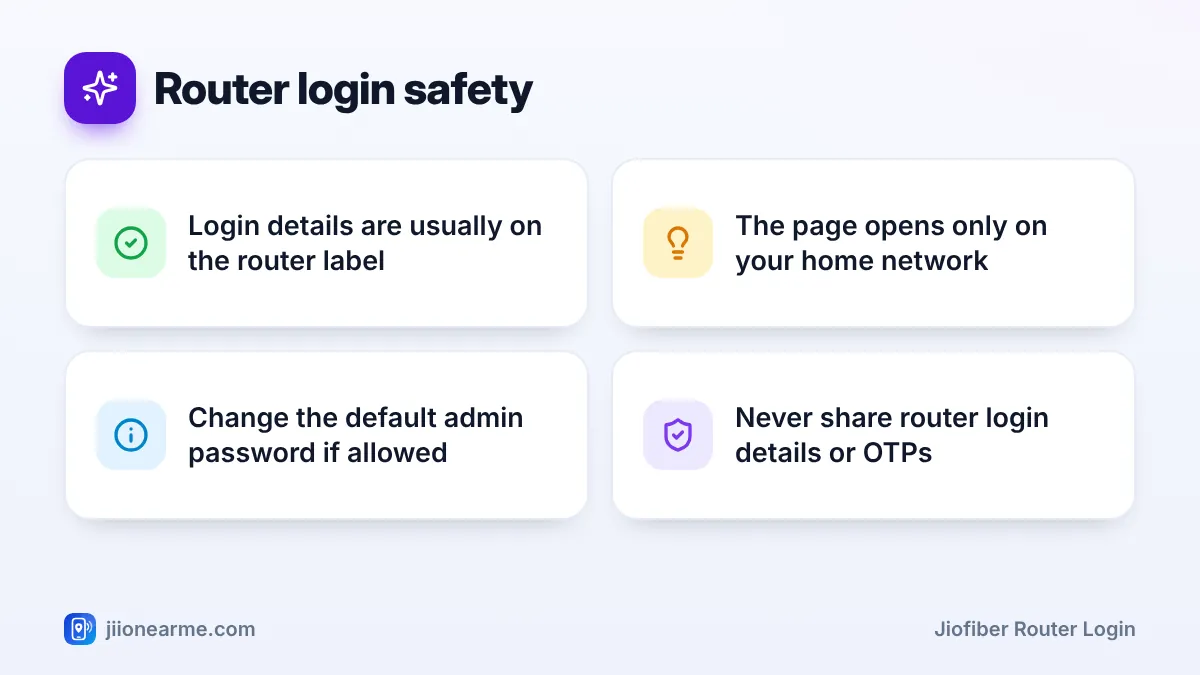
- Change the default admin password, if your model allows it, and store the new one safely.
- Never share login details or OTPs with anyone who calls or messages you claiming to be from Jio.
- Leave remote management off unless you fully understand it.
- Log out after changes, and do not save the admin password in a shared browser.
- Take screenshots of settings before you change them, so you can undo mistakes.
- Use WPA2 or WPA3 for Wi-Fi security, never an open network.
Fixing Common Login Problems
The page does not load. Confirm your device is on your JioFiber network, not mobile data. Turn off any VPN, try another browser, or type the address with http:// or https:// at the start. Restarting the router can also help.
The password is rejected. Check the label carefully for similar-looking characters, such as O and 0, and check capital letters. Some routers block logins for a while after several wrong attempts, so wait before trying again.
You changed the admin password and forgot it. A factory reset brings back the default details, but it also erases your Wi-Fi name, password and other settings. Treat it as a last resort, or contact Jio support first.
The page logs you out. Many routers end the session after a few minutes of inactivity. Simply sign in again.
Frequently Asked Questions
What is the default JioFiber router IP address?
It is commonly 192.168.29.1. If that does not work, check the gateway or router address in your device’s Wi-Fi details.
Can I open the router page from outside my home?
The page is meant to be used from your home network. Remote access adds security risks, so most people should leave it off.
Is the router admin password the same as the Wi-Fi password?
No. The Wi-Fi password lets devices join your network, while the admin password protects the router’s settings page.
Can I change the Wi-Fi password without logging in to the router?
Often, yes. The MyJio app may offer Wi-Fi settings for your JioFiber connection, depending on your app version and router model.
Will simply logging in change anything?
No. Viewing the pages changes nothing. Settings change only when you edit a value and select Save or Apply.
Summary
The JioFiber router login takes a minute: connect to your network, type the router address in a browser and sign in with the admin details. Use the Wi-Fi section for everyday changes and leave Jio’s connection settings alone. Keep your admin password private and log out when you are done. If login details are missing or not working, Jio support or the jio.com help pages are the right place to ask.
JIo Near me is an independent guide and is not affiliated with Reliance Jio. App menus, plans and policies can change – always confirm current details in the official MyJio app or on jio.com. We will never ask for your OTP, PIN or passwords.
