A JioPhone Next can become a comfortable phone for older parents with a handful of setting changes: bigger text, fewer icons, one-tap contacts and voice calling. You don’t need extra apps for most of this. The phone’s own settings and Google Assistant cover nearly everything.
The best results come from doing it together. Sit with your parent, ask what they want to do most, such as calls, WhatsApp video calls or watching bhajans on YouTube, and shape the phone around that. Menu labels can vary slightly with the software version, so use the search bar at the top of Settings if a name looks different.
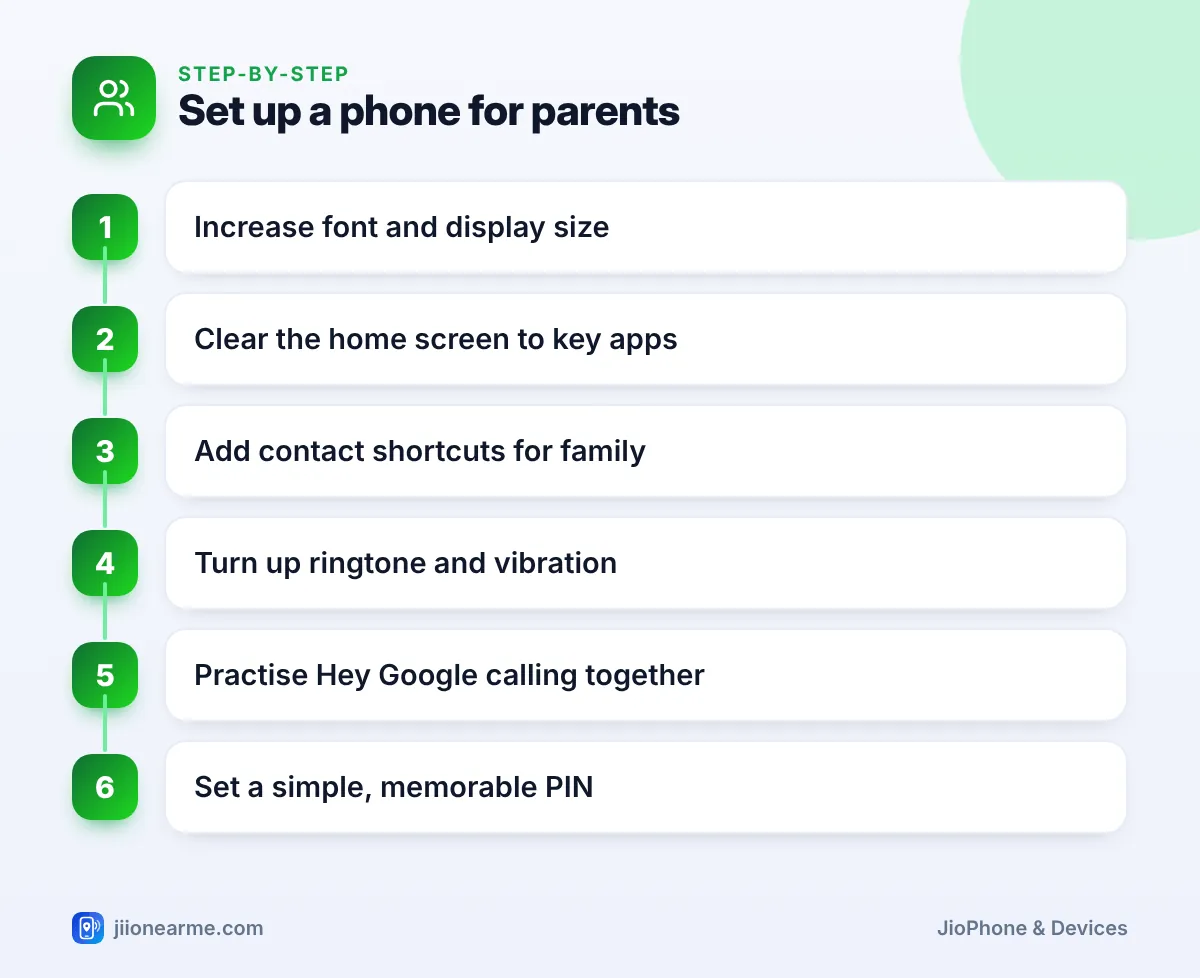
- Increase font size and display size first, because it makes every other screen easier.
- Keep only the five to eight apps your parent uses on the first home screen.
- Add home screen shortcuts for key family contacts and favourite WhatsApp chats.
- Teach “Hey Google, call…” and explain clearly that no genuine caller ever asks for an OTP.
Start With a Short Conversation
Before changing anything, ask a few questions:
- Do they find small text hard to read, or struggle to hear the ringtone?
- Which people do they call most often?
- Do they use WhatsApp, YouTube, a UPI app or the camera?
- Are they comfortable typing, or would they rather speak?
Their answers tell you which of the steps below matter most. Make changes slowly and show each one as you go, so the phone doesn’t suddenly feel unfamiliar.
Setting Up a JioPhone Next for Elderly Users: Text and Display
Make text and icons bigger
- Open Settings > Display. On some versions, the next two options sit under Advanced.
- Tap Font size and move the slider towards the largest size that still fits neatly on screen.
- Tap Display size and increase it. This makes icons and buttons bigger too.
Check a few apps after the change, such as WhatsApp and Phone, to make sure no text is cut off.
Brightness and screen timeout
Set brightness a little higher than you would for yourself. Under Settings > Display > Screen timeout, choose a longer time, such as two minutes, so the screen doesn’t go dark while they’re reading.
Magnification for very small text
If eyesight is quite weak, turn on Magnification under Settings > Accessibility. It lets them zoom into any part of the screen with a shortcut. Show them how to turn it off as well.
Simplify the Home Screen
A crowded home screen is the most common source of confusion. To clean it up:
- Press and hold an icon you don’t need on the home screen and tap Remove. The app stays on the phone.
- Keep only the essentials on the first screen: Phone, contact shortcuts, WhatsApp, Camera, Gallery and perhaps YouTube.
- Drag the most-used apps to the bottom row, which stays in place on every home screen.
- Disable apps they’ll never use under Settings > Apps, so those apps stop sending notifications.
Take a photo of the finished home screen with your own phone. If icons get moved by accident later, you’ll know exactly how to put them back.
Quick-Dial Contacts and Shortcuts
Save contacts with clear names
Use the names your parent naturally says, like “Beta Rohit” or “Doctor Sharma”, and add a photo where you can. Faces are easier to recognise than names.
Add contacts to the home screen
- Open Contacts and tap the person.
- Tap the menu (⋮) and choose Add to Home screen.
- Place the shortcut on the first home screen.
Now one tap opens that contact, ready to call. You can also mark key people as favourites with the star icon, so they appear at the top of the Phone app.
WhatsApp chat shortcuts
In WhatsApp, open a chat, tap the menu (⋮), then More > Add shortcut. The chat then opens straight from the home screen, which makes video calls to grandchildren much simpler.
Voice Features That Help Every Day
Typing is often the hardest part for older users. Voice features remove that barrier.
| Task | What to do |
|---|---|
| Call someone | Hold Home and say “Call Beta Rohit” |
| Send a message | Say “Send a message to Meena”, then speak it |
| Hear a long message | Open it, hold Home and say “Read this” |
| Type by voice | Tap the microphone on the keyboard and speak |
| Medicine time alarm | Say “Set an alarm for 8 am” |
Set Google Assistant’s language to the one your parent speaks most comfortably, and practise each command together a few times.
Sound, Safety and Peace of Mind
Louder calls and alerts
Turn the ring and notification volume up fully, pick a loud ringtone they recognise, and turn on vibration for calls.
A screen lock they can manage
Choose a simple four-digit PIN they will remember, but not 1234 or a birth year. Write it down for them and keep it somewhere safe at home.
Emergency details and Find My Device
Add emergency contacts and medical details through the Emergency information option in Settings, which is often inside About phone or a Safety section. Also check that Find My Device is on under Settings > Security or Settings > Google, so you can locate the phone if it’s lost.
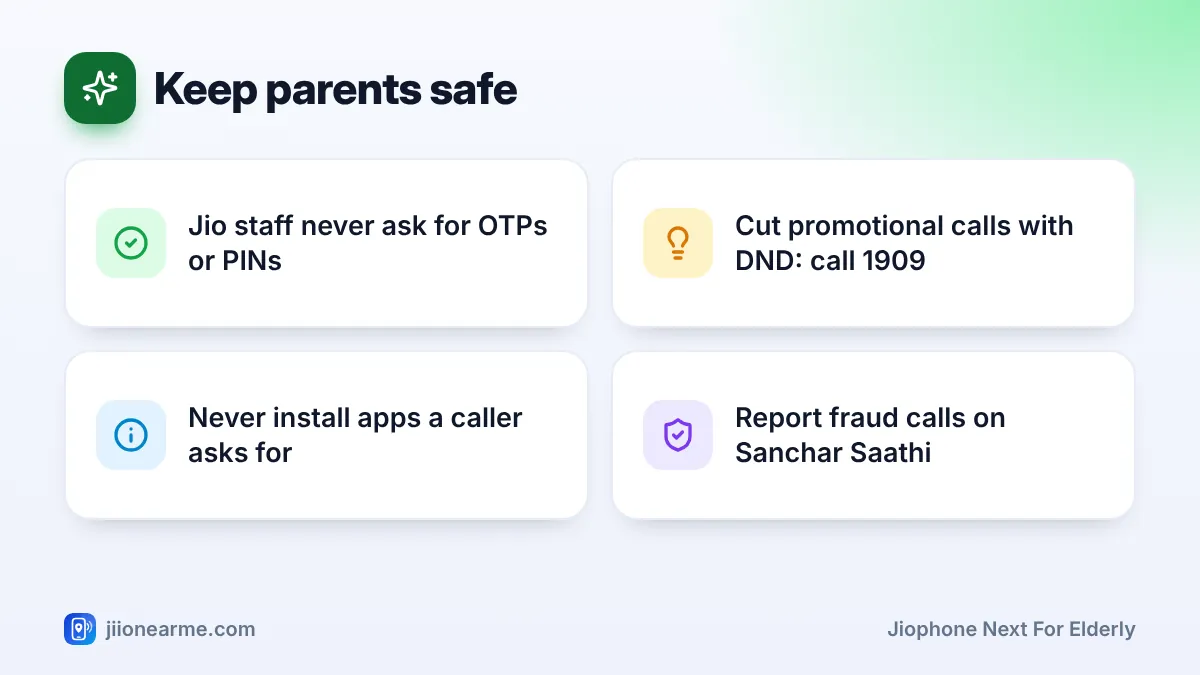
Explain simply: no bank, Jio staff member or police officer will ever ask for an OTP or PIN, or ask them to install an app. If a caller pressures them, they should hang up and call you. Report fraud calls through Chakshu on the Sanchar Saathi portal, and call 1930 straight away if money is lost.
To cut down on promotional calls and SMS, register their number for DND by calling 1909 from it or by using the TRAI DND app.
Frequently Asked Questions
Can I make text bigger only in WhatsApp?
Yes. In WhatsApp, open Settings > Chats > Font size and choose Large. This works on top of the phone’s own font size.
Should I set a screen lock on an elderly parent's phone?
Yes. A simple PIN protects their WhatsApp, photos and payment apps if the phone is lost. Pick one they can remember, and keep a written copy safe at home.
How can I manage their Jio recharge?
You can recharge their number from your own MyJio app or on jio.com. Set yourself a reminder a few days before their plan’s validity ends.
What if they keep opening apps by mistake?
Remove unused icons from the home screen and disable apps they don’t need. Fewer icons mean fewer accidental taps.
Is it safe to use remote-control apps to help them?
Be careful. Scammers often trick people into installing screen-sharing apps. Help them over a video call instead, and teach them never to install an app a stranger asks for.
Summary
Setting up a JioPhone Next for parents is mostly about taking things away: bigger text, fewer icons and fewer steps to reach the people they care about. Add voice commands and a clear talk about OTP scams, and the phone becomes something they can use with confidence. Check in after a week to adjust anything that still feels hard.
JIo Near me is an independent guide and is not affiliated with Reliance Jio. App menus, plans and policies can change – always confirm current details in the official MyJio app or on jio.com. We will never ask for your OTP, PIN or passwords.