MyJio looks busy the first time you open it, but most of what you need sits in four places: the plan card on the home screen, the recharge option, the menu and the help section. Once you know these, everyday tasks like checking data or recharging take seconds.
This tour explains each area in plain language. The app’s design changes from time to time, so a button may look slightly different on your phone. The sections themselves stay much the same.
- The plan card near the top shows your data left and validity.
- The account switcher decides which number or connection you are viewing.
- Recharge, usage history and invoices are each one or two taps away.
- The menu or profile area holds linked accounts, settings and log out.
- The help section lets you chat with support or raise a service request.
Before You Start: Sign In and Check the Account
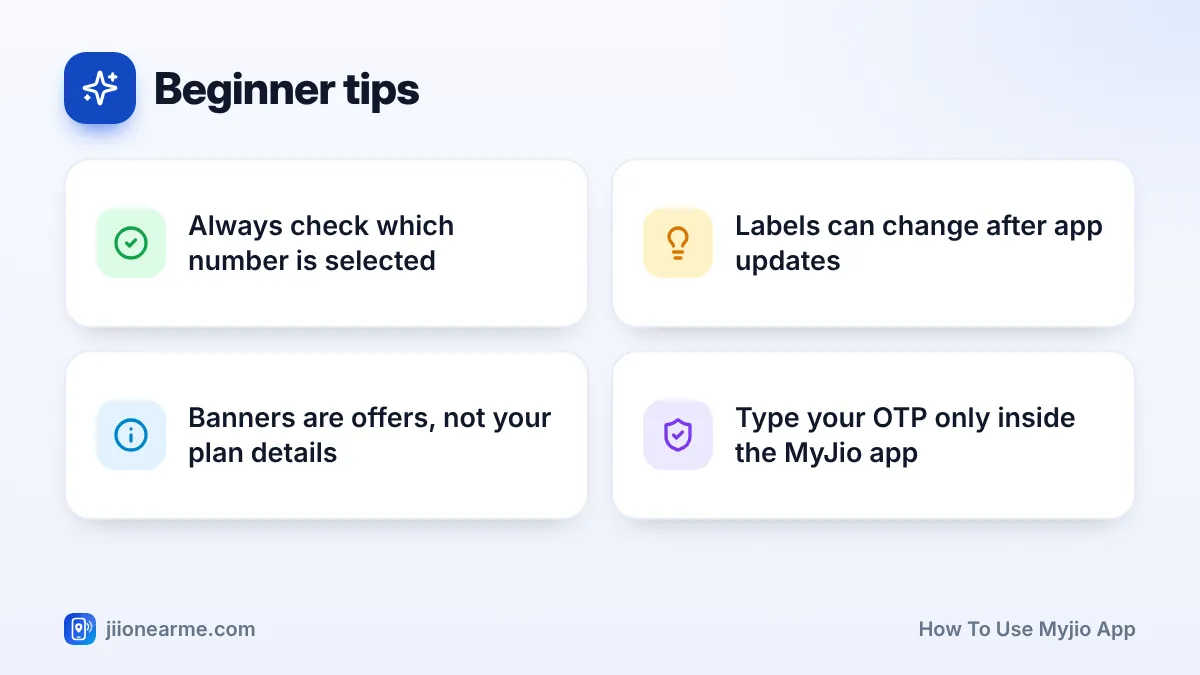
If you have not signed in yet, open MyJio, enter your Jio number and type in the OTP that arrives by SMS. Type the OTP only inside the app and never read it out to anyone.
Near the top of the home screen you will see your number or name. This is the account switcher. If you have linked other Jio numbers, a JioFiber connection or a Jio AirFiber connection, tap it to choose which one you want to see. Many beginner mistakes, such as recharging the wrong number, happen because the wrong account is selected.
The Home Screen: Your Plan at a Glance
The home screen is the part you will use most. From top to bottom, you will usually find:
- Top bar: your account switcher, plus icons for notifications, search or help.
- Plan card or data meter: the data left for today, your daily limit if your plan has one, and the date your plan ends.
- Recharge or Pay button: a shortcut to buy a plan for prepaid or pay a bill for postpaid.
- Banners and offers: promotions for plans, devices and Jio apps such as JioHotstar or JioSaavn.
- Shortcuts: quick links to other Jio services, which vary by app version.
Pull down on the screen to refresh it if the numbers look old. The figures can take a few minutes to update after you use data.
The colourful cards lower down the home screen are offers and promotions. Your actual plan details are always in the plan card near the top. Read any offer carefully before tapping a payment button.
How to Use MyJio App for Everyday Tasks
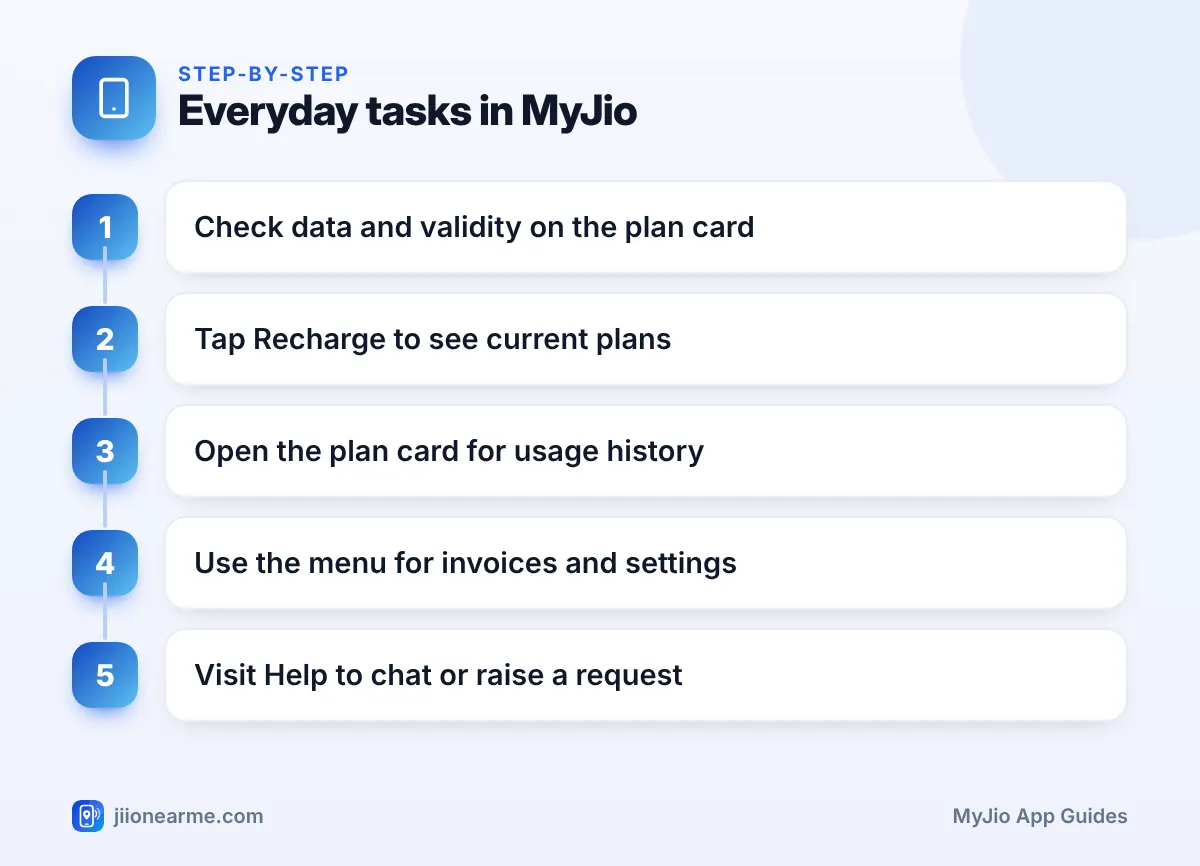
Here is how to do the five tasks most people need. Labels may differ slightly by version.
- Check data and validity: Look at the plan card on the home screen.
- Recharge: Tap Recharge, browse the current plans, pick one and pay using UPI, a card or net banking.
- See usage history: Tap the plan card or look for Usage or View details. Choose data, calls or SMS and a date range.
- Download an invoice: Open the menu or your recharge history, select a recharge and look for a download or invoice option.
- Get help: Open the help or support section to chat, read answers or raise a request.
Where the main sections live
| Section | Where you usually find it | What it is for |
|---|---|---|
| Plan card | Top of the home screen | Data left, daily limit, validity |
| Recharge | Home screen button or bottom bar | Buying a prepaid plan or add-on |
| Usage | Inside the plan card | Day-wise data, calls and SMS |
| Recharge history | Menu or the recharge section | Past payments and invoices |
| Linked accounts | Account switcher at the top | Switching between your numbers |
| Settings | Menu or profile area | Language, notifications, log out |
| Help | Top bar icon or menu | Chat, FAQs and service requests |
The Bottom Bar and Main Tabs
Along the bottom of the screen is a row of tabs. These take you to the main parts of the app, such as home, mobile, home broadband and other Jio services. The exact names and order change with app updates, so explore each tab once.
If you only have a Jio mobile number, you will mostly use the home tab. JioFiber and Jio AirFiber customers will find their connection details, bills and plans under the relevant tab once that connection is linked.
The Menu, Profile and Settings
Look for a menu icon (☰) or your profile picture in a top corner of the screen. This area holds the less frequent but important options:
- Linked accounts: add or remove other Jio numbers and connections.
- Profile: view the name, email and contact details on your account.
- Settings: change the app’s language and choose which notifications you get.
- Recharge history and statements: see past payments and download documents.
- Log out: sign out of MyJio, which is important on a shared or old phone.
If you cannot find an option, use the search icon if your version has one. Typing a word such as “invoice” or “language” often gets you there faster.
Getting Help Inside the App
The help or support section is your first stop when something goes wrong. Depending on your app version, you can:
- Read answers to common questions.
- Chat with Jio support.
- Raise a service request and track its status.
You can also call 199 from your Jio number for queries or 198 for complaints. Support will never ask for your OTP, Aadhaar number or passwords.
Before you contact support, take a screenshot of the plan card or error message. It helps you explain the problem quickly and gives you a record of what you saw.
Beginner Mistakes to Avoid
- Recharging the wrong number: Check the account switcher before you pay.
- Ignoring app updates: An outdated app can show errors or missing options. Update it from the Play Store or App Store.
- Buying an add-on by accident: Read the plan or pack details before confirming any payment.
- Staying signed in on a shared phone: Log out when you are done.
Frequently Asked Questions
Is MyJio the same on Android and iPhone?
Mostly, yes. The sections and steps are almost identical. Only the app store and a few phone-level settings are different.
Why does my MyJio app look different from this tour?
Jio updates the app’s design from time to time, and some options depend on your plan type. The main sections stay the same even when the layout changes.
Can I manage JioFiber in the same app?
Yes. Link your JioFiber or Jio AirFiber connection, then use the account switcher or the relevant tab to view its plan, usage and bills.
Do I need mobile data to use MyJio?
You need an internet connection, either mobile data or Wi-Fi. MyJio works on both.
Final Thoughts
Learning how to use MyJio app well takes one short session. Start with the plan card and account switcher, try a recharge and a usage check, then explore the menu and help section. After that, the app becomes a simple tool for managing every Jio service you use.
JIo Near me is an independent guide and is not affiliated with Reliance Jio. App menus, plans and policies can change – always confirm current details in the official MyJio app or on jio.com. We will never ask for your OTP, PIN or passwords.
