Moving to a new phone does not reset your Jio account. Your plan, validity, recharge history and bills are stored by Jio against your number, so they reappear as soon as you sign in to MyJio on the new handset. What stays behind are the app’s settings on the old phone, such as notification choices and language.
The whole process takes about ten minutes. This guide explains what carries over, what you need to redo, and how to clean up the old phone safely before you sell or pass it on.
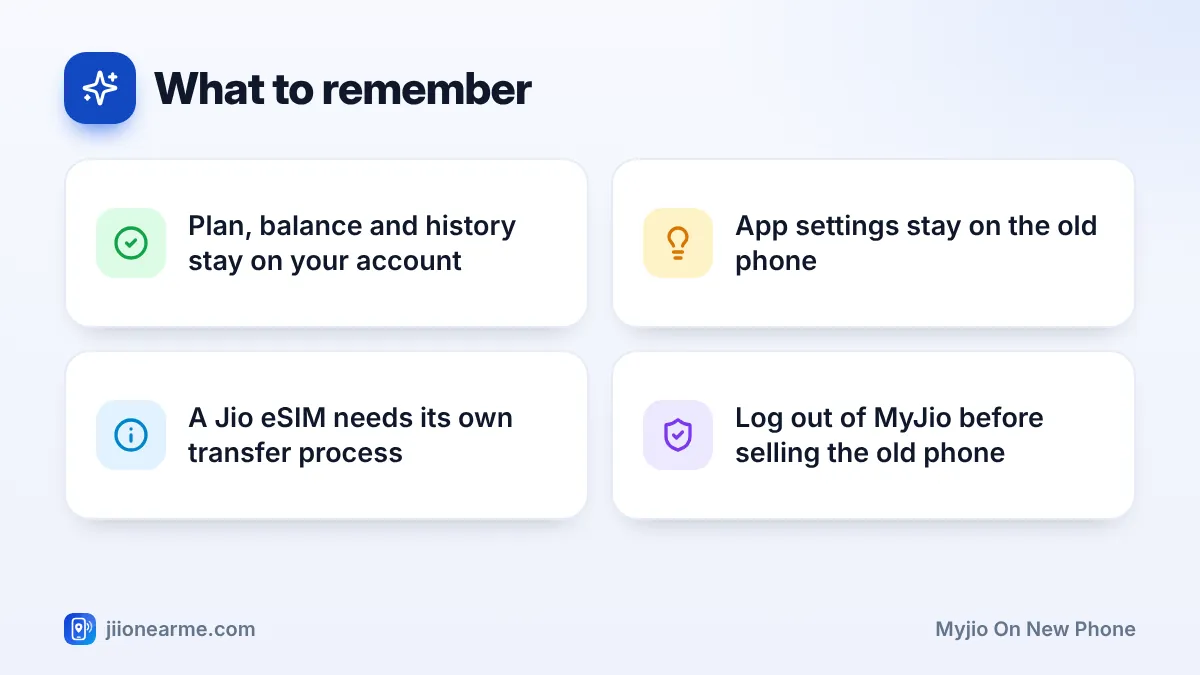
- Your plan, balance, usage and recharge history are saved on your Jio account.
- Install MyJio on the new phone and sign in again with your Jio number and OTP.
- Linked numbers usually return after sign-in, but relink any that are missing.
- Notification, language and app lock settings must be set again.
- A Jio eSIM needs its own transfer process, separate from the app.
What Carries Over and What Doesn’t
The simple rule is this: anything Jio stores on its side comes back, and anything stored inside the app on your old phone does not.
| Item | Carries over? | What to do |
|---|---|---|
| Active plan, validity and balance | Yes | Nothing, it shows after sign-in |
| Recharge history and invoices | Yes | Download invoices again if you need PDFs |
| Usage history | Yes | Nothing |
| Postpaid bills and payment history | Yes | Nothing |
| JioTune | Yes | Nothing, it is set on the network |
| Linked numbers and connections | Usually | Relink any that are missing |
| Notification and language settings | No | Set them again in the app |
| Downloaded PDFs saved on the old phone | No | Copy them over or download again |
| Phone-level data warnings | No | Set them again in phone settings |
| Jio eSIM | No | Follow Jio’s eSIM transfer steps |
Saved payment details may or may not appear, depending on how they were stored. Keep your card or UPI app handy in case you need to add them again.
Before You Switch: Quick Prep on the Old Phone
A few minutes of preparation avoids surprises later.
- Note your linked numbers. Open the account switcher in MyJio and write down the numbers and connections you have linked.
- Check your plan. Note the plan name and validity date, so you can confirm they match on the new phone.
- Save any files you need. If you downloaded invoices or usage statements to the old phone, copy them to the new one or to cloud storage.
- Plan for eSIM. If your Jio number is on an eSIM, find out how to move it before you reset the old phone.
A Jio eSIM does not move with the MyJio app. Do not delete the eSIM or reset the old phone until you have followed Jio’s official steps for a new eSIM on the new handset. Check jio.com or MyJio for the current process.
How to Set Up MyJio on New Phone
Once your SIM is ready, the setup is straightforward.
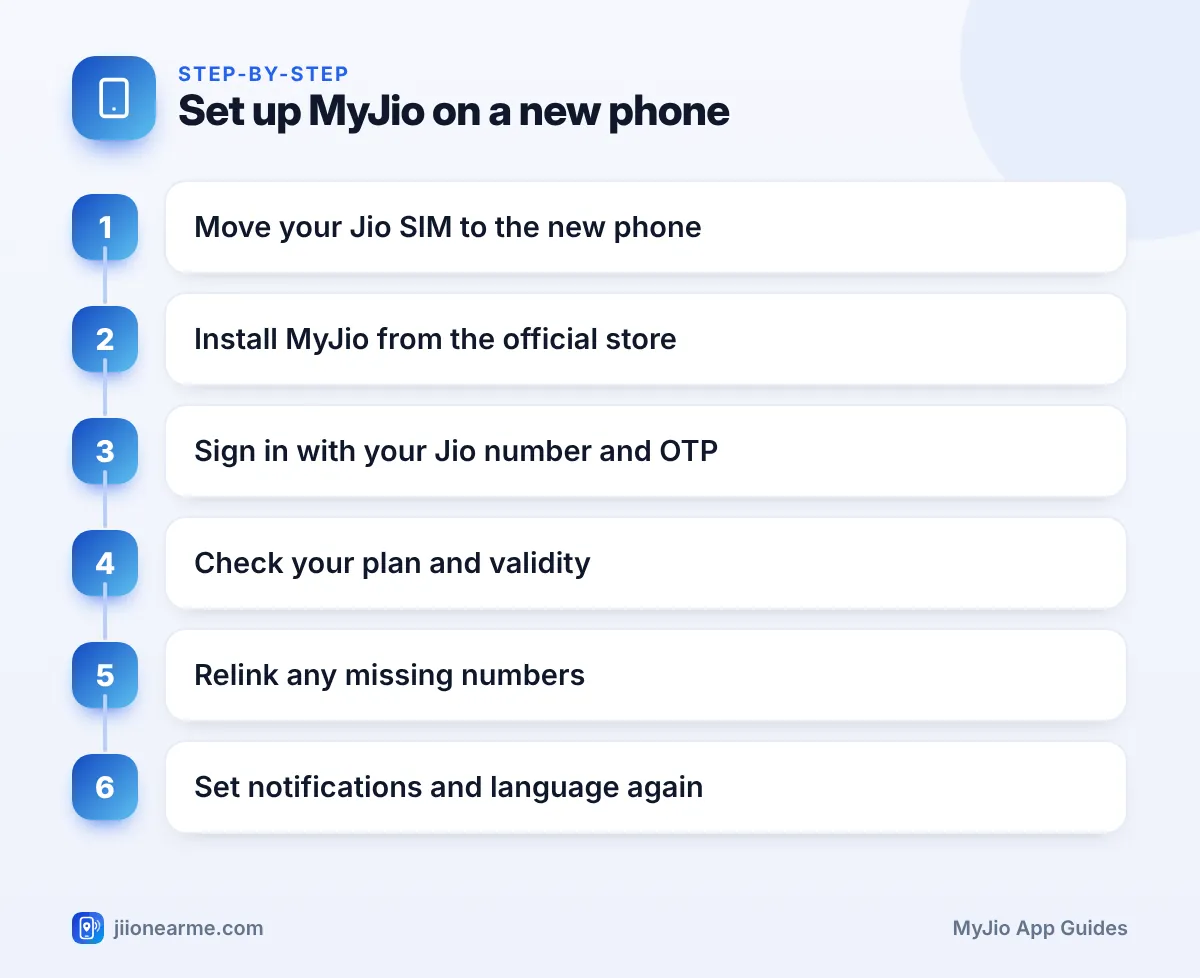
- Move the Jio SIM. Insert the physical SIM into the new phone and wait for network bars. Turn on VoLTE and set the network mode to 4G or 5G if needed.
- Install MyJio. Download it from the Google Play Store or the App Store, and check that the developer is a Jio company.
- Open the app and sign in. Enter your Jio number and type in the OTP sent by SMS. Type the OTP only inside the app.
- Check your plan card. Make sure the number, plan and validity match what you noted earlier.
- Review linked accounts. Open the account switcher and check that your other numbers and connections are listed.
- Set your preferences. Choose your language and notification settings again from the app’s settings section.
If the OTP does not arrive
Make sure the Jio SIM is in the phone that should receive the SMS and has signal. Wait a minute before tapping resend. If you have just received a replacement SIM, SMS can be paused for a short time as a security step, so wait and try again later.
Relinking Numbers and Connections
In most cases, the numbers you linked on the old phone show up again after you sign in with the same primary number. If any are missing, link them again.
- Open the account switcher or the menu and look for an option such as Link account or Add account.
- Enter the Jio mobile number, or the number registered with a JioFiber or Jio AirFiber connection.
- Complete the verification with the OTP sent to that number.
The OTP goes to the number you are linking. If it belongs to a family member, do this together with them on their phone, or let them link it themselves.
JioPlus family plans are managed at the account level, so the family members stay on the plan when you change phones. You only need to sign in again to manage them.
Other Jio Apps on Your New Phone
MyJio is not the only Jio app you may need to set up again.
- JioHotstar and JioSaavn: Sign in again. Offline downloads do not move, so download your shows and songs again.
- JioTV: Sign in with your Jio number and OTP.
- JioAICloud: Sign in to restore photos, videos and contacts, but only if backup was turned on before you switched.
- JioMeet: Sign in again before your next meeting, so you are not rushing at the last minute.
Turn on JioAICloud backup on the old phone a day before you switch, and let it finish on Wi-Fi. Your photos and contacts will then be ready to restore on the new phone.
Log Out and Clean Up the Old Phone
Before you sell, exchange or hand down the old phone, protect your account.
- Open MyJio on the old phone, go to the menu or settings and choose Log out.
- Sign out of other Jio apps and your Google or Apple account.
- Remove the physical SIM, if it is still inside.
- Factory reset the phone from its settings.
A factory reset clears all your data and accounts. Do it only after you have confirmed everything works on the new phone.
Frequently Asked Questions
Will I lose my Jio plan if I change my phone?
No. Your plan and validity are linked to your Jio number, not the handset. They continue as long as the same SIM is active in the new phone.
Do I need to recharge again after changing phones?
No. Your current plan keeps running. Recharge only when your validity is about to end, as usual.
Why is MyJio asking for an OTP on my new phone?
The app needs to confirm that you own the number before showing account details on a new device. This happens every time you sign in on a new phone.
Will my JioTune stay the same on a new phone?
Yes. JioTune is set on Jio’s network for your number, so callers keep hearing the same tune after you change phones.
Summary
Setting up MyJio on a new phone is mostly about signing in again. Your plan, history and bills come back on their own, while app settings and downloaded files need a little attention. Relink any missing numbers, handle eSIM separately, and log out of the old phone before it leaves your hands.
JIo Near me is an independent guide and is not affiliated with Reliance Jio. App menus, plans and policies can change – always confirm current details in the official MyJio app or on jio.com. We will never ask for your OTP, PIN or passwords.
