Switching airplane mode on and off forces your phone to disconnect from the mobile network and register again from scratch. That is why the airplane mode trick often brings back a stuck signal or frozen mobile data in a few seconds. It works because the phone gets a fresh start with the network, not because it finds a hidden stronger signal.
The trick is quick and harmless, so it is a good first step. But it only fixes certain kinds of problems. This guide explains what happens inside your phone when you toggle airplane mode, how to do it properly and when you need a different fix.
- Airplane mode switches off your phone’s mobile radio, and usually Wi-Fi and Bluetooth too.
- Turning it off makes the phone search, pick a tower and register on Jio again.
- It helps when the phone is stuck on a weak tower or a frozen data session.
- It cannot fix a local outage, an expired plan, used-up data or a wrong APN.
- If one toggle does not help, repeating it many times will not help either.
What Airplane Mode Actually Does to Your Phone
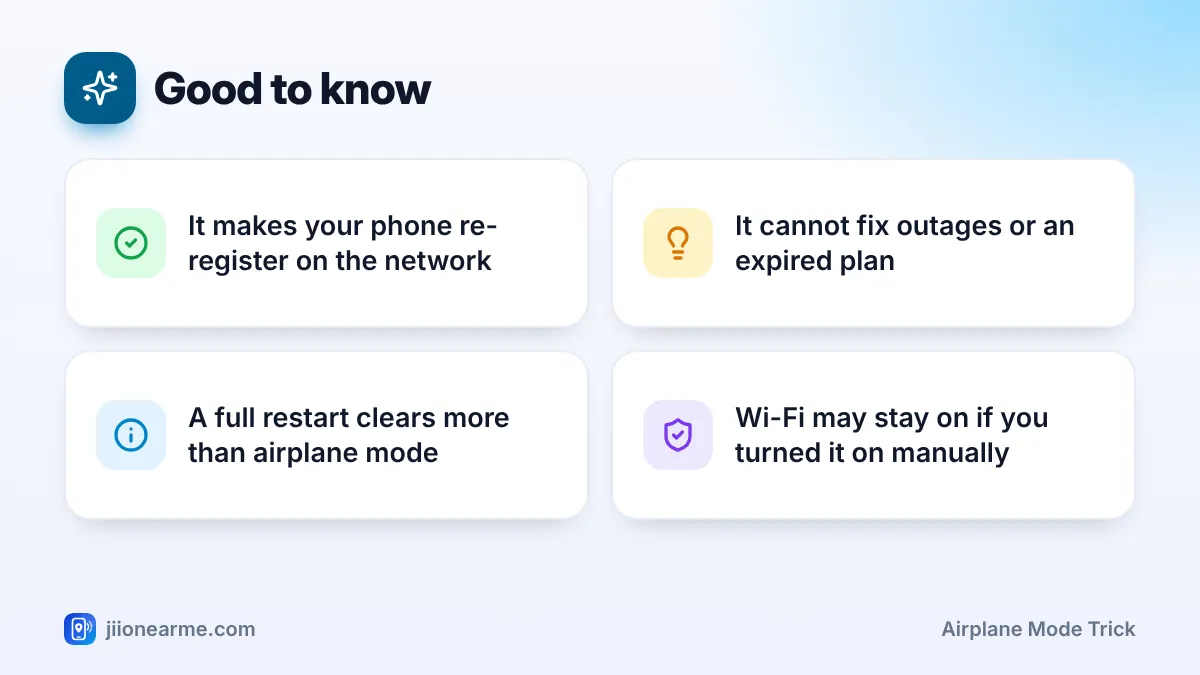
Your phone has several radios. The mobile radio talks to Jio towers, while others handle Wi-Fi, Bluetooth and sometimes NFC. When you turn on airplane mode, the phone switches off the mobile radio completely. By default it also switches off Wi-Fi and Bluetooth, though newer phones may remember if you turned those back on.
With the mobile radio off, your phone drops its link with the Jio tower. Calls, SMS and mobile data stop. The network notes that your phone is no longer reachable.
When you turn airplane mode off, the mobile radio powers up again and starts from the beginning, much like when you first switch on the phone.
Why the Airplane Mode Trick Can Refresh Your Signal
Restarting the radio sets off a chain of fresh steps:
- A new scan: The phone searches for nearby Jio towers and measures their signal.
- A fresh choice of tower: It picks the best tower available now, not the one it was stuck on earlier.
- New registration: The phone registers on Jio again, which can clear small glitches in the earlier connection.
- A new data session: Mobile data starts a fresh session, often with a new IP address.
- Calling set up again: VoLTE calling registers again, which can fix calls that suddenly fail.
Phones normally move between towers on their own as you travel. Sometimes they hold on to a weaker tower for too long, for example after leaving a lift, basement or metro tunnel. The airplane mode trick cuts that link and makes the phone choose again.
How to Do the Airplane Mode Trick on Android and iPhone
The steps take less than a minute. Labels can differ slightly by phone brand and software version.
On Android
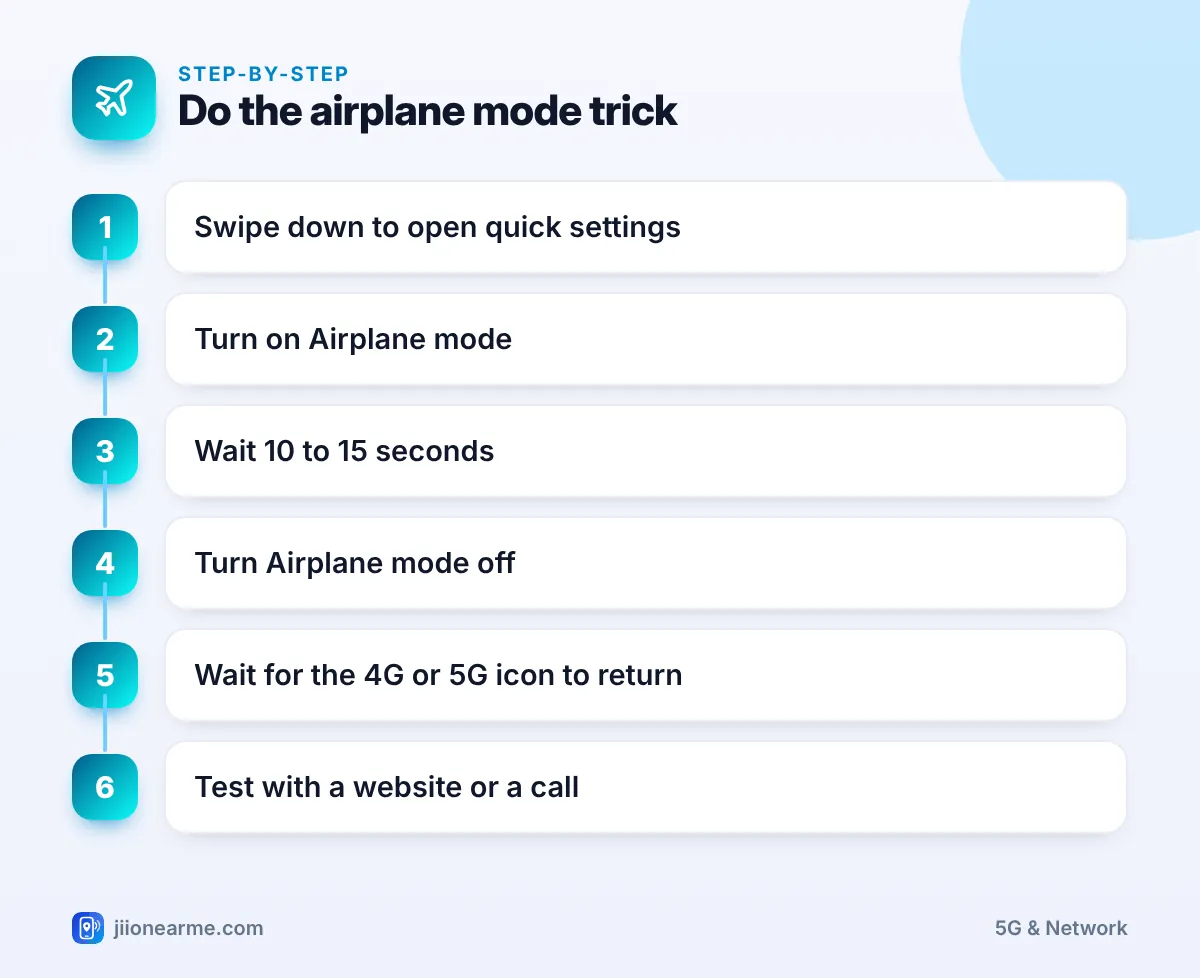
- Swipe down from the top of the screen to open Quick Settings. Swipe down again if you do not see all tiles.
- Tap Airplane mode (or Flight mode). The airplane icon appears in the status bar.
- Wait about 10 to 15 seconds.
- Tap Airplane mode again to turn it off.
- Wait for the signal bars and the 4G or 5G icon to return. This can take up to a minute.
- Open a website or make a short call to test.
On iPhone
- Open Control Centre. On iPhones with Face ID, swipe down from the top-right corner. On models with a Home button, swipe up from the bottom.
- Tap the airplane icon so it turns orange.
- Wait about 10 to 15 seconds.
- Tap the airplane icon again to turn it off.
- Wait for the signal and 5G, 4G or LTE label to return, then test.
If you were using Wi-Fi before, make sure it has reconnected. If you are testing Jio mobile data, turn Wi-Fi off so the phone does not quietly use your home connection instead.
When the Airplane Mode Trick Helps
This quick fix is worth trying when:
- You have just come out of a lift, basement, parking area or tunnel and the signal stays low.
- Mobile data shows a 4G or 5G icon but nothing loads, and it worked a few minutes ago.
- Calls suddenly fail to connect or drop straight away, while signal looks normal.
- You moved into a Jio 5G area, but the phone still shows 4G.
- You have just recharged after your plan expired and data has not started yet.
- The phone shows No service or Emergency calls only after a brief network glitch.
When It Will Not Help
The trick only refreshes your connection. It cannot change the network around you or your account status.
| Problem | Will airplane mode help? | What to do instead |
|---|---|---|
| Local network outage | No | Wait, or check with Jio customer care |
| Plan expired or daily data used up | No | Check your plan in the MyJio app |
| Wrong network mode or APN | No | Fix the setting in your SIM menu |
| Very weak coverage area | Rarely | Move near a window or outdoors |
| Crowded tower at peak hours | No | Try again later or use Wi-Fi |
| Damaged or loose SIM | No | Reseat or replace the SIM at a Jio Store |
If toggling once does not help, doing it again and again will not either. Each attempt simply repeats the same search, and frequent toggling only uses a little extra battery.
While airplane mode is on, you cannot make or receive normal calls, get SMS or use mobile data, and you may miss emergency alerts. Turn it off as soon as the wait is over, especially if family members may need to reach you.
What to Try If Toggling Does Not Work
Work through these steps in order:
- Restart the phone. A full restart clears more than airplane mode does, including stuck apps and system processes.
- Check your plan and data balance in the MyJio app.
- Check the network mode. Make sure it includes 4G or 5G.
- Check the APN. It should be jionet on Android. Use Reset to default if values look edited.
- Reseat the SIM. Switch off the phone, remove the SIM, check for dust and insert it again.
- Try the SIM in another phone to see if the problem follows the SIM.
If none of these work, call Jio on 198 to register a complaint or 199 for queries from your Jio number. From another phone, you can use the toll-free number 1800-889-9999.
Frequently Asked Questions
How long should I keep airplane mode on?
About 10 to 15 seconds is enough. The goal is to fully switch off the mobile radio, which happens almost immediately.
Is the airplane mode trick bad for my phone?
No. It is a normal feature and safe to use. Using it occasionally to refresh the connection does not harm the phone or the SIM.
Is restarting better than the airplane mode trick?
A restart is more thorough because it reloads the whole system. Airplane mode is faster, so try it first and restart if it does not help.
Does airplane mode give me a stronger signal?
Not directly. It makes the phone search again and pick the best tower available. If coverage is weak in that spot, the signal will stay weak.
Will I lose data or messages when I toggle airplane mode?
No. Your photos, apps and saved messages stay as they are. SMS sent to you while airplane mode was on usually arrive once you reconnect.
Conclusion
The airplane mode trick is a quick way to make your phone register on Jio again and start a fresh data session. Use it after tunnels, lifts or sudden network glitches. When it does not help, the cause lies elsewhere, so check your plan, settings and SIM, and contact Jio support if the problem continues.
JIo Near me is an independent guide and is not affiliated with Reliance Jio. App menus, plans and policies can change – always confirm current details in the official MyJio app or on jio.com. We will never ask for your OTP, PIN or passwords.
