Android’s built-in Data Saver can make your daily mobile data last longer by stopping most apps from using data in the background. You switch it on from Settings or the quick settings panel, and it only works while you are on mobile data, not on regular Wi-Fi.
There is one catch. Apps you depend on, such as WhatsApp or your UPI app, may show messages and alerts late. The fix is a list called Unrestricted data, where you allow a few important apps to keep working normally. This guide covers both parts.
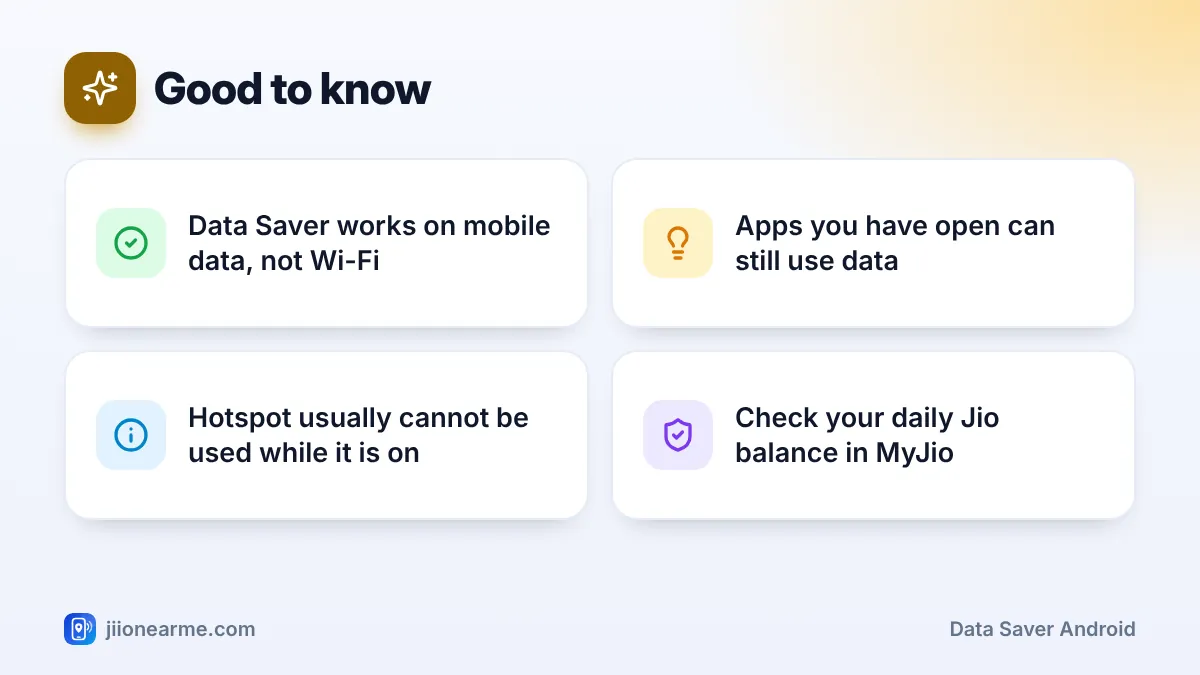
- Data Saver blocks background mobile data for most apps; the app you have open can still use data.
- On most phones you find it under Network & internet or Connections > Data usage.
- Add messaging, UPI and other essential apps to the Unrestricted data list.
- On most phones, mobile hotspot does not work while Data Saver is on.
- Your phone’s data counter is monthly, so check your daily Jio balance in the MyJio app.
What Data Saver on Android Actually Does
When Data Saver is on, apps running in the background cannot use mobile data. That stops things like automatic syncing, feed refreshing, cloud photo backup and pre-loading of videos when you are not using those apps.
The app you have open on screen can still use data. However, it may use less, for example by loading images only when you tap them. A small Data Saver icon appears in the status bar while the feature is active.
Data Saver applies to mobile data and to any Wi-Fi network marked as metered. On a normal home Wi-Fi network such as JioFiber or Jio AirFiber, apps behave as usual.
In daily use, you may notice that a social media feed takes a second longer to refresh when you open it, or that a photo backup waits until you reach Wi-Fi. That small delay is the data you are saving.
| Feature | What it does | Best for |
|---|---|---|
| Data Saver | Blocks background mobile data for most apps | Stretching daily data |
| Battery Saver | Limits background activity to save power | Low battery |
| Mobile data off | Stops all mobile internet | Saving data completely |
How to Turn On Data Saver on Android
The exact path depends on your phone brand and Android version. Use the one that matches your phone.
Google Pixel, Motorola and phones with near-stock Android
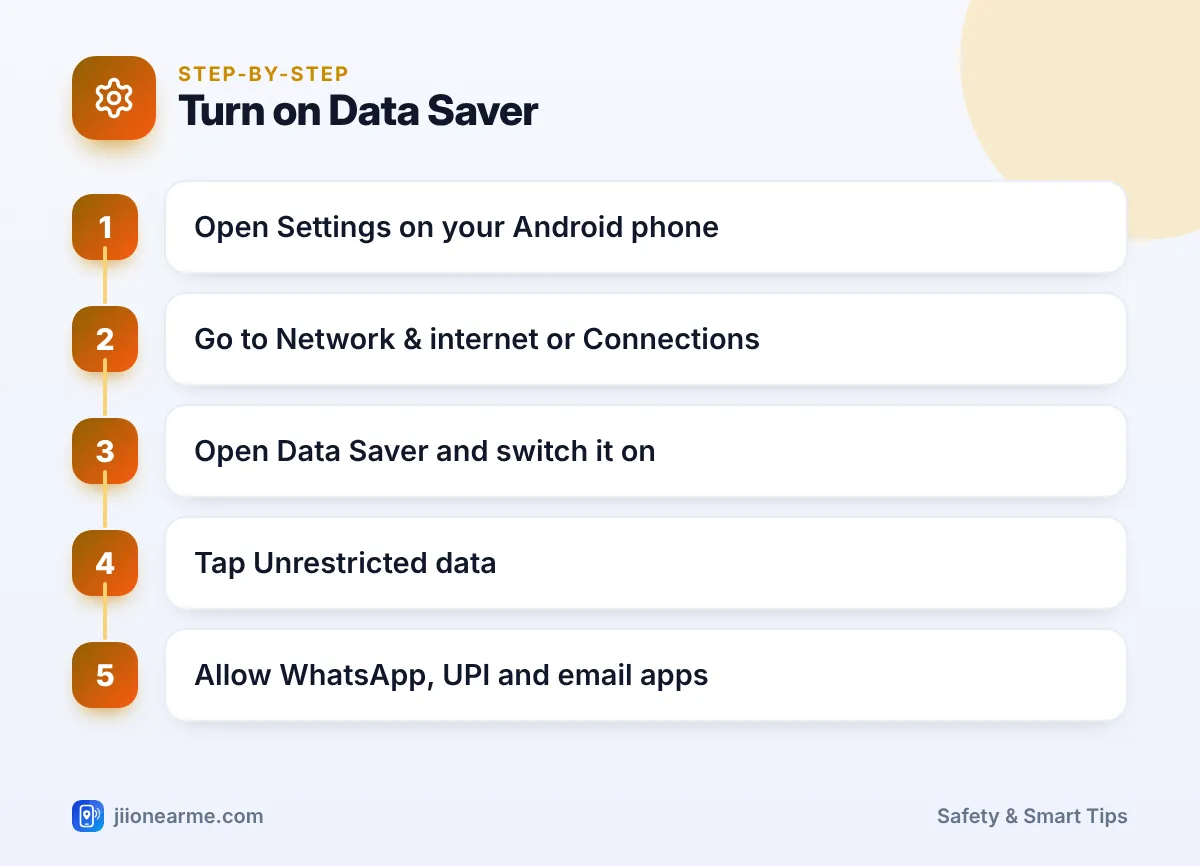
- Open Settings.
- Tap Network & internet.
- Tap Data Saver.
- Switch on Use Data Saver.
Samsung Galaxy phones
- Open Settings > Connections.
- Tap Data usage.
- Tap Data saver and switch it on.
Xiaomi, Redmi, POCO, Oppo, Realme, Vivo and OnePlus
Menus vary a lot between these brands. Look under Settings > Mobile network, SIM & mobile network or Connection & sharing, then Data usage. The quickest way is to type “Data Saver” in the search bar at the top of Settings.
Add a quick settings tile
Swipe down twice from the top of the screen, tap the edit (pencil) icon, and drag the Data Saver tile into your active tiles. You can then switch it on or off with one tap.
How to Allow Unrestricted Data for Important Apps
Once Data Saver is on, choose the apps that should keep working in the background.
- Go back to the Data Saver screen.
- Tap Unrestricted data. On Samsung, it may be called Allowed to use data while Data saver is on.
- Switch on the apps you need.
You can also do this from an app’s own page. Go to Settings > Apps, choose the app, open Mobile data & Wi-Fi (or Mobile data), and turn on Unrestricted data usage.
Apps that usually belong on this list:
- WhatsApp and other messaging apps, so messages and calls arrive on time.
- UPI and banking apps, so payment alerts and confirmations are not delayed.
- Email, if you need work mail during the day.
- Maps or ride apps, while you are travelling or waiting for a cab.
Keep the unrestricted list short. Every app you add can use data in the background again, which reduces the benefit of Data Saver. Video and social media apps are usually the ones to keep off it.
Other Android Settings That Help Save Mobile Data
Data Saver works best alongside a few other settings:
- Restrict background data for heavy apps. In Settings > Apps > choose the app > Mobile data, turn off Background data. This works even when Data Saver is off.
- Set a data warning. On many phones, open your SIM settings and look for Data warning & limit. Android counts usage in a monthly cycle, so treat this as a rough guide and use the MyJio app for your daily balance.
- Update apps over Wi-Fi only. In the Play Store, tap your profile picture > Settings > Network preferences > Auto-update apps, then choose Over Wi-Fi only.
- Control WhatsApp media. In WhatsApp, go to Settings > Storage and data and turn off auto-download on mobile data.
- Check automatic switching. Some phones switch to mobile data when Wi-Fi is weak. Look in your Wi-Fi settings for an option like Switch to mobile data and turn it off if you prefer.
Android brands rename menus often. If a setting is not where this guide says, search for it in Settings. The feature is usually there under a slightly different name.
When to Turn Data Saver Off
Data Saver is not something you need on all the time. Switch it off when:
- You need mobile hotspot. On most phones, Android does not allow hotspot or tethering while Data Saver is on.
- You are waiting for something important in an app that is not on your unrestricted list, such as a delivery update.
- You have plenty of data left close to your daily reset and want apps to sync normally. Unused daily data does not carry forward to the next day.
You can also leave it on and simply add apps to the unrestricted list as you notice delays.
Frequently Asked Questions
Does Data Saver work on Wi-Fi?
No, not on a normal Wi-Fi network. It applies to mobile data and to Wi-Fi networks you have marked as metered, such as a friend’s phone hotspot.
Will I still get WhatsApp messages with Data Saver on?
Messages may arrive late if WhatsApp is not on the unrestricted list. Add it to Unrestricted data and messages will arrive as usual.
Why can't I turn on my hotspot?
On most phones, Android blocks hotspot and tethering while Data Saver is active. Turn Data Saver off first, then switch on the hotspot.
Does Data Saver lower video quality?
Not directly. Video quality is set inside each app, so check the app’s settings for a data-saving or quality option if you want to reduce video data.
Does Data Saver help battery life?
It can help a little, because fewer apps are working in the background. For bigger battery savings, use Battery Saver as well.
Summary
Data Saver on Android is one of the simplest ways to stretch your daily data. Turn it on from Settings, add only your essential apps to the unrestricted list, and switch it off when you need hotspot. Keep an eye on your remaining data in the MyJio app to see how much it helps.
JIo Near me is an independent guide and is not affiliated with Reliance Jio. App menus, plans and policies can change – always confirm current details in the official MyJio app or on jio.com. We will never ask for your OTP, PIN or passwords.