Both Android and iPhone come with built-in tools that block spam calls without any extra app. On Android, the Phone app can identify likely spam, filter it and block numbers. On iPhone, you can block callers and use Silence Unknown Callers to stop unsaved numbers from ringing. Each setting has a trade-off, so it helps to know what it does before you switch it on.
This guide walks through each option, explains who it suits, and shows how to combine phone settings with DND and reporting for the best results.
- On Android, turn on caller ID and spam protection in the Phone app, and filter spam calls if you want them silenced.
- On both Android and iPhone, you can block a number straight from your recent calls.
- Silence Unknown Callers on iPhone stops calls from numbers you have not saved or called, but they still appear in Recents.
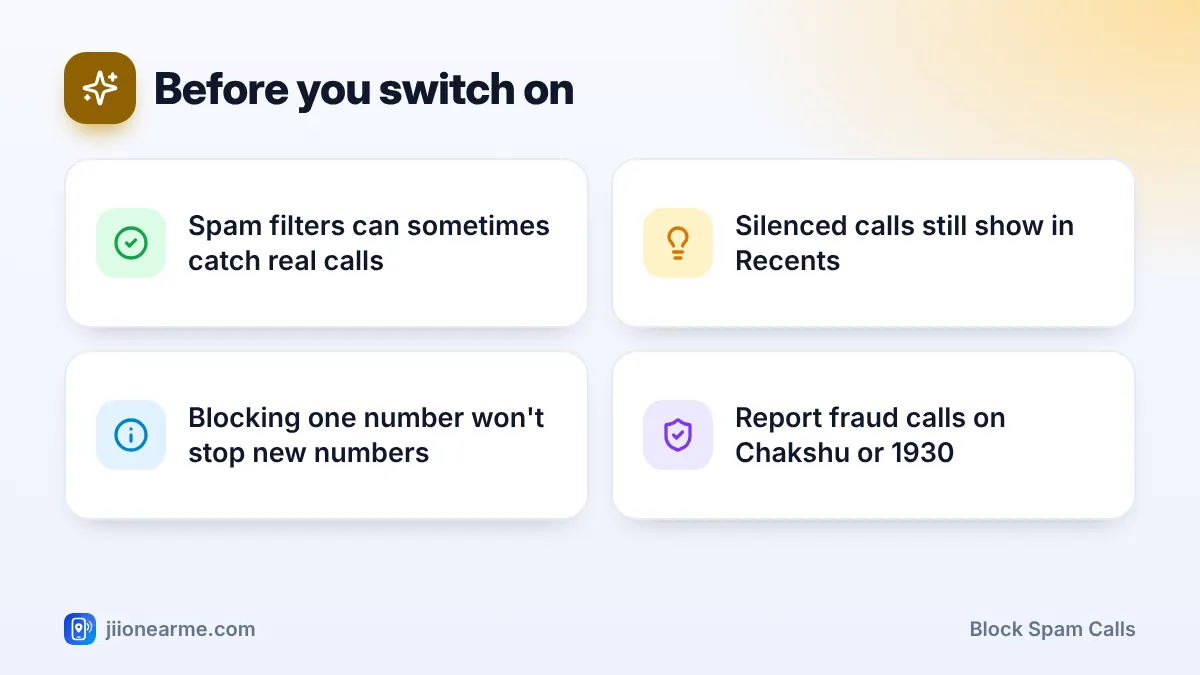
- Strong filters can also catch genuine calls, such as delivery agents or clinics.
- Phone settings work best together with DND and reports to TRAI.
What Built-In Spam Protection Can Do
Your phone can help in three ways:
- Identify: show a warning such as “Suspected spam” when a known spam number calls.
- Filter: stop suspected spam or unknown callers from ringing.
- Block: reject calls from specific numbers you choose.
None of these stop new numbers that are not yet flagged. Fraudsters and telemarketers often switch numbers, which is why DND and reporting matter too.
How to Block Spam Calls on Android
Menu names differ between brands and Android versions. The steps below follow the Google Phone app, with notes for Samsung.
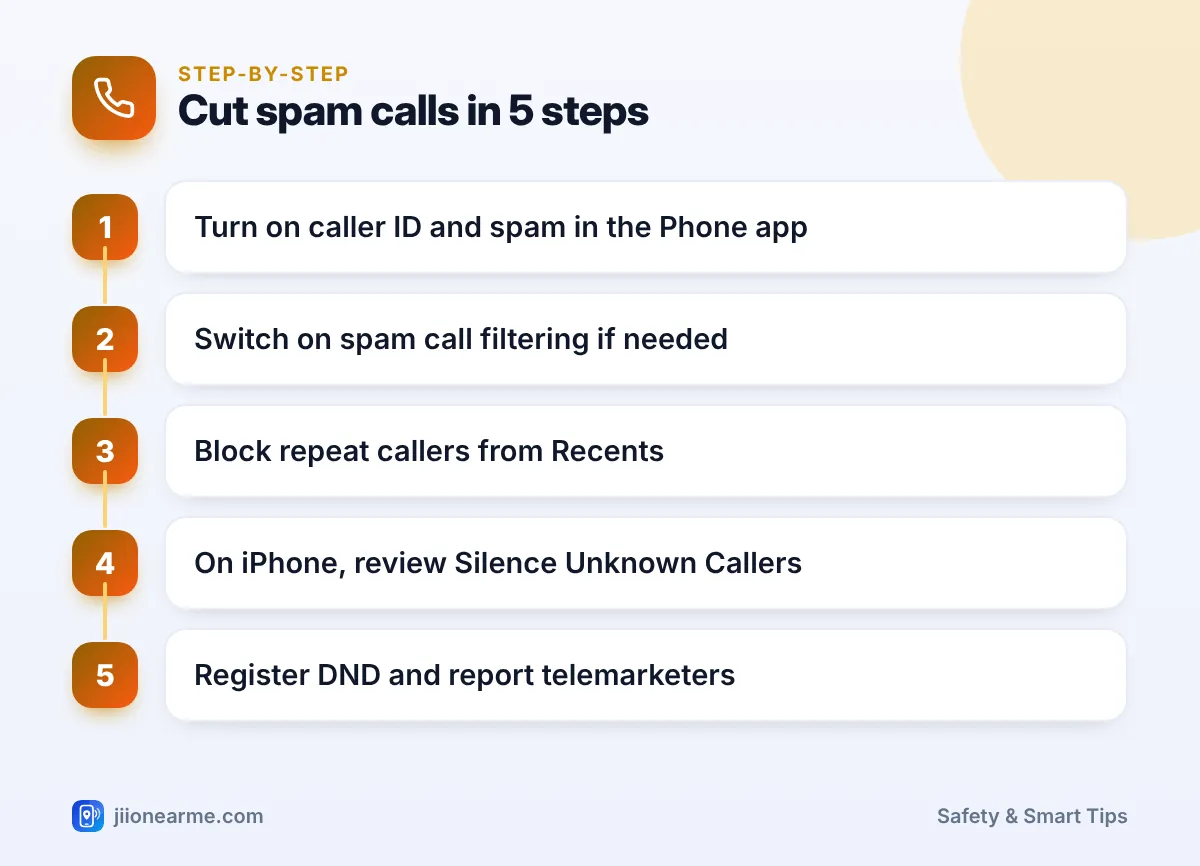
Turn on caller ID and spam protection
- Open the Phone app.
- Tap the three-dot menu (⋮) and choose Settings.
- Open Caller ID & spam or Spam and Call Screen, depending on your version.
- Turn on See caller and spam ID.
- If you want suspected spam to stop ringing, also turn on Filter spam calls.
With filtering on, suspected spam calls do not ring your phone, but you can still see them in your call history. To show caller and spam details, the Google Phone app shares information about your calls with Google.
On Samsung phones
In the Samsung Phone app, tap the three-dot menu (⋮), go to Settings, and look for Caller ID and spam protection. Options and the service behind them can vary by region and software version.
Block a specific number
- Open the Phone app and go to Recents.
- Tap or long-press the number you want to block.
- Choose Block or Block & report spam.
You can review blocked numbers under Settings > Blocked numbers. Many phones also offer a switch there for Unknown callers, which blocks calls from private or hidden numbers. It does not block ordinary numbers that are simply not in your contacts.
If a genuine number is marked as spam
Sometimes a real business, such as a clinic or courier, gets flagged by mistake. Open Recents, tap the number and choose Not spam if the option appears. Saving the number to your contacts also helps, because most phones let saved contacts ring even when spam filtering is on. The same tip works on iPhone, where saved contacts are never silenced by Silence Unknown Callers.
If you want only saved contacts to ring at certain times, use Android’s own Do Not Disturb mode with calls allowed from contacts or starred contacts. Schedule it for nights or meetings instead of keeping it on all day.
How to Block Spam Calls on iPhone
Use Silence Unknown Callers
- Open Settings.
- Tap Phone. On newer iOS versions, you may find it under Apps > Phone.
- Turn on Silence Unknown Callers.
Calls from numbers that are not in your Contacts, your recent outgoing calls or Siri Suggestions will not ring. They go to voicemail if it is set up, and appear in Recents so you can check them later.
Block a number
- Open the Phone app and tap Recents.
- Tap the info button (i) next to the number.
- Scroll down and tap Block this Caller, then confirm.
To review or remove blocked numbers, go to the Phone settings and open Blocked Contacts. Blocking a number on iPhone also stops its messages and FaceTime calls.
Newer iOS versions add more call screening options and may sort unknown and spam calls into separate lists in the Phone app. Availability can vary by region, language and iOS version.
Trade-Offs: Which Setting Should You Use?
| Setting | What it does | Trade-off | Best for |
|---|---|---|---|
| Caller ID and spam warning (Android) | Labels likely spam | Shares call details with the service provider | Almost everyone |
| Filter spam calls (Android) | Stops suspected spam from ringing | May hide a genuine call that was wrongly flagged | People with frequent spam |
| Block a number (both) | Rejects one specific number | Spammers simply use new numbers | Repeat callers |
| Silence Unknown Callers (iPhone) | Stops unsaved numbers from ringing | Delivery agents, cabs and doctors may not get through | People who mostly get calls from contacts |
If you are expecting a courier, a cab, a job interview call or a hospital update, strong filters can make you miss it. Turn them off for the day, or check Recents and call back known businesses through their official numbers.
Add Network-Level Protection With DND and Reporting
Phone settings handle calls after they reach you. These steps reduce how many calls arrive in the first place:
- Register DND on your Jio number through MyJio, by calling 1909 or using the TRAI DND app. This blocks promotional calls from registered telemarketers.
- Report persistent telemarketers through the TRAI DND app or by calling 1909, especially those using ordinary 10-digit numbers.
- Report fraud calls, such as fake KYC, threats or prize offers, through Chakshu on the Sanchar Saathi portal.
- Call 1930 immediately if you have lost money to a fraud call.
Frequently Asked Questions
Will a blocked caller know I blocked them?
Your phone does not send them any notice. However, they may notice that their calls never ring through or go straight to voicemail.
Does blocking a number also block its SMS?
On iPhone, blocking a number stops its calls, messages and FaceTime. On most Android phones, numbers blocked in the Phone app are also blocked in the messaging app, but this can vary by brand.
Can I block all calls from unsaved numbers on Android?
Not every Phone app offers this. You can get a similar effect by using Do Not Disturb mode and allowing calls only from contacts or starred contacts.
Do I still need DND if I use these settings?
Yes. Phone settings act on your handset, while DND tells registered telemarketers not to call you at all. Using both gives you better protection.
Summary
To block spam calls without extra apps, start with caller ID and spam protection on Android or Silence Unknown Callers on iPhone, then block repeat offenders from Recents. Keep the trade-offs in mind on days when you expect calls from unknown numbers. Register DND and report persistent callers so fewer spam calls reach you at all.
JIo Near me is an independent guide and is not affiliated with Reliance Jio. App menus, plans and policies can change – always confirm current details in the official MyJio app or on jio.com. We will never ask for your OTP, PIN or passwords.