Jio Wi-Fi Calling lets your Android phone make and receive normal calls over Wi-Fi when the mobile signal is weak. To turn it on, open your SIM or mobile network settings, select the Jio SIM and switch on Wi-Fi Calling (some phones call it VoWiFi). On Samsung phones, the switch usually sits inside the Phone app’s settings instead.
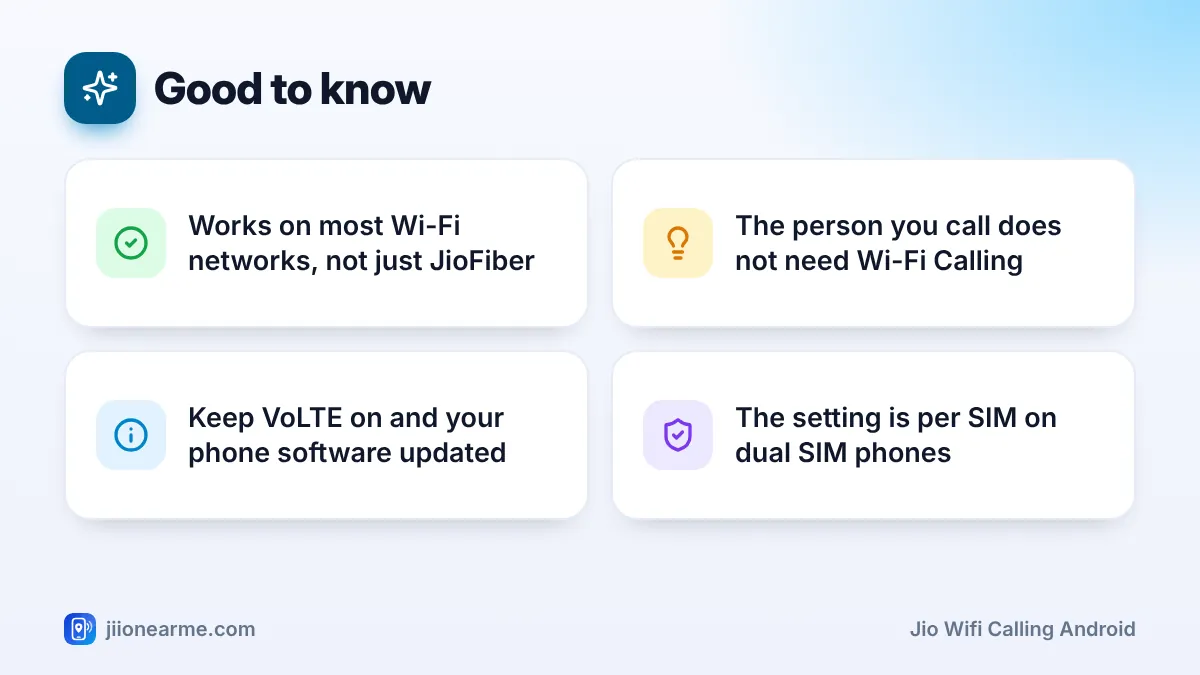
You do not need a separate app, and the person you call does not need Wi-Fi Calling. This guide shows where the setting lives on popular brands, what to check first, and how to confirm from the status bar that your calls are really going over Wi-Fi.
- Wi-Fi Calling is a setting on your phone, not an app. You turn it on separately for your Jio SIM.
- On most brands, look under Settings > SIM or Mobile network > Jio SIM. On Samsung, check the Phone app settings.
- Your phone needs current software, VoLTE switched on and a working Wi-Fi connection.
- When it is active, the status bar shows a phone-and-Wi-Fi icon, a VoWiFi label or a “Wi-Fi Calling” network name.
What You Need Before You Turn On Jio Wi-Fi Calling
Go through this short list first. If one item is missing, the switch may not appear, or it may appear but never activate.
- An active Jio plan. Wi-Fi Calling works on Jio prepaid and postpaid numbers with an active plan.
- A supported phone. Most recent Android phones from major brands support Jio Wi-Fi Calling. Jio keeps a list of supported devices on jio.com.
- The latest software. Wi-Fi Calling support often arrives through system updates, so install any pending update first.
- VoLTE switched on. Many phones show a VoLTE or 4G calling switch for each SIM. Keep it on for your Jio SIM.
- A working Wi-Fi connection. JioFiber, Jio AirFiber or another provider’s broadband all work. The Jio SIM must stay inside the phone.
A Wi-Fi call looks like a normal call to the other person. They see your Jio number, and the call uses your active plan’s calling benefits, just like a call over the mobile network.
How to Enable Jio Wi-Fi Calling on Android: Step-by-Step
The general method is the same on most Android phones. Only the menu names change between brands.
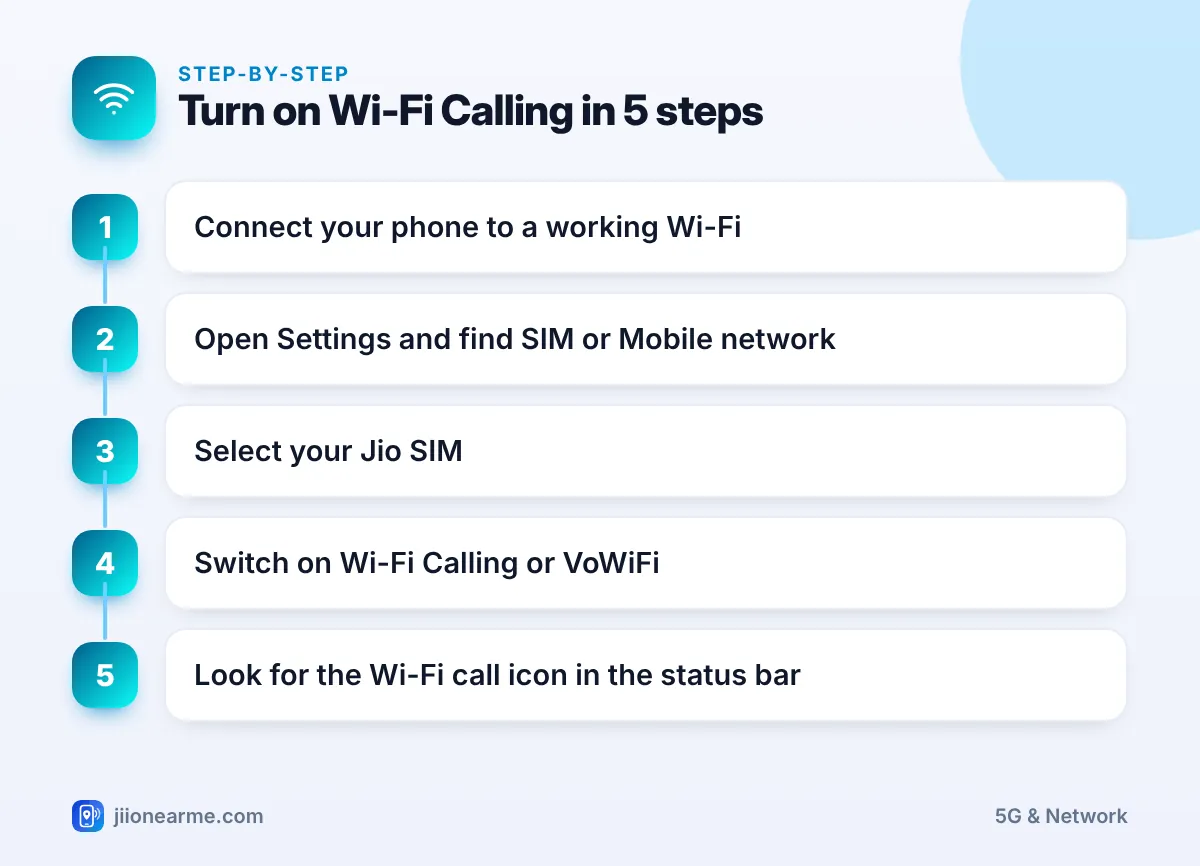
- Connect your phone to a Wi-Fi network that has working internet.
- Open Settings and tap Network & internet, Mobile network or SIM cards & mobile networks.
- Select your Jio SIM. Single SIM phones may skip this step.
- Find Wi-Fi Calling, VoWiFi or Make calls using Wi-Fi, and switch it on.
- If a Calling preference option appears, choose the one you want (explained below).
- Wait a minute or two, then check the status bar for the Wi-Fi Calling icon.
Open Settings, tap the search icon and type “Wi-Fi calling”. On most phones this takes you straight to the switch, which saves you hunting through menus that differ by brand and software version.
Where the Setting Sits on Popular Brands
| Brand | Typical path (labels can differ by software version) |
|---|---|
| Samsung Galaxy | Phone app > three dots (⋮) > Settings > Wi-Fi Calling |
| Google Pixel, Motorola | Settings > Network & internet > SIMs > Jio SIM > Wi-Fi calling |
| Xiaomi, Redmi, POCO | Settings > Mobile networks (or SIM cards & mobile networks) > Jio SIM > Wi-Fi calling |
| OnePlus, Oppo, Realme | Settings > Mobile network > Jio SIM > Wi-Fi calling |
| Vivo, iQOO | Settings > Mobile network > Jio SIM > Wi-Fi calling or VoWiFi |
Some Samsung models also offer a Wi-Fi Calling button in the quick settings panel. If you do not see it, edit the panel and add it.
Choosing a Calling Preference
Some phones let you pick how the phone decides between Wi-Fi and the mobile network:
- Wi-Fi preferred: The phone uses Wi-Fi for calls whenever a usable Wi-Fi connection is available. This is the best choice if your home or office has weak mobile signal.
- Mobile network preferred (or Cellular preferred): The phone uses the mobile network first and moves to Wi-Fi only when the signal is poor or missing.
If you see no preference option, that is normal. The phone decides on its own.
Dual SIM Phones: Make Sure It Is On for the Jio SIM
On dual SIM Android phones, Wi-Fi Calling is a separate setting for each SIM. Turning it on for one SIM does not turn it on for the other.
- Open your SIM settings and tap the Jio SIM by name or slot number.
- Switch on Wi-Fi Calling inside that SIM’s page.
- If you want it on your second SIM too, open that SIM’s page and check whether its operator supports the feature.
Some phones allow Wi-Fi Calling on only one SIM at a time, or only on the SIM set for mobile data. If the switch is greyed out for Jio, try making Jio the mobile data SIM and check again.
How to Confirm Wi-Fi Calling Is Active
Turning on the switch is not proof that it works. The status bar tells you whether your Jio SIM has actually registered for Wi-Fi Calling.
- Status bar icon: Look for a phone handset with Wi-Fi waves, or a small VoWiFi label near the signal bars.
- Network name: Pull down the notification panel. On many phones, the Jio network name changes to something like “Jio Wi-Fi Calling”.
- During a call: Some phones show a Wi-Fi symbol on the call screen or next to the call in the call log.
The icon can take a few minutes to appear the first time. If it does not show, turn Wi-Fi off and on, or restart the phone.
If you chose “Mobile network preferred”, the phone may keep using VoLTE while your mobile signal is good. The Wi-Fi Calling icon then appears only when the signal drops. This does not mean the feature is broken.
Jio Wi-Fi Calling Not Working? Quick Fixes
Try these one at a time and check the status bar after each step:
- Update your phone. Install any system update from Settings, then restart.
- Check VoLTE. Make sure VoLTE or 4G calling is on for the Jio SIM.
- Switch the feature off and on. Turn Wi-Fi Calling off, wait 30 seconds, then turn it on again.
- Restart your router. A Wi-Fi network with no working internet cannot carry calls.
- Try a different Wi-Fi network. Some office, hotel and public networks block the type of connection Wi-Fi Calling needs.
- Reset network settings. This option sits under Reset options in Settings. It removes saved Wi-Fi passwords and Bluetooth pairings, so note them first.
If nothing works and your phone is on Jio’s supported list, call Jio customer care on 199 from your Jio number for queries, or 198 to register a complaint. You can also use the toll-free number 1800-889-9999.
Frequently Asked Questions
Does Jio Wi-Fi Calling use my mobile data?
No. A Wi-Fi call runs over your Wi-Fi connection, not your mobile data pack. Voice calls use only a small amount of Wi-Fi data.
Is there a separate pack or charge for Wi-Fi Calling?
There is no separate Wi-Fi Calling pack. Calls use your active plan’s calling benefits in the same way as normal calls. For current plan terms, check the MyJio app or jio.com.
Can I use Jio Wi-Fi Calling on a non-Jio Wi-Fi network?
Yes. Jio Wi-Fi Calling works on most Wi-Fi networks, including broadband from other providers. A few office or public networks block it, so try another network if it fails in one place.
What happens if I walk out of Wi-Fi range during a call?
On supported phones, the call can usually move to the mobile network if a signal is available. If the mobile signal is also very weak, the call may drop.
Should I keep Wi-Fi Calling on all the time?
Yes, for most people. It stays in the background and only matters when you are on Wi-Fi, so it is a useful backup at home or in offices with poor signal.
Wrapping Up
For most Android users, enabling Jio Wi-Fi Calling takes under a minute. Open the SIM settings (or the Phone app settings on Samsung), turn on Wi-Fi Calling for the Jio SIM, and confirm the icon in the status bar. If the switch is missing, update your phone, keep VoLTE on and try another Wi-Fi network before you contact customer care.
JIo Near me is an independent guide and is not affiliated with Reliance Jio. App menus, plans and policies can change – always confirm current details in the official MyJio app or on jio.com. We will never ask for your OTP, PIN or passwords.
