For a device that stays in one place, a LAN cable beats Wi-Fi almost every time on JioFiber. A wired connection gives steadier speed and lower, more consistent ping, because it is not affected by walls, distance or the many neighbouring Wi-Fi networks around you. Wi-Fi wins on convenience and is perfectly good for phones, tablets and everyday browsing.
So the real question is not which one is better overall, but which one suits each device. This comparison covers desktops, smart TVs, consoles and work laptops, and helps you decide when running a cable is worth the effort.
- A LAN cable gives the most stable speed and lowest ping, especially for gaming and video calls.
- Modern 5 GHz Wi-Fi close to the router is fast enough for most everyday use.
- Fixed devices near the router, like PCs, TVs and consoles, benefit most from a cable.
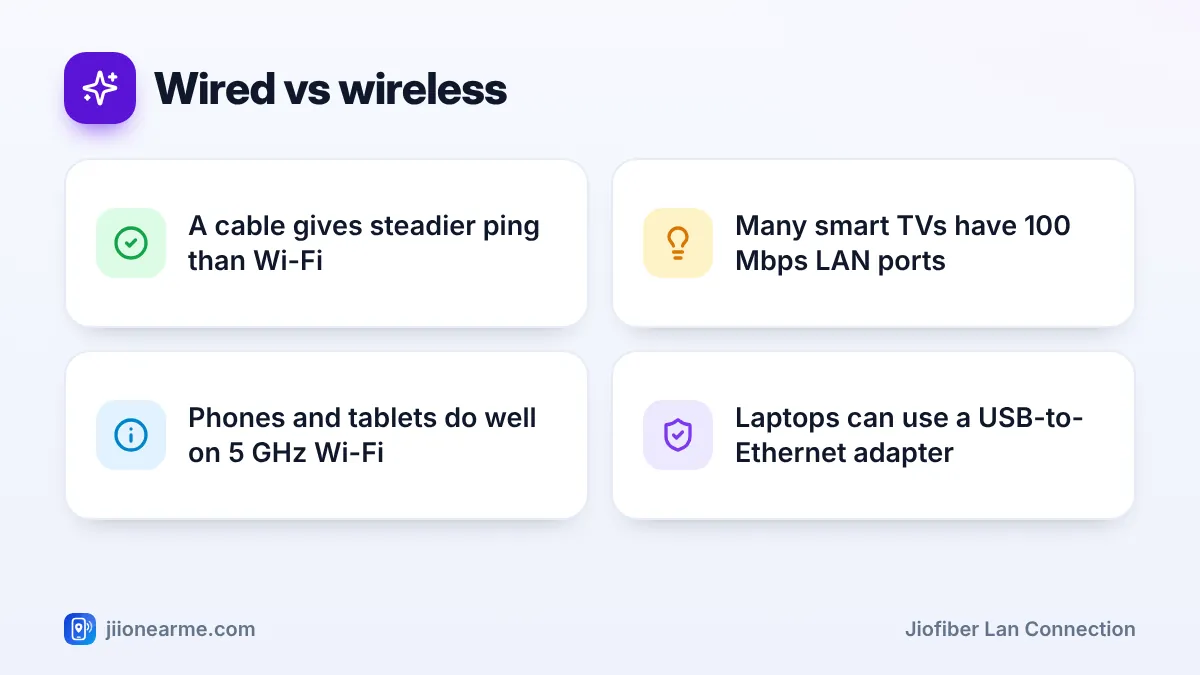
- Laptops without an Ethernet port can use a USB-to-Ethernet adapter.
How Wired and Wireless Connections Differ
Both connections reach the same JioFiber router. The difference is the last few metres between the router and your device.
Speed. Wi-Fi speed drops with distance, walls and floors, and depends on the device’s Wi-Fi standard. A cable delivers close to the full speed of the device’s network port, whether you sit next to the router or three rooms away.
Stability. Wi-Fi shares the air with every other network nearby. In apartment buildings, dozens of networks may overlap, especially on 2.4 GHz. Microwaves and Bluetooth devices can add interference too. A cable avoids all of this.
Latency and jitter. Latency, or ping, is how quickly data travels to a server and back. Jitter is how much that time jumps around. Wired connections usually keep both low and steady, while Wi-Fi can show sudden spikes.
Convenience. Wi-Fi needs only a password. A cable needs a route through your home and a free port on the router.
| Factor | LAN cable | Wi-Fi |
|---|---|---|
| Speed consistency | Steady at any distance | Varies with distance and walls |
| Ping and jitter | Low and stable | Can spike under interference |
| Neighbouring networks | No effect | Can slow you down |
| Freedom to move | Fixed spot only | Move anywhere in range |
| Setup effort | Cable routing needed | Password only |
| Suitable devices | PCs, TVs, consoles, laptops with a port | Almost everything, including phones |
Device-by-Device: Which Connection to Use
Desktop PCs
A desktop does not move, so a cable is the natural choice. Most desktops have a built-in Ethernet port. If the router is in another room, a long cable along the skirting is often neater than you would expect.
Smart TVs and the Set-Top Box
Many smart TVs have a 100 Mbps Ethernet port, while their Wi-Fi may be capable of more. That sounds like a reason to skip the cable, but 100 Mbps is still plenty for 4K streaming. The cable’s real benefit is fewer buffering pauses. If your JioFiber Set-Top Box has an Ethernet port and sits near the router, wiring it is also the steadier option.
Gaming consoles
For online games, steady ping matters more than raw speed. A cable is the single biggest improvement most players can make. Large game downloads also finish faster over a wired link.
Work laptops
Video calls, VPN connections and large file uploads all benefit from a cable. Many slim laptops have no Ethernet port, but a USB-C or USB-to-Ethernet adapter, or a docking station, solves this. On a laptop you carry around, plug in at your work desk and use Wi-Fi elsewhere.
Phones and tablets
These have no Ethernet port, so Wi-Fi is the only option. Use the 5 GHz band when you are close to the router for the best speed.
When a JioFiber LAN Connection Is Worth It
Running a cable makes the most sense when:
- The device is fixed in place and within reasonable reach of the router.
- You game online, take important video calls or work from home every day.
- You upload or download large files regularly.
- A TV keeps buffering on Wi-Fi even after you move the router or switch bands.
- Wi-Fi speed tests in that spot are much lower than tests next to the router.
It may not be worth it for phones, occasional browsing, or devices far away in a rented flat where you cannot drill. In those cases, consider flat cables along the skirting, a wired access point in a central spot, or a mesh system.
How to Connect a Device to JioFiber by Cable
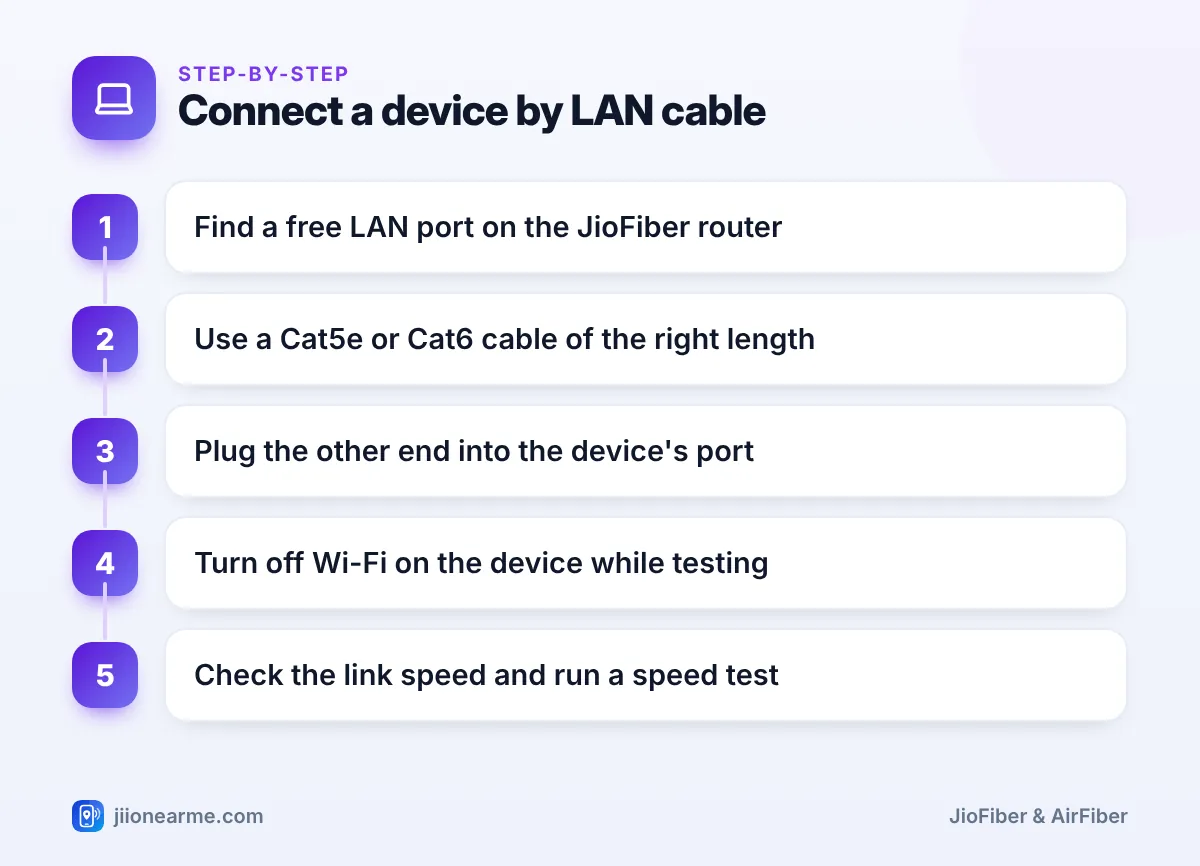
- Look at the back of the JioFiber router and find a free LAN or Ethernet port. Do not use the phone port meant for the landline.
- Use a Cat5e or Cat6 cable. Measure the route first and add a little extra length.
- Plug the other end into your device’s Ethernet port or adapter. It usually connects on its own within a few seconds.
- On a laptop, turn off Wi-Fi briefly so your test uses only the cable.
- Check the link speed. On Windows, open Settings, go to Network & internet and then Ethernet. On a Mac, check Network in System Settings. Labels vary by version.
- Run a speed test and compare it with a Wi-Fi test from the same spot.
If the link speed shows 100 Mbps on a device that has a gigabit port, try a different cable or another router port. An old Cat5 cable or a damaged one is a common reason for this hidden speed cap.
Modern 5 GHz Wi-Fi near the router can be very fast. The cable’s main advantage is consistency. If your device already performs well on Wi-Fi, you do not need to rewire your home.
Never pull or bend the thin fibre cable that runs into the JioFiber router while adding LAN cables. Keep LAN cables away from walkways where people can trip, and do not staple through them.
Frequently Asked Questions
Is Ethernet faster than Wi-Fi on JioFiber?
Usually, yes, especially away from the router. Near the router on 5 GHz, Wi-Fi can come close, but a cable stays more consistent.
Does a LAN cable reduce ping?
A cable typically gives lower and steadier ping within your home, because it removes Wi-Fi interference. It cannot shorten the distance to a far-away game or website server.
How many devices can I connect by cable to JioFiber?
That depends on how many LAN ports your router has. If you need more, a simple network switch adds extra ports.
Can I use a LAN cable with Jio AirFiber?
Yes, if your AirFiber indoor unit has Ethernet ports. Check the back of the unit for LAN ports.
My laptop has no Ethernet port. What can I do?
Use a USB-C or USB-to-Ethernet adapter, or a docking station with an Ethernet port. Most work without extra setup.
Conclusion
Use a JioFiber LAN connection for fixed devices that need stability, such as desktops, consoles, TVs and work laptops at a desk. Keep phones, tablets and casual devices on 5 GHz Wi-Fi. Check the link speed after connecting, and you will get the most consistent performance from your connection.
JIo Near me is an independent guide and is not affiliated with Reliance Jio. App menus, plans and policies can change – always confirm current details in the official MyJio app or on jio.com. We will never ask for your OTP, PIN or passwords.
