Most junk texts can be kept out of your main inbox with settings already on your phone. On Android, spam protection in your messaging app moves suspected spam to a separate folder. On iPhone, Filter Unknown Senders puts texts from people you don’t know in their own list. Both platforms also let you block and report a sender in a few taps.
This guide shows where to find these settings, how to block and report senders, and what to do with scam texts that need more than a quick delete.
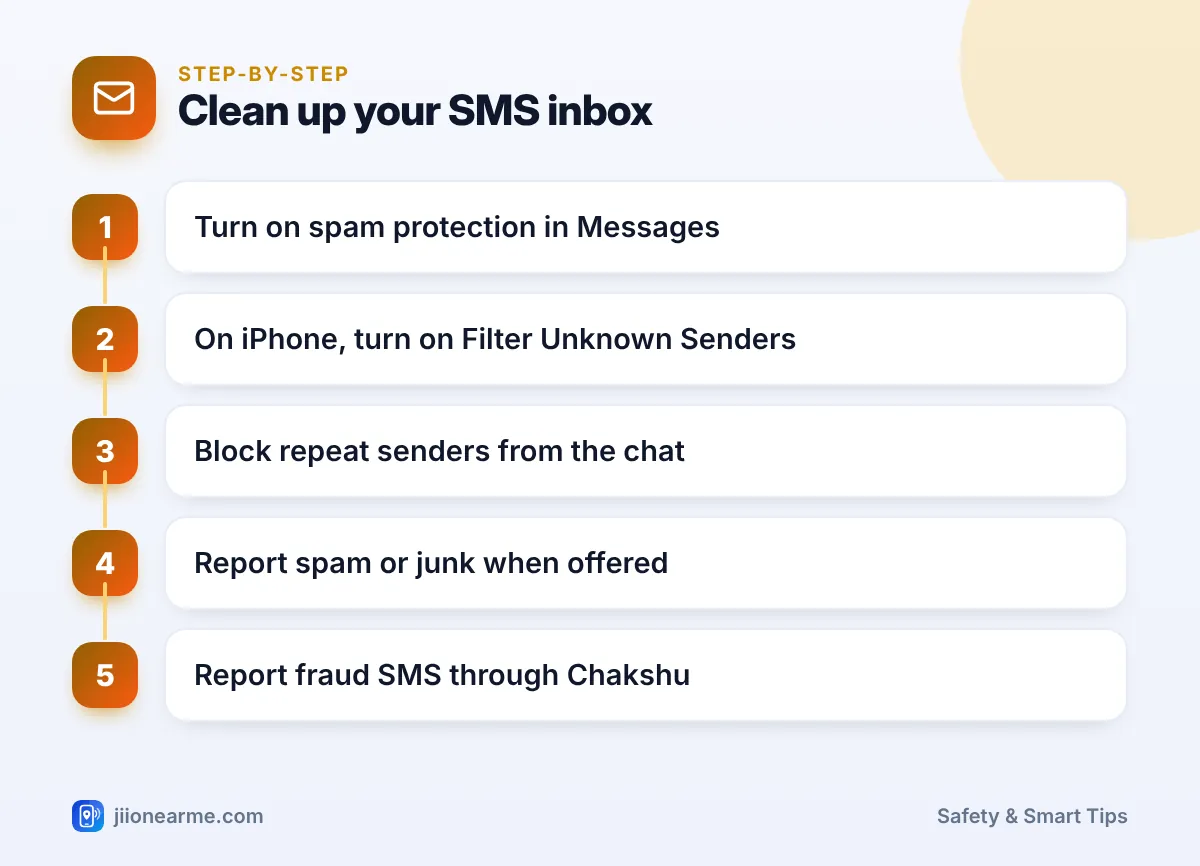
- In Google Messages, turn on spam protection so suspected spam goes to the Spam & blocked folder.
- Samsung Messages has its own block and spam settings, including blocking by phrase.
- On iPhone, Filter Unknown Senders separates texts from numbers that are not in your contacts.
- Block a sender from inside the conversation, and report it as spam or junk if offered.
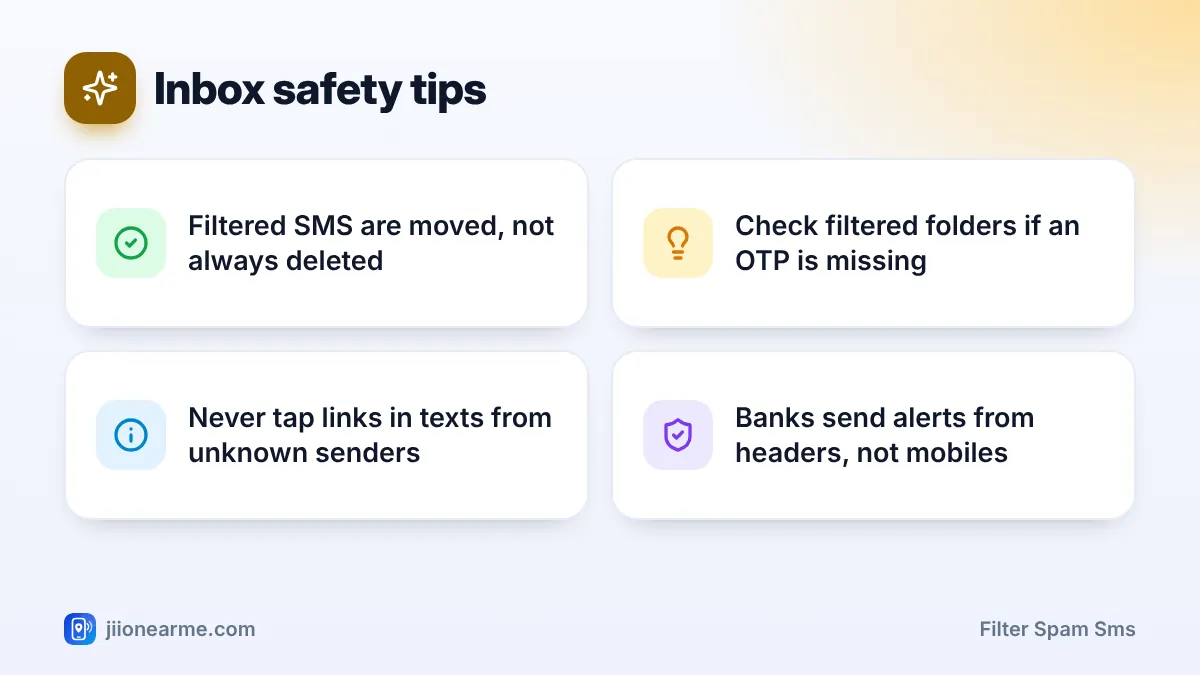
- Check filtered folders now and then so you don’t miss a genuine message.
Why It Helps to Filter Spam SMS
Spam SMS is not only annoying. Scam texts about fake KYC updates, electricity disconnection, parcel problems or prize money often carry harmful links. When they sit next to your bank alerts, it is easy to tap the wrong one.
Filtering does two things. It keeps your main inbox focused on messages that matter, and it puts suspicious texts in a separate place where you are less likely to act on them in a hurry.
Common scam texts to watch for
- “Your electricity will be disconnected tonight, call this officer.”
- “Your parcel is on hold, update your address using this link.”
- “Your KYC has expired and your account will be blocked.”
- “Your reward points expire today, redeem them now.”
- “Earn daily from home by liking videos.”
Genuine banks, power companies and couriers do not send urgent warnings from personal mobile numbers or ask you to call a private number.
How to Filter Spam SMS on Android
Android phones use different messaging apps. Many come with Google Messages, while Samsung phones often use Samsung Messages. Labels vary by version, so look for similar wording.
Google Messages
- Open Messages.
- Tap your profile picture or the menu, then choose Messages settings or Settings.
- Open Spam protection.
- Turn on Enable spam protection.
Suspected spam now goes to a separate folder. To see it, open the menu and tap Spam & blocked. If a genuine message lands there by mistake, open it and mark it as Not spam.
In India, Google Messages may also sort texts into tabs such as personal, transactions, OTPs and offers. This keeps promotional texts away from your personal chats even when they are not spam.
Samsung Messages
- Open Messages.
- Tap the three-dot menu (⋮) and choose Settings.
- Open Block numbers and spam, or a similar option.
- Use Block numbers to add senders, and Block phrases to filter texts containing words such as a scam keyword you keep seeing.
- Turn on spam protection here if your phone offers it.
Use phrase blocking carefully. Blocking a common word like “bank” or “OTP” could hide genuine alerts. Pick specific phrases that only appear in the junk you receive.
How to Filter Unknown SMS on iPhone
- Open Settings.
- Tap Messages. On newer iOS versions, it may be under Apps > Messages.
- Look for Unknown & Spam or Message Filtering.
- Turn on Filter Unknown Senders.
The Messages app now separates texts from numbers that are not in your contacts and that you have not replied to. Tap Filters or the list menu at the top of Messages to switch between known and unknown senders. Notifications for unknown senders are usually turned off, so check that list from time to time. Save people you text often, such as your child’s school teacher or your building guard, to Contacts so their messages stay in the main list.
If you have enabled an SMS filter app from the App Store, you may also see categories such as transactions and promotions. Newer iOS versions can add separate lists for spam and unknown senders.
How to Block and Report a Sender
On Android
- Open the conversation.
- Tap the three-dot menu (⋮) and choose Details, or long-press the conversation in your inbox.
- Tap Block & report spam or Block.
- Choose whether to report it as spam, if asked, and confirm.
On iPhone
- Open the conversation.
- Tap the sender’s number or name at the top, then tap Info.
- Scroll down and tap Block this Caller.
- For some messages from unknown senders, you will also see a Report Junk option below the message. Use it if available.
On some phones, you may not be able to block alphanumeric sender names used by businesses. For promotional texts from registered businesses, DND and reporting work better than blocking.
Never reply “STOP” or tap an unsubscribe link in a text from an unknown number or a suspicious sender. It can confirm that your number is active and lead to more scams. Use opt-out options only from businesses you know.
Report Spam SMS Beyond Your Phone
Blocking protects only your phone. Reporting helps stop the sender. Use the right channel:
| Type of message | What to do |
|---|---|
| Promotional SMS despite your DND preference | Report through the TRAI DND app or 1909 |
| Sales offers from a 10-digit mobile number | Report through the TRAI DND app or 1909 |
| Fake KYC, prize, bill or parcel scam | Report on Chakshu at the Sanchar Saathi portal |
| You clicked a link and lost money | Call 1930 and your bank right away |
To cut down promotional texts at the source, set DND on your Jio number through MyJio, by calling 1909 or with the TRAI DND app.
Frequently Asked Questions
Will filtering hide my OTPs?
OTPs from registered senders usually arrive normally, and Google Messages may even sort them into their own tab. If an expected OTP does not appear, check the spam or unknown senders folder.
Does deleting a spam SMS report it?
No. Deleting only removes it from your phone. Use the block and report option, the TRAI DND app or Chakshu to report it.
Can I filter SMS from businesses I don't want to hear from?
You can block many senders, but blocking business names is not supported on every phone. Setting DND and withdrawing consent with that business usually works better.
Do these settings filter WhatsApp messages too?
No. These settings work only in your SMS app. WhatsApp has its own block and report options inside each chat.
Conclusion
A cleaner inbox is also a safer one. Switch on spam protection on Android or Filter Unknown Senders on iPhone, block senders who keep coming back, and check your filtered folders now and then. Report scam texts through Chakshu, and set DND so fewer promotional messages reach you at all.
JIo Near me is an independent guide and is not affiliated with Reliance Jio. App menus, plans and policies can change – always confirm current details in the official MyJio app or on jio.com. We will never ask for your OTP, PIN or passwords.