Holding down one key on your JioPhone lets you call, text, search and open apps just by speaking. On most models, you press and hold the centre key on the home screen to start Google Assistant, wait for the listening screen, then say a command such as “Call Papa” or “Open YouTube”. It works in English and Hindi, and it needs an internet connection.
This guide is for keypad JioPhone models that run KaiOS, such as the JioPhone and JioPhone 2. Some models may have a separate microphone or Assistant key, and menu labels can change between software versions. If something looks different on your phone, look for the closest match.
- Press and hold the centre key on the home screen to start Google Assistant on most models.
- Simple commands like “Call Ravi”, “Send a message to Mummy” and “Open WhatsApp” work well.
- You can speak in Hindi after setting Hindi as the Assistant’s language.
- Assistant needs mobile data or Wi-Fi, and it never needs your OTPs or PINs.
How to Launch Google Assistant on JioPhone
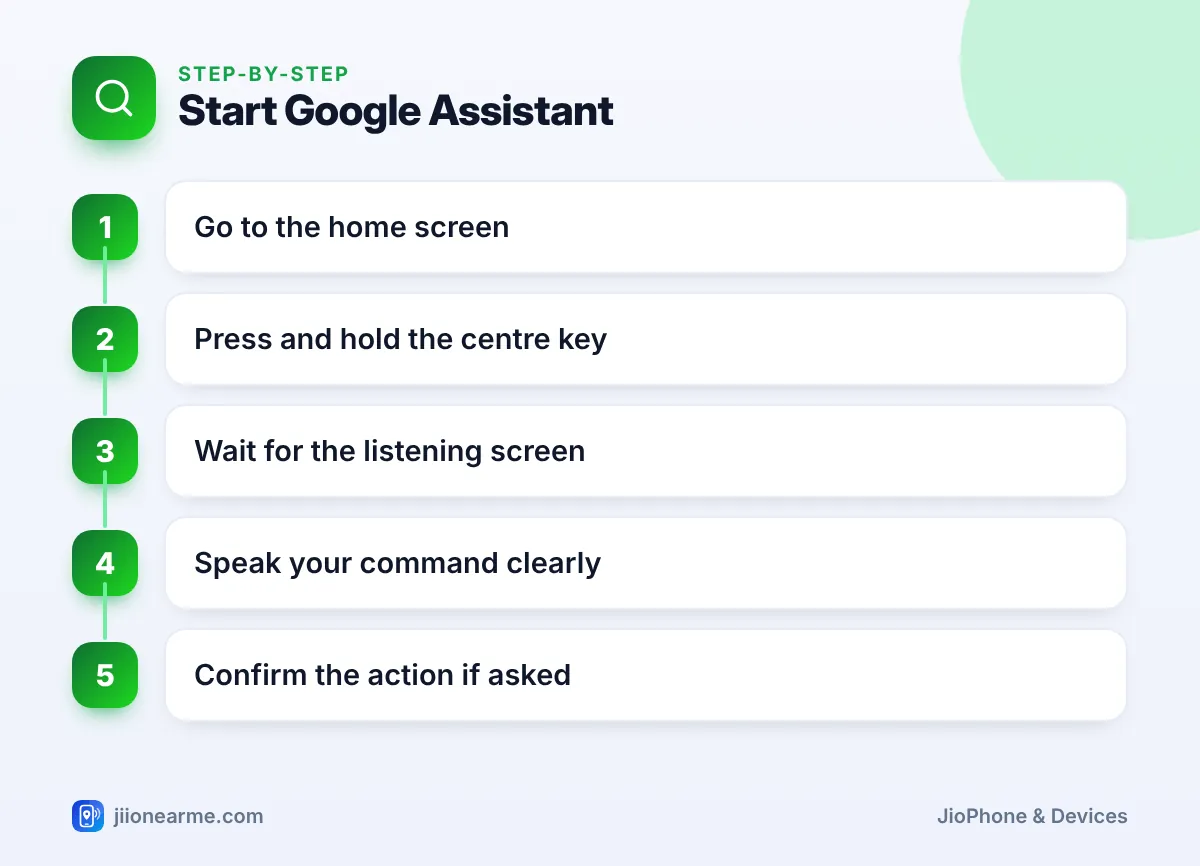
- Go to the home screen. Press the Back or End key a few times if you are inside an app.
- Press and hold the centre key (the button in the middle of the navigation key) for a second or two.
- Wait for the Google Assistant screen to show that it is listening.
- Speak your command clearly, at a normal pace.
- If Assistant asks you to confirm, such as before sending a message, press the soft key shown on screen or say “Yes”.
First-time setup
The first time you open Assistant, it may ask for permission to use the microphone, and on some versions to read contacts. Allow both, because Assistant needs the microphone to hear you and contacts to place calls by name. It may also ask you to pick a language.
Google Assistant processes your voice over the internet. Turn on mobile data or connect to Wi-Fi before using it. Without a connection, it will show an error instead of carrying out the command.
Everyday Voice Commands in English
You don’t need special words. Speak the way you would ask a person. These commands are a good starting point:
| What you want | What to say |
|---|---|
| Make a call | “Call Ravi” |
| Send an SMS | “Send a message to Mummy”, then say your message |
| Open an app | “Open WhatsApp” or “Open YouTube” |
| Ask a question | “What is the capital of Assam?” |
| Check the weather | “What’s the weather in Lucknow today?” |
| Do quick maths | “What is 15 percent of 2,400?” |
| Translate a phrase | “How do you say thank you in Tamil?” |
On many versions, Assistant can also change some phone settings, such as turning Wi-Fi or Bluetooth on or off. If a command does not work, it may show web search results instead, which simply means that action is not supported on your version.
Sending a message by voice
Say “Send a message to” followed by the contact’s name. Assistant then asks what you want to say. Speak your message, check the text on screen, and confirm before it is sent. Read it carefully, because Assistant can mishear names and numbers.
What Assistant Can and Cannot Do on a Keypad Phone
Google Assistant on a keypad JioPhone is a lighter version of what you may have seen on smartphones. It is built for quick, everyday jobs rather than long conversations.
It works best for:
- Calling and messaging people saved in your contacts.
- Opening apps installed on the phone.
- Quick answers, such as facts, spellings, meanings and simple calculations.
- Local questions like the weather in your city.
Short answers usually appear on screen and are often read aloud too. For more detailed questions, Assistant may show a list of web results that you can open in the browser. Commands that need deep control inside other apps, or features only found on smartphones, may not work at all. If a command fails, try saying it in a simpler way, or do the task with the keypad.
Using Google Assistant on JioPhone in Hindi
Once Hindi is set as the Assistant’s language, you can speak naturally in Hindi or in a mix of Hindi and English.
- “Ravi ko call karo” (रवि को कॉल करो)
- “Mummy ko message bhejo” (मम्मी को मैसेज भेजो)
- “YouTube kholo” (यूट्यूब खोलो)
- “Aaj mausam kaisa hai?” (आज मौसम कैसा है?)
- “Delhi se Agra kitni door hai?” (दिल्ली से आगरा कितनी दूर है?)
Hindi voice commands are especially useful for family members who find typing on a keypad difficult. A single key press and a spoken sentence replaces several minutes of typing.
Changing Google Assistant’s Language
The Assistant’s language is separate from your phone’s display language.
- Start Google Assistant by holding the centre key.
- Press the soft key for Options or Settings shown on the Assistant screen.
- Select Language.
- Choose the language you want, such as English or हिन्दी (Hindi). Other Indian languages may also appear, depending on your version.
- Go back and try a command in the new language.
If you don’t see a language option inside Assistant, check for a phone software update in the Device tab of Settings, then look again.
Tips for Better Voice Command Results
- Find a quiet spot. Background noise from a TV or traffic makes mistakes more likely.
- Hold the phone near your mouth. Speak towards the microphone at the bottom of the phone.
- Save contacts with clear names. “Ravi Office” works better than a nickname with symbols. If two contacts have similar names, Assistant may ask you to choose.
- Wait for the listening screen. Starting to speak too early cuts off the first word.
- Check before confirming. Look at the name and message on screen before you let Assistant send anything.
Never speak OTPs, ATM PINs, UPI PINs or passwords to Google Assistant, and never share them with anyone who calls claiming to be from Google or Jio. Assistant does not need any of these to work.

Frequently Asked Questions
Why is Google Assistant not responding on my JioPhone?
Check that mobile data or Wi-Fi is on and that your plan has data left. Make sure microphone permission is allowed, then restart the phone. If it still fails, check for a software update.
Does Google Assistant work without internet on JioPhone?
No. Assistant sends your voice over the internet to understand it, so it needs mobile data or Wi-Fi.
Why does Assistant call the wrong person?
This usually happens when contact names sound alike. Give contacts clear, different names, such as adding a surname or a word like “Office” or “Home”.
Does Google Assistant use a lot of data?
Each voice command uses only a small amount of data compared with watching videos. Opening web results or videos from Assistant uses more, so keep an eye on your balance in the MyJio app.
Can I use Google Assistant in languages other than Hindi and English?
Assistant supports several Indian languages, but the list on a JioPhone depends on your software version. Check the Language option in Assistant’s settings to see what is available.
Conclusion
Google Assistant turns your JioPhone’s centre key into a shortcut for calls, messages, apps and quick answers. Start with simple commands in English or Hindi, keep your contact names clear, and always check before confirming a message. With a few days of practice, speaking to your phone can become faster than typing.
JIo Near me is an independent guide and is not affiliated with Reliance Jio. App menus, plans and policies can change – always confirm current details in the official MyJio app or on jio.com. We will never ask for your OTP, PIN or passwords.