Many keypad JioPhone models have offered WhatsApp through JioStore, the app store built into the phone. Where it is still available for your model, you install it from JioStore, verify your mobile number with a code sent by SMS and set up a short profile. With a working internet connection, the whole process takes only a few minutes.
This guide is written for the JioPhone and JioPhone 2, which run KaiOS. WhatsApp on a keypad phone is simpler than the smartphone version, and some features may be missing or arranged differently. WhatsApp also updates its list of supported phones from time to time, so if you cannot find it in JioStore, your model or software version may not be supported.
- Install WhatsApp only from JioStore, the phone’s official app store.
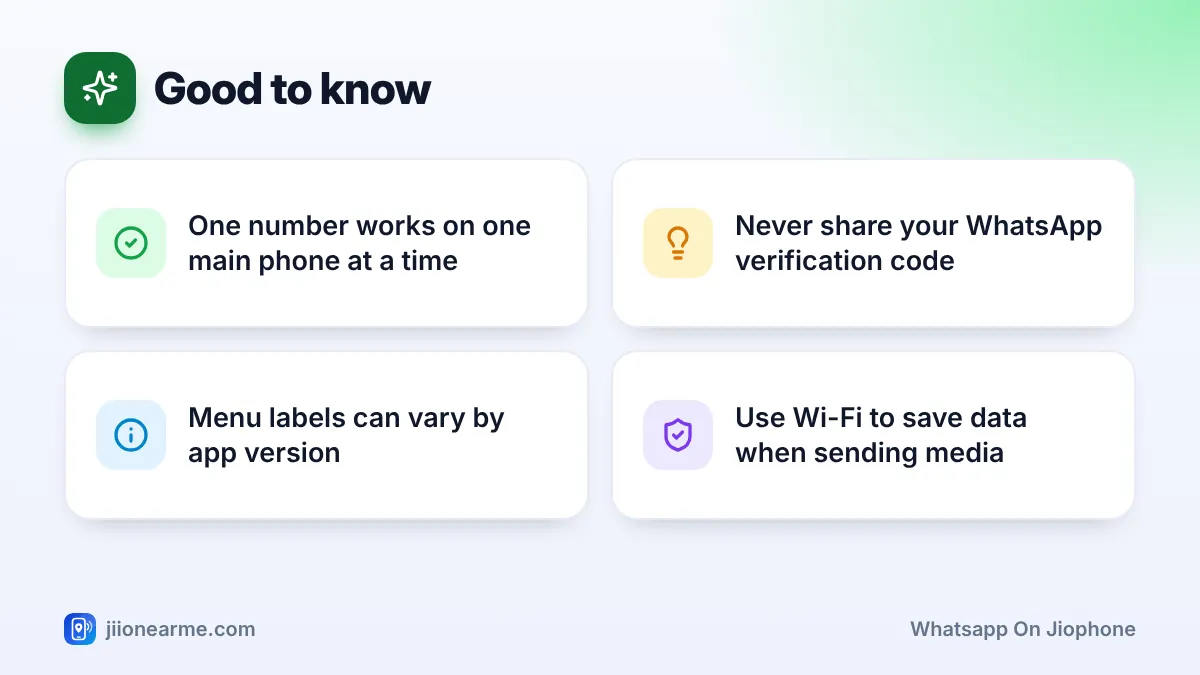
- Verify with the 6-digit code sent to your number, and never share that code with anyone.
- Registering WhatsApp on the JioPhone signs your number out of WhatsApp on any other phone.
- The navigation key, centre key and soft keys do everything a touchscreen would.
WhatsApp has been reported to be ending support for older KaiOS phones, and support can differ by model and software version. If WhatsApp does not appear in JioStore or stops working after an update, your phone may no longer be supported. In that case, a JioPhone Next or any Android smartphone is the reliable way to keep using WhatsApp.
Before You Install WhatsApp on JioPhone
A few quick checks save trouble later:
- Internet: turn on mobile data or connect to Wi-Fi. JioStore and WhatsApp both need the internet.
- Software version: an old software version can stop apps from installing. Check for a software update in Settings first.
- Storage space: WhatsApp saves photos and voice notes. A memory card gives you more room.
- Your number: the number you register must be able to receive an SMS or a call for the code. Usually this is the Jio number in the phone.
WhatsApp lets you use one number as a main account on one phone at a time. If you register the same number on your JioPhone, WhatsApp on your old phone will be signed out. Chat history from a smartphone generally does not move to a keypad phone, so save anything important before you start.
How to Install WhatsApp from JioStore
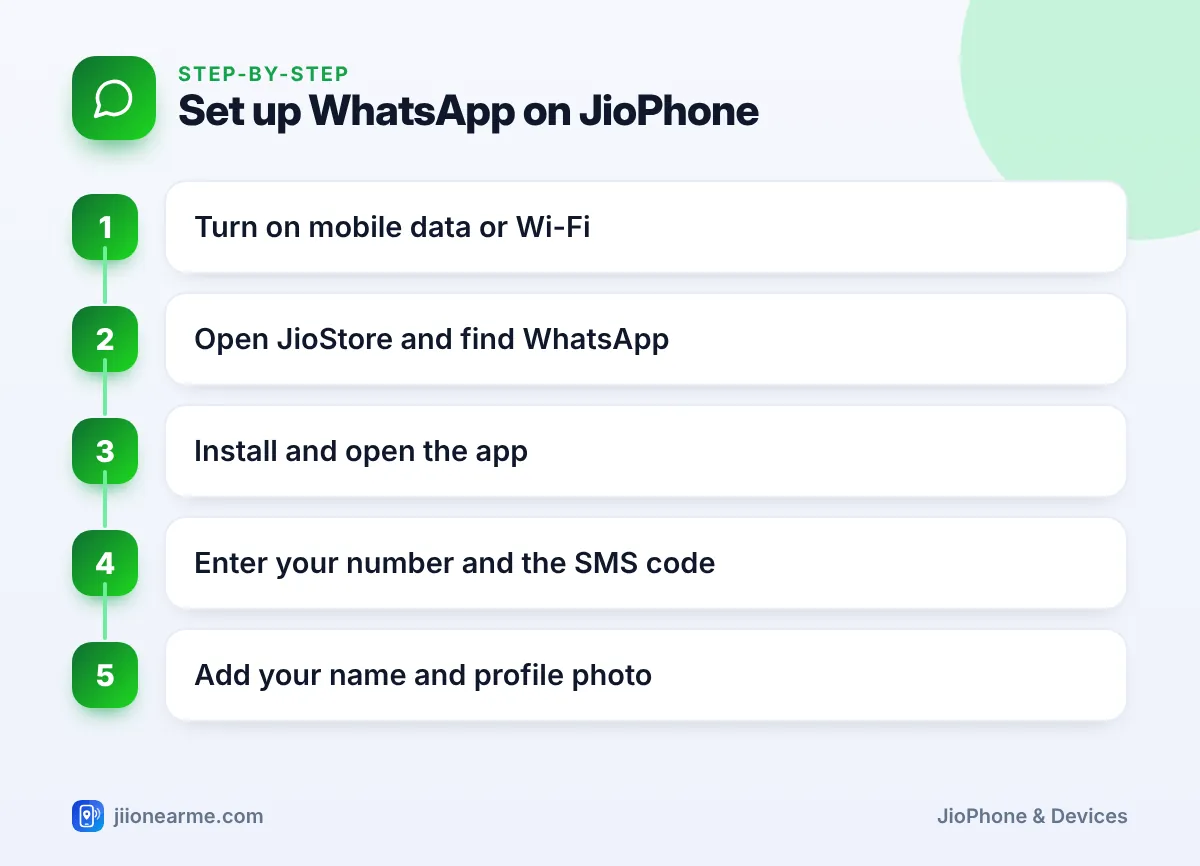
- From the home screen, press the centre key to open the app menu.
- Find JioStore and open it.
- Look for WhatsApp. It is often shown on the main page or inside a category such as Social. You can also use the search option if your version has one.
- Highlight WhatsApp and press the centre key to open its page.
- Select Install (on some versions it says Download) and wait for it to finish.
- Once installed, WhatsApp appears in your app menu, usually near the end. Open it from there.
If the install stops midway, check your internet connection and free storage, restart the phone and try again.
Verifying Your Number and Setting Up Your Profile
Agree to the terms
When WhatsApp opens for the first time, you will see a welcome screen. Read the terms and select Agree and continue.
Enter your mobile number
Choose India (+91) as the country if it is not already selected. Type your 10-digit mobile number with the keypad and confirm. WhatsApp shows the number back to you, so check it carefully before you continue.
Enter the verification code
WhatsApp sends a 6-digit code by SMS. On many phones it reads the code automatically. If not, open the SMS and type the code into WhatsApp yourself. If the SMS does not arrive, wait for the timer to finish and choose the option to get the code through a call.
Never share your WhatsApp verification code, or any OTP, with anyone. This includes people who say they are from WhatsApp, Jio or your bank. Anyone with this code can take over your account and message your contacts in your name.
Add your name and photo
Type the name you want your contacts to see. To add a profile photo, select the photo option and pick an image from your gallery or take a new one with the camera. You can skip the photo and add it later from WhatsApp’s settings.
Getting Around WhatsApp on JioPhone with the Keypad
There is no touchscreen, so everything happens with keys. The labels at the bottom of the screen tell you what the left soft key, centre key and right soft key do at any moment. Check them whenever you are unsure.
| Task | How to do it |
|---|---|
| Move through chats | Press up or down on the navigation key |
| Open a chat | Highlight it and press the centre key |
| Start a new chat | Open Options with a soft key and pick the new chat or contacts option |
| Type a message | Use the number keys, with 0 for a space |
| Send a message | Press the key labelled Send on screen |
| Go back | Use the Back option shown on screen |
Sending photos and voice messages
Inside a chat, open the options menu to find choices such as attaching a photo or using the camera. Voice messages are started from the chat screen or its menu, and the on-screen labels show which key to press or hold. The exact steps depend on your WhatsApp version.
Typing faster with the keypad
- Press a number key repeatedly to cycle through its letters, then pause to move on.
- On most versions, the # key switches between capital letters, small letters and numbers.
- If your phone offers predictive text, turn it on in the typing settings so whole words are suggested as you type.
Privacy Settings Worth Checking
Open WhatsApp’s settings from the options menu on the chat list. Then look for these:
- Privacy: choose who can see your last seen, profile photo and about.
- Two-step verification: if your version offers it, set a PIN that WhatsApp asks for when your number is registered again. This adds strong protection against account theft.
- Blocked contacts: block numbers that send spam or unwanted messages.
- Groups: if offered, choose who can add you to groups, so strangers cannot pull you into them.
Photos, videos and voice notes use data. Connect to home Wi-Fi when you want to send or download lots of media, and check your remaining data in the MyJio app.
Fixing Common WhatsApp Problems on JioPhone
- WhatsApp not in JioStore: update the phone’s software and check again. If it is still missing, your model or software version may not be supported.
- Code not arriving: confirm you entered the right number, that you have signal and that your SMS inbox is not full. Wait for the timer, then request a call.
- Messages stuck with a clock icon: check that mobile data or Wi-Fi is on and that your Jio plan is active.
- App freezing or closing: exit the app, restart the phone and open it again.
If your Jio number has no signal or data at all, call 199 from your Jio number, or 1800-889-9999 from any phone.
Frequently Asked Questions
Does WhatsApp on JioPhone need mobile data?
Yes. WhatsApp sends messages over the internet, so you need mobile data on an active Jio plan or a Wi-Fi connection.
Can I make WhatsApp calls on a JioPhone?
Calling features on keypad phones are more limited than on smartphones and depend on your WhatsApp version. Check the options inside a chat to see what your version supports.
Can I move my old WhatsApp chats to my JioPhone?
Chat history from a smartphone generally does not move to WhatsApp on a keypad phone. Save important photos or details from the old phone before you register on the JioPhone.
Why did WhatsApp on my other phone stop working?
WhatsApp allows one number to be registered on one main phone at a time. Registering on the JioPhone signs your number out on the other phone.
How do I remove WhatsApp from my JioPhone?
Open the app menu, highlight WhatsApp, press the Options soft key and choose Uninstall if it is offered. Removing the app deletes the chats stored on the phone.
Final Thoughts
Setting up WhatsApp on JioPhone is quick once you know the path: JioStore, install, verify, profile. Keep your verification code private, turn on two-step verification if you can, and use Wi-Fi for heavy media. After a day or two of practice, moving around chats with the keypad will feel natural.
JIo Near me is an independent guide and is not affiliated with Reliance Jio. App menus, plans and policies can change – always confirm current details in the official MyJio app or on jio.com. We will never ask for your OTP, PIN or passwords.