Yes, you can run a Jio eSIM and a physical SIM side by side on most eSIM phones. The Jio number sits on the eSIM, the other number goes in the SIM tray, and both stay ready for calls and SMS. You then choose which line handles calls, messages and mobile data by default.
The setup itself is quick. The bigger task is avoiding mix-ups, such as an OTP going to the wrong number or a UPI app linking to the wrong SIM. This guide covers both.
- Most eSIM phones support one eSIM plus one physical SIM at the same time.
- Both lines receive calls and SMS, but only one handles mobile data.
- Name each line clearly so you always know which one you are using.
- Set default lines for calls, SMS and data in your SIM settings.
- Choose the right SIM carefully when setting up UPI and banking apps.
How Jio eSIM Dual SIM Works on One Phone
Most phones with an eSIM and a SIM tray work in a mode called dual SIM dual standby. Both lines are registered on their networks at the same time, so you can receive calls and SMS on either number.
There are a few limits to keep in mind:
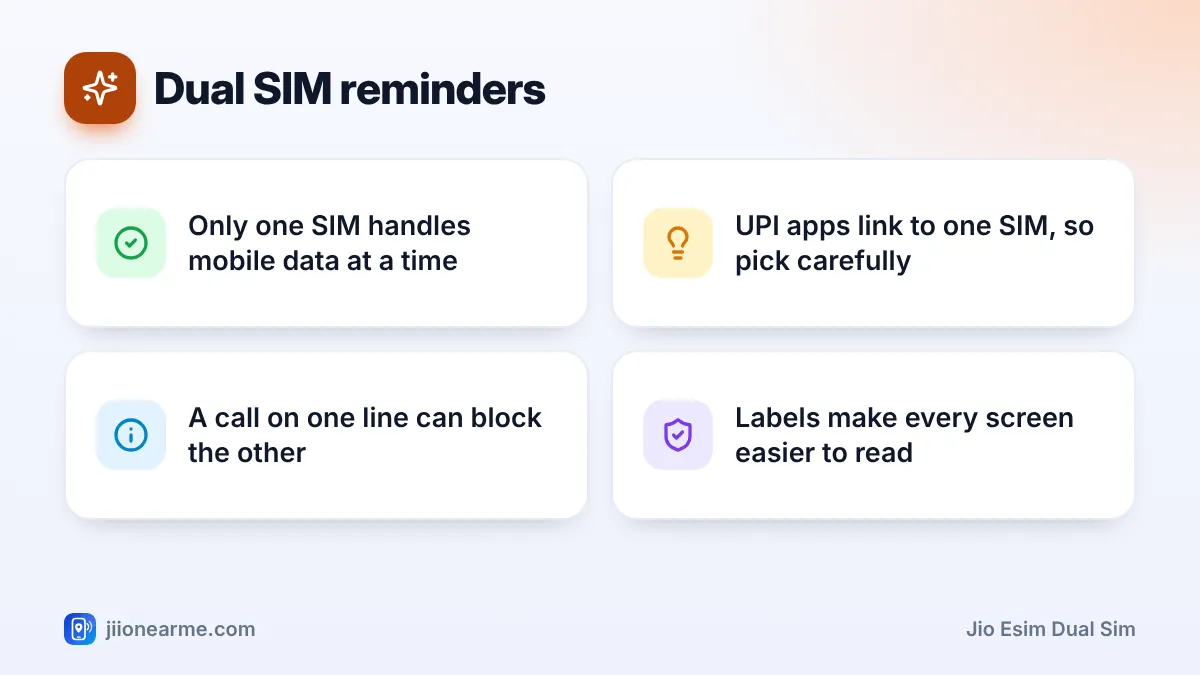
- One data line at a time. Only one SIM provides mobile data, and you choose which.
- One call at a time. While you are on a call on one line, the other line usually cannot take an incoming call.
- Model limits. Some phones can store several eSIM profiles, but only a set number can be active at once, often two lines in total.
The second line can be from Jio or any other operator. Your Jio eSIM works the same whether the other SIM is from Jio or not.
Before You Add the Second Line
Make sure these are ready:
- Your Jio eSIM is installed and working. Test a call and mobile data first.
- Your phone supports eSIM plus a physical SIM together. Most eSIM phones with a tray do, but check your model’s details or Jio’s eSIM device list on jio.com.
- The other SIM is active. Insert it, restart the phone and wait for signal.
Some phones show a setup screen as soon as the second line appears. It asks you to label the lines and pick defaults. You can change all of these choices later.
Set Call, SMS and Data Preferences
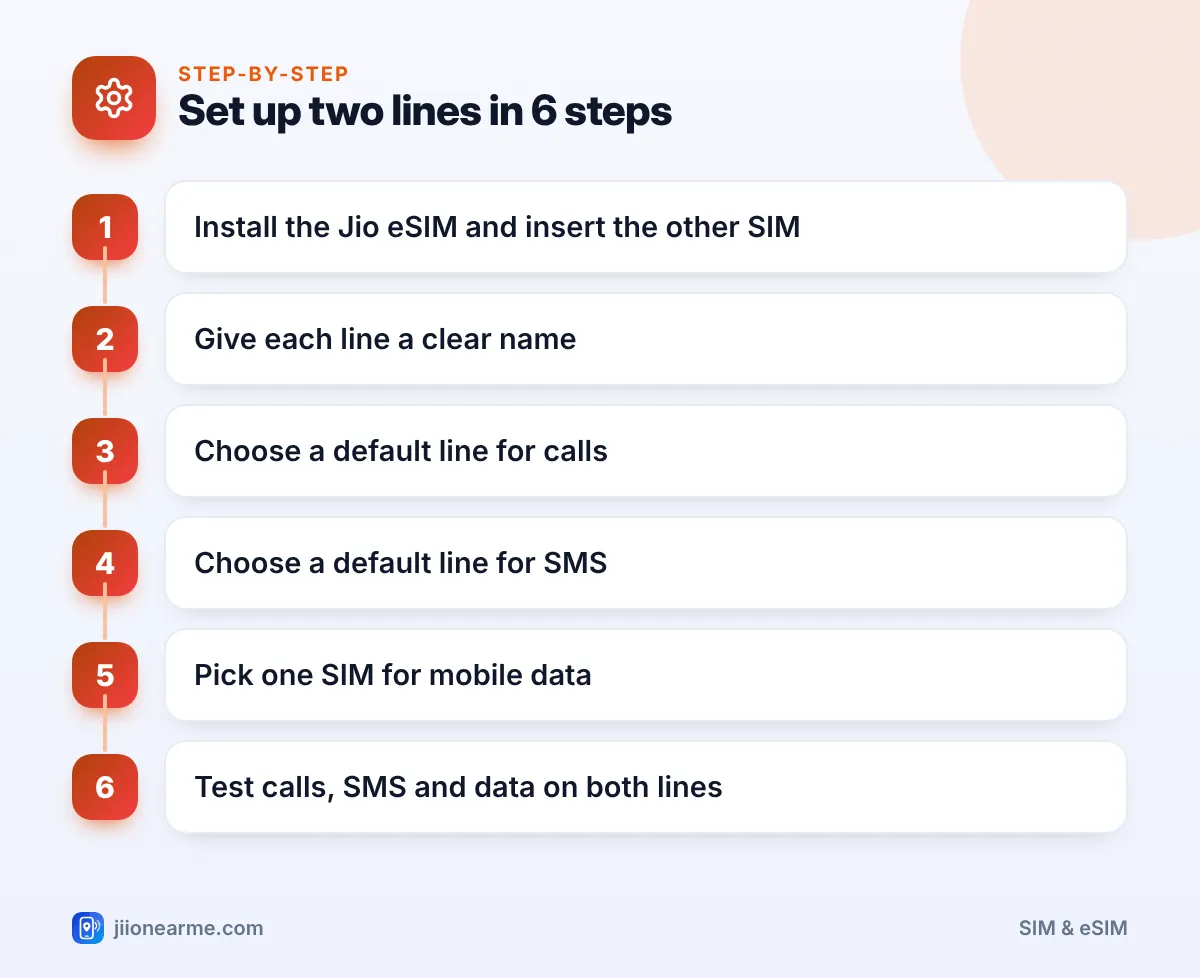
The general process is the same on every phone:
- Name each line. Use simple labels such as “Jio Personal” and “Office”.
- Choose a default for calls. Pick one line, or choose Ask every time if you switch often.
- Choose a default for SMS. Usually the same line as calls.
- Pick the mobile data SIM. Choose the line with the plan that suits your data use.
- Decide on automatic data switching. This lets the phone use the other line’s data when your main data SIM has poor signal.
- Test both lines. Make a call and send an SMS from each, and check mobile data with Wi-Fi off.
iPhone
Open Settings > Mobile Service (called Mobile Data or Cellular on some versions). Here you can:
- Tap each line to change its label.
- Set Default Voice Line for calls and SMS.
- Choose the line under Mobile Data, and turn Allow Mobile Data Switching on or off.
iPhone also remembers which line you last used with each contact. You can change it from the contact’s card.
Samsung Galaxy
Open Settings > Connections > SIM manager. Tap each SIM to rename it and choose an icon. Under Preferred SIM card, set the line for Calls, Messages and Mobile data. Look for a data switching option on the same screen.
Google Pixel and other Android phones
On Pixel, open Settings > Network & internet > SIMs. Tap a SIM to rename it or set it as the default for calls, SMS or mobile data. On other brands, look under Mobile network or SIM & network in Settings. Labels differ slightly by phone and software version.
Use different colours or icons for the two lines if your phone offers them. When the dialler or messaging app shows a coloured badge, you can tell at a glance which number you are about to use.
Avoid Mix-Ups Between the Two Lines
Most dual SIM problems come from apps and services linked to a specific number. Use this table as a quick guide.
| Task | What to watch | What to do |
|---|---|---|
| UPI setup | The app checks one SIM by sending an SMS | Choose the SIM registered with your bank |
| Bank OTPs | OTPs go to your registered number only | Keep that line switched on |
| Verified to one number | Verify with the number you want to use | |
| Outgoing calls | Default line may not suit every contact | Set a preferred line per contact |
| Recharges | Each number has its own plan | Track both expiry dates separately |
If you turn off a line to save battery, you will miss calls and OTPs on that number. Check that it is not your banking number before disabling it.
Calls, Coverage and Battery: What to Expect
A few practical points help you live with two lines:
- Network quality is separate for each line. If your Jio line has strong signal but the other line is weak, calls on the other number may drop more often.
- Jio True 5G works where available. Turn on 5G in the network settings for the Jio line. On some phones, the line you choose for mobile data gets the best 5G experience.
- Battery use rises slightly. Two active lines use a little more power, especially in weak-signal areas.
- You can turn a line off temporarily. Both iPhone and Android let you switch off one line without removing it.
A dual SIM setup means two plans to track. Set reminders for both expiry dates so neither number loses outgoing services by surprise.
Frequently Asked Questions
Can I use two Jio numbers on one phone with an eSIM?
Yes. One Jio number can be on the eSIM and another Jio number on the physical SIM. Name them clearly so you can tell them apart.
Can both SIMs use mobile data at the same time?
No. Only one line provides mobile data at a time. Some phones can switch automatically to the other line when signal is poor, if you allow it.
Why did my OTP not arrive on the Jio eSIM?
Check that the OTP was sent to the Jio number and that the eSIM line is switched on. Also check your phone’s default SMS line and any message filters.
Can I receive a call on one line while talking on the other?
Usually not. On most dual standby phones, the second line cannot ring while you are on a call on the first.
Do I need to tell Jio I am using dual SIM?
No. Dual SIM is a phone feature. Your Jio eSIM works the same whether or not another SIM is in the phone.
Conclusion
A Jio eSIM dual SIM setup lets you keep two numbers on one phone without a second tray. Install the eSIM, insert the other SIM, label both lines and set clear defaults for calls, SMS and data.
Then take a minute to check which SIM your UPI, bank and WhatsApp accounts depend on. That small step prevents most dual SIM mix-ups.
JIo Near me is an independent guide and is not affiliated with Reliance Jio. App menus, plans and policies can change – always confirm current details in the official MyJio app or on jio.com. We will never ask for your OTP, PIN or passwords.