Turning on automatic backup in JioAICloud takes about two minutes. Open the app, go to Settings, find the Backup option and switch on photos and videos. Then choose which folders to include and set uploads to happen only on Wi-Fi, so your mobile data is not used up.
Once it is on, new pictures and videos upload by themselves whenever the conditions you chose are met. This guide covers the setup on Android and iPhone, folder choices, the Wi-Fi setting and, most importantly, how to check that your photos have actually reached the cloud. Menu labels can differ slightly between app versions.
- Turn on photo and video backup from the Backup section in JioAICloud settings
- Choose folders such as Camera, WhatsApp Images and Screenshots to control what uploads
- Keep backup on Wi-Fi only if you use a daily data plan
- Confirm uploads by checking the backup status or opening JioAICloud on another device
Before You Turn On Backup
A few checks now will save you trouble later.
- Sign in with the right number. JioAICloud links your files to the Jio number you sign in with. Use your own number, not a family member’s.
- Update the app. Get the latest version from the Google Play Store or Apple App Store. If you still have the old JioCloud app, updating it usually brings the new JioAICloud version.
- Check your free space. Open your profile or the menu (☰) and look at the storage bar. If your gallery is larger than your free space, backup will stop part-way.
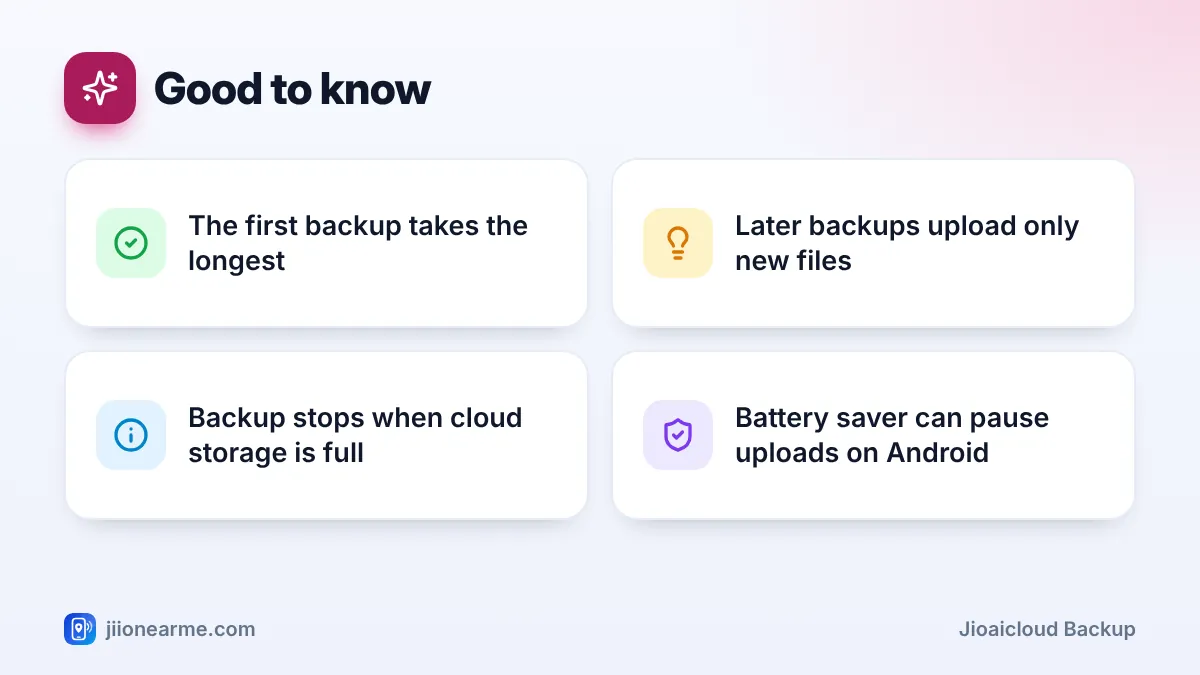
- Plan for the first upload. The first backup sends your whole gallery, which can be large. Start it on Wi-Fi with your phone on charge.
How to Turn On JioAICloud Backup for Photos and Videos
The steps are nearly the same on Android and iPhone.
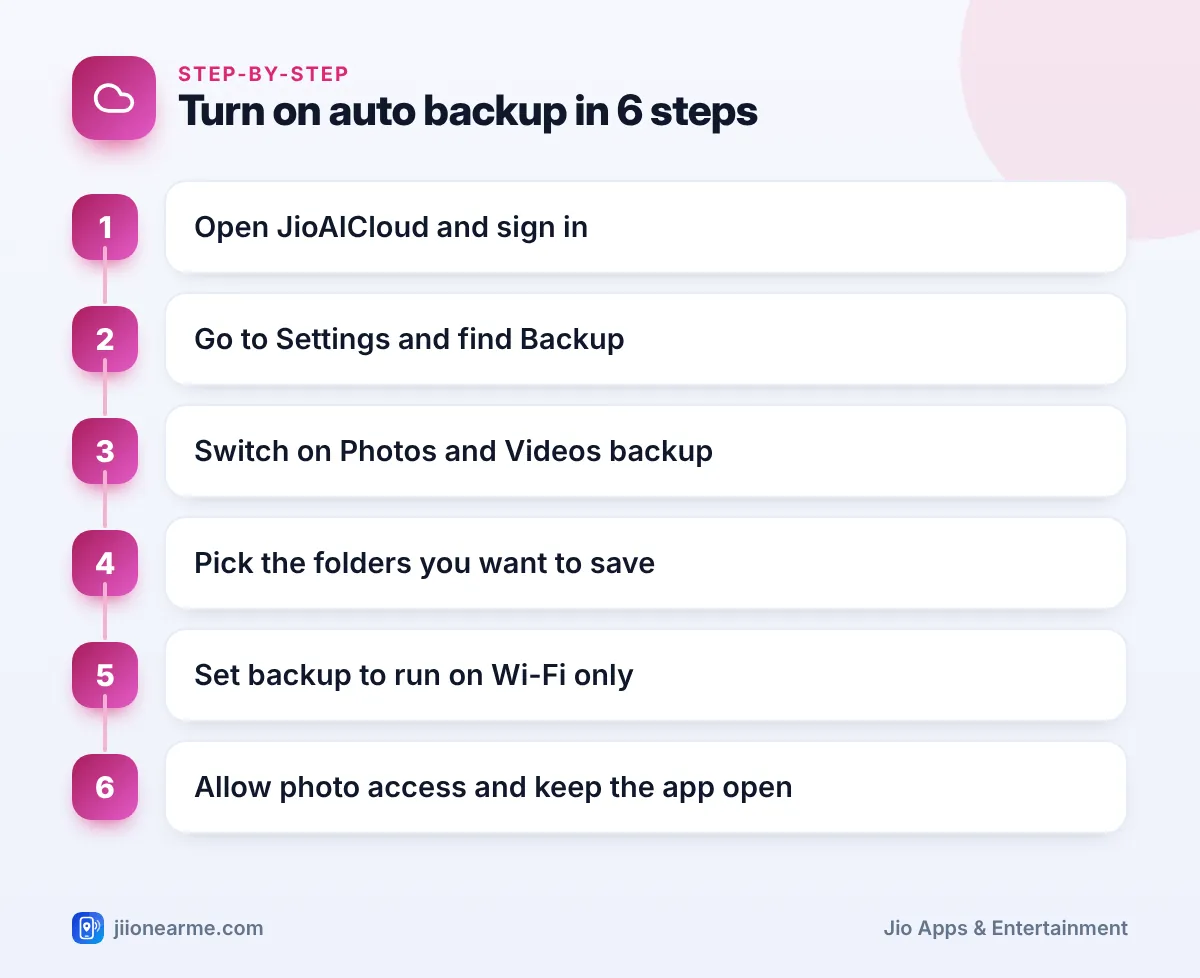
- Open JioAICloud and sign in with your Jio number and the OTP you receive.
- Tap your profile icon or the menu (☰) and go to Settings.
- Open Backup, Auto Backup or a similarly named option.
- Switch on Photos and Videos. Some versions show them as one switch, others as two.
- Tap the folder option, if shown, and select the folders you want to back up.
- Set the network option to Wi-Fi only, or allow mobile data if you prefer.
- When the phone asks for permission to access photos and videos, allow it.
- Return to the main screen. You should see a progress bar or a message saying backup has started.
Permissions on Android
Android asks whether JioAICloud can access your photos and videos. Allow it, or backup cannot read your gallery. On some phones you may also need to let the app run in the background. Go to Settings > Apps > JioAICloud > Battery and choose Unrestricted or No restrictions, if your phone offers that option. Battery saver modes can otherwise pause uploads when the screen is off.
Permissions on iPhone
On an iPhone, choose Allow Full Access (or All Photos) when asked. If you choose limited access, only the photos you pick will back up. You can change this later in the iPhone’s Settings > JioAICloud > Photos. Keeping Background App Refresh on for JioAICloud also helps uploads continue in the background.
Choosing Which Folders to Back Up
Backing up everything is simple, but it can fill your storage with forwarded memes and duplicate images. Choosing folders keeps your cloud space for what matters.
| Folder | Back it up? | Why |
|---|---|---|
| Camera | Yes | Your own photos and videos, usually the most precious |
| WhatsApp Images | Usually yes | Family pictures often arrive here |
| WhatsApp Video | Only if space allows | Forwarded videos can be large |
| Screenshots | Your choice | Useful for receipts, but often clutter |
| Downloads | Rarely | Mostly temporary files |
Folder names differ by phone brand. On iPhone, the app may back up your whole photo library rather than separate folders, depending on the version.
Start with just the Camera folder. Once that first backup finishes, add WhatsApp Images and other folders one at a time. This keeps the first upload smaller and makes problems easier to spot.
Limiting Backup to Wi-Fi to Save Mobile Data
Photos and especially videos use a lot of data to upload. If you are on a Jio prepaid plan with daily data, one long backup on mobile data can use most of your day’s allowance.
That is why Wi-Fi only is the safest setting for most people. Uploads then wait until you connect to JioFiber, Jio AirFiber or any trusted Wi-Fi. If you have plenty of data and want photos saved right away, you can allow mobile data, but keep an eye on your balance in the MyJio app.
Free Wi-Fi at stations, cafés or malls is not ideal for uploading personal photos. Use your home or office network, and leave large backups for when you are back home.
How to Check That Your Photos Have Uploaded
A backup is only useful if it works. Check it properly at least once, and then every few weeks.
- Open JioAICloud and look at the backup status. It may say Backup complete, Up to date or show how many items are left.
- Open the Photos section and scroll to your most recent pictures. Items still waiting may show a small cloud or clock icon.
- For a stronger check, sign in to JioAICloud on another device or in a laptop browser and see if the latest photos appear.
- Compare the newest photo date in the cloud with the newest photo in your gallery.
If recent photos are missing, check your storage space and the network setting first. A Wi-Fi only setting on a phone that rarely connects to Wi-Fi is a common reason for old, incomplete backups.
Fixing Backup That Stops or Gets Stuck
- Stuck at the same number. Open the app and keep it open on Wi-Fi for a few minutes. Large videos can take a while.
- Stops when the screen is off. Remove battery restrictions on Android, or keep Background App Refresh on for iPhone.
- Storage full. Delete files you do not need from JioAICloud, or check current storage options in MyJio or on jio.com.
- Nothing uploads at all. Recheck photo permissions, sign out and sign back in, or update the app.
If the problem continues, call 199 from your Jio number for help.
Frequently Asked Questions
If I delete a photo from my phone, is it deleted from JioAICloud?
Backup copies generally stay in the cloud after you delete them from your phone gallery. Before deleting anything important, open JioAICloud and confirm the photo is there.
Does JioAICloud reduce the quality of my photos?
JioAICloud aims to keep your files as they are. Check the backup settings in your app version in case it offers any quality options.
How long does the first backup take?
It depends on the size of your gallery and your connection speed. A large gallery can take several hours, so leave the phone on Wi-Fi and on charge overnight.
Can I back up photos from more than one phone?
Yes. Sign in to JioAICloud with the same Jio number on each phone and turn on backup. All the photos go into the same account, so watch your storage.
Will backup use my data when I am roaming?
Only if you allow mobile data for backup. Keep the Wi-Fi only setting on while travelling to avoid unexpected data use.
Wrapping Up
Automatic backup in JioAICloud is a set-and-check habit. Turn it on, choose your folders, keep it on Wi-Fi only and then confirm that recent photos really appear in the cloud. Check the status every few weeks and watch your storage space. That way, if your phone is ever lost or damaged, your photos and videos will still be safe.
JIo Near me is an independent guide and is not affiliated with Reliance Jio. App menus, plans and policies can change – always confirm current details in the official MyJio app or on jio.com. We will never ask for your OTP, PIN or passwords.
