You can share almost anything stored in JioAICloud with a link. Open the app, select the photo, video or document, tap the Share icon and pick the option that creates or copies a link. The person you send it to can usually open the file in a web browser without installing anything.
A link is often better than sending the file itself. It keeps the original quality, avoids uploading the same large video again on WhatsApp and lets you stop sharing later. This guide covers the steps on phone and computer, what the receiver sees and how to remove access when you no longer need it.
- Select the item in JioAICloud, tap Share and choose the link option to get a shareable link
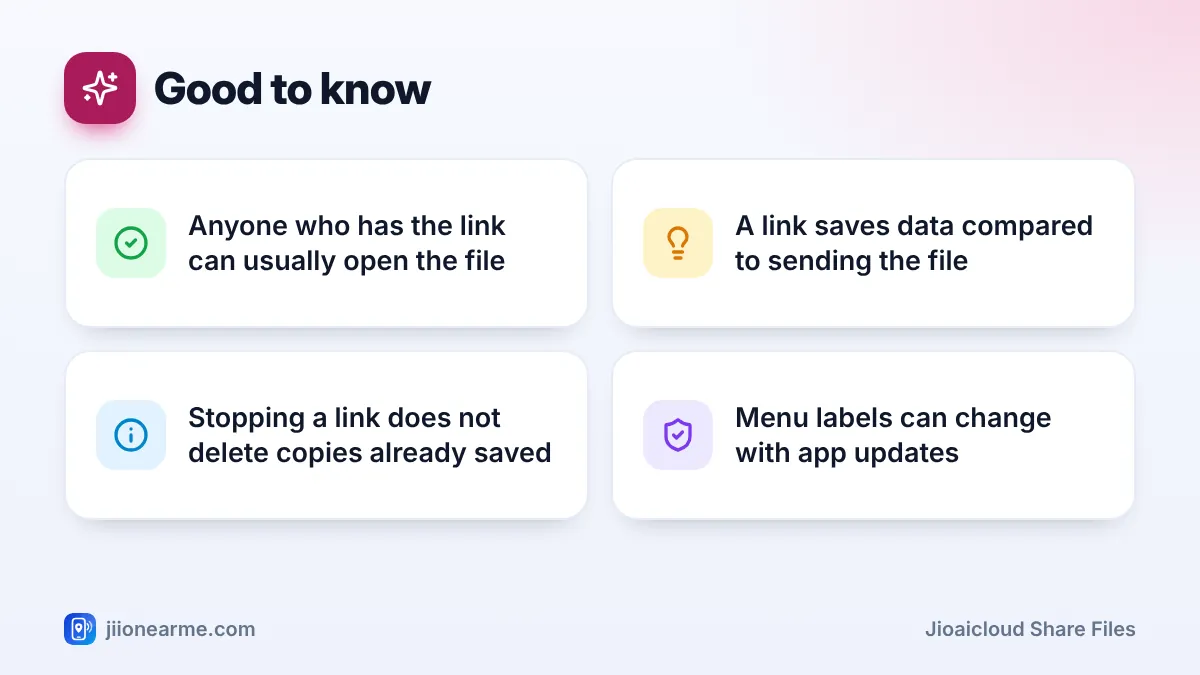
- Anyone with the link can usually view or download the file, so send it only to people you trust
- You can share several photos or a whole folder with one link
- Stop sharing from the shared items list or file details, or delete the file as a last resort
What a JioAICloud Share Link Actually Does
When you share with a link, the file stays in your JioAICloud storage. JioAICloud creates a web address that points to it, and you send that address to others. They open the link, see the file and can usually download it.
This is different from using your phone’s share sheet to send a copy of the photo on WhatsApp. A copy is a separate file. Once it reaches the other person, you have no control over it. A link, on the other hand, works only as long as you keep it active.
| Share a link | Send a copy of the file | |
|---|---|---|
| Picture and video quality | Original quality stays | Chat apps may compress it |
| Data used when sending | Very little, only the link | The full file size |
| Can you stop access later? | Yes, by removing the link | No |
| What the receiver needs | A browser and internet | The same chat app |
Most share links work for anyone who has them. If the person forwards your link to a group, everyone in that group can open the file too.
Before You Share: Quick Checks
- The file must be fully uploaded. A photo still waiting to back up cannot be shared yet. Confirm it is saved in the cloud, not only on your phone.
- Sign in with the right Jio number. If your family uses several numbers, check you are in the account that holds the file.
- Update the app from the Google Play Store or the App Store. Older versions can hide newer sharing options.
- Look at what you are sharing. Phone photos can carry details such as the date and sometimes the location. If that matters, share a screenshot instead.
JioAICloud Share Files Steps on Android and iPhone
The steps are almost the same on Android phones and iPhones. Button names can differ slightly between app versions, so look for similar labels in the same place.
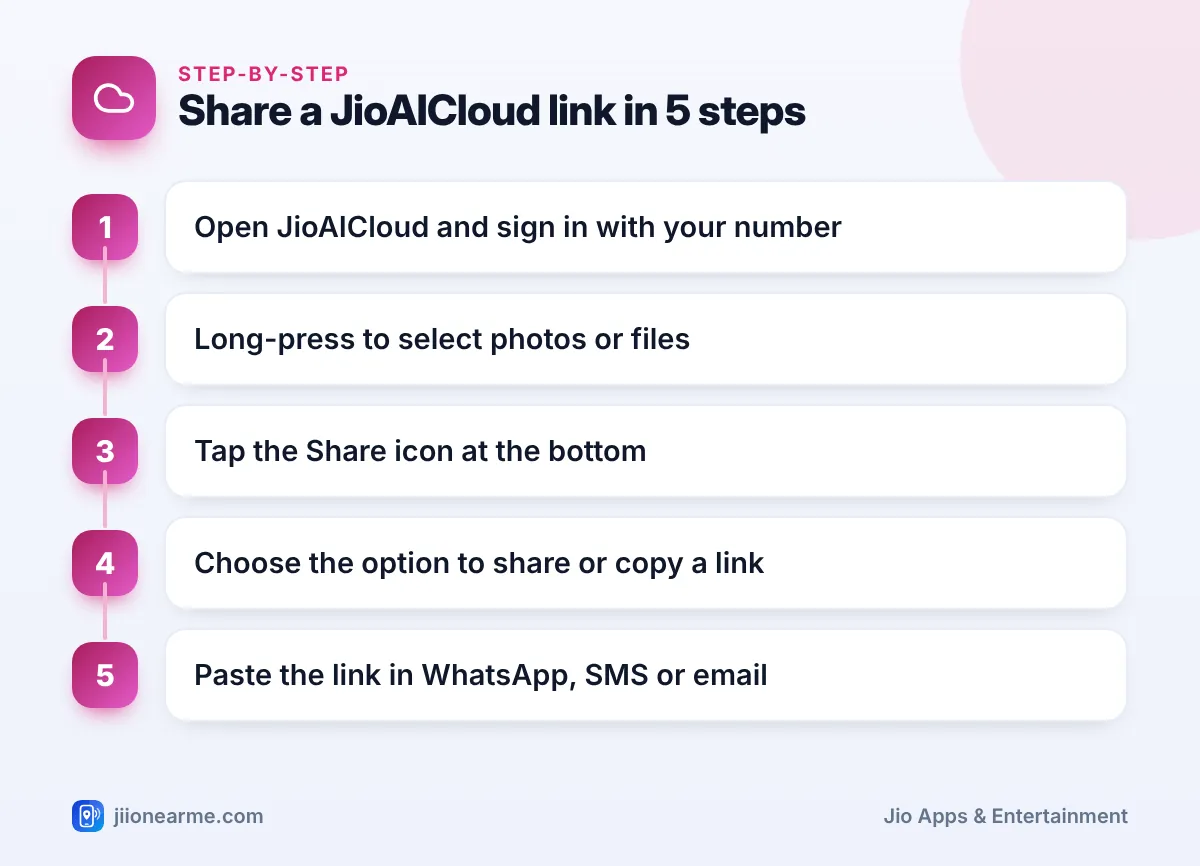
- Open the JioAICloud app and sign in with your Jio number and the OTP you receive.
- Go to the section that holds your item, such as Photos, Videos, Documents or Files.
- Long-press a photo or file to select it. Tap more items if you want to share several together.
- Tap the Share icon. It is usually at the bottom of the screen or inside the three-dot (⋮) menu.
- Choose the option that creates a link. It may be called Share link, Copy link or Share via link.
- If you picked a share option, select the app you want, such as WhatsApp, Gmail or Messages. If you copied the link, open the chat or email and paste it.
- Send the message. The receiver gets a link they can tap to open the file.
JioAICloud has added new features since it was renamed from JioCloud, and menus move around between updates. If you cannot find an option named exactly as above, tap the three-dot menu on the selected item and check every share-related choice.
Sharing a whole folder or album
If you want to send many photos, such as pictures from a wedding or a school function, put them in one folder or album first. Then select that folder and share it with a link. The receiver opens one link and sees all the items inside, which is easier than tapping through dozens of separate links.
Sharing From the JioAICloud Website or Desktop App
Sharing from a laptop is handy for emailing documents.
- Open the JioAICloud website or desktop app and sign in with your Jio number and OTP.
- Select the file or folder you want to send.
- Click the Share or link icon, or right-click the item and look for a share option.
- Copy the link and paste it into your email or chat.
On a shared or office computer, sign out when you finish.
What the Person Receiving the Link Sees
Most people simply tap the link and the file opens in their browser. They can view a photo, play a video, read a document or download it.
- They usually do not need a JioAICloud account or a Jio SIM. If the page suggests installing the app, they can generally continue in the browser.
- Large videos load slowly on a weak connection, so Wi-Fi helps.
- A downloaded file becomes their own copy. Stopping your link later will not remove it.
How to Stop Sharing a JioAICloud Link
Stopping a link is the step most people forget. Do it when the event is over, when you shared something by mistake or when a link has been forwarded too widely.
- Open JioAICloud and look for a section that lists your shared items. Depending on your version, it may be called Shared, Shared links or something similar, often in the menu (☰) or the account area.
- Find the file or folder you shared.
- Open its options and choose Stop sharing, Remove link or a similar choice.
- Test the old link in your browser. It should no longer open the file.
If you cannot find any option to remove a link, deleting the file from JioAICloud generally stops the link from working. Remember to also clear it from the app’s trash or recycle bin, if your version has one. Keep a copy on your phone first if you still need the file.
JioAICloud uses an OTP sent to your Jio number to sign you in. Nobody needs that OTP to open a file you shared. If someone asks for it, they are trying to get into your account. Report suspected fraud on the national helpline 1930 or at cybercrime.gov.in.
Common Problems and Quick Fixes
- The link option is missing or greyed out. The file may still be uploading, or your phone may be offline. Wait for the upload to finish and try again.
- The receiver says the link does not open. Check that you copied the full link. If you stopped sharing or deleted the file, create a fresh link.
- A video will not play in their browser. Very new uploads may still be processing. Ask them to try again later or download the file instead.
- You shared the wrong photo. Stop sharing that link right away, then send the correct one.
For account or sign-in issues, call 199 from your Jio number.
Frequently Asked Questions
Does the receiver need a Jio number to open my JioAICloud link?
Usually not. A shared link is designed to open in a normal web browser, so friends on any mobile network can view or download the file.
Does sharing a link use my mobile data?
Sending the link uses almost no data because it is just text. The receiver uses their own data when they open or download the file.
Can I share files from JioAICloud with several people at once?
Yes. Send the same link to a WhatsApp group or paste it into an email with many recipients. Remember that everyone who has the link can open the file.
Will stopping a link delete my file?
No. Removing or disabling a link only stops new access through it. Your file stays in your JioAICloud storage until you delete it yourself.
Wrapping Up
Sharing through JioAICloud is simple once you know the pattern: select the item, tap Share, choose the link option and send it. A link keeps full quality and saves data compared with sending large files directly. Make it a habit to check your shared items now and then and stop any links you no longer need, so your photos and documents stay in the right hands.
JIo Near me is an independent guide and is not affiliated with Reliance Jio. App menus, plans and policies can change – always confirm current details in the official MyJio app or on jio.com. We will never ask for your OTP, PIN or passwords.
