JioAICloud is Jio’s cloud storage service for photos, videos, documents and contacts. It is the newer version of the JioCloud app, renamed and updated with AI-based features, and it still signs you in with your Jio number and an OTP. If you used JioCloud before, you do not need a new account. Update the app and your saved files stay linked to the same number.
This explainer covers what JioAICloud does, how it differs from the older JioCloud, what you can store, how storage space works and how to start using it. App screens change often, so labels on your phone may differ slightly from those described here.
- JioAICloud is the renamed and updated version of the older JioCloud app
- You sign in with your Jio number and an OTP, with no separate password
- It can back up photos, videos, documents, audio files and phone contacts
- The storage you get depends on your Jio plan and current offers, so check it in the app
What Is JioAICloud?
Think of JioAICloud as an online locker linked to your Jio number. Files you upload are stored on Jio’s servers, not just on your phone. If your phone is lost, stolen or reset, you can sign in on another device and get your files back.
It works on Android phones and iPhones through the app, and on laptops and desktops through a web browser or desktop app. You can turn on automatic backup so new photos upload by themselves, share files with a link and open your documents from any device where you sign in.
The “AI” in the name refers to newer features that help organise and find your files, such as smarter search across photos. Which AI features you see depends on your app version, and Jio continues to add and change them.
How JioAICloud Differs From the Older JioCloud
JioCloud was Jio’s earlier cloud storage app. JioAICloud took its place, so for most people it is the same service with a new name and more features, not a separate product.
| Point | Older JioCloud | JioAICloud |
|---|---|---|
| Name | JioCloud | JioAICloud |
| Sign-in | Jio number with OTP | Jio number with OTP |
| Core job | Back up and store files | Back up and store files |
| AI tools | Not a focus | Search and organising features added over time |
| Your old files | Saved in JioCloud | Stay linked to the same Jio number |
| Storage space | Set by plan and offers | Set by plan and current offers |
If you still have the old JioCloud app on your phone, update it from the Play Store or App Store. In most cases the update brings the new name and design, and you stay signed in.
You may still see “JioCloud” in older help pages, on some devices or in MyJio menus. They point to the same service. Always download the app from the official app store and check that the developer is Jio.
What You Can Store in JioAICloud
JioAICloud is broader than a photo app. It can hold most of the files people keep on a phone:
- Photos and videos from your camera, WhatsApp folders, screenshots and downloads
- Documents such as PDFs, Word files, spreadsheets and scanned certificates
- Audio files, such as voice recordings or music files you own
- Phone contacts, which you can restore on a new phone
- Other files you upload by hand from your phone or computer
This makes it useful as a single place for family photos and important paperwork. Even so, think carefully before storing highly sensitive ID scans, and never share links to them in groups.
How Much Storage Space You Get
JioAICloud does not give unlimited space. The amount you get depends on your Jio plan and any offers running at the time. Jio has changed these offers in the past and may do so again.
To see your own storage:
- Open the JioAICloud app and tap your profile icon or the menu (☰).
- Look for Storage, My Storage or a storage bar showing space used.
- Check how much is free and what is using the most space.
For current plans and storage options, check the MyJio app or jio.com. When storage fills up, new backups usually stop, so check this screen once in a while.
How to Sign In and Start Using JioAICloud
Getting started takes a few minutes. Use Wi-Fi if you plan to back up a large gallery.
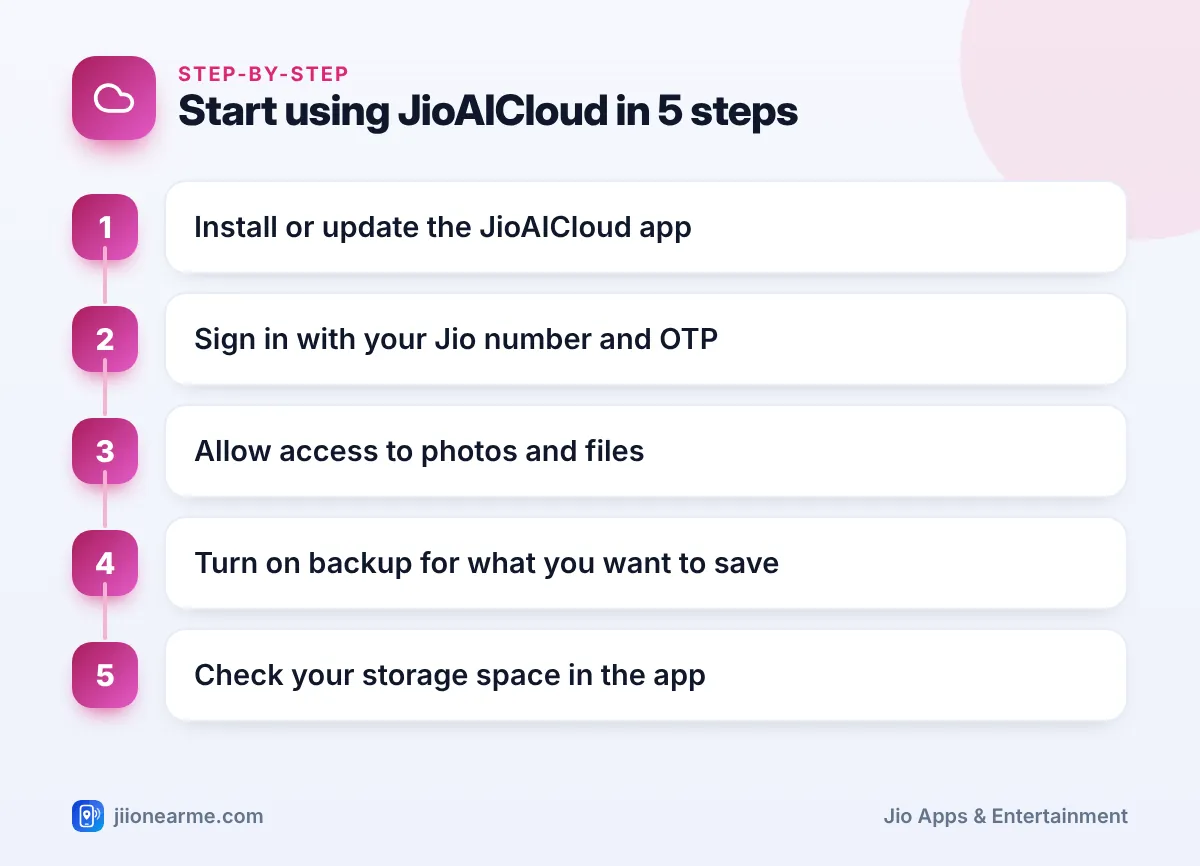
- Install JioAICloud from the Google Play Store or Apple App Store, or update the old JioCloud app.
- Open it and enter your 10-digit Jio number.
- Request an OTP and type the code you receive by SMS.
- Allow the permissions you are comfortable with, such as access to photos and files. Backup cannot work without them.
- Open the backup settings and turn on backup for photos, videos or contacts.
- Choose whether backups run only on Wi-Fi or also on mobile data.
- Check the storage screen to confirm how much space you have.
After this, new photos upload automatically when the conditions you set are met. You can also open the app and upload documents yourself at any time.
Do your first large backup on JioFiber, Jio AirFiber or any home Wi-Fi with the phone on charge. Later backups upload only new files, so they are much smaller.
Privacy and Safety Tips
- Guard your OTP. JioAICloud signs you in with an OTP sent to your Jio number. Nobody from Jio needs it, and nobody needs it to view a file you shared.
- Sign out of shared computers. If you use the web version at an office or cyber café, sign out and close the browser afterwards.
- Review share links. Stop sharing links you no longer need, especially for documents.
- Plan before you change numbers. Your storage is linked to your Jio number. Download important files before porting out or letting the number lapse.
If you suspect someone has misused your account or tricked you into sharing an OTP, report it on the national cybercrime helpline 1930 or at cybercrime.gov.in, and call Jio on 198 or 199 from your Jio number.
Frequently Asked Questions
Is JioAICloud the same as JioCloud?
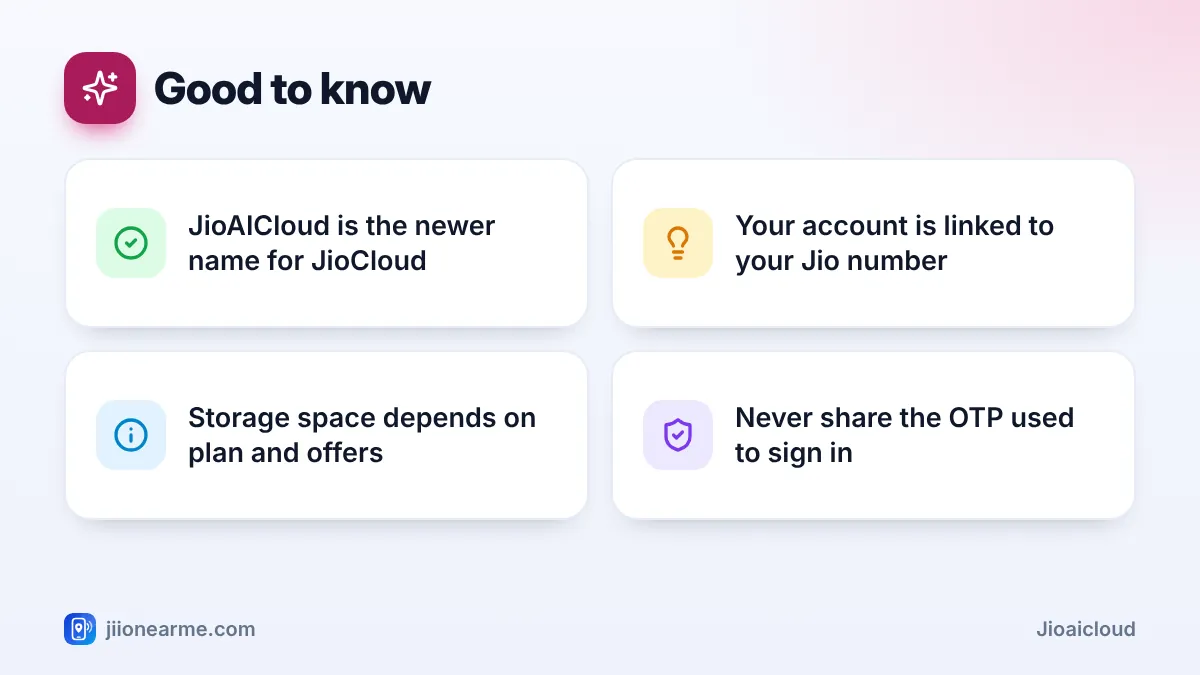
Yes, for practical purposes. JioAICloud is the renamed and updated version of JioCloud, and your account stays linked to the same Jio number.
Will I lose my old JioCloud files after updating?
Updating the app should not remove files already saved in the cloud. After updating, sign in with the same Jio number and check that your photos and documents appear.
Do I need a password for JioAICloud?
The usual sign-in uses your Jio number and a one-time password sent by SMS. There is no separate permanent password to remember.
Can I use JioAICloud on a computer?
Yes. You can open it in a web browser on a laptop or desktop, and desktop apps are also available. Sign in with your Jio number and OTP.
Is JioAICloud free?
Jio users get some storage depending on their plan and current offers. The amount can change, so check the storage screen in the app or the details on jio.com.
Conclusion
JioAICloud is simply the next version of JioCloud: the same Jio number login, the same job of keeping your files safe, plus newer search and organising features. Update or install the app, sign in with your number, turn on backup for what matters most and keep an eye on your storage. A few minutes of setup now can save your photos and contacts if your phone ever goes missing.
JIo Near me is an independent guide and is not affiliated with Reliance Jio. App menus, plans and policies can change – always confirm current details in the official MyJio app or on jio.com. We will never ask for your OTP, PIN or passwords.
