A guest Wi-Fi network gives visitors internet access without letting them onto your main network. Many JioFiber routers include a guest option on the router’s admin page, and some app versions show it in MyJio’s Wi-Fi settings. You switch it on, give it its own name and password, and share only those details with visitors.
Not every router model or app version offers a guest network, though. This guide explains why a separate network is worth having, how to enable it where your router supports it and simple, safe alternatives when it does not.
- A guest network keeps visitors’ phones apart from your own devices.
- Look for a guest option on the router’s admin page or in MyJio’s Wi-Fi settings.
- Use a different password for guests and switch the network off when not needed.
- If there is no guest option, share access carefully and change your password later.
Why a Separate Guest Network Is Safer
When you share your main Wi-Fi password, visitors join the same network as your phones, laptops, smart TV and cameras. Most of the time this causes no trouble. But a visitor’s phone could carry malware, and anyone on your main network may be able to see shared folders, printers or casting devices.
A guest network solves this in three ways:
- Separation: On most routers, guest devices can reach the internet but not the devices on your main network.
- Easy control: You can change the guest password or switch the network off without disturbing your own devices.
- Privacy: Your main password stays within your household, so you never have to reset it after a party.
It is especially useful for homes with regular visitors, domestic help, tutors, tenants on a different floor or a small home office.
Check Whether Your JioFiber Router Supports Guest Wi-Fi
Guest network support depends on your router model and its software. There are two places to look.
In the MyJio app
Open MyJio, select your JioFiber account and go to the Wi-Fi or router settings. If your app version supports it, you may see an option such as Guest Wi-Fi or Guest Network. Labels can differ slightly by version.
On the router’s admin page
Connect to your JioFiber Wi-Fi, open a browser and enter the router’s admin address. It is printed on the router label, and on many JioFiber routers it is 192.168.29.1. Log in with the admin username and password, which are different from your Wi-Fi password. Then look under Wireless, WLAN or Network for a guest option.
If you cannot find a guest setting in either place, your router model may not support it. Skip to the alternatives section below. You can also ask Jio customer care on 199 whether your router offers it.
How to Set Up JioFiber Guest Wi-Fi
Once you have found the option, the setup is quick:
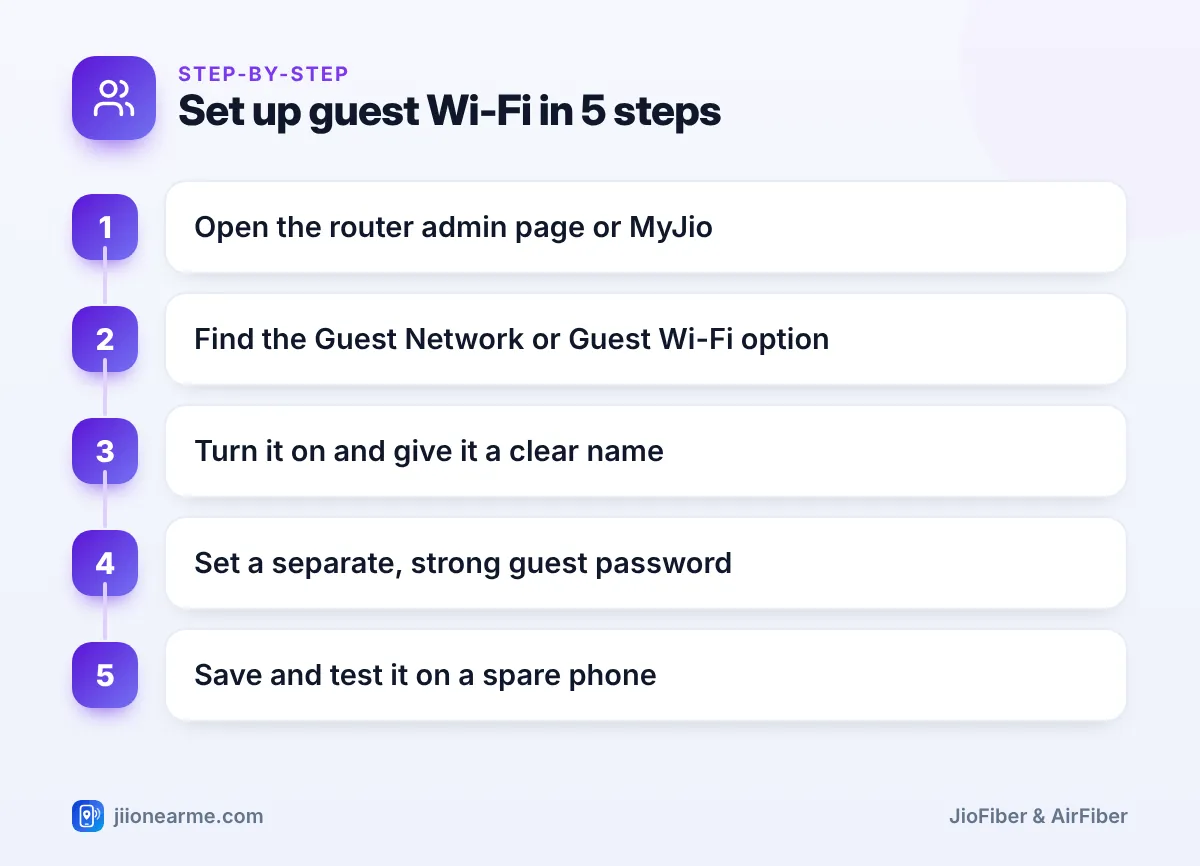
- Open the guest network settings in MyJio or on the router’s admin page.
- Switch the guest network On or Enable it.
- Choose the band. Use 2.4 GHz for wider reach, or both bands if the router allows it.
- Give the network a clear name, such as “HomeNet-Guest”, so visitors pick the right one.
- Set the security mode to WPA2 or WPA2/WPA3, never Open or no password.
- Enter a strong guest password that is different from your main one.
- If you see an option like Allow guests to access local network, keep it switched off.
- Tap Save or Apply, then connect a spare phone to test it.
Your main network keeps working as before. Only the new guest network is added.
Both Android phones and iPhones can share Wi-Fi details with a QR code from the Wi-Fi settings. Show the QR code for the guest network to visitors, so you do not have to read out or write down the password.
Safe Settings for Your Guest Network
A guest network is only as safe as its settings. Use this table as a quick check:
| Setting | Recommended choice | Why it matters |
|---|---|---|
| Security | WPA2 or WPA2/WPA3 | An open network lets anyone nearby join |
| Password | At least 12 characters, different from the main one | Keeps your main password private |
| Local network access | Off | Stops guests seeing your devices |
| Network name | Neutral, ending with “Guest” | Avoids sharing your name or flat number |
| Status | Off when not in use | Fewer chances for misuse |
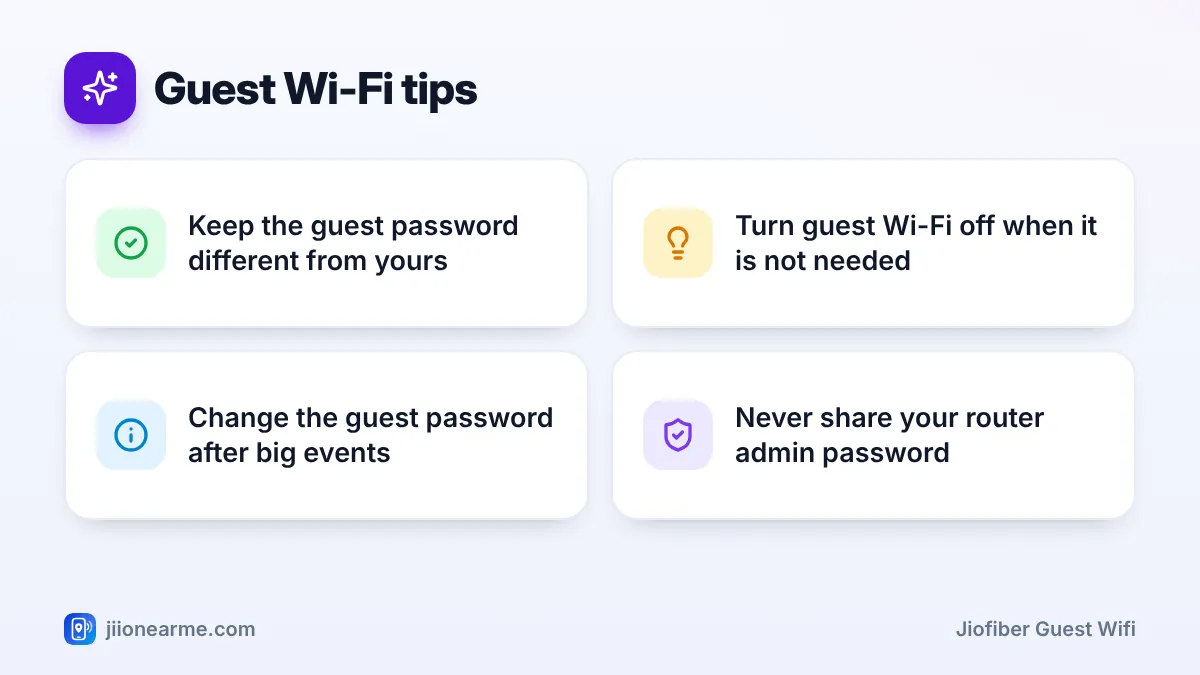
Change the guest password after large gatherings or when a regular visitor, such as a tutor or worker, stops coming. It takes a minute and does not affect your own devices.
Alternatives When There Is No Guest Option
If your router does not offer a guest network, you still have safe choices.
- Share your main password, then change it. For a one-off visit by family, this is often fine. Change the password afterwards if you shared it widely. Remember that all your own devices will need the new password too.
- Use a phone hotspot. For a short visit, turn on the hotspot on your phone with its own password. This uses your mobile data, so keep an eye on your daily limit.
- Share with a QR code. It saves typing, though the visitor’s phone still saves your password.
- Keep the main password strong. Whatever you choose, a long password and a regular look at your connected devices list help you spot anyone who should not be there.
Never share your router admin username and password with visitors, workers or callers. Anyone with the admin login can change your Wi-Fi settings, see your devices and lock you out.
Frequently Asked Questions
Can guests on JioFiber guest Wi-Fi see my devices?
On most routers, no. Guest devices get internet access but are kept apart from your main network, as long as any option to allow local network access is switched off.
Does guest Wi-Fi use a separate data limit?
No. Guest Wi-Fi shares your JioFiber plan, so heavy use by visitors counts towards your usage and can slow down your own devices.
Can I set up guest Wi-Fi from the MyJio app?
Some MyJio versions show a guest option in the JioFiber Wi-Fi settings. If yours does not, check the router’s admin page in a browser.
Should I leave the guest network on all the time?
It is better to switch it off when no visitors are using it. If regular workers or tenants need it daily, keep it on with a strong password and change it now and then.
Is guest Wi-Fi safe for smart home devices?
It can work for some gadgets, but features like local control or casting may stop working. Most people keep smart devices on the main network.
Final Thoughts
JioFiber guest Wi-Fi is a simple way to share internet without sharing your main network. Look for the option in MyJio or on the router’s admin page, give it its own strong password and switch off local access. If your router lacks the feature, share carefully and change your password when needed.
JIo Near me is an independent guide and is not affiliated with Reliance Jio. App menus, plans and policies can change – always confirm current details in the official MyJio app or on jio.com. We will never ask for your OTP, PIN or passwords.
