
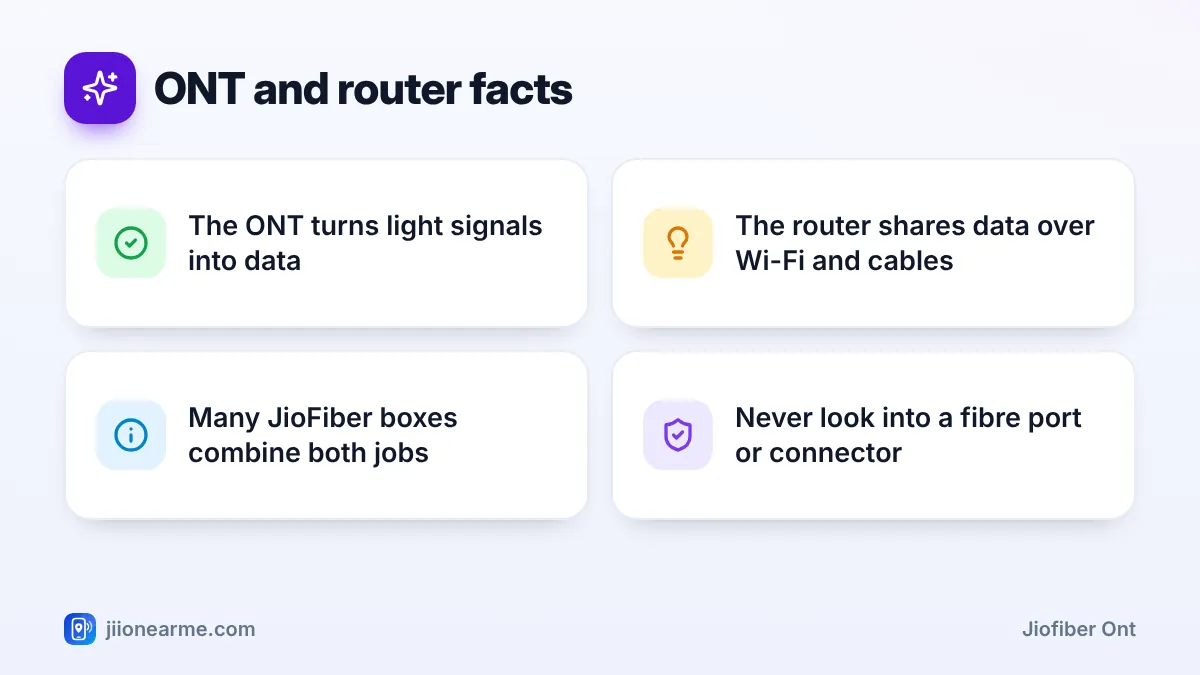
Every JioFiber connection needs two jobs done inside your home. First, the light coming through the fibre cable has to be turned into data. Second, that data has to be shared with your phones, TV and laptops. The JioFiber ONT does the first job, and the Wi-Fi router does the second.
In many JioFiber homes, both jobs happen inside a single box, which is why people simply call it “the router”. This explainer covers what each part does, how to tell which setup you have, and which ports and buttons matter for everyday use. Models vary, so the labels on your device may differ slightly.
- The ONT converts light from the fibre cable into data, and back again for uploads.
- The router creates Wi-Fi, gives each device an address and directs traffic.
- Many JioFiber installations use one box that does both jobs.
- Leave the fibre port and reset button alone unless Jio support asks you to use them.
What the JioFiber ONT Does
ONT stands for optical network terminal. You may also see it called an ONU (optical network unit). It is the end point of Jio’s fibre network inside your home.
Its main tasks are:
- Receiving light: It reads the pulses of light arriving through the fibre cable.
- Converting signals: It turns that light into electrical data that ordinary network equipment understands.
- Sending uploads: When you send a photo or join a video call, it turns your data back into light.
- Registering with Jio: It identifies your connection to Jio’s network so the right data reaches your home.
The ONT does not create Wi-Fi on its own. The fibre-related lights, such as PON and LOS, belong to this part of the setup. A red LOS light, for example, means the ONT is not receiving the light signal.
What the Wi-Fi Router Does
The router takes the data from the ONT and manages your home network. It:
- Gives each device on your network a local address
- Directs traffic between your devices and the internet
- Creates Wi-Fi, usually on both the 2.4 GHz and 5 GHz bands
- Provides Ethernet ports for wired devices
- Offers basic security settings, such as the Wi-Fi password and firewall
- Hosts a settings page where you can change the Wi-Fi name and password
On JioFiber, the router also handles the landline on plans with voice service, through its phone port.
One Box or Two: How JioFiber Setups Differ
Many JioFiber homes get a single combined box, sometimes called a home gateway. The fibre cable plugs straight into it, and the same box creates Wi-Fi. Some setups instead use a small separate ONT near where the fibre enters, linked by an Ethernet cable to a separate Wi-Fi router.
| Feature | Combined box | Separate ONT and router |
|---|---|---|
| Number of boxes | One | Two |
| Fibre cable plugs into | The main box | The small ONT |
| Power points needed | One | Two |
| Where Wi-Fi comes from | The same box | The router |
| Where to check the LOS light | The main box | The ONT |
How to tell which setup you have
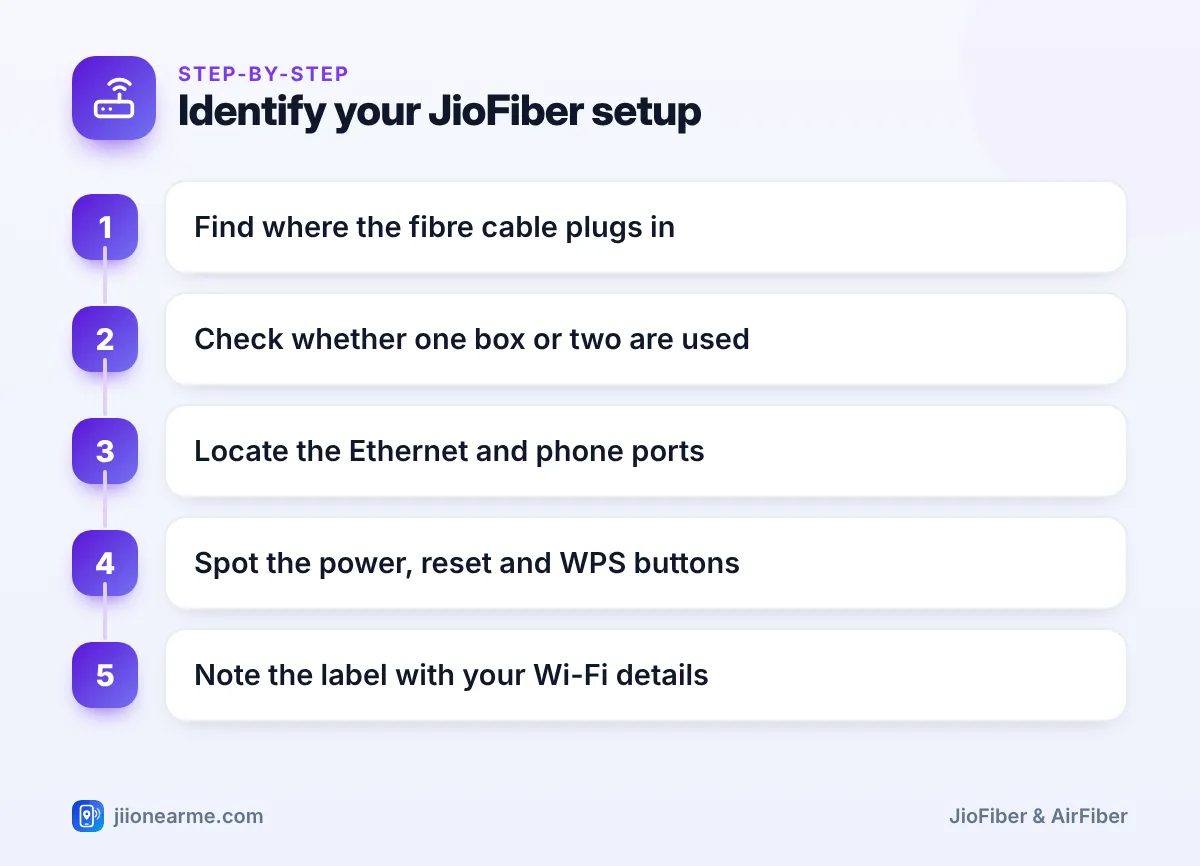
- Follow the thin fibre cable from the wall to the box it plugs into.
- Check whether that box shows Wi-Fi lights or has a Wi-Fi name printed on its label.
- If it does, you have a combined box. If not, look for a cable going to a second box.
- Locate the Ethernet (LAN) ports and the phone port on the box that creates Wi-Fi.
- Find the power button, the reset pinhole and the WPS button, if present.
- Photograph the label for your records, and keep that photo private.
You can usually connect your own Wi-Fi router or mesh system to a LAN port on the Jio box to cover more rooms. The Jio box must stay connected to the fibre. Check with Jio before changing the setup, because the landline and Set-Top Box depend on the Jio router.
Ports and Buttons That Matter Every Day
Ports
- Fibre port: Often marked PON or Optical. The fibre connector, frequently green, clicks in here. Leave it in place.
- Ethernet (LAN) ports: For a laptop, desktop, Set-Top Box or an extra router. A cable gives a steadier connection than Wi-Fi.
- Phone port: Marked with a phone icon or labelled TEL or Phone. Plug a landline handset in here on plans with voice service.
- USB port: Present on some models. What it supports depends on the model and its software.
- Power socket: Use only the adapter supplied with the device.
Buttons
- Power button: Some models have one. On others, you switch off at the wall socket.
- Reset pinhole: Holding it down restores factory settings and erases your custom Wi-Fi name and password. Avoid it unless you truly need a reset.
- WPS button: Lets compatible devices join Wi-Fi without typing the password. Press it only when you are pairing a device.
- Wi-Fi button: Some models have a button that turns Wi-Fi on or off. If Wi-Fi suddenly disappears, check whether it was pressed.
Standard safety advice is never to look into a fibre port or the end of a fibre connector, as the light can be invisible. Do not unplug the fibre connector unless Jio support asks you to.
Placement and Care for Your JioFiber Equipment
Good placement helps both the ONT and router work well:
- Keep the box in an open, central spot, slightly raised, for better Wi-Fi.
- Avoid closed cabinets, which trap heat and block Wi-Fi.
- Keep it away from microwave ovens and thick metal objects.
- Connect it to an inverter or UPS if power cuts are common.
- Do not stretch or bend the fibre cable to move the box. Ask Jio to relocate it if needed.
Frequently Asked Questions
Is the JioFiber ONT the same as a modem?
It plays a similar role. A modem converts the signal on a phone or cable line, while an ONT does the same job for a fibre line.
Can I move the ONT to another room myself?
It is better not to. Moving it usually means rerouting the fibre cable, which can easily be damaged. Raise a request with Jio instead.
Why does my router show two Wi-Fi names?
Many JioFiber routers broadcast separate networks for the 2.4 GHz and 5 GHz bands. The 5 GHz band is faster nearby, while 2.4 GHz reaches farther.
Does the ONT need to stay switched on all the time?
Yes. If it is off, your internet, landline and TV services through JioFiber stop working.
Can I replace the Jio router completely with my own?
The Jio box is needed to receive the fibre signal and run Jio’s services. Most people add their own router behind it rather than replacing it.
Conclusion
Once you know the roles, your JioFiber setup is easy to understand. The ONT handles light from the fibre, and the router shares the internet with your devices, often from one box. Know where your ports and buttons are, keep the fibre end untouched, and contact Jio for anything that involves moving the cable.
JIo Near me is an independent guide and is not affiliated with Reliance Jio. App menus, plans and policies can change – always confirm current details in the official MyJio app or on jio.com. We will never ask for your OTP, PIN or passwords.
