Parental controls on JioFiber work best in layers, because no single setting covers everything. Use router-level options to block websites or limit Wi-Fi hours, lock content on the TV and streaming apps, and turn on the built-in controls on your child’s phone or tablet. Together, these cover most of what children see and how long they spend online.
Router features differ by model and software version, so some options below may not appear on your router. Where that happens, the device-level controls carry more of the load. This guide shows what each layer can do, where to find it and its limits.
- Combine router controls, TV and app restrictions and device-level controls.
- Router options, where available, can block websites and set Wi-Fi schedules.
- Google Family Link and Apple Screen Time manage apps and time on each device.
- Talk to your child about the rules, because filters alone are never perfect.
How Parental Controls Work on a Home Network
Think of controls as three layers, each with its own strengths:
| Layer | What it can control | Main limitation |
|---|---|---|
| Router | Wi-Fi hours and some websites for chosen devices | Does not work when the child uses mobile data |
| TV and streaming apps | Age ratings, kids profiles and PINs | Applies only within that app or TV |
| Child’s device | App installs, screen time, content filters | Must be set up separately on each device |
Using at least two layers gives you much better coverage than relying on one.
Router-Level JioFiber Parental Control Options
Many JioFiber routers include options to restrict internet access for specific devices. Depending on your model, these can include a website or URL filter, an access schedule and a way to pause or block a device.
Finding the options
- Connect to your JioFiber Wi-Fi and open a browser.
- Enter the router’s admin address. It is printed on the router label, and on many JioFiber routers it is 192.168.29.1.
- Log in with the admin username and password, not the Wi-Fi password.
- Look under sections such as Security, Firewall, Parental Control or Access Control.
- If you also see device options in MyJio’s JioFiber Wi-Fi settings, check there for a pause or block feature.
Menus vary by router, so look for similar wording if yours is different.
Setting limits
- Website blocking: Add the web addresses you want to block for your child’s devices. It works best for a short list of specific sites.
- Access schedule: Choose your child’s device and set the hours when it can use Wi-Fi, such as no internet after bedtime.
- Pause or block: Cut off a device for a while, for example during study time or meals.
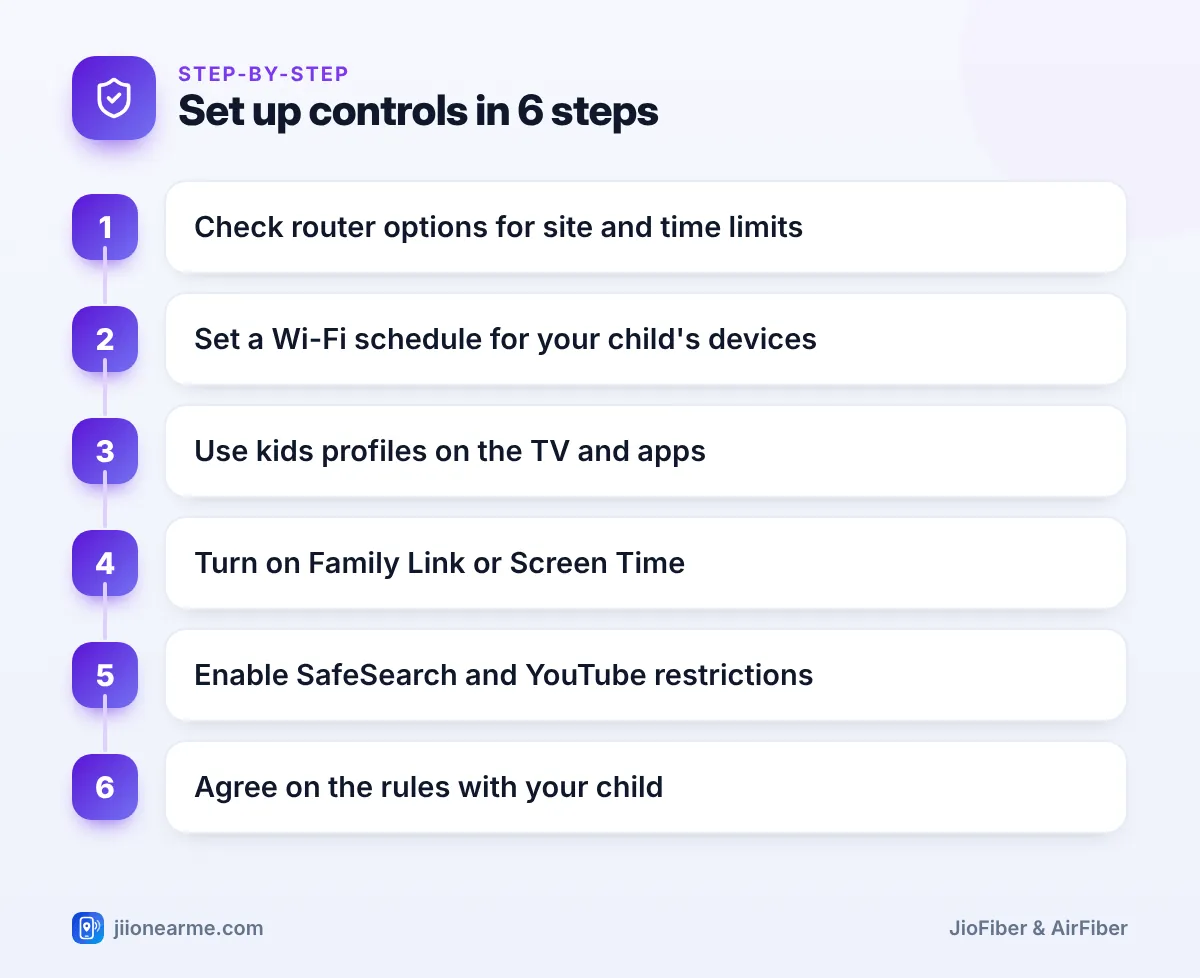
Most websites now use secure HTTPS connections. Router-level filters can block whole sites, but they cannot filter individual pages within a site. For finer filtering, rely on device-level and app controls.
Content Restrictions on the TV and Streaming Apps
Children often spend more time on the big screen than on a phone, so lock the TV too.
- Kids profiles: Streaming apps such as JioHotstar let you create a kids profile that shows age-appropriate content. Set up a PIN on the adult profiles so children cannot switch over.
- Age ratings: Many apps let you set a maturity rating limit for each profile.
- TV and Set-Top Box settings: Check the settings menu on your smart TV or Set-Top Box for a parental lock or PIN option, if available, to restrict certain channels or apps.
- YouTube on TV: Turn on Restricted Mode in the YouTube app settings, or use YouTube Kids for younger children.
Use a PIN your child cannot guess, and avoid birth years or simple patterns.
Device-Level Controls on Your Child’s Phone and Tablet
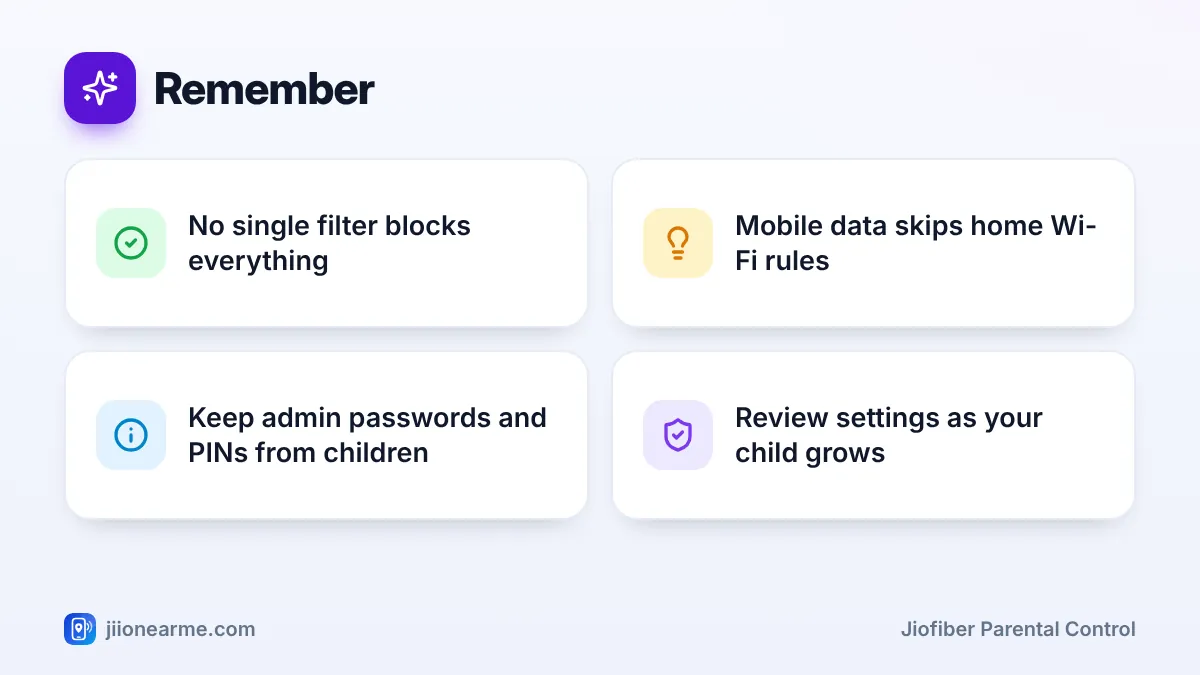
Device controls travel with the phone or tablet, so they still work when your child uses mobile data or someone else’s Wi-Fi.
Android phones and tablets
Google Family Link lets you manage your child’s Google account from your own phone. You can approve or block app downloads, set daily screen time limits, set a bedtime and see which apps they use most. Set it up from the Family Link app on your phone, or from the Google settings on the child’s device.
iPhone and iPad
Apple’s Screen Time, under Settings, lets you set downtime, app limits and content and privacy restrictions. With Family Sharing, you can manage it from your own iPhone and require your approval for app downloads.
Search and video
- Turn on Google SafeSearch to filter explicit search results.
- Use YouTube Kids for younger children, or a supervised YouTube experience for older ones.
- Keep app store age ratings switched on, so only suitable apps can be downloaded.
Use a separate child account or profile on shared tablets and laptops. That way, your own apps, payment details and browsing history stay out of reach.
Habits That Make Parental Controls Work
Technical controls work best with clear family rules. These habits help:
- Explain the rules. Children accept limits more easily when they understand why.
- Keep devices in shared spaces. Laptops and tablets in the living room need less policing.
- Protect your passwords. Keep router admin details, app PINs and your Google or Apple password private.
- Watch for workarounds. Mobile data, a friend’s hotspot or a second account can bypass home Wi-Fi rules.
- Review every few months. Loosen or tighten settings as your child grows and needs change.
If your child faces online harassment, threats or exploitation, save the evidence and report it on the national cybercrime portal at cybercrime.gov.in or call the cybercrime helpline 1930.
Frequently Asked Questions
Does every JioFiber router have parental controls?
Not every model offers the same features. Check the router’s admin page under Security, Firewall or Parental Control. If you find nothing, use device-level controls and app restrictions instead.
Can I block a website on JioFiber for only my child's phone?
On many routers, yes. Choose your child’s device in the parental control or access control settings and add the sites to block. The options available depend on your router model.
Do router controls work when my child uses mobile data?
No. Router rules apply only to devices using your JioFiber Wi-Fi. Device-level controls like Family Link or Screen Time keep working on mobile data.
Can I set Wi-Fi hours for my child's tablet?
If your router supports access schedules, you can set the hours when the tablet can use the internet. Device-level downtime settings do the same job on the tablet itself.
Will parental controls slow down my internet?
Generally, no. Schedules and simple website blocks do not noticeably affect speed for the rest of the household.
Conclusion
The most effective JioFiber parental control setup combines router options, TV and app restrictions, and device-level controls on your child’s phone or tablet. Set the layers that your router and devices support, keep passwords and PINs private and talk openly with your child about the rules.
JIo Near me is an independent guide and is not affiliated with Reliance Jio. App menus, plans and policies can change – always confirm current details in the official MyJio app or on jio.com. We will never ask for your OTP, PIN or passwords.
