The last few minutes before the JioFiber technician leaves are the best time to catch problems. While they are still at your home, check five things: the router lights, the Wi-Fi names and passwords, a speed test, the Set-Top Box and the landline. If anything is not right, it can be fixed on the spot instead of waiting for a new visit.
This checklist takes about fifteen minutes. Run through it with the technician, write down the important details and only then let them close the job. Router models and app labels differ, so treat the descriptions below as a general guide.
- Confirm the router’s fibre light is steady and no warning light is on.
- Connect to both Wi-Fi bands and note the names and passwords.
- Run a speed test close to the router and in the rooms you use most.
- Test the Set-Top Box and landline, and check the connection appears in MyJio.
Check the Router Lights
The router’s lights tell you whether the fibre connection and internet are working. Light names vary by model, but look for these signs:
- Power: steady on.
- Fibre or PON light: steady, not blinking for a long time.
- LOS light, if your router has one: off. A red or blinking LOS light usually means the fibre signal is not reaching the router.
- Internet light: on, showing the connection is active.
- Wi-Fi lights: on for the bands in use.
- Phone light: on if your plan includes a landline.
Take a photo of the router with all lights normal. Later, if something goes wrong, you can compare and describe the problem clearly to customer care.
Confirm Wi-Fi Names and Passwords
Most JioFiber routers broadcast two Wi-Fi networks, one on 2.4 GHz and one on 5 GHz. Some routers use separate names for each, often with “5G” in one name, while others combine them under a single name.
What “5G” in the Wi-Fi name means
Here, “5G” refers to the 5 GHz Wi-Fi band, not Jio True 5G mobile service. The 5 GHz band is faster at short range, while 2.4 GHz reaches farther through walls but is slower.
Connect your phone to each network and confirm both work. Then decide on a strong password of your own. In the MyJio app, select your JioFiber account and look for a Wi-Fi or router settings option to change the name and password. The label may differ by app version, so ask the technician to show you where it is.
Choose a Wi-Fi password with at least 10 characters, mixing letters and numbers, and avoid your phone number or flat number. Save it in a notes app and share it only with people in your household.
Run a Quick Speed Test
A speed test shows whether you are getting roughly the speed your plan promises. Use a trusted speed test app or website, or the speed test option in MyJio if your version shows one.
- Test first on a device close to the router, connected to the 5 GHz network.
- If you have a laptop with an Ethernet port, test once with a cable for the most accurate reading.
- Then test in the rooms where you work, study or stream most.
Wi-Fi speeds are usually lower than the plan speed, especially on older phones or far from the router. That is normal. But if the result near the router is far below your plan speed, ask the technician to check before leaving.
Test the Set-Top Box and Landline
If your plan includes these, check them now rather than later.
Set-Top Box: Switch the TV to the correct HDMI input and make sure the box starts up, connects to the internet and responds to the remote. Open a few channels or apps and play something for a minute.
Landline: Plug a corded phone into the router’s phone port. Make an outgoing call to your mobile, then call the landline from your mobile to confirm incoming calls work. Note the landline number, which you can usually also find in the MyJio app.
If your plan does not include a Set-Top Box or landline, skip these checks. Ask the technician if you are unsure what your plan includes, or check the plan details in MyJio.
Check MyJio and Note Down Key Details
Open the MyJio app and confirm the JioFiber connection appears with your plan and status. You should also receive an SMS about activation.
Write down these details and keep them somewhere safe:
| Detail | Where to find it |
|---|---|
| Wi-Fi names and passwords | Router label, technician or MyJio |
| Landline number | Activation SMS or MyJio |
| Plan name and status | MyJio app |
| Service request or booking reference | Booking SMS or MyJio |
| Customer care numbers | 199 from a Jio number, 1800-889-9999 toll-free |
Your Routine After JioFiber Installation, Before Sign-Off
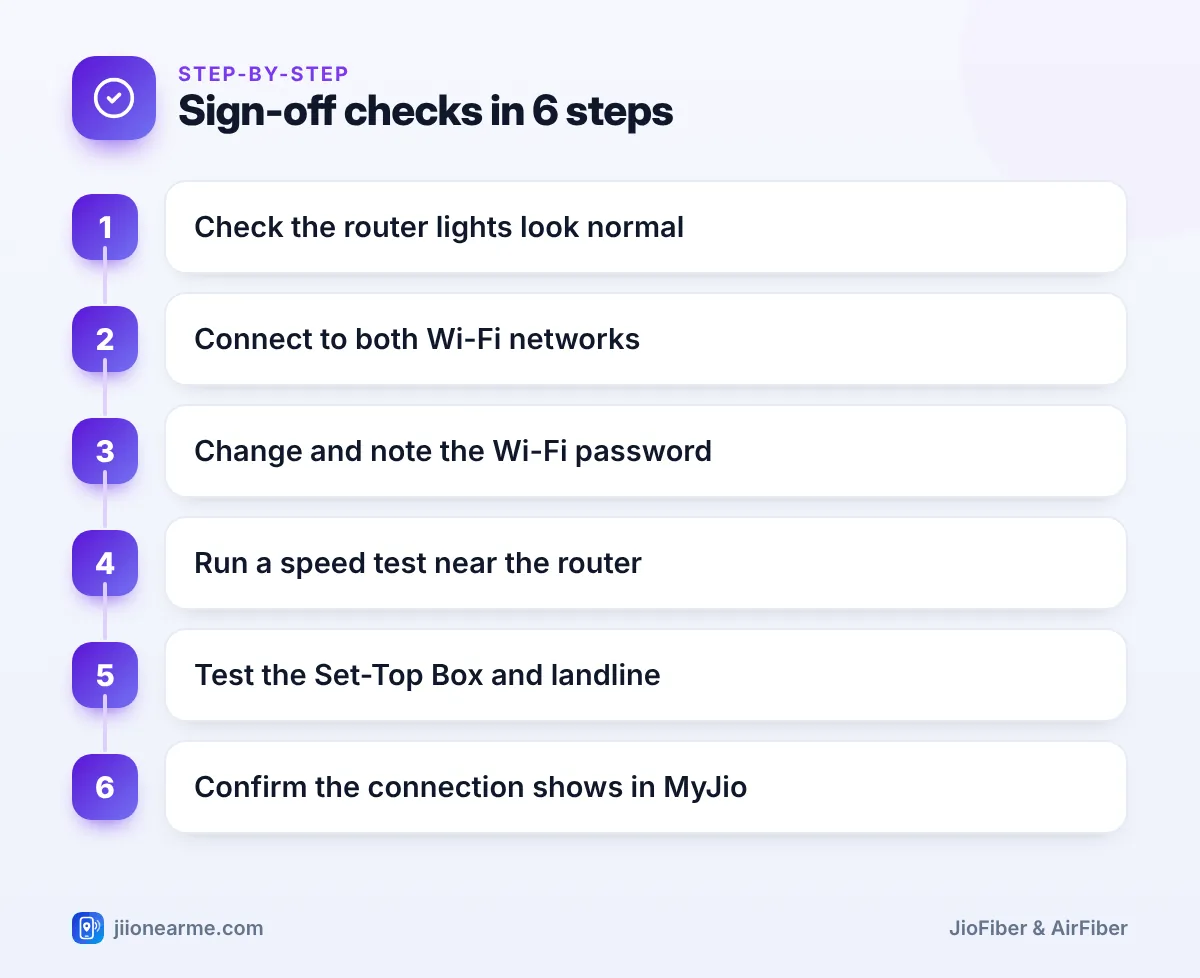
Here is the full sequence to follow right after JioFiber installation, with the technician still present:
- Look at the router lights and take a photo.
- Connect to both Wi-Fi networks on your phone.
- Change the Wi-Fi password and save it.
- Run a speed test near the router and in one far room.
- Test the Set-Top Box and the landline, if included.
- Confirm the connection in the MyJio app.
- Check the cable route: clips are firm, there are no sharp bends and the entry hole is sealed.
- Ask how to restart the router safely if the internet stops.
Do not confirm the job as complete until the internet works on your own device. Never share an OTP with anyone over a phone call, and if anyone asks for cash or a payment to a personal UPI ID, check with Jio customer care first.

Frequently Asked Questions
What should I do if the LOS light is red after installation?
A red or blinking LOS light usually means the fibre signal is not reaching the router. Ask the technician to check the fibre connection before they leave. If it happens later, restart the router once and then contact customer care.
Why is my Wi-Fi speed lower than my plan speed?
Wi-Fi speed depends on the device, distance and walls. A test near the router on 5 GHz, or over an Ethernet cable, gives a fairer picture of your actual connection speed.
Can I change the JioFiber Wi-Fi password later?
Yes. You can usually change it from the MyJio app by selecting your JioFiber account and opening the Wi-Fi or router settings. The exact label can differ by app version.
Where do I find my JioFiber landline number?
It is usually shared by SMS on activation and shown in the MyJio app under your JioFiber account. You can also ask the technician before they leave.
What if the technician is in a hurry to leave?
Politely ask for ten more minutes to finish the checks. A quick fix now is far easier than booking a new visit later.
Summary
Right after JioFiber installation, check the router lights, Wi-Fi names and passwords, speed, Set-Top Box and landline while the technician is still at home. Note down the key details, confirm the connection in MyJio and only then let the job be closed. Fifteen minutes now can save you days of follow-up calls.
JIo Near me is an independent guide and is not affiliated with Reliance Jio. App menus, plans and policies can change – always confirm current details in the official MyJio app or on jio.com. We will never ask for your OTP, PIN or passwords.
