A kids profile is the simplest way to keep your child’s JioHotstar screen limited to age-appropriate shows. Once it is set up, the profile shows its own home screen with cartoons, animated films and other children’s titles, and keeps adult shows out of sight. You can create one from My Space in about a minute.
A profile alone is not the whole job, though. Children are quick to tap the profile switcher, and each phone or TV in the house can open a different profile. This guide covers creating the profile, locking adult profiles where the app allows it and checking every device your family uses.
- Create a kids profile from My Space by adding a profile and turning on the Kids option
- Where the app offers a parental or profile lock, use it so children cannot switch to adult profiles
- Check which profile opens on every phone, tablet, TV and set-top box separately
- Combine JioHotstar settings with phone-level tools such as Google Family Link or Screen Time
What a JioHotstar Kids Profile Does
A kids profile changes what your child sees inside the app. It is designed to:
- Show a separate home screen filled with children’s content
- Keep mature movies and shows out of the browse rows and search results
- Maintain its own watchlist and Continue Watching row, so your child’s cartoons do not mix with your thrillers
- Keep your own recommendations based on what you watch, not what your child watches
Profiles are part of your JioHotstar account, so a kids profile uses your existing subscription. The number of profiles you can create may depend on your plan.
What a kids profile does not do is stop someone from tapping into another profile. Unless you add a lock, anyone holding the device can switch. No content filter is perfect either, so a quick check now and then is still a good idea.
How to Create a JioHotstar Kids Profile
These steps work on the Android and iPhone apps. Labels may differ slightly depending on your app version.
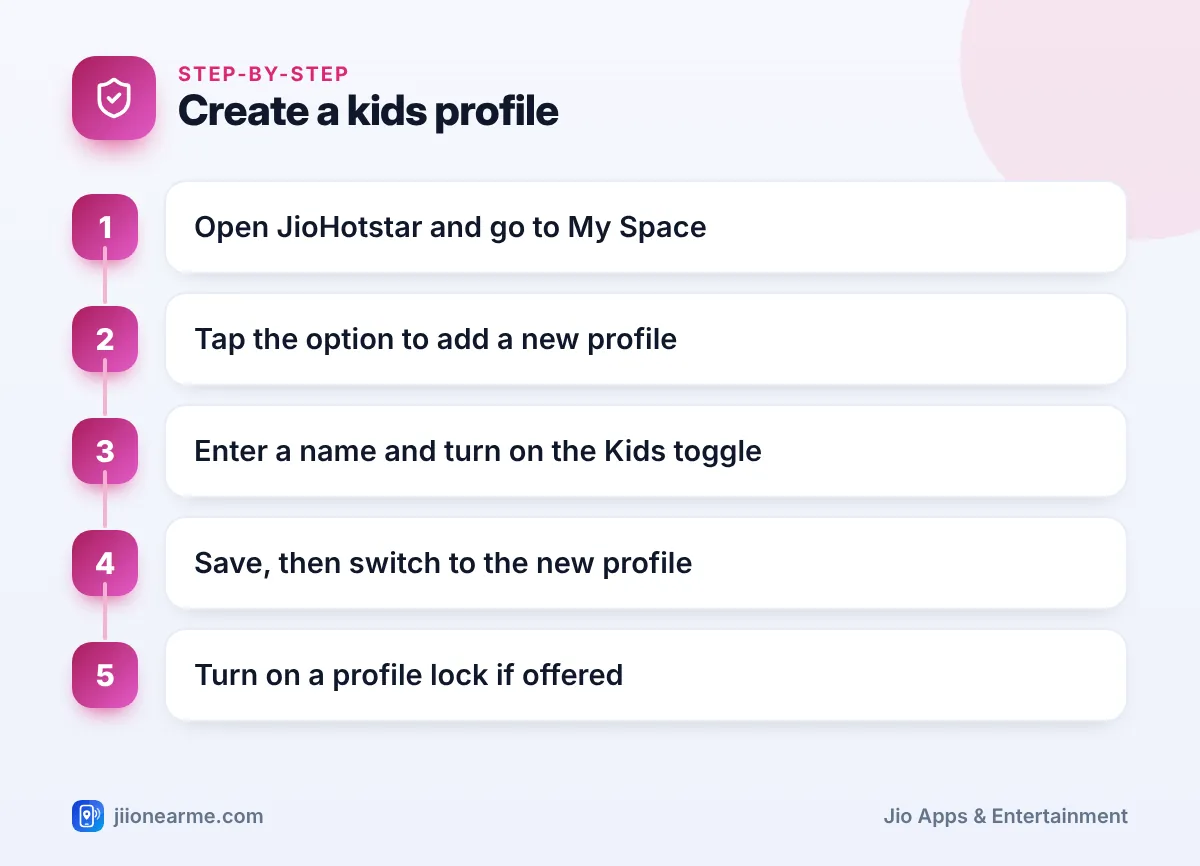
- Open the JioHotstar app and sign in with your mobile number.
- Go to My Space, usually found in the bottom menu.
- Tap your profile name or the profile switcher, then choose Add or the + icon. On some versions this sits under Manage profiles or Edit.
- Type a name your child will recognise and pick an avatar if offered.
- Turn on the Kids toggle. If the app asks for an age or age group, select the one that fits.
- Save the profile.
- Switch to the new profile and scroll through the home screen to confirm it shows children’s titles.
If you do not see any option to add a profile, your plan may limit the number of profiles. Check your plan details in the app or upgrade options on the subscription page.
Editing or removing a kids profile later
Go back to profile management in My Space and choose Edit. Select the kids profile to rename it, change its avatar or delete it. Deleting a profile removes its watchlist and viewing history, so do it only when it is no longer needed.
Stopping Children From Switching to Adult Profiles
The main gap in any profile setup is the switcher. A child who knows where to tap can move from their profile to yours in seconds.
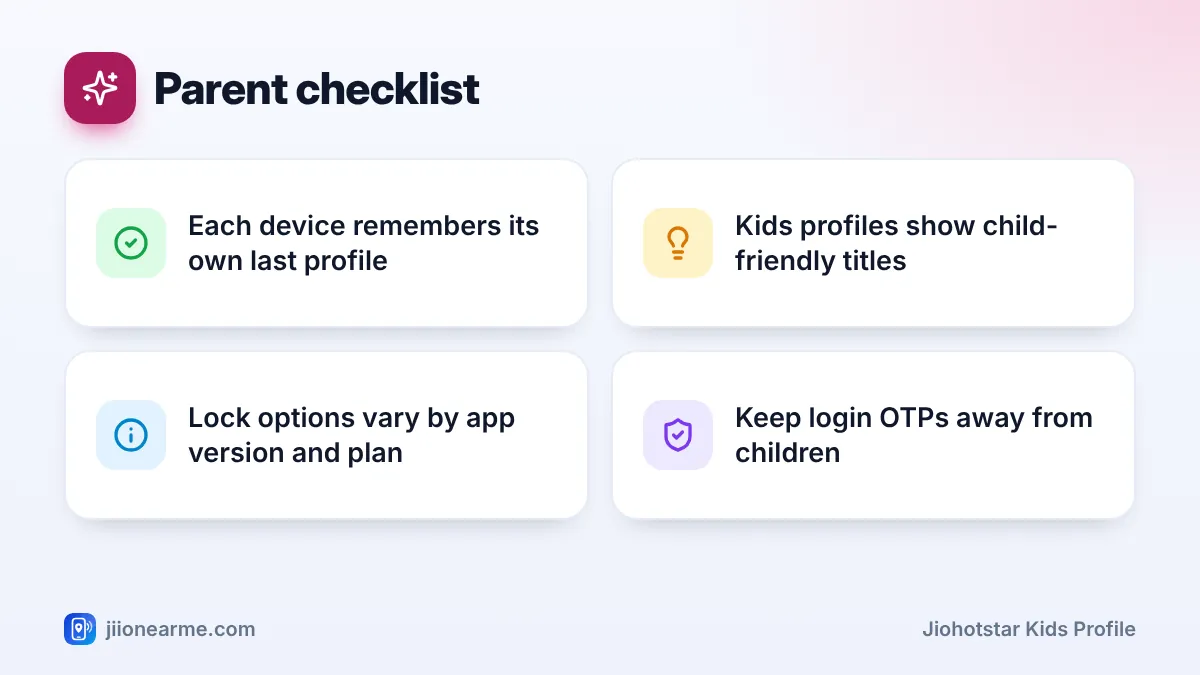
To close that gap, open My Space, tap the settings or gear icon and look for an option such as Parental controls, Parental lock or Profile lock. Where the option exists, set a PIN that your child does not know. Once it is on, the app asks for the PIN before leaving the kids profile or opening other profiles.
Whether this lock is available can depend on your app version, device and plan. The TV app may also behave differently from the phone app, so check both.
If your app has no lock option
You can still keep a child inside one app using built-in phone features:
- Android app pinning: turn on app pinning (sometimes called screen pinning) in your phone’s security settings, then pin JioHotstar while the kids profile is open. Leaving the app needs your phone PIN.
- iPhone and iPad Guided Access: turn on Guided Access in Accessibility settings, open JioHotstar on the kids profile and start it. Leaving needs your passcode.
Avoid simple PINs like 1234 or your birth year. Never share the OTP sent to your mobile number with anyone, including children, because an OTP lets someone sign in to your account on a new device.
Checking the Setup on Every Family Device
Profiles are saved to your account, but each device decides which profile opens when the app starts. Your child’s tablet may still open your profile even after you create a kids profile on your phone. Go through each device one by one.
| Device | What to check |
|---|---|
| Child’s phone or tablet | Opens the kids profile, lock is on, app is updated |
| Family smart TV | Which profile opens at launch and whether a lock option is offered |
| JioFiber or Jio AirFiber set-top box | The same checks inside the JioHotstar app on the box |
| Laptop browser | The profile selected on the website, and log out if the child uses it alone |
| Your own phone | Switch to the kids profile before handing it over |
Repeat this check after a major app update or whenever you sign in on a new device.
Test the setup the way a child would. Open the app on each device, tap the profile icon and search for a show you know is meant for adults. If it appears, or another profile opens without a PIN, fix the setting on that device.
Extra Safety Habits for Families
JioHotstar settings work best alongside a few simple household rules and phone features.
- Use device-level controls. Google Family Link on Android and Screen Time on iPhone and iPad let you set content limits and daily screen time.
- Protect purchases. In the Google Play Store, require authentication for purchases. On Apple devices, use Ask to Buy through Family Sharing.
- Glance at viewing history. The kids profile’s Continue Watching row quickly shows what your child has been watching.
- Watch together when you can. Sitting with younger children helps you spot titles that do not suit your family, even if they are labelled for kids.
- Report problems. If something unsuitable shows up in a kids profile, report it through the help section in the app.
Frequently Asked Questions
Is a kids profile free on JioHotstar?
Profiles are part of your JioHotstar account, so a kids profile uses your existing subscription. The number of profiles you can add may depend on your plan.
Can my child switch out of the kids profile?
Without a lock, yes, because the profile switcher is open to anyone holding the device. Use a parental or profile lock if your app offers one, and add phone tools like app pinning or Guided Access.
Does the kids profile work on TV too?
Yes. Profiles belong to your account, so the kids profile appears on the TV after you sign in. You still need to select it there, and lock options on TV apps can differ from the phone app.
Will my child's viewing affect my recommendations?
Not if your child uses their own profile. Each profile keeps its own watchlist, Continue Watching row and suggestions.
What should I do if a kids profile shows something unsuitable?
Stop playback, note the title and report it through the help section in the JioHotstar app. Then confirm that the profile still has the Kids option turned on.
Conclusion
Setting up a JioHotstar kids profile takes a minute, but making it safe takes a little more care. Create the profile, add a lock where the app offers one, and check every phone, tablet, TV and set-top box in your home. Pair that with Family Link or Screen Time, and your child gets a screen full of shows meant for them.
JIo Near me is an independent guide and is not affiliated with Reliance Jio. App menus, plans and policies can change – always confirm current details in the official MyJio app or on jio.com. We will never ask for your OTP, PIN or passwords.
