If you have changed phones, sold an old TV or once watched a match on a friend’s TV, your JioHotstar account may still be signed in there. You can fix this from your own phone. Open My Space, go to the settings or account area, find the list of logged-in devices and log out the ones you no longer use.
Cleaning up this list does two things. It frees up space within your plan’s device limit, and it stops other people from watching on your account or seeing your profiles and history. The steps below show where to look, what to do when the app blocks a new login and how to keep your account secure afterwards.
- Your logged-in devices list sits in the settings or account area under My Space
- You can log out each old phone, TV or browser from that list without touching the device
- If you reach your device limit, the app usually asks you to log out of one device first
- JioHotstar sign-in uses your mobile number and OTP, so keeping your SIM and OTPs safe protects your account
Why You Should Remove Old Devices
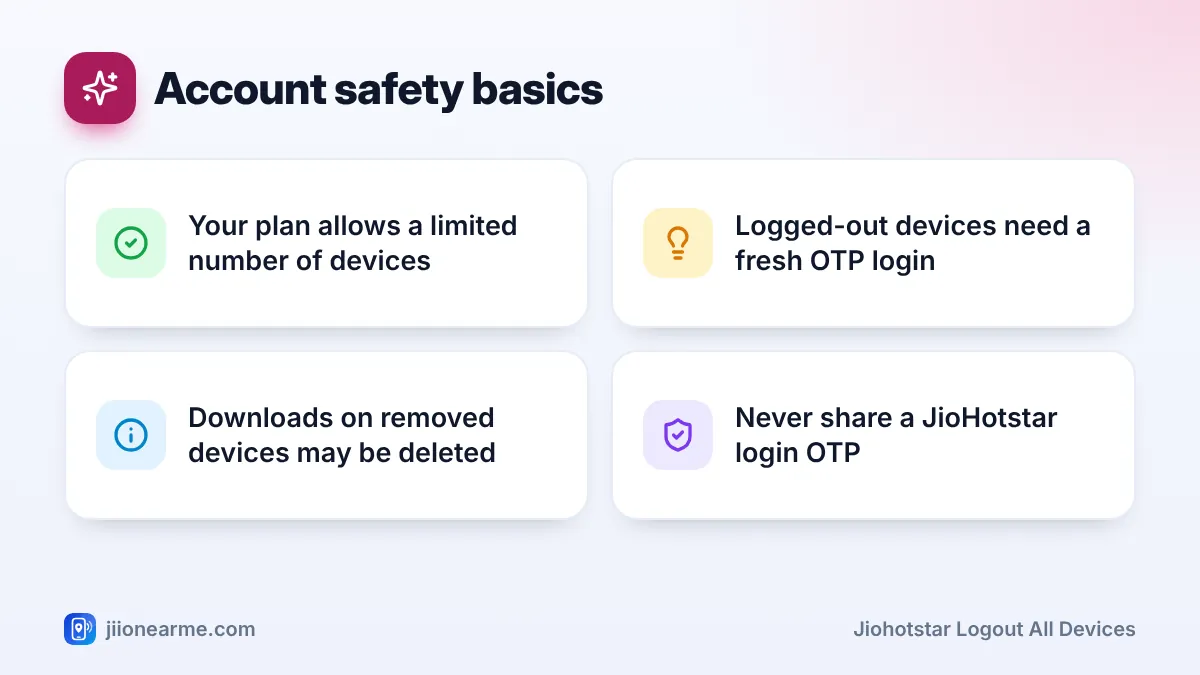
Every JioHotstar plan allows a limited number of devices. Old phones and TVs that are still signed in take up those places, even if nobody uses them. When you try to log in on a new device, the app may refuse until you remove one.
Privacy is the other reason. A device that is still signed in shows your profiles, your watchlist and your viewing history. If you have sold or given away a phone, or used a hotel or relative’s TV, the next person could keep watching on your plan.
Where to Find Your Logged-In Devices List
The exact location depends on your app version, but it is usually close to your account details.
- Mobile app: open My Space, tap the settings or gear icon, and look for an option named Devices, Manage devices or Logged-in devices. On some versions it sits inside an account or subscription page.
- Website: sign in on the JioHotstar website from a laptop, open your profile or account menu, and look for a similar devices section.
The list usually shows each device’s type or name, such as an Android phone, an iPhone, a smart TV or a web browser. Some versions also show when the device was last active.
JioHotstar updates its app often, so the devices option may move or be renamed. If you cannot find it, search the help section inside the app for “devices” or “log out”.
JioHotstar Logout All Devices: Step-by-Step
Follow these steps on the phone you use every day.
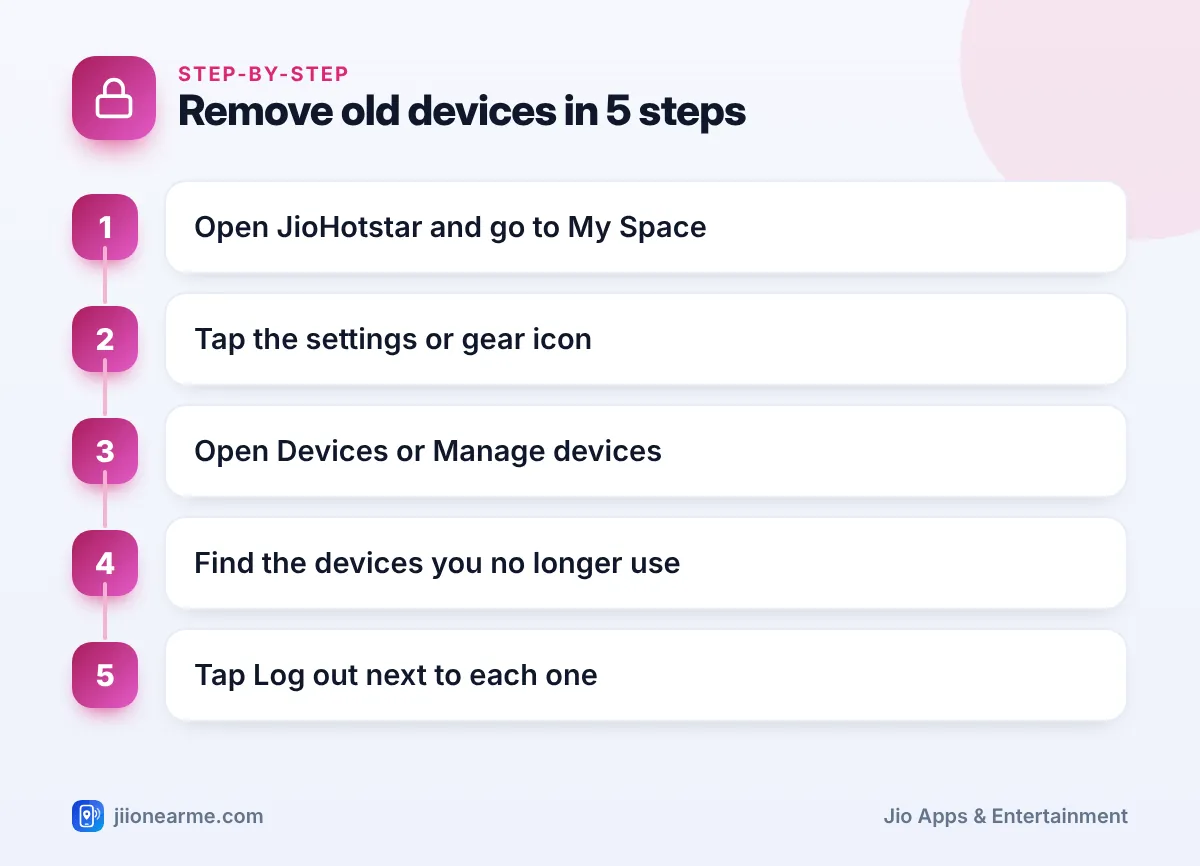
- Open the JioHotstar app and make sure you are signed in with your usual mobile number.
- Tap My Space, usually in the bottom menu.
- Tap the settings or gear icon.
- Open Devices, Manage devices or the similarly named option.
- Go through the list and identify the devices you no longer use, such as an old phone, a sold TV or a browser on someone else’s laptop.
- Tap Log out or Remove next to each of those devices and confirm.
- Check the list again to make sure only your current devices remain.
Some versions may also offer a single option to log out of all devices at once. That is handy if you have lost track of where you signed in, but remember it also logs out your own phone and TV. You will need to sign in again on each one with your number and an OTP.
Spotting a device you do not recognise
If the list shows a device you never used, log it out straight away. Then think about who might have had access to your phone or an OTP. Read the security section below before you sign in again on your own devices.
Logging Out Directly on a Device You Still Have
If the old device is still with you, you can sign out from the device itself. This also clears your account from that screen.
| Device | How to log out |
|---|---|
| Android phone or iPhone | My Space, then settings, then Log out |
| Smart TV app | Open settings or your profile area in the app, then Log out |
| JioFiber or Jio AirFiber set-top box | Same as the TV app, inside JioHotstar on the box |
| Laptop or computer browser | Profile or account menu on the website, then Log out |
Logging out on a phone can remove any downloaded titles saved there. If you are only switching phones, watch or note what you need first.
When the App Says You Have Reached the Device Limit
Sometimes you only find out about old devices when a new login fails. The app shows a message saying you have reached the maximum number of devices for your plan. In most cases, it also shows the list of signed-in devices right there.
- Read the list and choose a device you no longer use.
- Tap Log out next to it.
- Continue with the login on your new device.
If every device on the list is one you still use, you will need to stop using one or check your plan options under My Space. The device limit is part of the plan, so it cannot be raised from settings.
Before you sell, exchange or give away a phone or TV, log out of JioHotstar on it first, then factory reset the device. That way you never have to clean up the device list later.
Keeping Your Account Secure After the Cleanup
JioHotstar sign-in is based on your mobile number and a one-time password sent by SMS. That makes your SIM and your OTPs the keys to your account.
- Never share an OTP. No genuine support agent needs it. Anyone with the code can sign in on a new device.
- Lost your phone? Contact Jio on 1800-889-9999 to block the SIM, and report the handset on the Sanchar Saathi portal so it can be blocked.
- Giving up a number? Log out of all devices and cancel or let lapse any subscription on it, because mobile numbers are eventually reassigned to new users.
- Check regularly. A quick look at the devices list every few months keeps it tidy.
If you suspect fraud involving OTPs or payments, report it at the national cybercrime helpline 1930.
Callers or messages offering to fix your JioHotstar login and asking for an OTP are scams. Hang up and use only the help section inside the official app.
Frequently Asked Questions
Can I log out of JioHotstar on a TV without the remote?
Yes. Open the devices list from your phone app or the website and log out the TV from there. The TV shows the login screen the next time someone opens JioHotstar on it.
Will logging out a device delete my profiles or watchlist?
No. Profiles, watchlists and viewing history belong to your account, not the device. They reappear when you sign in again. Downloads saved on that device may be removed, though.
Why can't I find the devices option?
It may have a different name or sit in another menu in your app version. Update the app, check under My Space and the settings icon, or search for it in the help section.
Does logging out of other devices cancel my subscription?
No. Your subscription stays active. Logging out only removes access from the selected devices.
How often should I check my device list?
Check it whenever you change phones, sell a TV or sign in somewhere temporary. A routine check every few months is a good habit.
Wrapping Up
Removing old devices from JioHotstar takes a couple of minutes. Open the devices list under My Space, log out anything you no longer use and keep only the screens you trust. Pair that with good OTP and SIM habits, and your account and subscription stay in your hands.
JIo Near me is an independent guide and is not affiliated with Reliance Jio. App menus, plans and policies can change – always confirm current details in the official MyJio app or on jio.com. We will never ask for your OTP, PIN or passwords.
